Merchant Settings
In the IXOPAY Payments Intelligence web-app, you can configure your data settings to mask sensitive data, set significance buckets for your payment data and to ensure that you get real-time alerts through preferred 3rd party notification channels by integrating Slack® and email tools.
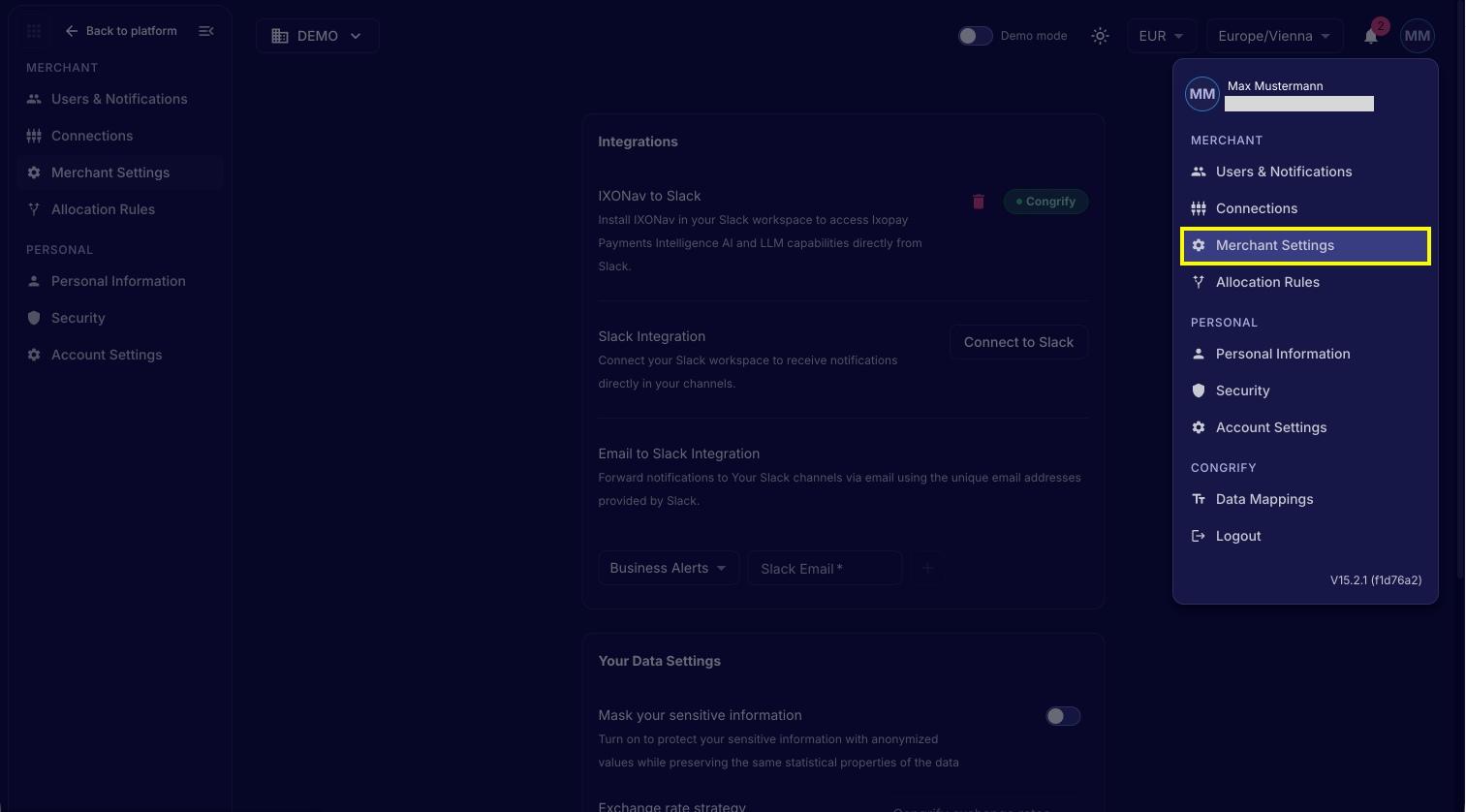
To start, navigate to the Merchant Settings under your User tab → Merchant Settings
Integrating Slack® as a notification channel
-
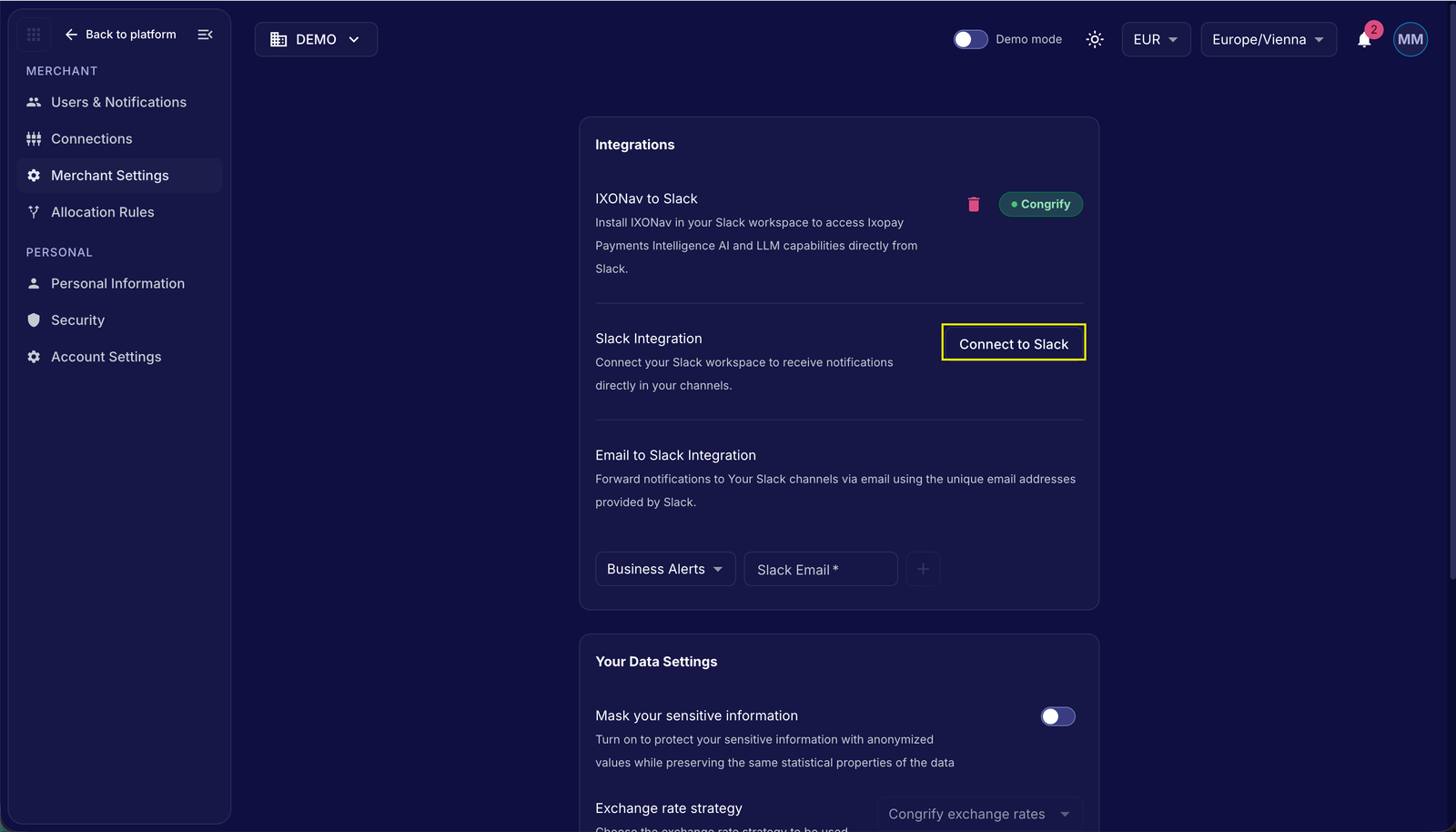
On the IXOPAY Payments Intelligence web-app -> Merchant Settings, you can initiate the Slack integration by clicking on the 'Connect to Slack' button
-
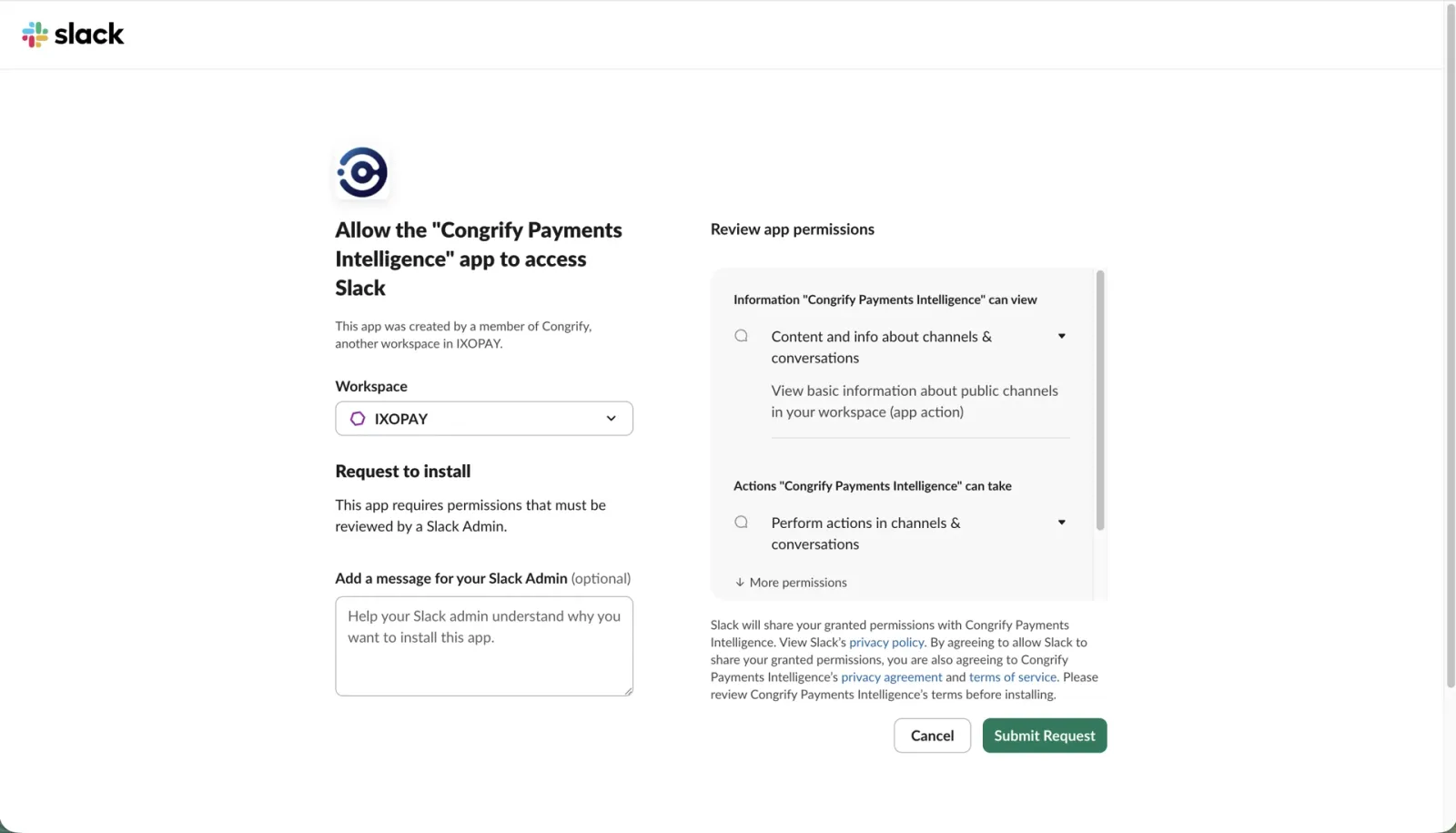
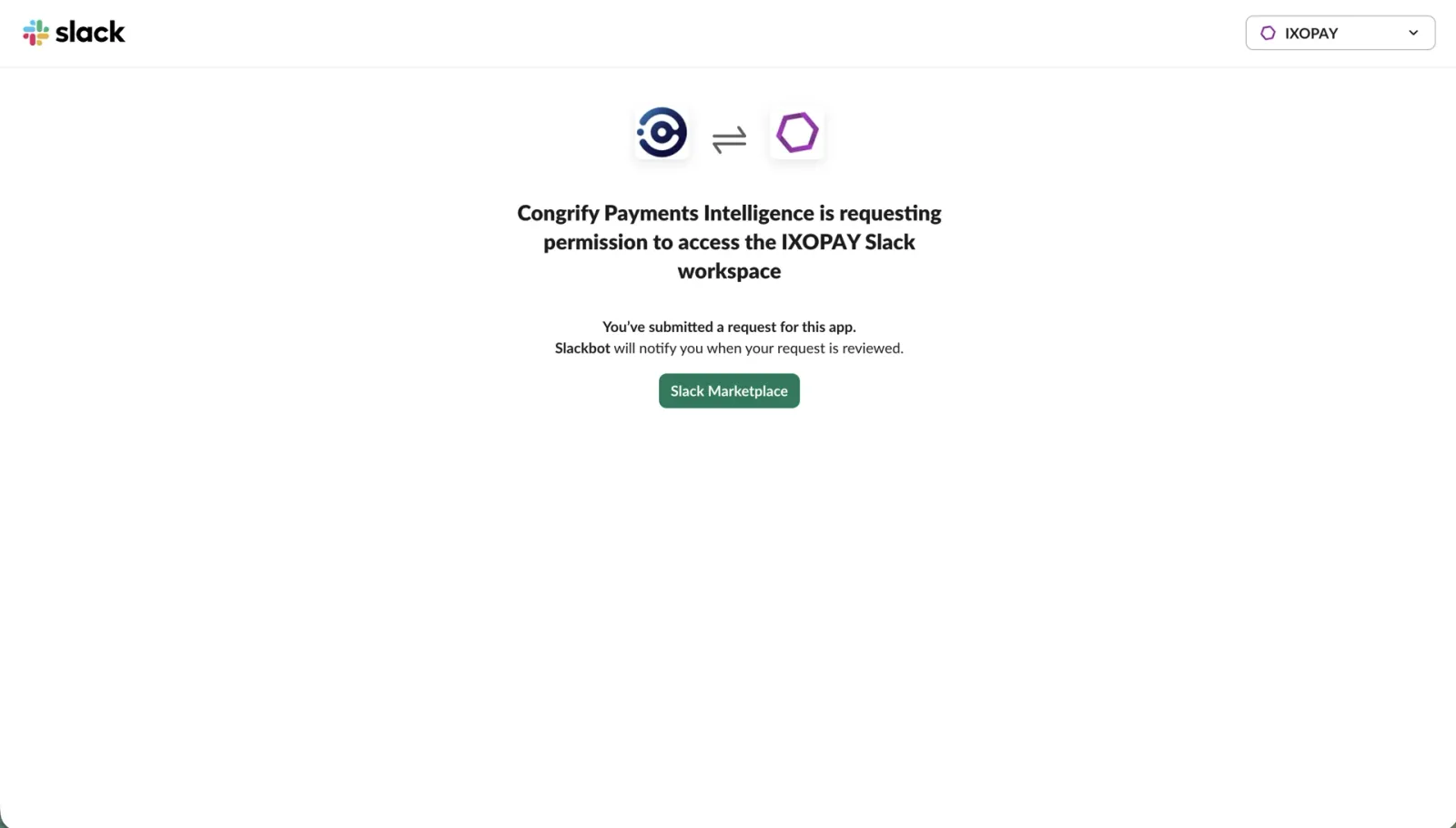
You will be re-directed to the Slack website to assign your company Slack workspace, review and allow the necessary app permissions and submit the request to your company Slack Administrator to integrate with the Congrify Payments Intelligence Business Intelligence app on Slack. Please note that our Slack app cannot be directly accessed through the Slack App Marketplace, and you would need to enable it as instructed above. Please also note that your Organizations Slack Admin needs be part of that specific Slack Channel (i.e. where our Slack app needs to be enabled) organizations' Slack instance, in order to find and fully onboard our Slack app through the “Add an Agent or App” button.
-
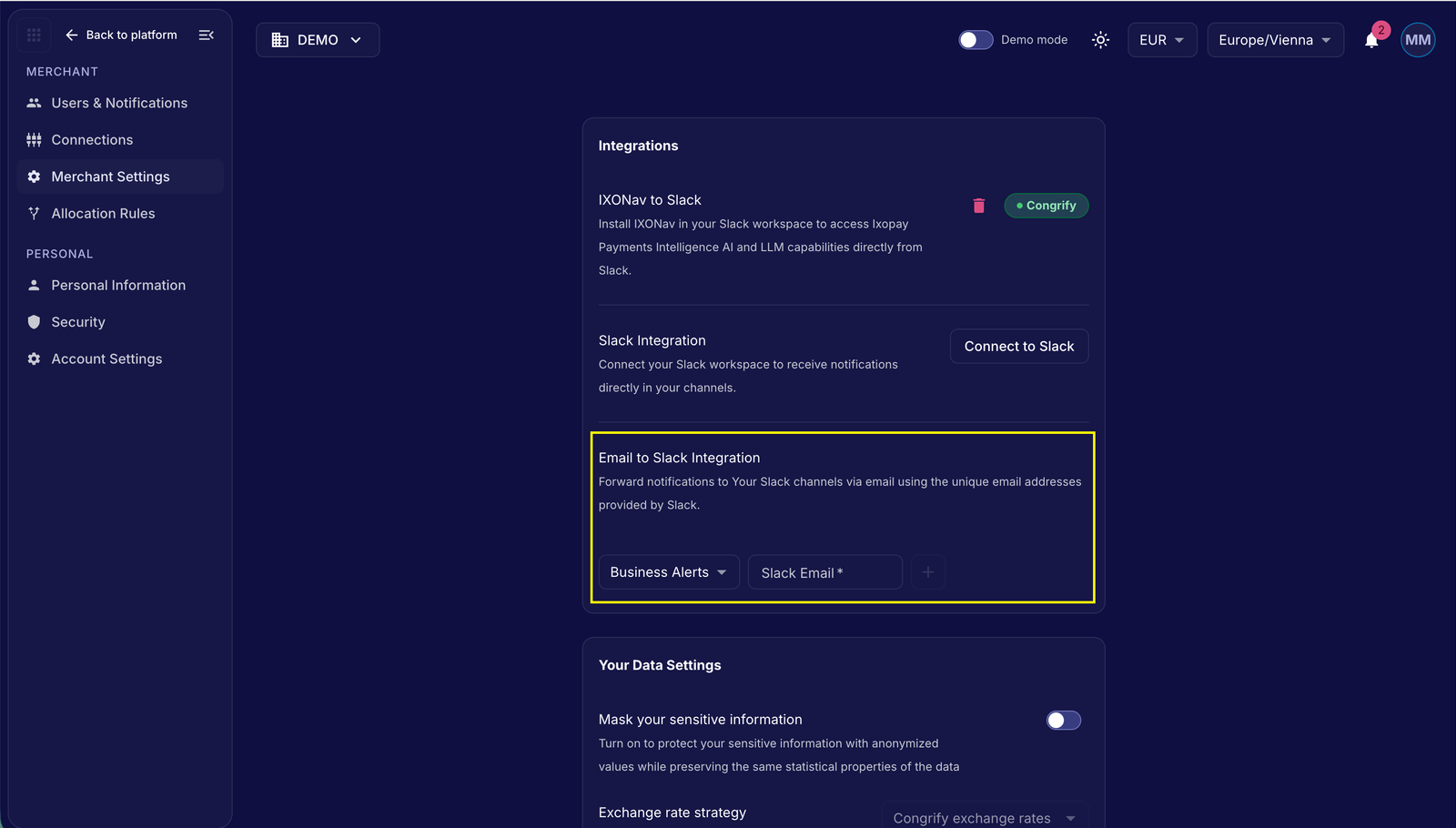
Alternatively, you may also setup your Business Alerts to be sent over the official Slack email, which can further send updates and notifications to the corresponding Slack channel
Masking sensitive information
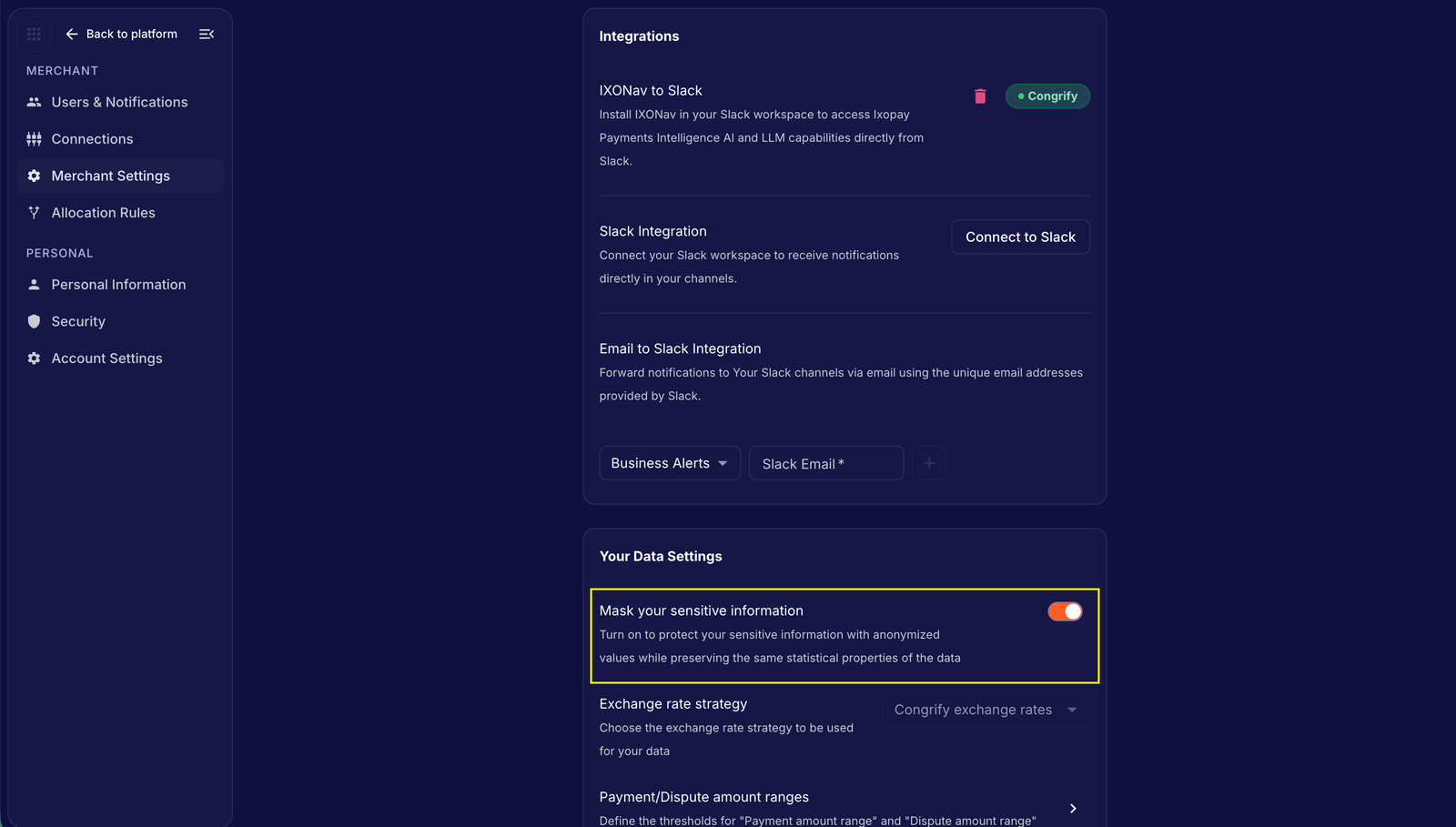
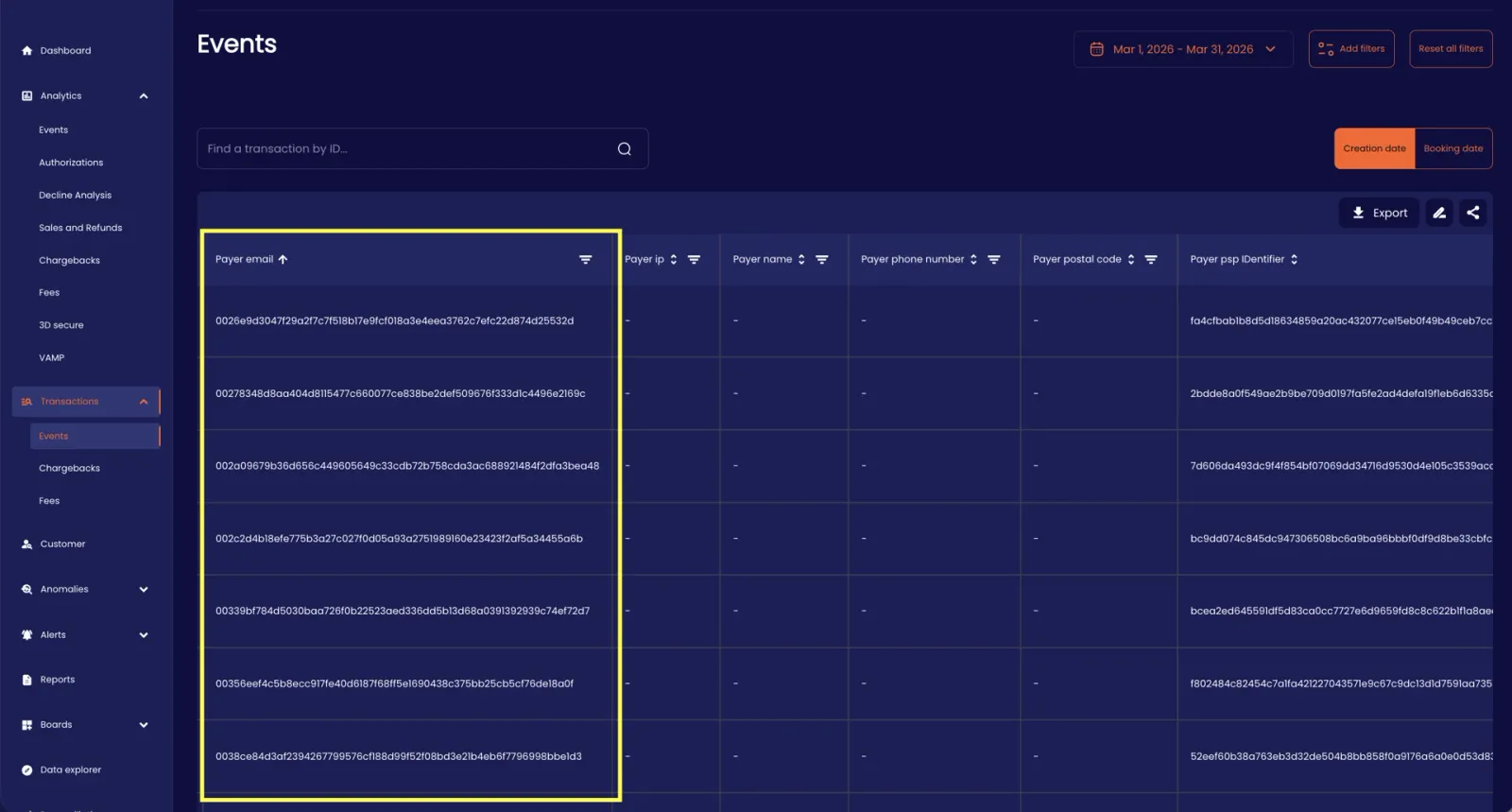
IXOPAY Payments Intelligence allows you to further mask sensitive personally identifiable information from the detailed views available to Users through an easy toggle under ‘Merchant Settings’ → 'Your data settings'. While all payer indirect identifiers are already anonymized or pseudonymized such that no sensitive information like the Payer card details are exposed to unauthorized Users, masking sensitive information further anonymizes the PAN details through unique hash values, such that the payer uniqueness and statistical insights are still available.
Example of unique hash value replacing the sensitive Payer emails in the IXOPAY Payments Intelligence platform.
Exchange Rate Strategy
While IXOPAY Payments Intelligence provides accurate and updated foreign exchange conversion rates to support multi-currency reporting, you can choose your own preferred foreign exchange rates for real-time conversions on the IXOPAY Payments Intelligence platform. To setup the integration of your own preferred foreign exchange rates via shared file transfer, please get in contact with our Support Team in the IXOPAY Customer Experience Portal.
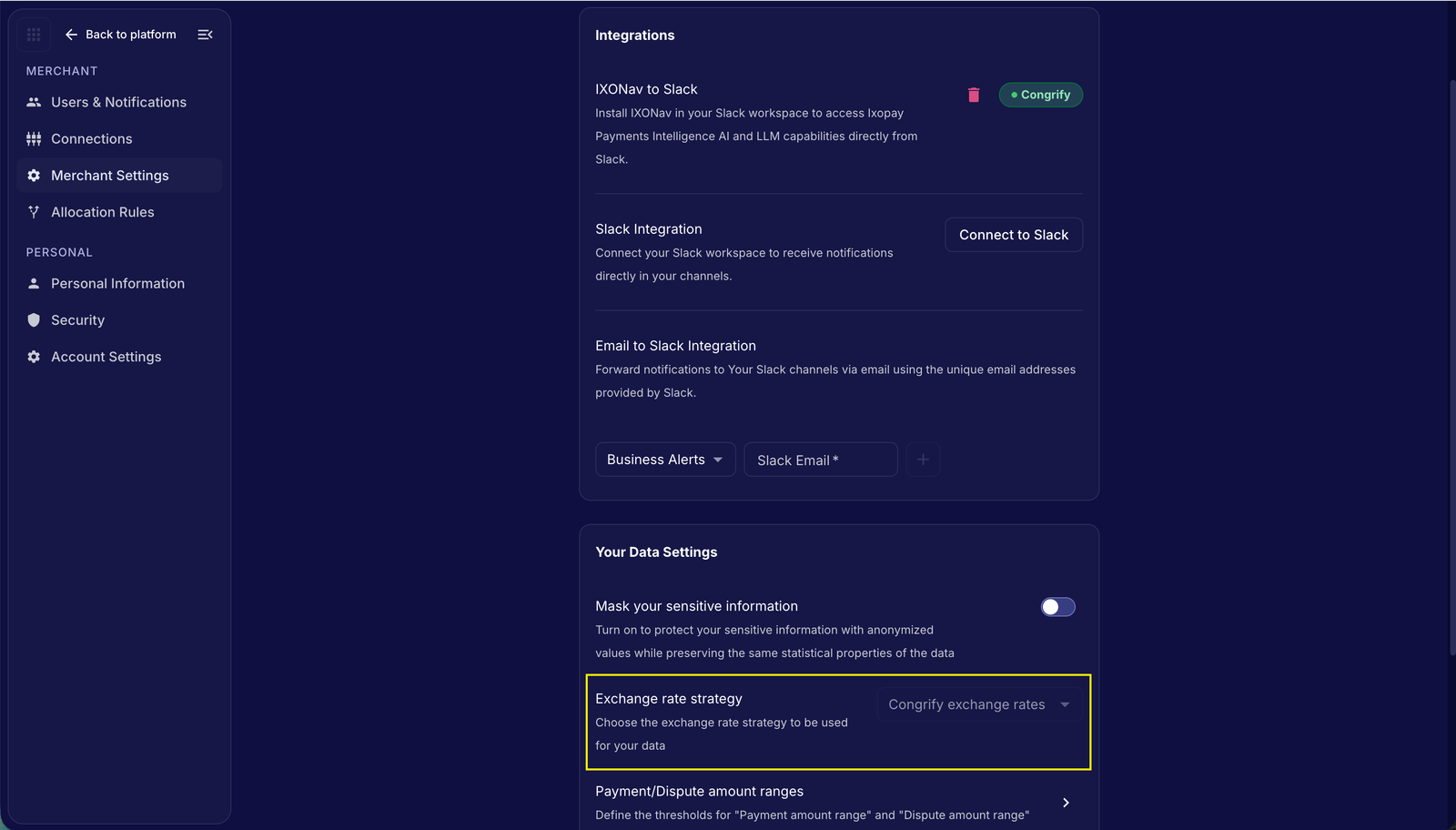
Defining thresholds for ‘Payment amount ranges’ and 'Dispute amount ranges'
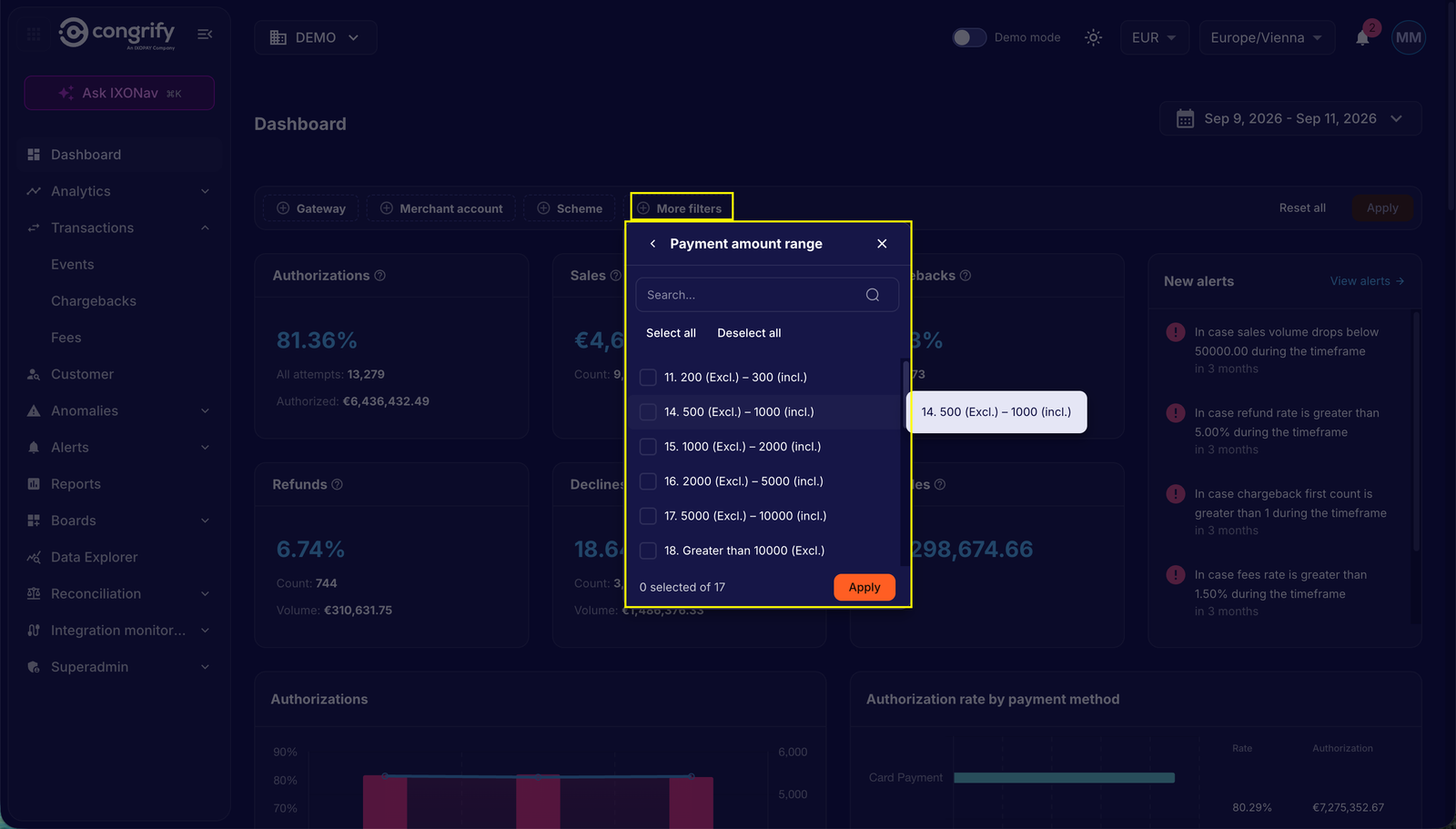
In the ‘Merchant Settings' → 'Payment/ Dispute amount ranges’ you can define the range thresholds which are available as filters to update the dashboard and analytics pages with the relevant ranges for aggregating data into visible insights.
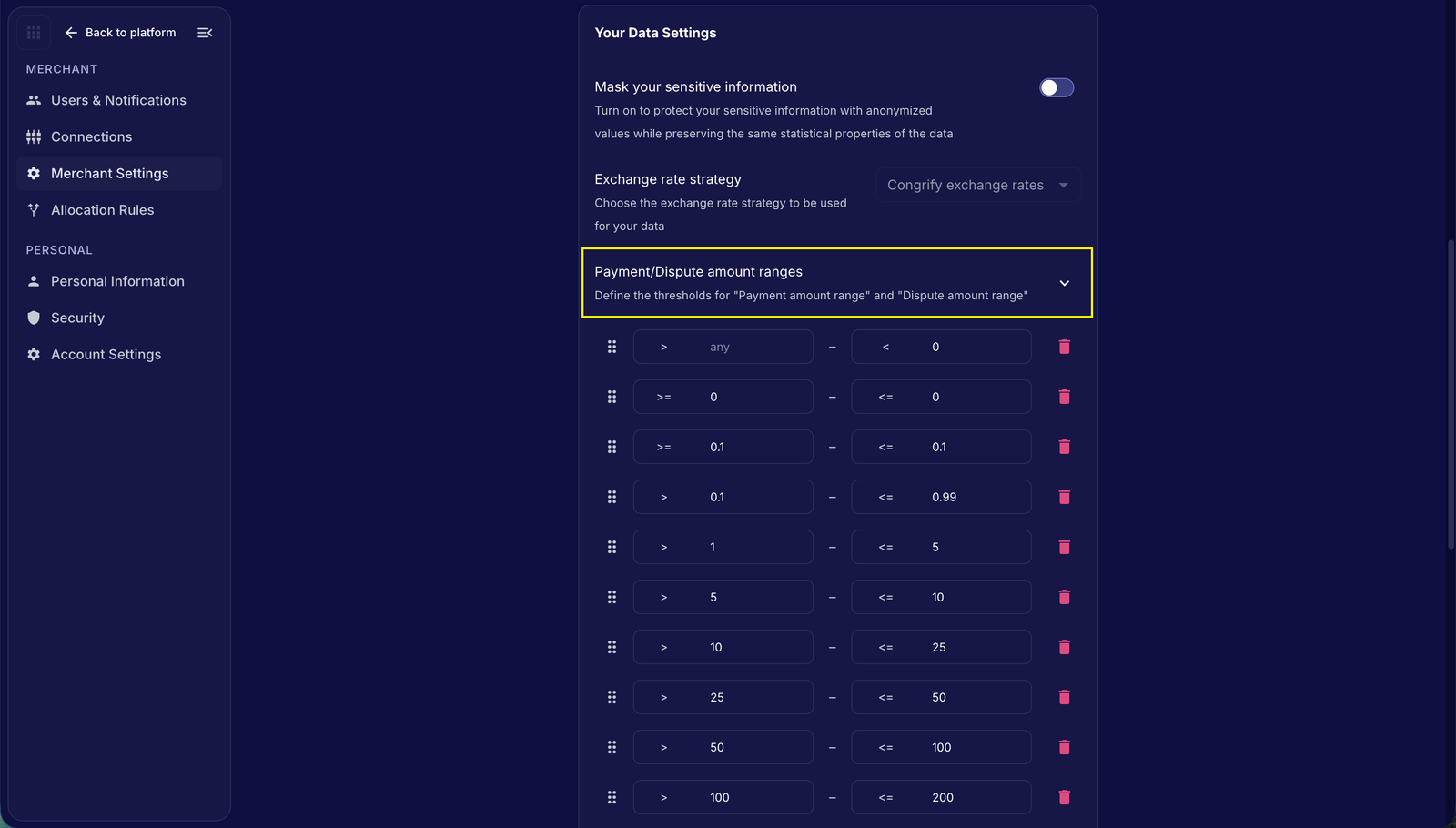
On setting the defined thresholds in 'Merchant Settings', such payment and dispute threshold ranges are available as pre-defined filter ranges to conveniently adjust the insights available on your dashboard.