Integration Monitoring
IXOPAY Payments Intelligence's Integration Monitoring suite provides you with a transparent, real-time window into the data ingestion lifecycle. It ensures data integrity monitoring every transaction, fee, dispute, settlement and other payments data related file from your PSPs are successfully captured, processed, and ready for analysis on the IXOPAY Payments Intelligence platform.
To monitor the ingestion of your payments files, navigate to the ingestion pipelines under ‘Integration Monitoring’ on the sidebar of the IXOPAY Payments Intelligence platform. It contains three sub-sections:
- IXOPAY: Data ingestion health of files processed natively on the IXOPAY Payments Intelligence platform.
- Snowflake: Health of data flowing into your Snowflake data warehouse.
- Ingestion Logs: a detailed log of ingested Reports per PSP and file type.
IXOPAY Ingestion
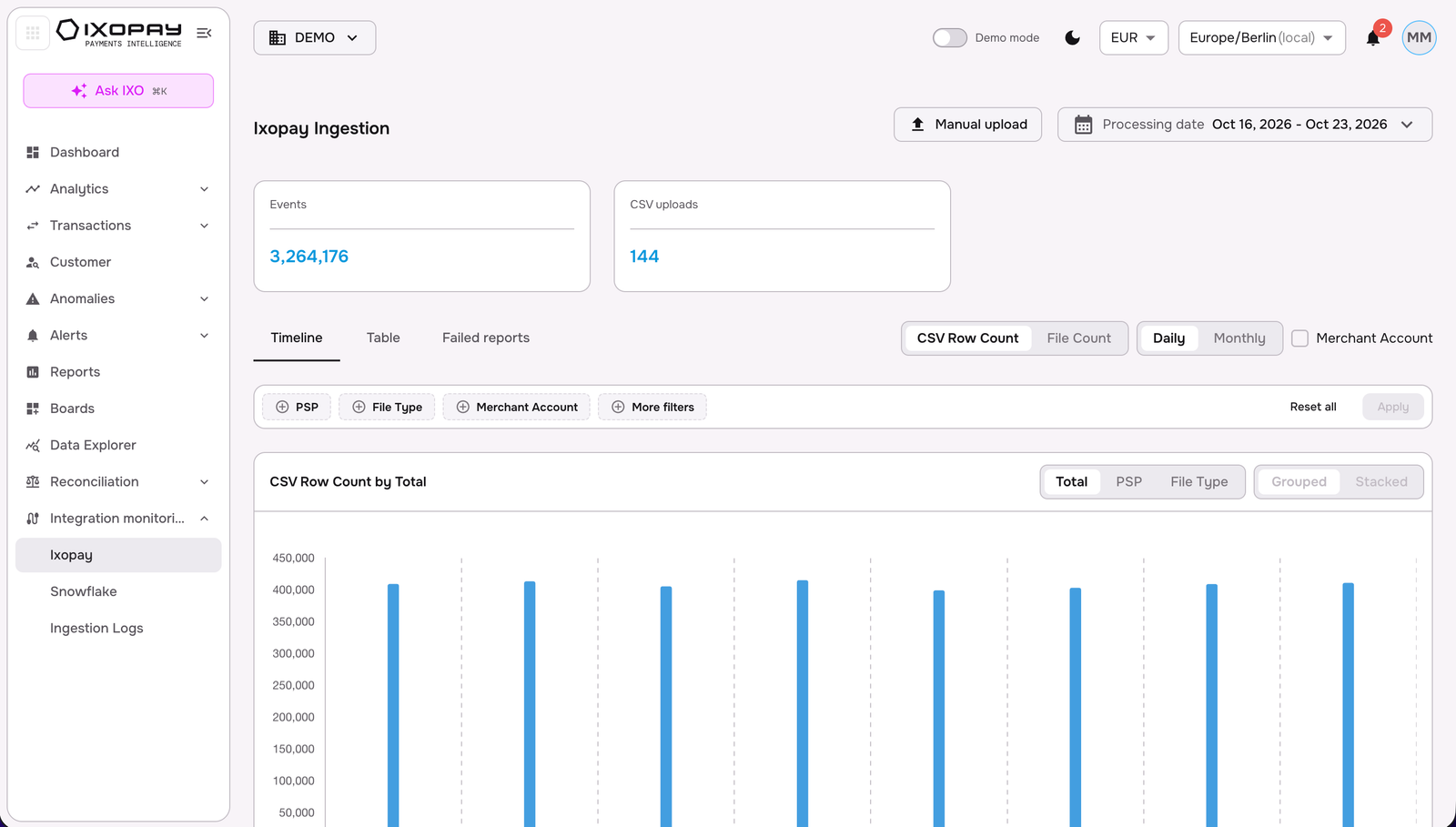
At the top of the IXOPAY page, you get immediate visibility of the key ingestion indicators for the selected date range:
- Events: The total volume of individual data points successfully processed.
- CSV uploads: The total number of physical files ingested into the platform.
Date selection
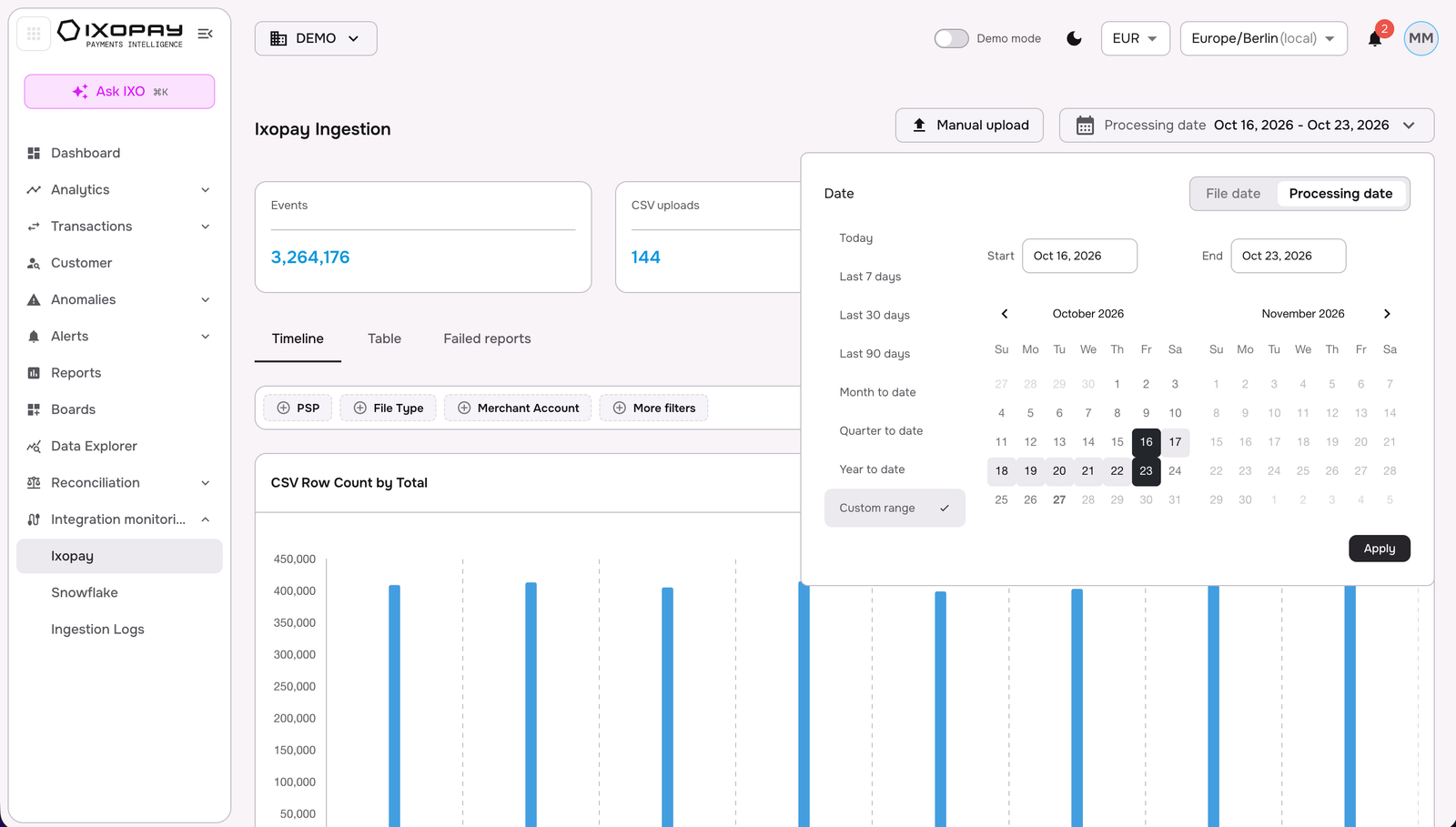
Use the date selector in the top-right corner to define the period shown on the page.
-
File date / Processing date: Choose whether the range applies to the date of the file or to the date on which the file was actually processed by the platform.
Manual upload
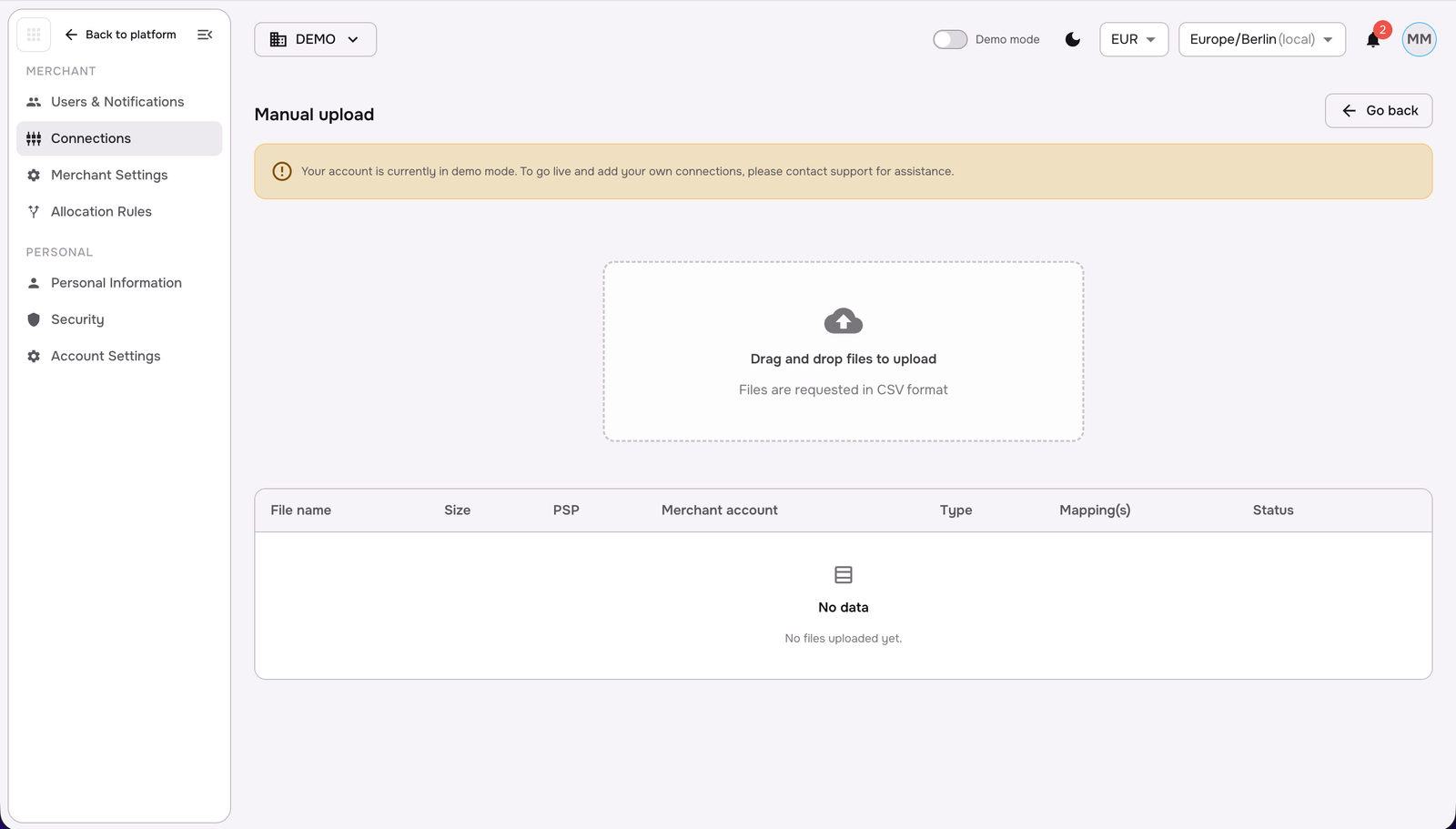
If a PSP report could not be delivered automatically, click Manual upload (top of the IXOPAY Ingestion page). You will be re-directed to the upload page under Merchant -> Connections in Settings tab, where you can drag-drop the CSV file(s) in bulk mode, check the list below for files (including metadata and mapping configuration) to be ingested and processed by the platform.
Views
The IXOPAY Ingestion page offers three tabs to audit your data flow: Timeline, Table and Failed reports.
Timeline view
A horizontal overview of data health, organized by PSP and File Type/ Report. This view allows you to track consistency over a specific date range.
Customize the timeline through flexible reporting parameters:
-
Metric toggle: Switch your view between CSV Row Count (the number of events/ rows within files) and File Count (the number of files) to identify volume spikes or missing batches.
-
Daily / Monthly: Generate and view ingestion reports on a daily or monthly basis to match your reconciliation cycles.
-
Merchant Account: Tick the Merchant Account checkbox to break the timeline down by merchant account.
-
Filters: Narrow the data using the PSP, File Type, Merchant Account and More filters (e.g., individual dates) buttons. Click Apply to refresh the view, or Reset all to clear every filter.
-
Chart grouping: The chart (e.g., CSV Row Count by Total) can be shown as a Total, or split by PSP or File Type. When split, choose between Grouped and Stacked bars.
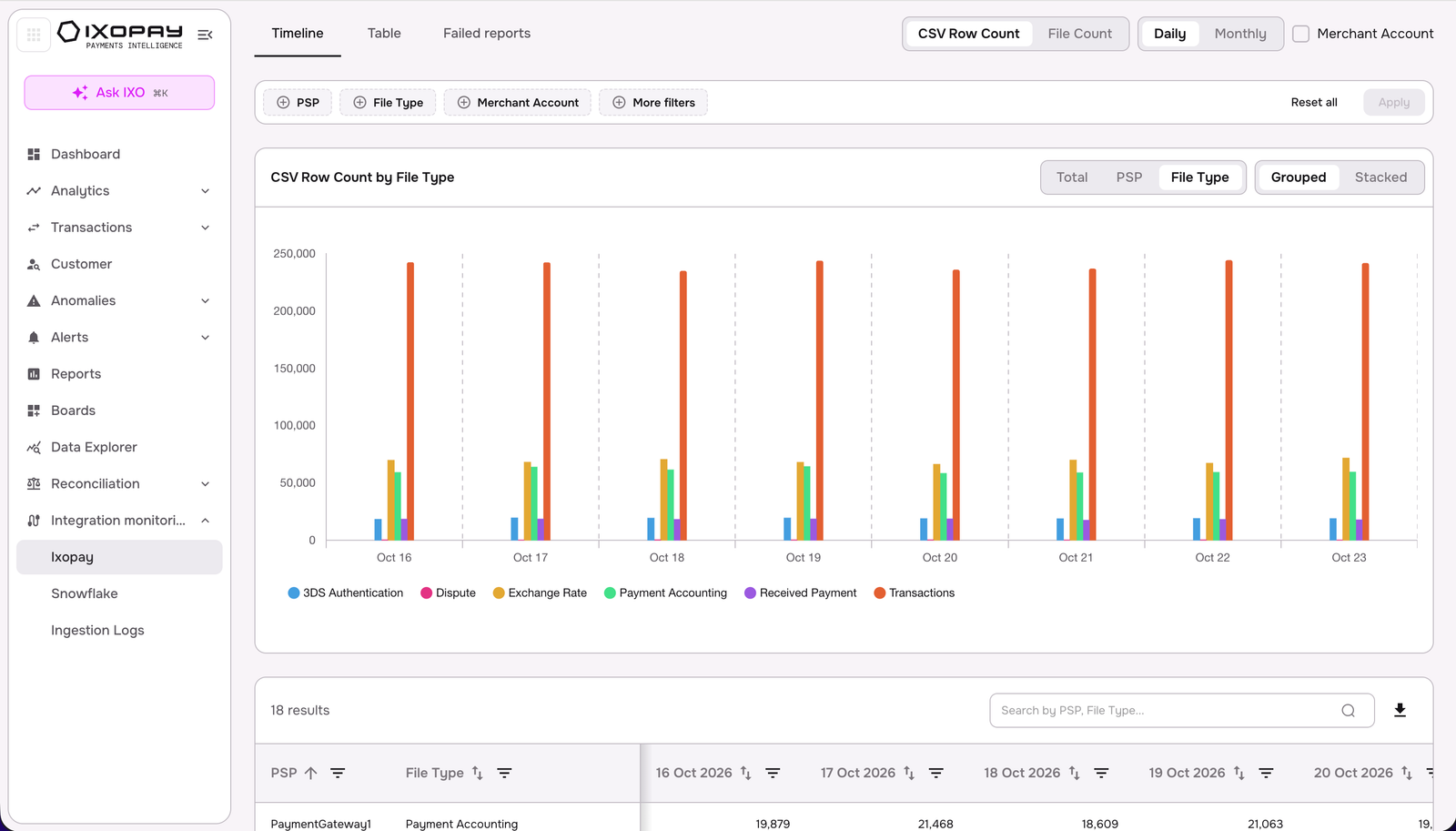
Below the chart, a results table lists the metric per PSP and File Type for every day (or month) in the range.
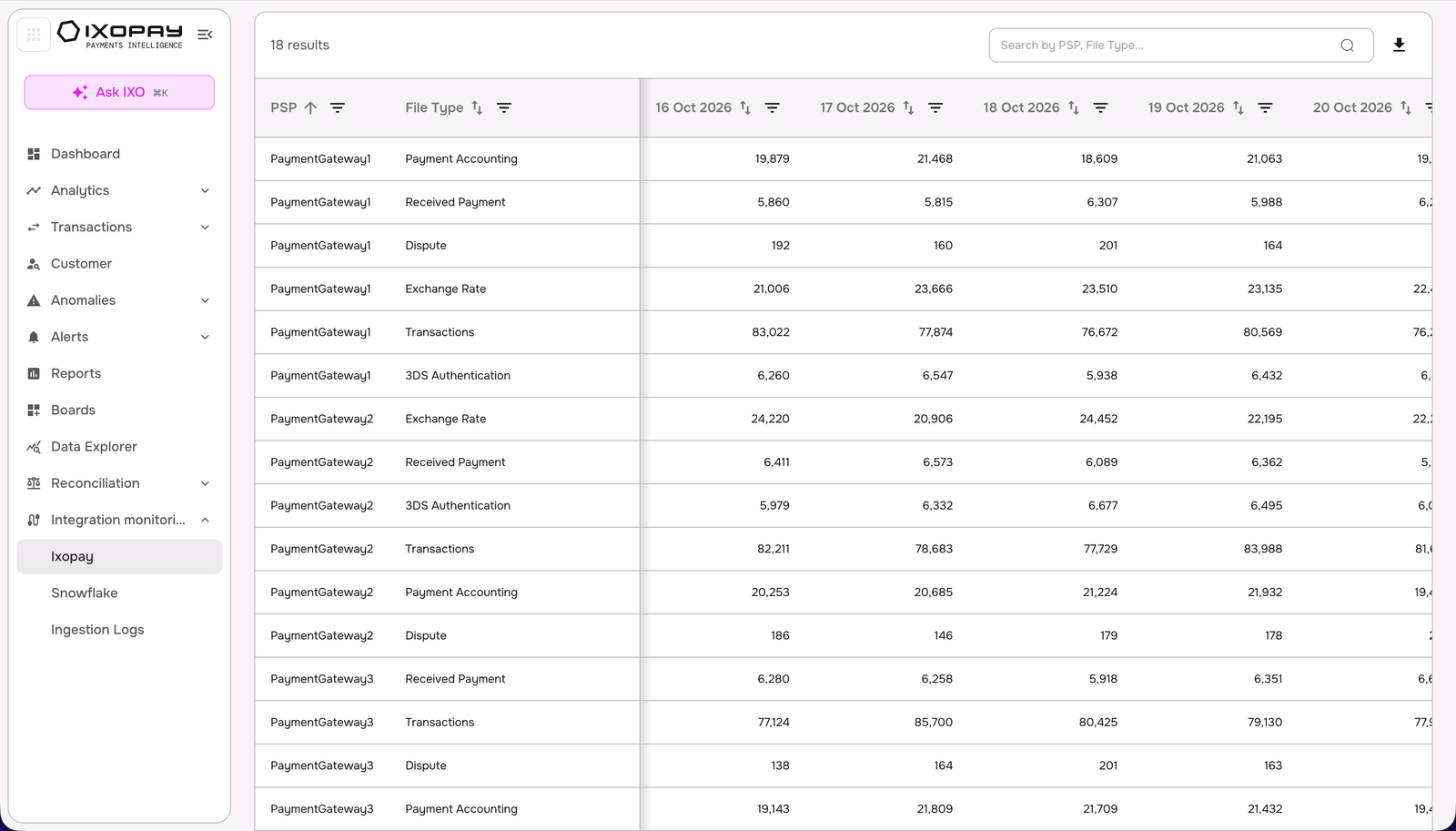
- Search and sort: Use the search box to find a PSP or File Type, and use the sort and filter icons in each column header to refine the table.
- Export: Click the download icon to export the table.
Table view
A granular, forensic list of every ingested file, ideal for complete auditability.
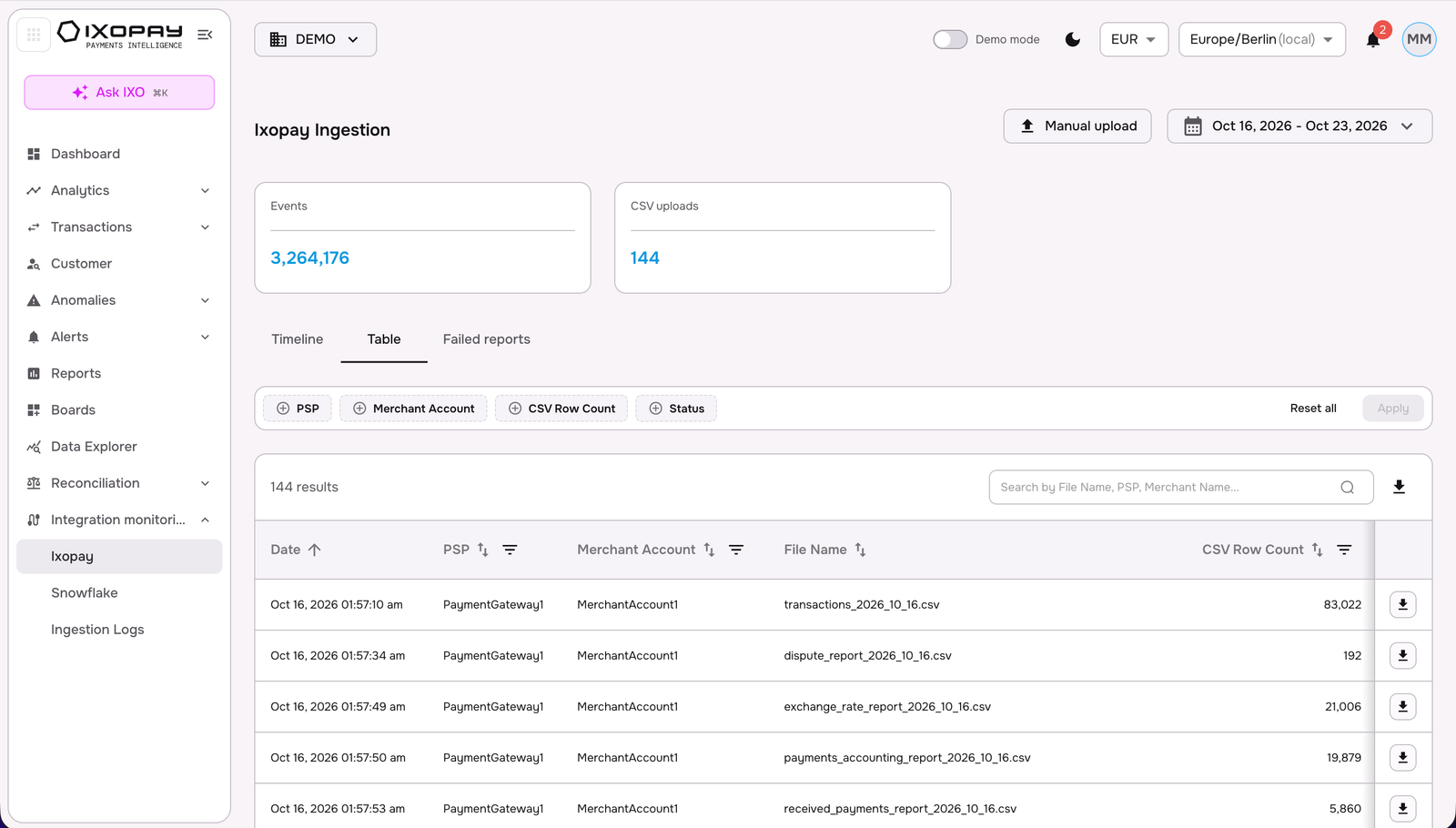
Each row includes:
- Date: The precise timestamp at which the file was ingested.
- PSP and Merchant Account: The source of the file.
- File Name: The name of the ingested file.
- CSV Row Count: The number of rows in the file.
- Status: The processing status of the file.
- External Server Timestamp: The timestamp reported by the external server for the file, where available.
Use the PSP, Merchant Account, CSV Row Count and Status filters, the column sort/filter icons, and the search box (file name, PSP or merchant name) to find specific files. Click the download icon at the end of a row to download that file, or the download icon above the table to export the list. Results are paginated - use Rows per page to change the page size.
Failed reports view
The Failed reports tab lists files that could not be processed, so you can resolve problems before they affect your analytics.
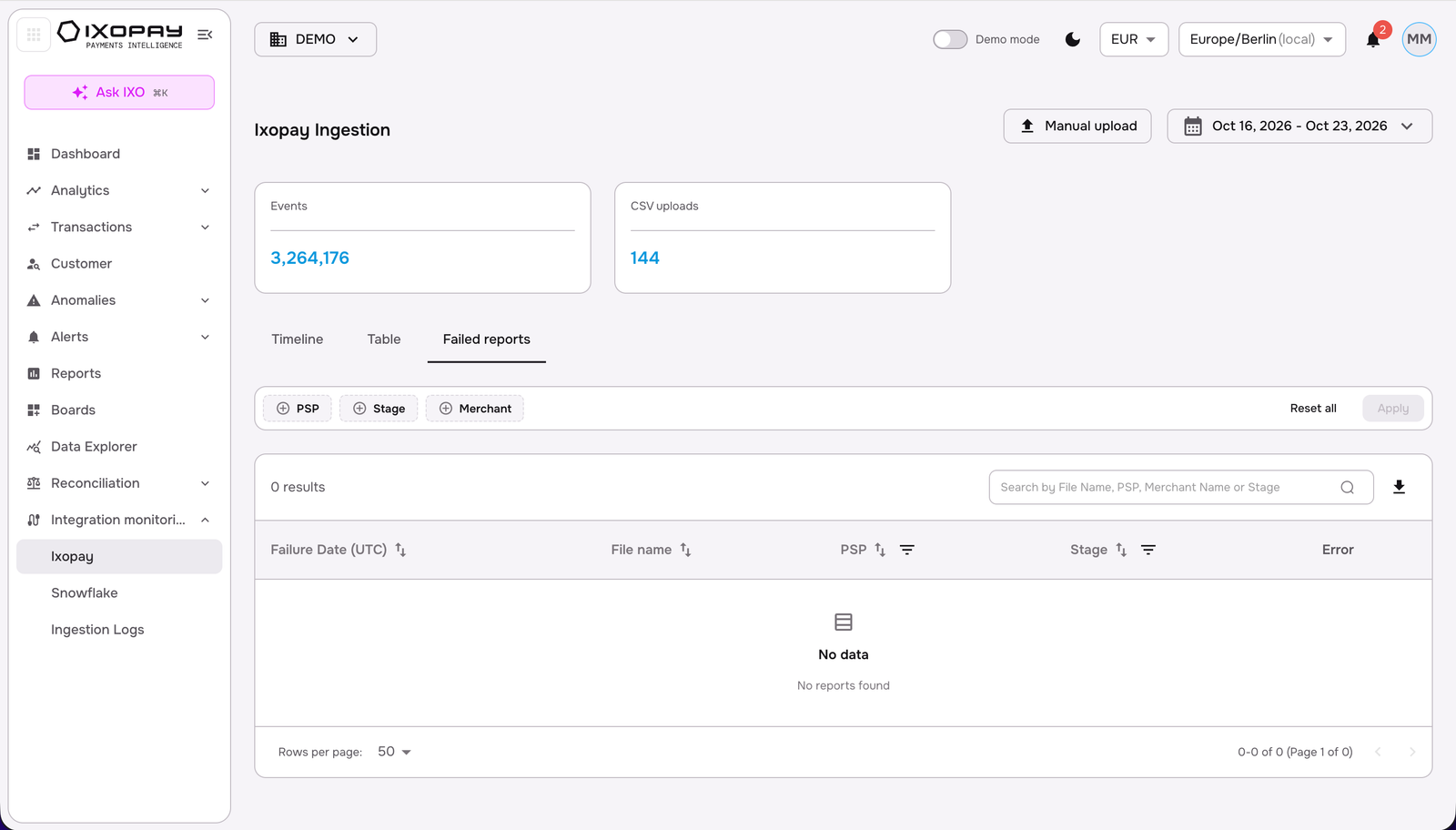
For each failed file, the table shows the Failure Date (UTC), File name, PSP, Stage (i.e. the ingestion stage at which processing failed) and the Error returned. Filter by PSP, Stage or Merchant, or search by file name, PSP, merchant name or stage. When no failures occurred in the selected range, the table shows 'No reports found'.
Snowflake Ingestion
IXOPAY Payments Intelligence provides you with monitoring and visibility of the hybrid infrastructure where your data resides. The Snowflake page lets you track the flow of high-volume event data directly into your Snowflake data warehouse, ensuring your external BI tools are perfectly synced with your PSP reports.
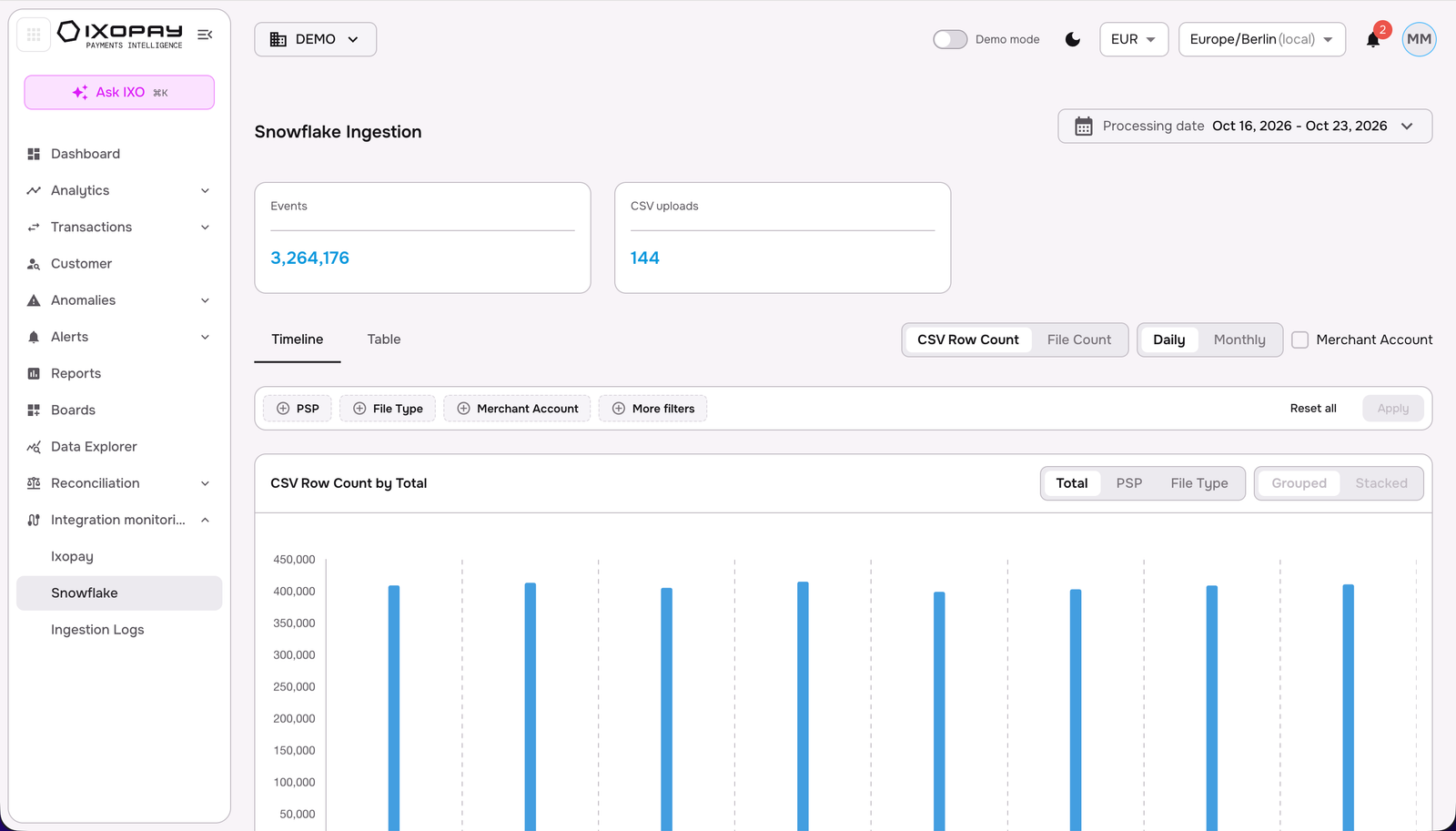
The page mirrors the IXOPAY Ingestion layout, with Events and CSV uploads indicators, a Timeline view (metric toggle, Daily/Monthly, Merchant Account breakdown, filters, and Total/PSP/File Type chart grouping) and a Table view. Use it to compare what has landed in Snowflake against what was ingested on the platform.
Ingestion Logs: Matched vs. Missing
The Ingestion Logs are your tool for data reliability. By comparing expected data against actual arrivals, IXOPAY Payments Intelligence helps you spot gaps before they impact your financial reporting.
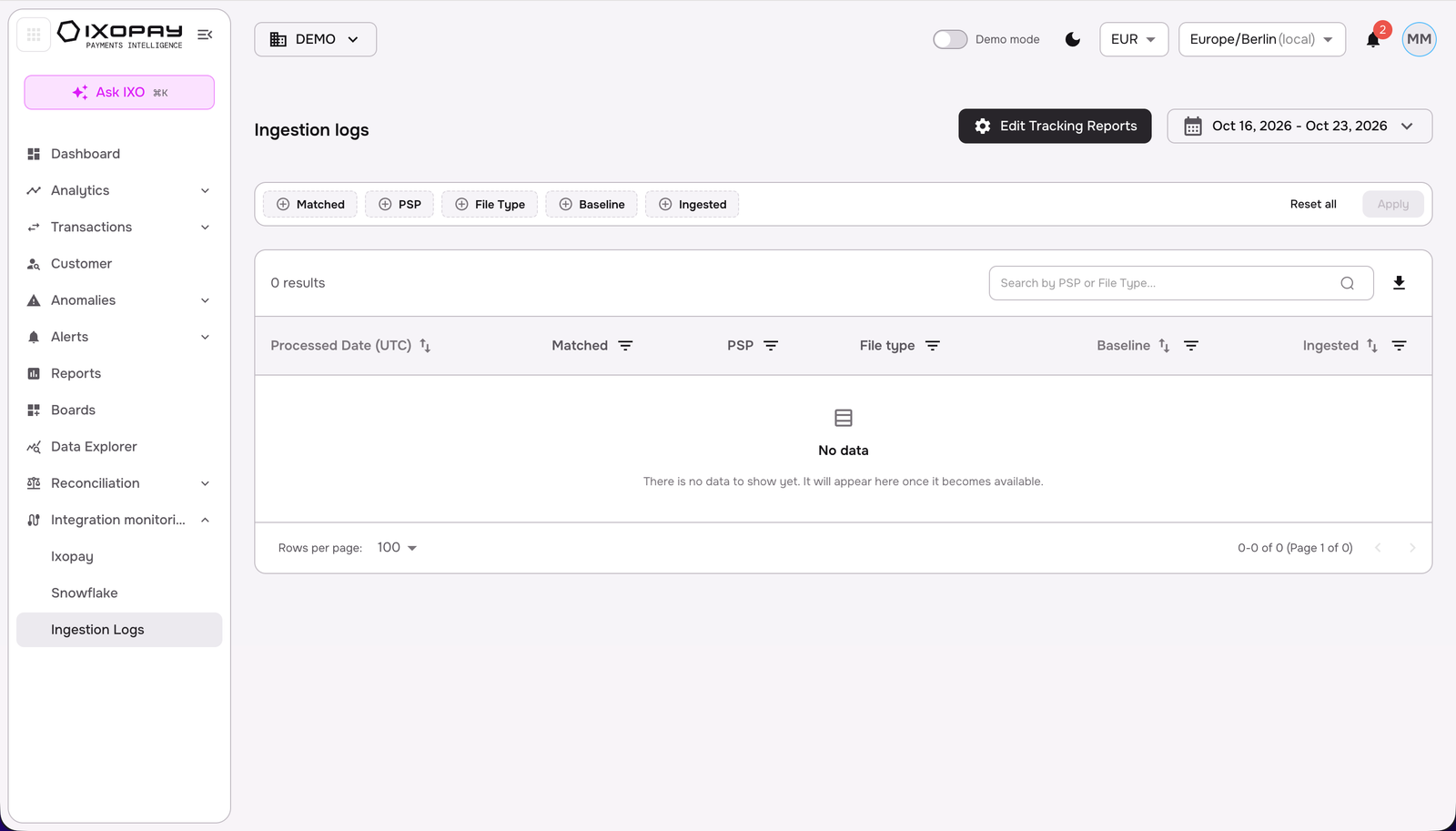
The logs provide a detailed reconciliation table featuring:
- Matched: Quickly filter between Matched (successful) and Missing (failed or delayed) reports.
- Baseline vs. Ingested: The system compares the Baseline (the number of files expected from a PSP on a given date) against the Ingested count. If a baseline shows "2" but ingestion shows "0," you have immediate evidence of a PSP reporting failure.
- Comprehensive metadata: Every log entry identifies the Processed Date (UTC), PSP and File type (e.g., 3DS Authentication, Dispute) for easy troubleshooting.
- Filters, search and export: Filter by Matched, PSP, File Type, Baseline and Ingested, search by PSP or File Type, sort columns, and export the table using the download icon.
Edit Tracking Reports
The Baseline is driven by the expected delivery frequency you define for each PSP report. Click Edit Tracking Reports to open the Tracking Reports panel.
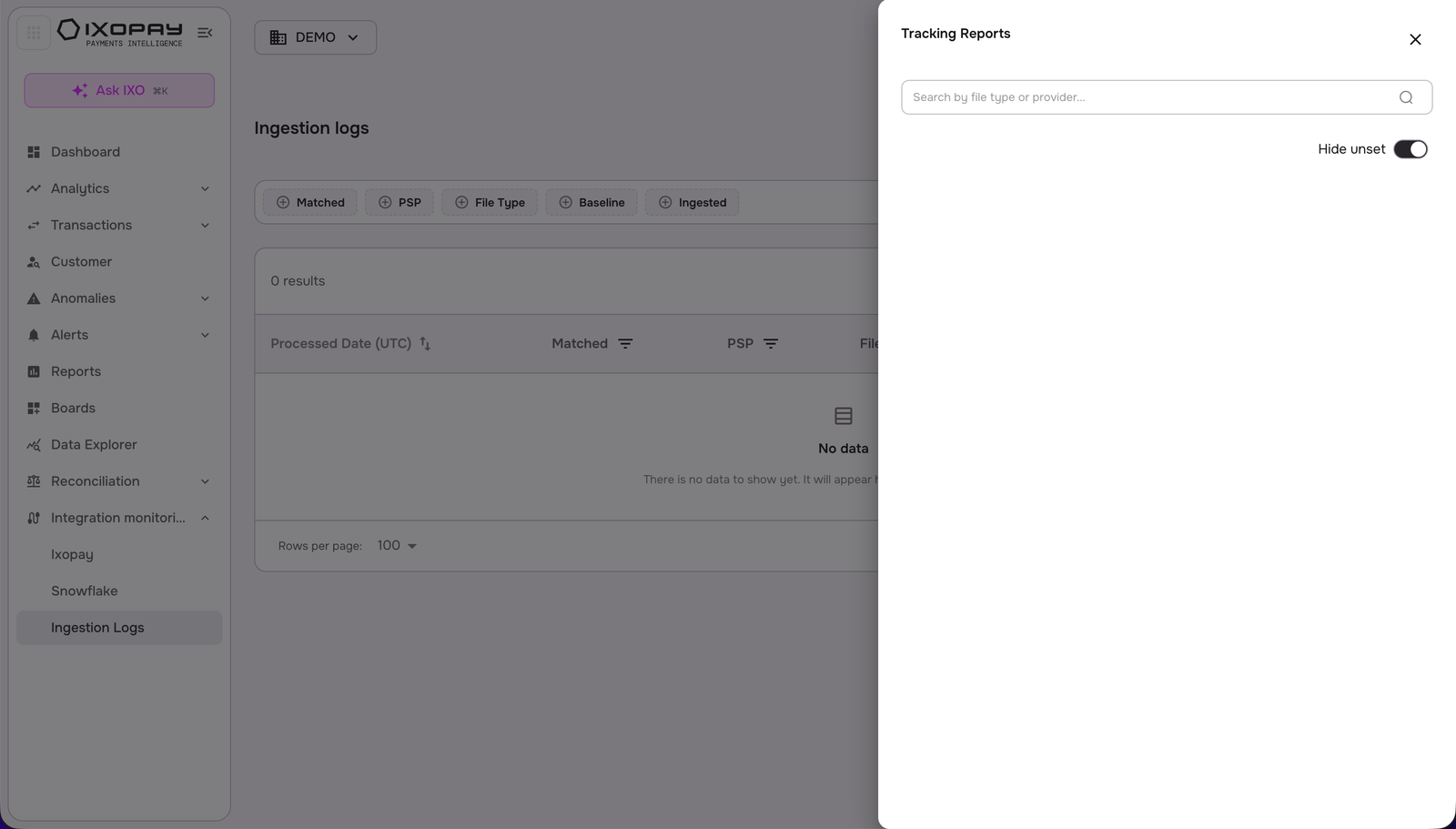
- Reports are grouped by PSP and listed by file type with their expected frequency, such as 'Dispute - daily', 'Settlement Detail - weekly' or 'Invoice - monthly'.
- Each report shows its tracking status (e.g., Not set) and who configured it and when.
- Use the search box to find a file type or provider, and the 'Hide unset' toggle to show only reports that already have tracking configured, or all available reports.
To enable or change tracking for a report, contact the IXOPAY support team.