Virtual Terminal (MOTO)
If you want to get access to all IXOPAY platform features you need to upgrade your plan. Please contact our Support Team in the IXOPAY Customer Experience Portal for more information.
The IXOPAY platform Virtual Terminal enables businesses to deal and accept card-not-present Transactions for which the card holder is not physically present. This kind of Transaction is commonly used for payment orders made via mail or telephone (MOTO - Mail Order / Telephone Order).
In order to be able to create a MOTO transaction using the Virtual Terminal, make sure the Connector processing the transaction is configured to be Available on Terminal (see Create and Assign Connectors & Adapters)
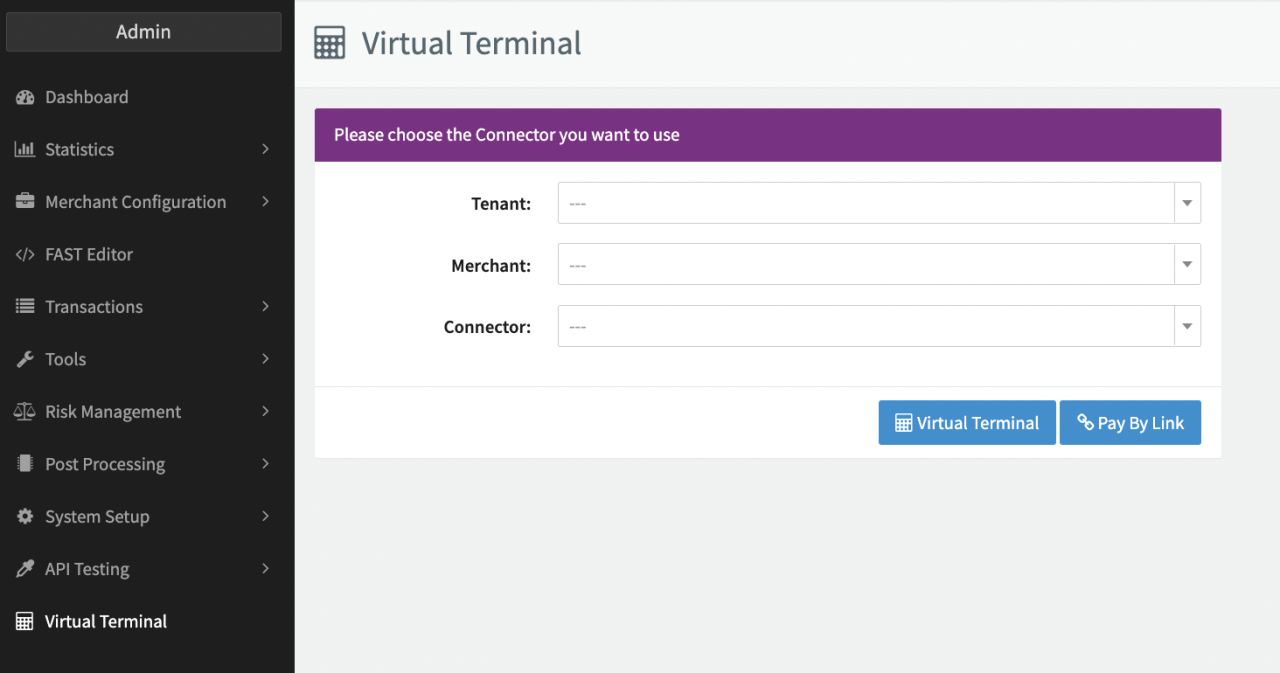
In order to use the IXOPAY platform Virtual Terminal navigate to the Virtual Terminal section and select
- (Sub-)Tenant
- Merchant
- Connector
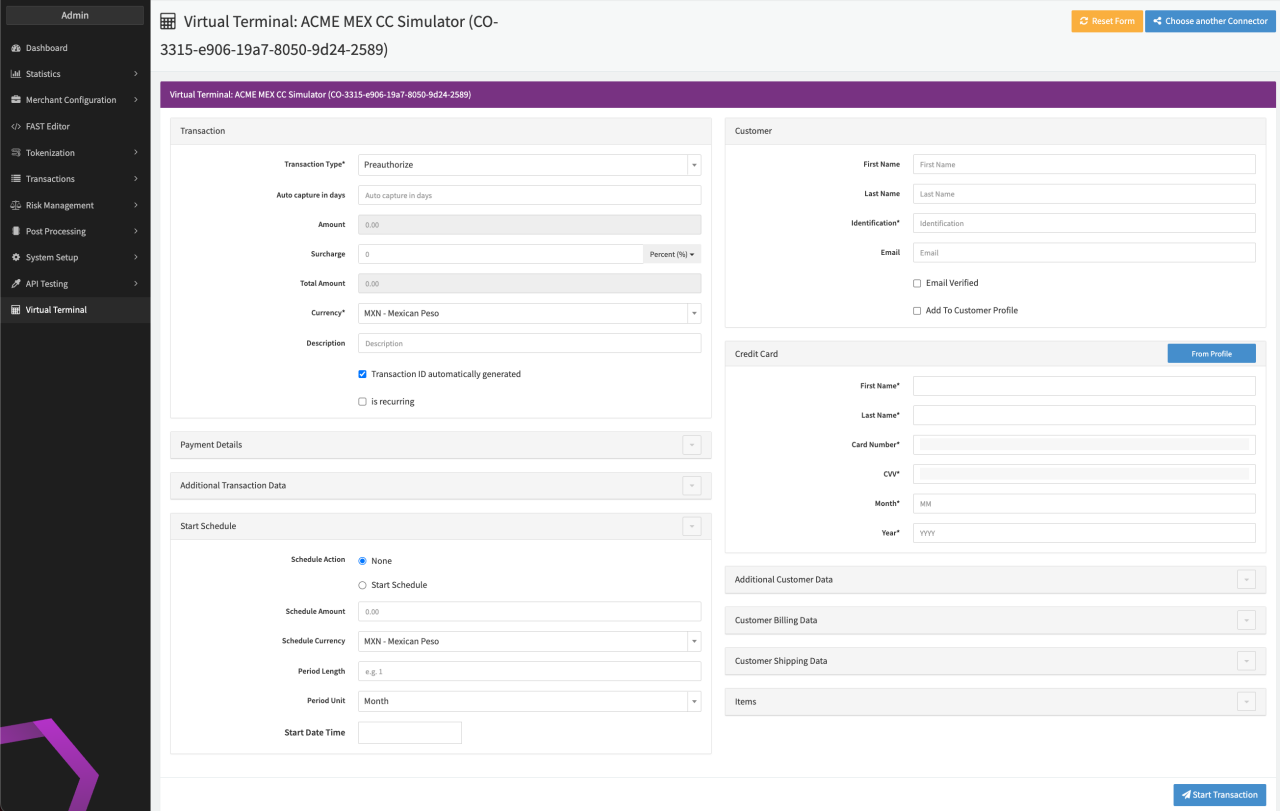
to be used to initiate a new transaction and click Virtual Terminal. Fill in the necessary parameters for the schedule to be created in the Virtual Terminal Form:
- Transaction
- Payment Details (optional)
- Additional Transaction Data
- Start Schedule
- Customer
- Credit Card
- Additional Customer Data
- Customer Billing Data
- Customer Shipping Data
- Item
Click Reset Form to reset the form and enter different values or Choose another Connector to get back to the (Sub-)Tenant, Merchant, Connector selection page.
Pay By Link is a feature also available in IXOPAY platform's Virtual Terminal. For more information have a look in the Pay By Link section
Transaction
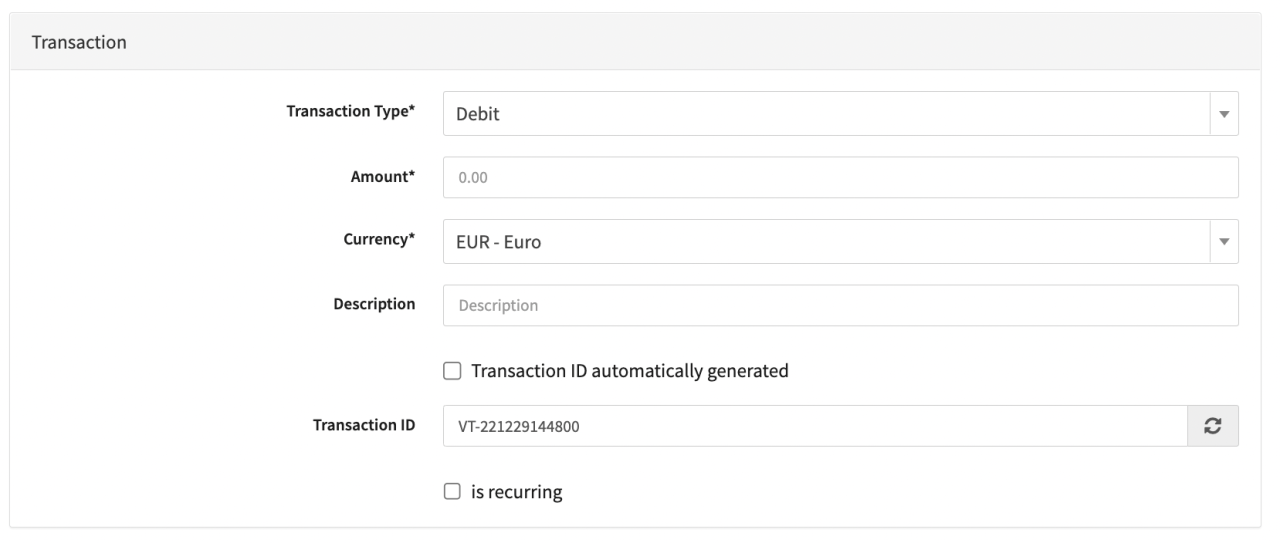
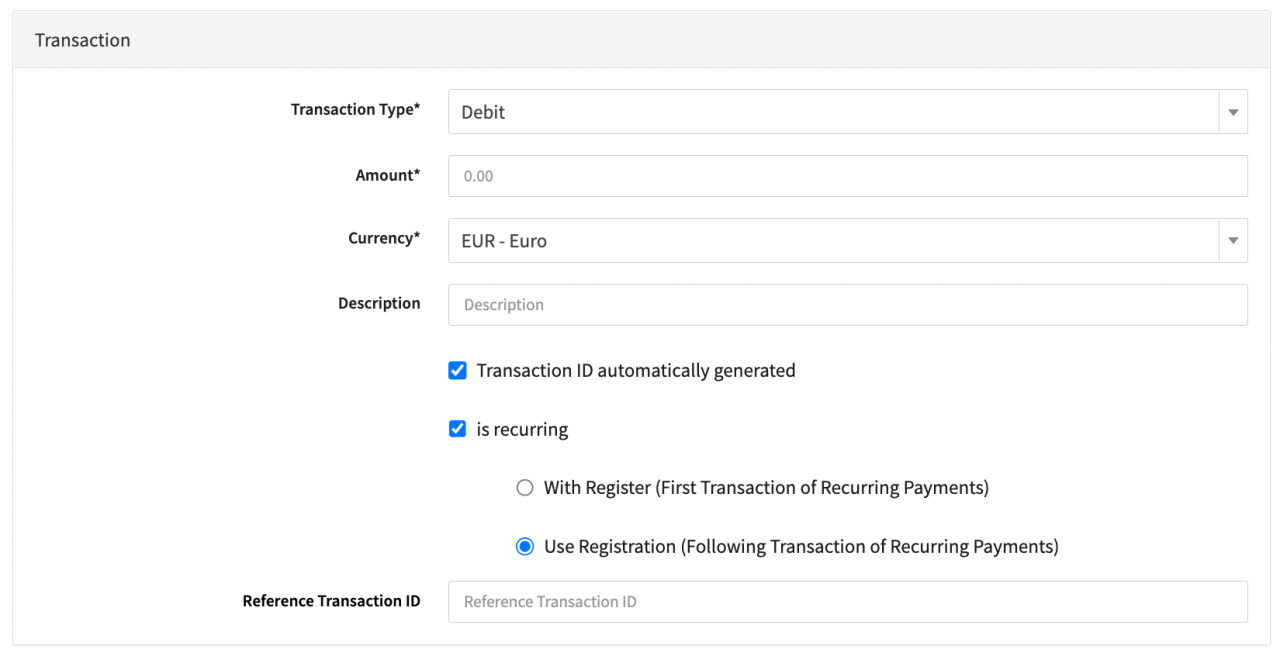
In this section you can configure Transaction Details (see Transaction Table).
Note: Depending on your setup you can optionally enter a Surcharge manually or use the Fee Management to calculate it automatically. If applicable, you can also add the automatic GST calculation.
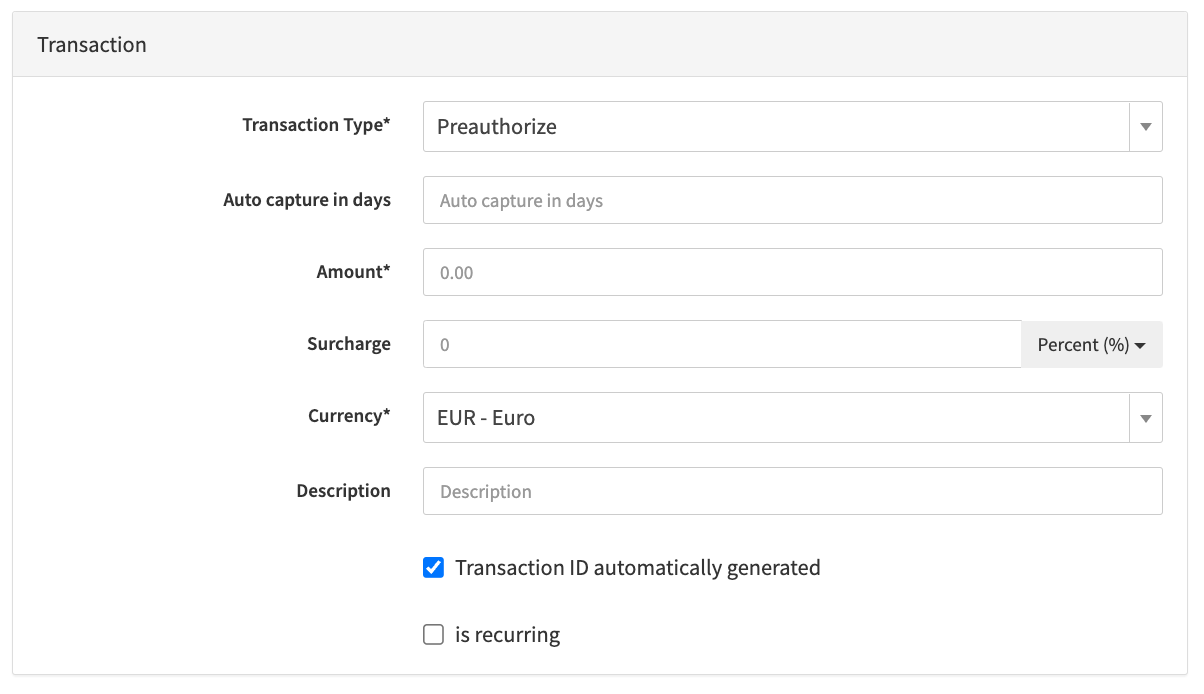
| Field | Description |
|---|---|
| Transaction Type | Select a Transaction Type for the scheduled transaction: Debit, Preauthorize, Capture, Void, Register, etc. Note: Available Transaction Types can be limited by the Enabled Transaction Types configuration of the connector itself or the Connector Setting : Set available transaction types for virtual terminal |
| Auto capture in days | For preauthorize transactions enter the number of days after which an automatic capture should be scheduled (TX-created-date-time + delay in minutes) |
| Amount | Fill in an amount |
| Surcharge | Optional parameter to enter a surcharge percentage |
| Currency | Select a currency |
| Description | Fill in an optional description |
| Transaction ID automatically generated | If enabled a Transaction ID will be automatically generated. To manually enter a Transaction ID disable this option. |
| Is Recurring | Enable this option in case the scheduled transaction is recurring (not applicable for all transaction types). You can choose between the options With Register (First Transaction of Recurring Payments) and Use Registration (Follow-up Transaction of Recurring Payments). In case of Use Registration a Registration ID must be provided (Transaction UUID of a Register Transaction) and the Credit Card section will be hidden. |
Payment Details (optional)
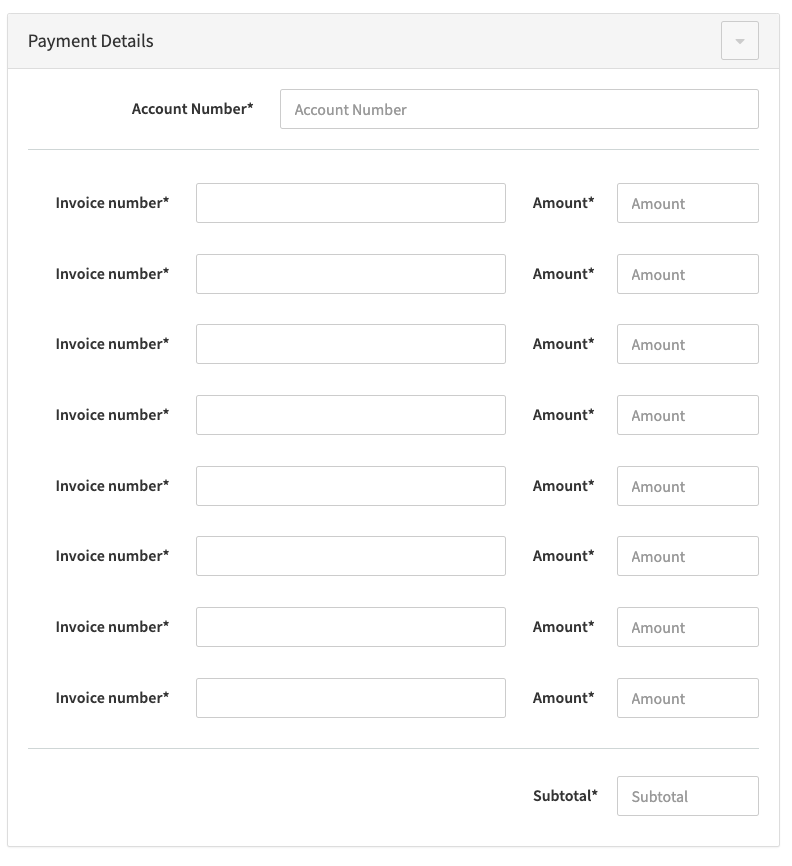
In this section you can configure Payment Details, such as Account Number and up to 8 different Invoice numbers and related Amounts. The Amounts will be summed up to a Subtotal and used for Surcharge (if enabled) and Amount Calculation in the Transaction section. Account Number and Invoice numbers are added to the Merchant Meta Data.
Additional Transaction Data
In this section you can fill in the Additional Transaction Data (optional) regarding the Transaction (see Additional Transaction Data Table).
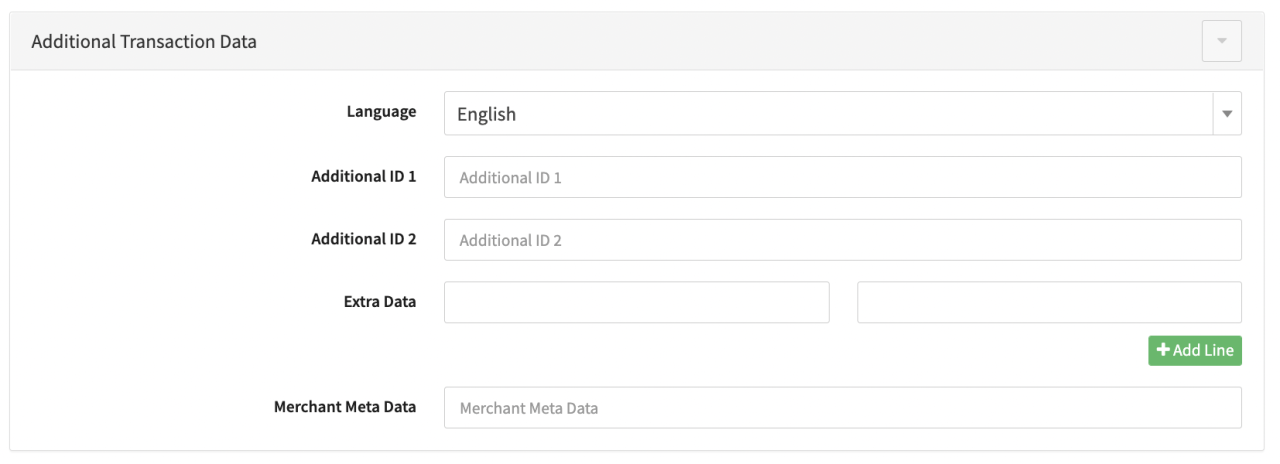
| Field | Description |
|---|---|
| Language | Select a language |
| Additional ID 1 | Fill in an Additional ID 1 |
| Additional ID 2 | Fill in an Additional ID 2 |
| Extra Data | Fill in additional Key-Value Extra Data pairs. Add new Extra Data lines by selecting + Add Line |
| Merchant Meta Data | Fill in additional Merchant Meta Data (not availalable by default) |
Start Schedule
In this section you can fill in the Details regarding a Transaction Schedule (see Start ScheduleTable).
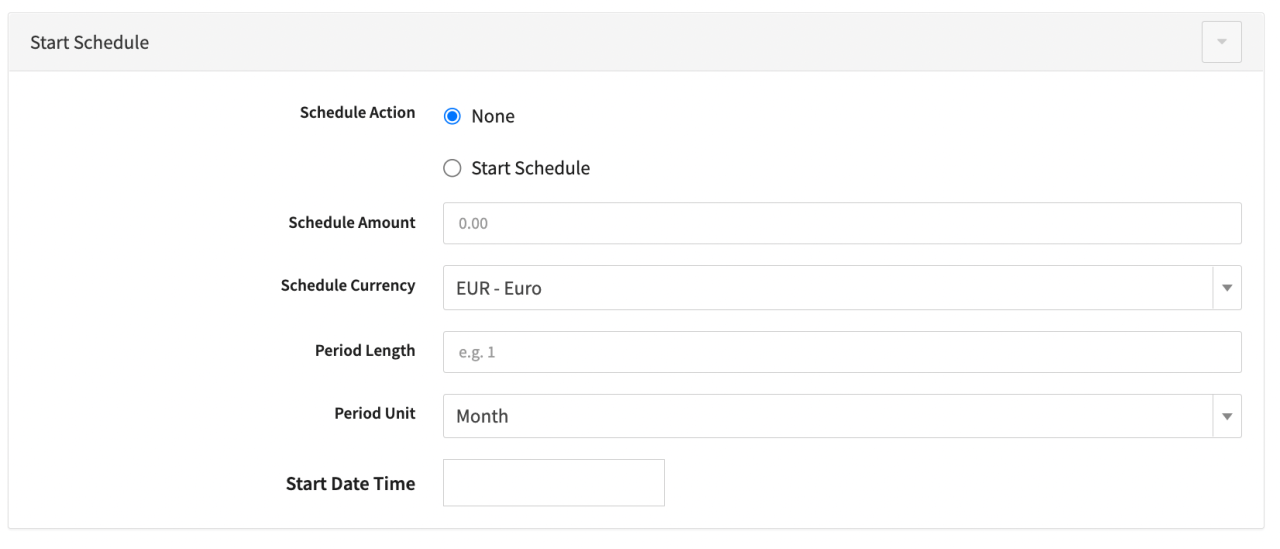
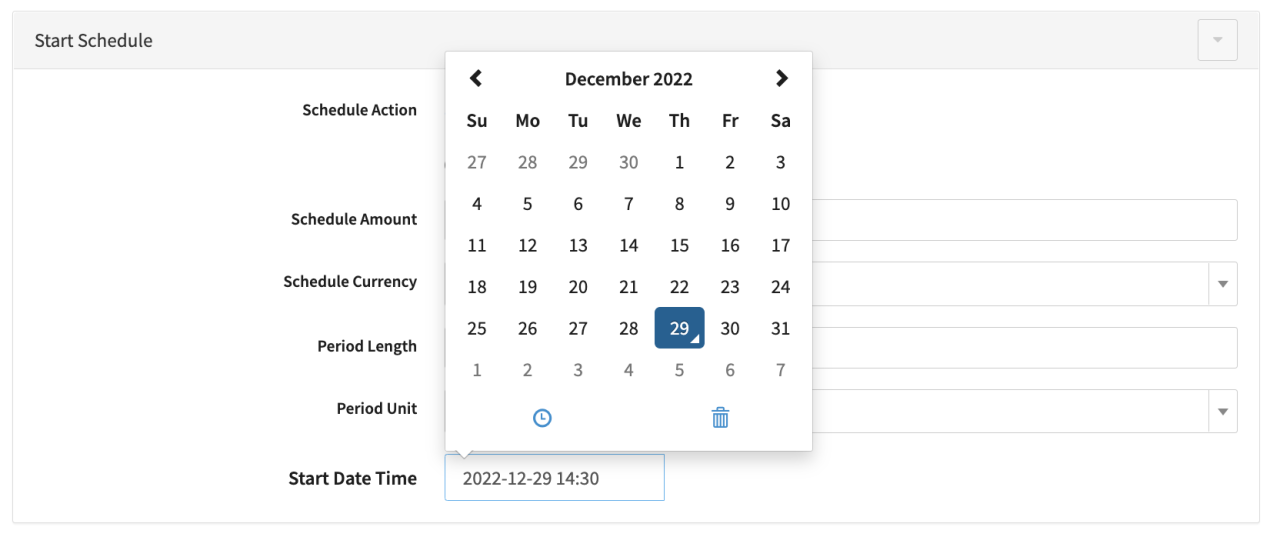
| Field | Description |
|---|---|
| Schedule Action | None is set per default. To define a schedule, select Start Schedule |
| Schedule Amount | Fill in an amount for the scheduled transaction(s) |
| Schedule Currency | Select a currency for the scheduled transaction(s) |
| Period Length | Fill in a Period Length. The interval between recurring transactions will be defined by the period length and unit |
| Period Unit | Select a Period Unit: Day, Week, Month or Year. The interval between recurring transactions will be defined by the period length and unit |
| Start Date Time | Select a Start Date Time (UTC) for the first scheduled transaction |
Customer
In this section you can fill in Customer Details regarding the Transaction (see Customer Table).
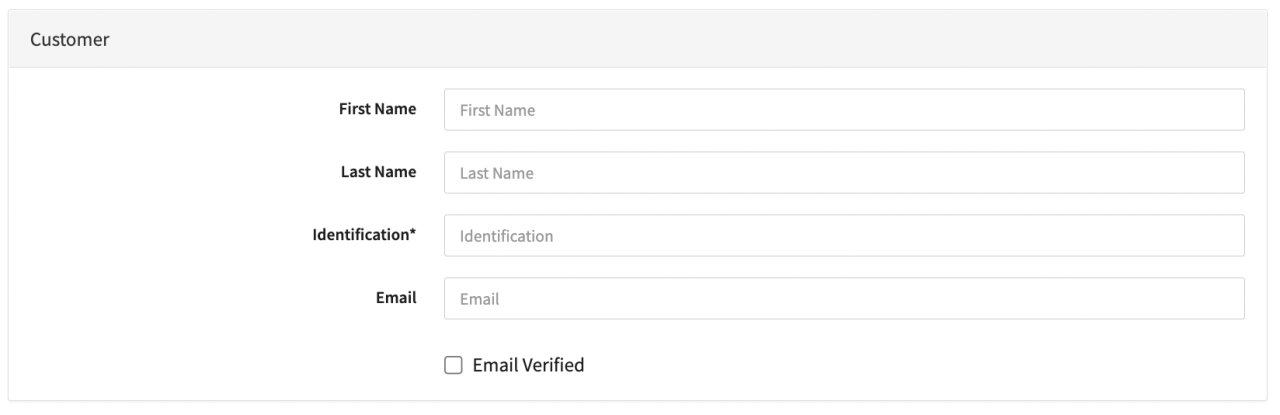
| Field | Description |
|---|---|
| First Name | Fill in the Customer First Name |
| Last Name | Fill in the Customer Last Name |
| Identification | Fill in the mandatory Identification ID for the Customer |
| Fill in the Customer Email | |
| Email Verified | Enable if the Customer Email is verified |
| Add To Customer Profile | Enable if Customer / payment instrument should be added to a Customer Profile |
| Customer Identification | Either enter a Customer Identification for the Customer Profile |
| Customer GUID | Or enter a Customer GUID for the Customer Profile |
| Mark as Preferred (in Profile) | Enable if the added payment instrument should be marked as preferred in the Customer Profile |
Credit Card
In this section you can fill in the credit card Details used for the Transaction (see Creditcard Table).
There is also the option to load credit card details from a customer profile using the option From Profile and entering either a Customer Profile GUID or Customer Identification.
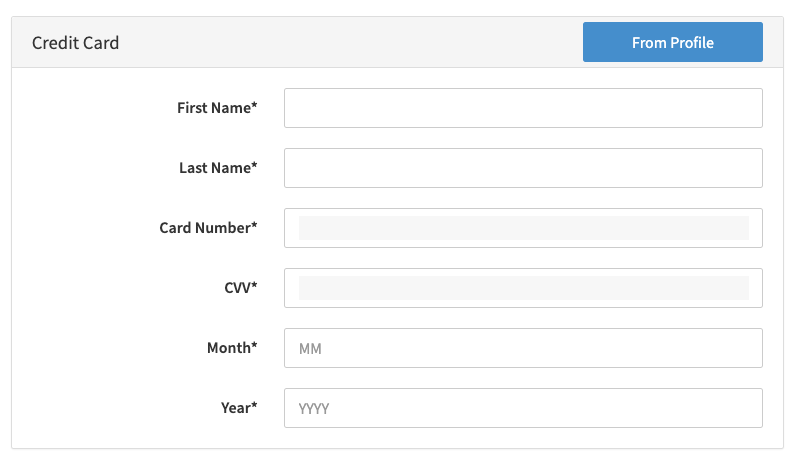
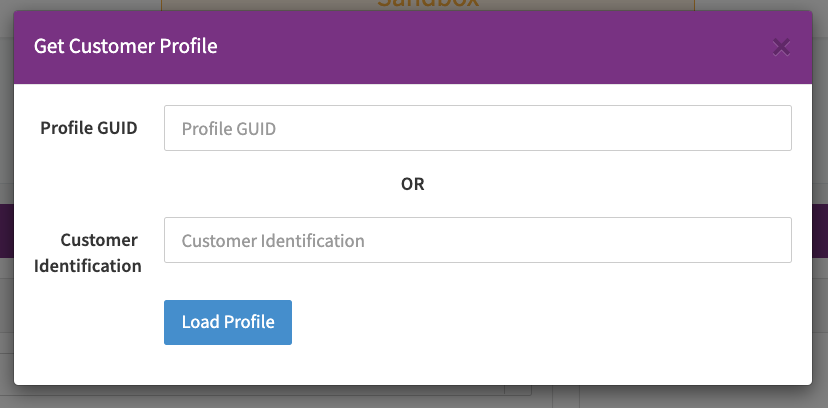
| Field | Description |
|---|---|
| First Name | First Name of Cardholder |
| Last Name | Last Name of Cardholder |
| Card Number | Creditcard number |
| CVV | Creditcard CVV |
| Month | Expiry month of creditcard |
| Year | Expiry year of creditcard |
Additional Customer Data
In this section you can fill in additional optional Customer Details (see Additional Customer Data Table).
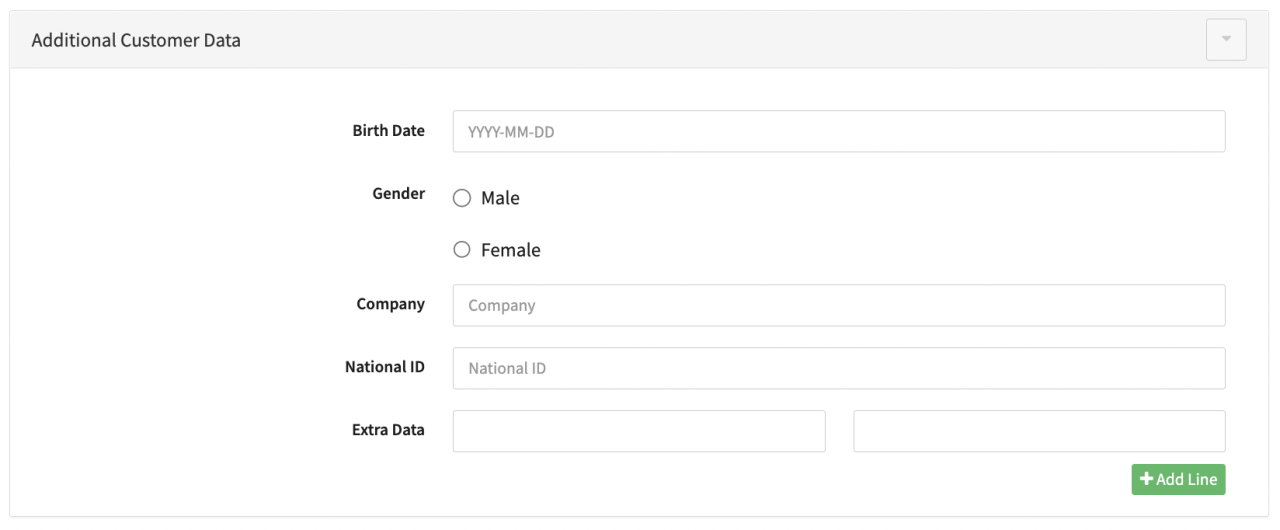
| Field | Description |
|---|---|
| Birth Date | Fill in the Customers Birth Date in the format YYYY-MM-DD |
| Gender | Select optional Male or Female |
| Company | Fill in the Customers Company |
| National ID | Fill in the National ID |
| Extra Data | Fill in additional Key-Value Extra Data pairs. Add new Extra Data lines by selecting + Add Line |
Customer Billing Data
In this section you can fill in additional optional Customer Billing Details (see Customer Billing Data Table).
| Field | Description |
|---|---|
| Address 1 | Fill in Address Line 1 of Customers Billing Address |
| Address 2 | Fill in Address Line 2 of Customers Billing Address |
| City | Fill in the City |
| Post Code | Fill in the Postal Code |
| State | Fill in the State |
| Country | Select the Country |
| Phone | Fill in the Phone number |
Customer Shipping Data
In this section you can fill in additional optional Customer Shipping Details (see Customer Shipping Data Table).
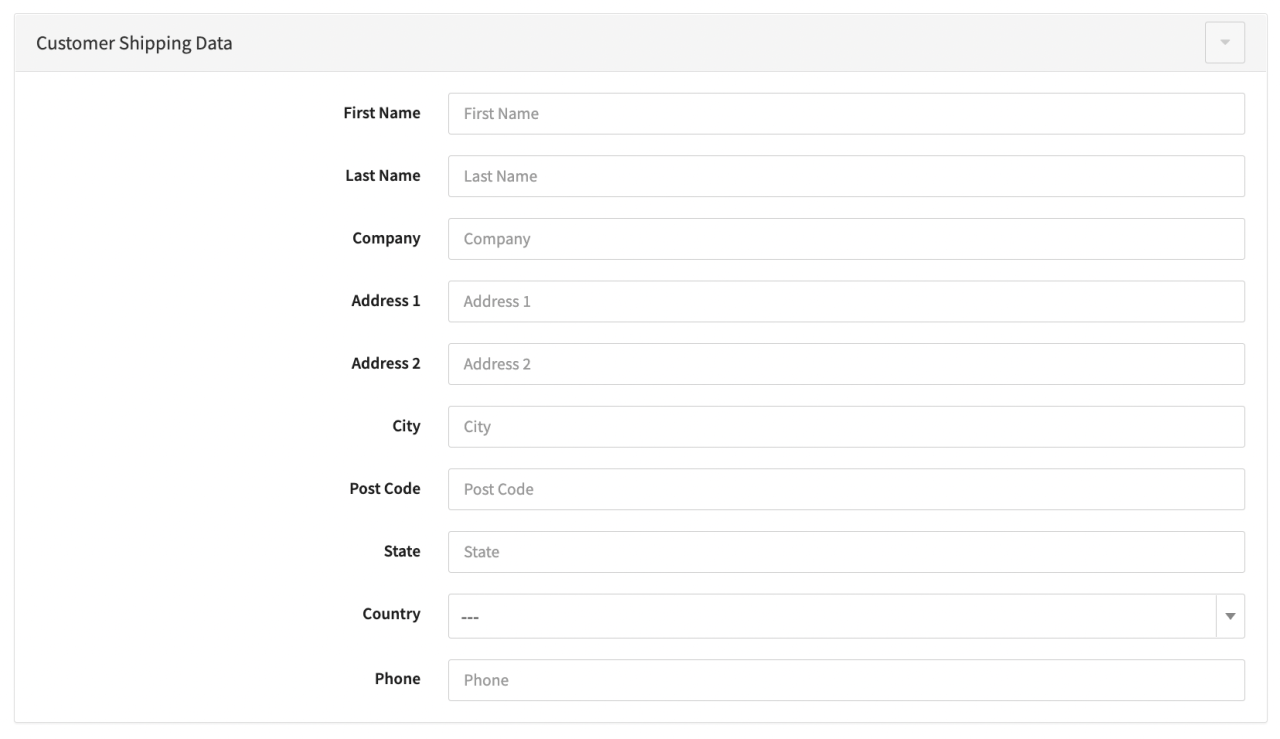
| Field | Description |
|---|---|
| First Name | Fill in the First Name |
| Last Name | Fill in the Last Name |
| Company | Fill in the Company of Customers Shipping Address |
| Address 1 | Fill in Address Line 1 of Customers Shipping Address |
| Address 2 | Fill in Address Line 2 of Customers Shipping Address |
| City | Fill in the City |
| Post Code | Fill in the Postal Code |
| State | Fill in the State |
| Country | Select the Country |
| Phone | Fill in the Phone number |
Item
In this section you can fill in additional details about Items (see Items Table). Click +Add Item to add additional items.
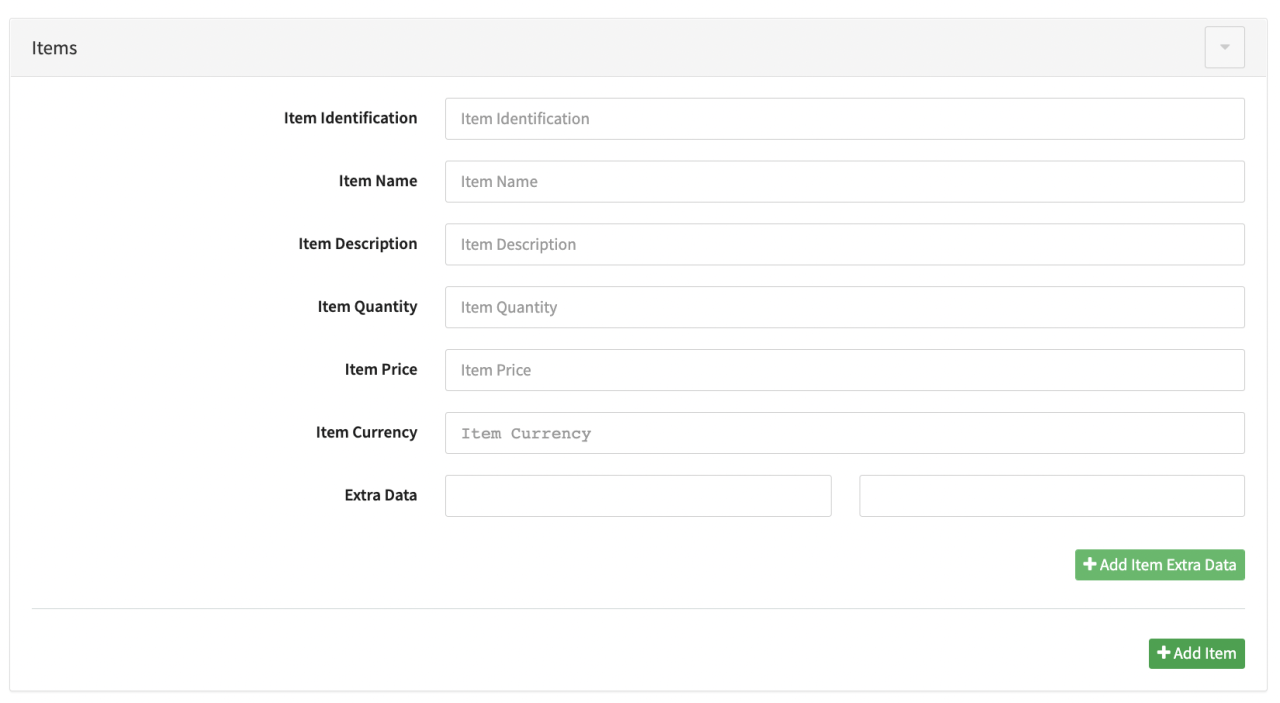
| Field | Description |
|---|---|
| Item Identification | Fill in an Item Identification |
| Item Name | Fill in an Item Name |
| Item Description | Fill in an Item Description |
| Item Quantity | Fill in an Item Quantity |
| Item Currency | Fill in an Item Currency |
| Extra Data | Fill in additional Key-Value Extra Data pairs. Add new Extra Data lines by selecting + Add Item Extra Data |
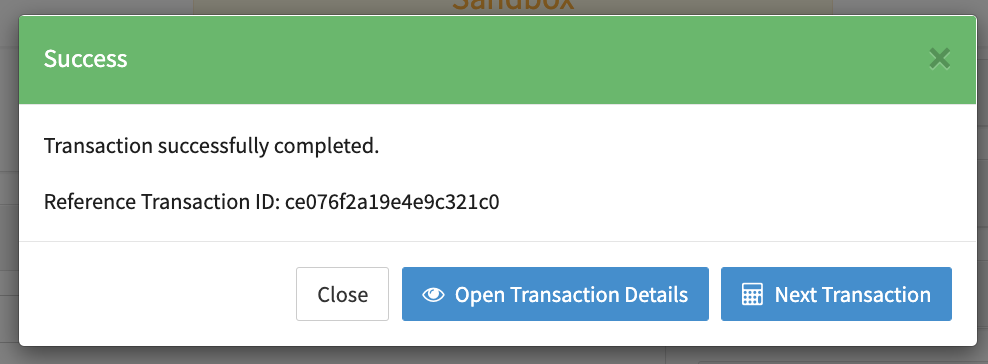
Create the Transaction by clicking Start Transaction in the Virtual Terminal Form. A confirmation with the (Reference) Transaction ID will be shown and the transaction will appear in the Transaction Overview.
To trigger Postback notification for Virtual Terminal Transactions you can define a static notification URL as a Connector Setting (Virtual Terminal Notification URL).