Create a Schedule
In order to be able to create a new schedule for a register transaction, make sure the Connector processing the transactions is configured to be Available for Schedule (see Create and Assign Connectors & Adapters)
Create a new Schedule
New schedules for transactions can either be created via API (see our Schedule API documentation) or via the User Interface.
To create a new schedule in the User Interface, follow these steps:
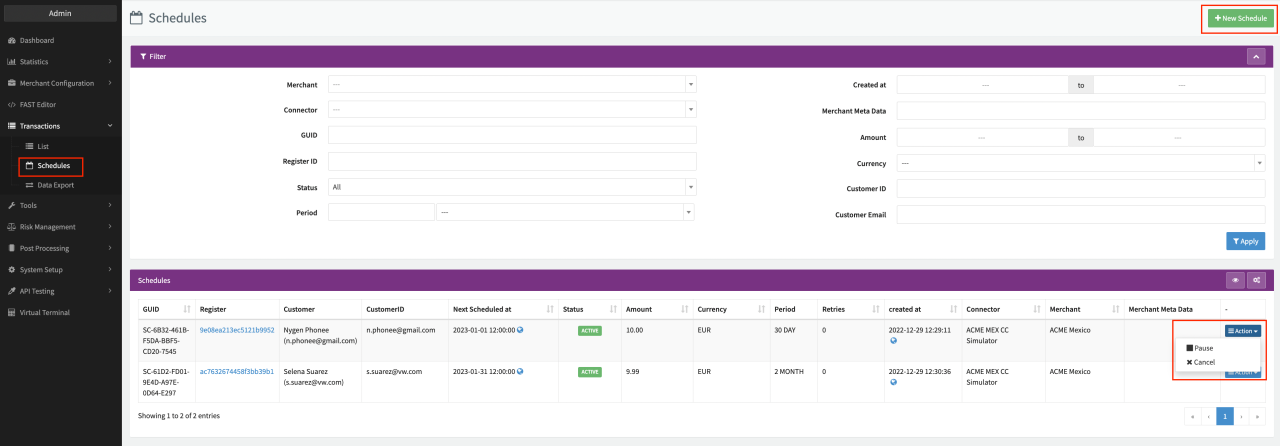
- Navigate to the Schedules Overview
- Click + New Schedule. You can decide, wether you want to create a new schedule using an existing Registration ID (Transaction UUID of a Register) or the Virtual Terminal.
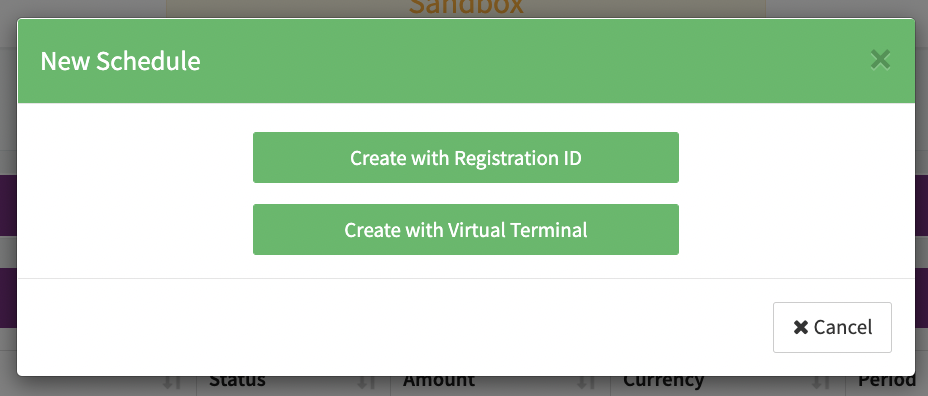
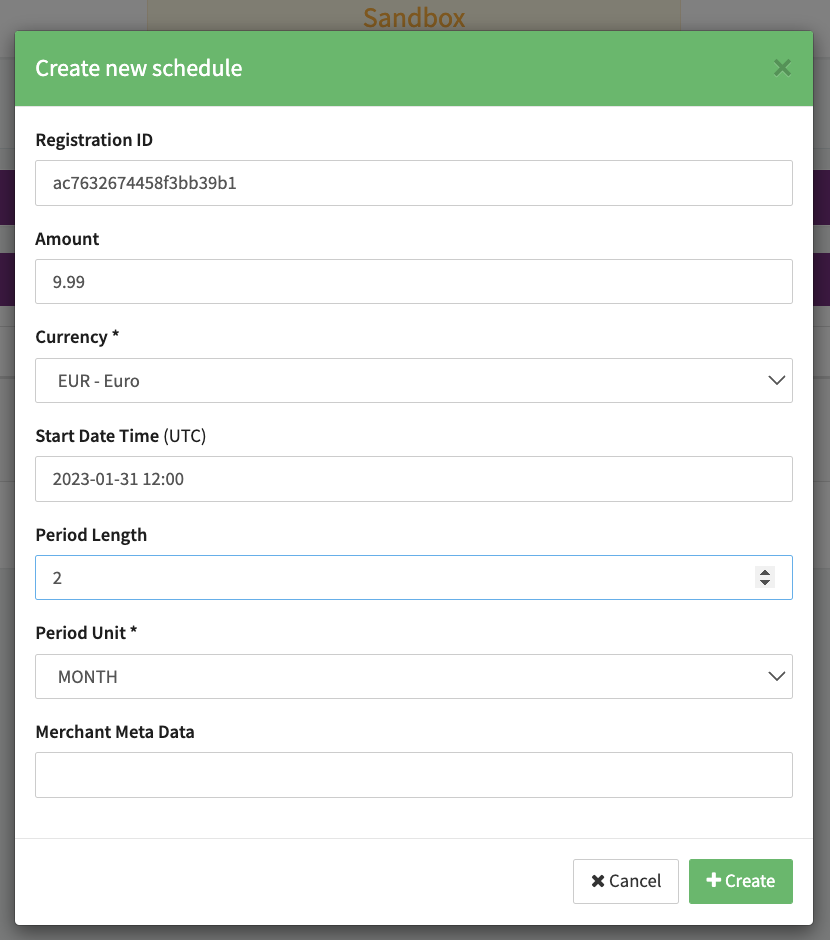
Create a Schedule with Registration ID
- Fill in a Registration ID (Transaction UUID of a Register Transaction)
- Fill in an Amount and select a Currency for the recurring debit transactions (follow-up transactions)
- Select a Start Date Time (UTC) for the schedule. The first recurring debit (follow-up transaction) will be initiated for this date and time.
- Define the schedule interval (Period Length and Period Unit) for the recurring debits (follow-up transactions).
After each interval the next transaction will be initiated
(see Pause, Continue, Retry or Cancel for options to edit a schedule)
- Period Length
- Period Unit - Day, Week, Month, Year.
- Click + Create to save your schedule
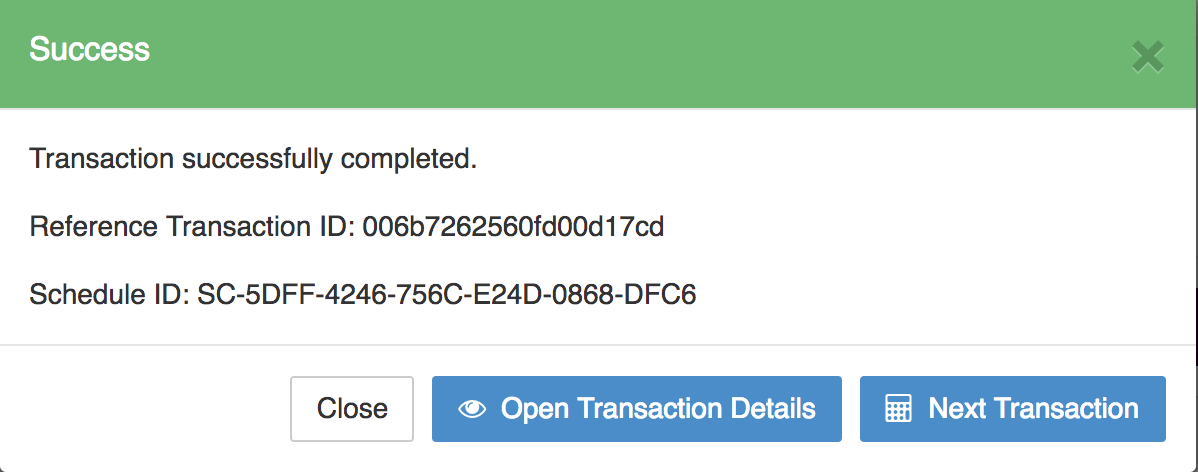
A schedule confirmation with the Schedule ID and Scheduled at date will be shown and the schedule will appear in the Schedule Overview.
Keep in mind that for recurring debits the defined interval (Period Length and Period Unit) is scheduled based on the last processed transaction. If for any reason the processing of a transaction initiated by the schedule is delayed in regards to the initial defined Start Date Time, the next transaction initiated by this schedule will be delayed too.
If you want to get access to all IXOPAY platform features you need to upgrade your plan. Please contact our Support Team in the IXOPAY Customer Experience Portal for more information.
Create a Schedule with Virtual Terminal
In order to be able to create a new schedule for a register transaction using the Virtual Terminal, make sure the Connector processing the transactions is configured to be Available on Terminal (see Create and Assign Connectors & Adapters).
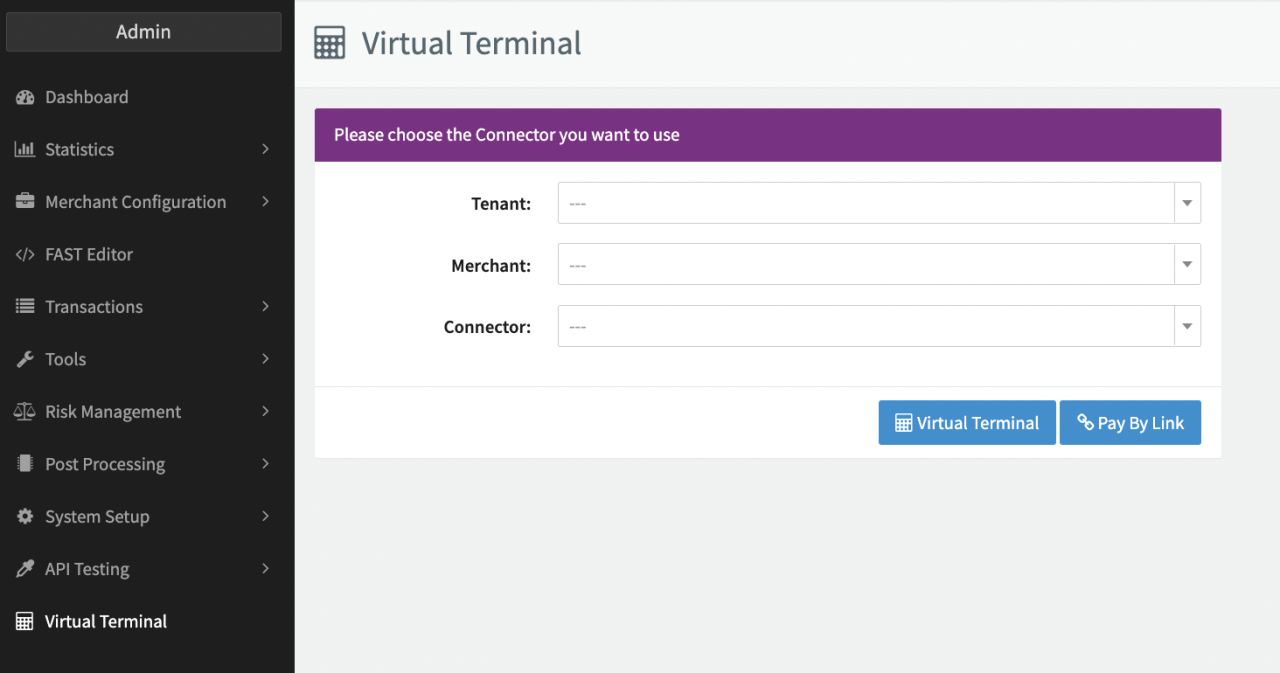
You will get redirected to the Virtual Terminal section of the IXOPAY platform where you can select the
- (Sub-)Tenant
- Merchant
- Connector
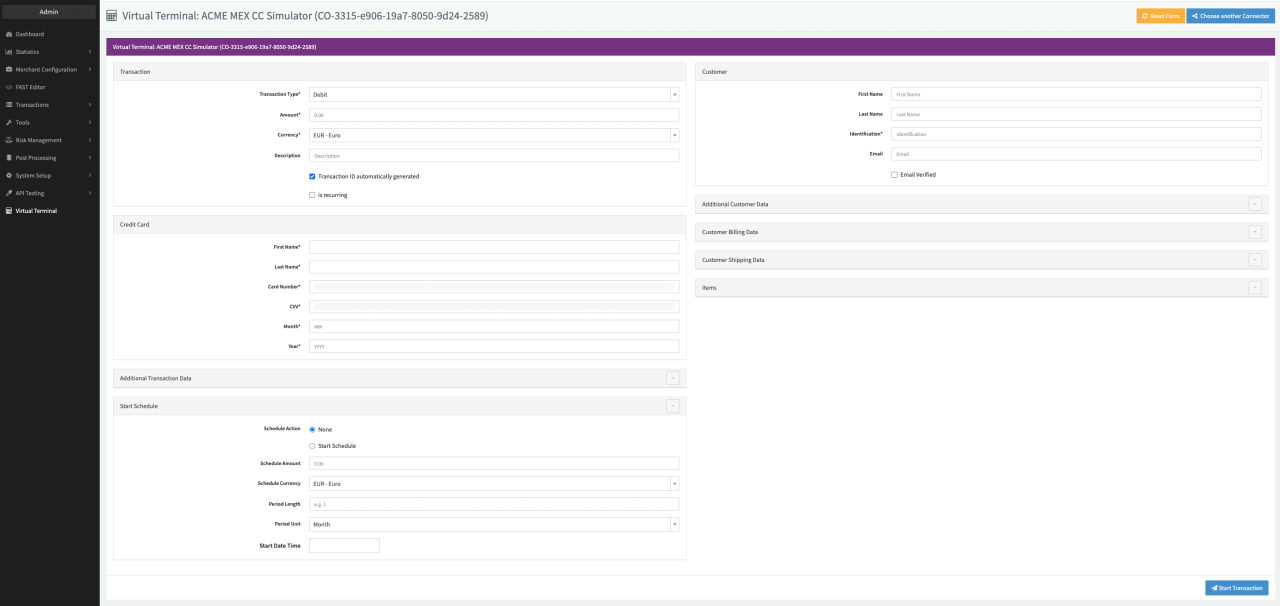
to be used create a new schedule for a register transaction and click Virtual Terminal or Pay By Link, depending if you want to create a payment link for the customer. Fill in the necessary parameters for the schedule to be created in the Scheduler Form:
- Transaction
- Credit Card
- Additional Transaction Data
- Start Schedule
- Customer
- Additional Customer Data
- Customer Billing Data
- Customer Shipping Data
- Items
Click Reset Form to reset the form and enter different values or Choose another Connector to get back to the (Sub-)Tenant, Merchant, Connector selection page.
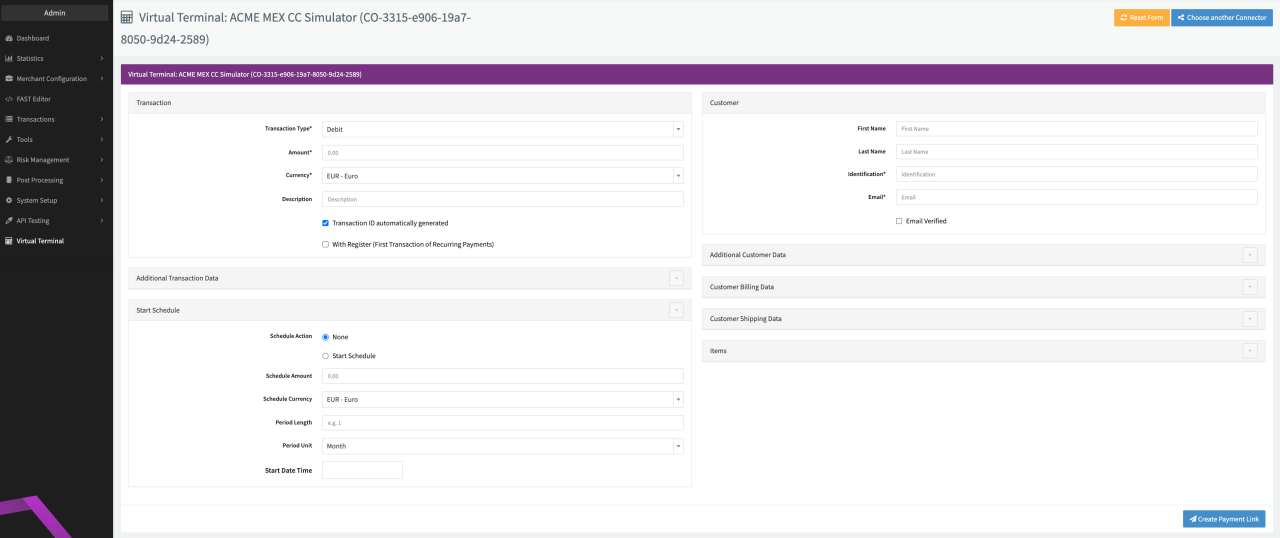
Transaction
In this section you can configure Transaction Details regarding the scheduled Transaction (see Transaction Table).
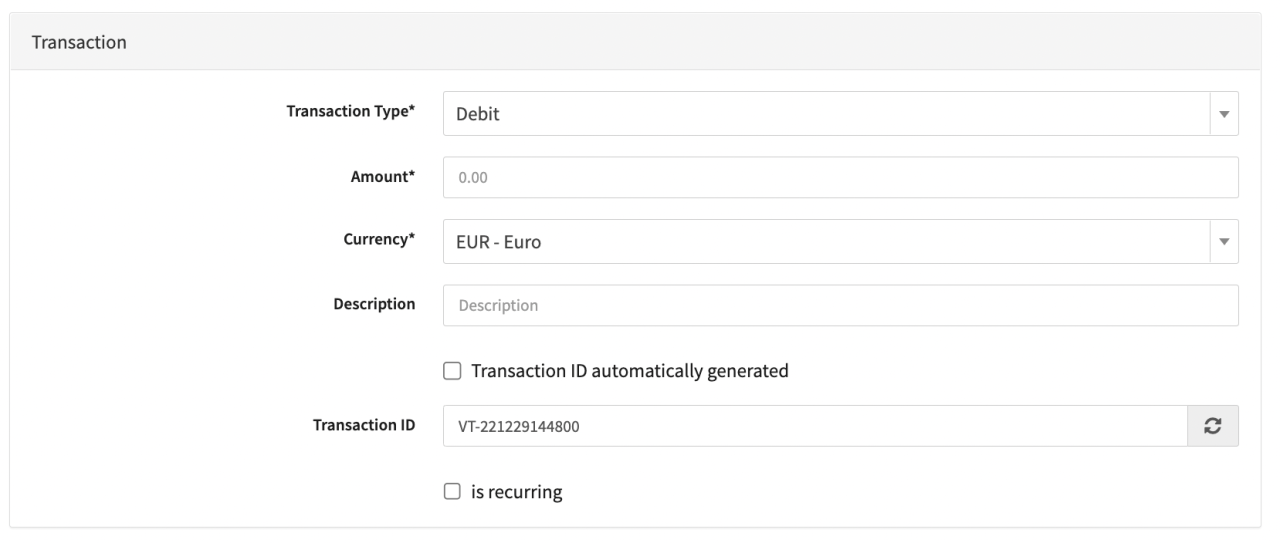
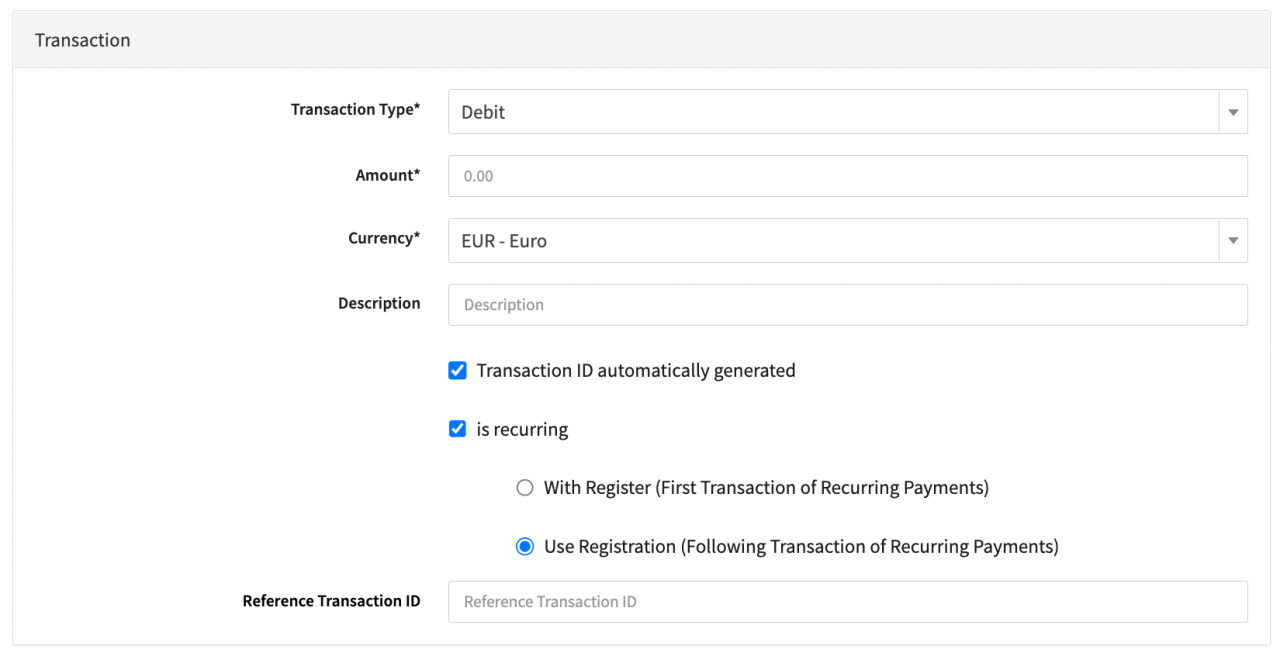
| Field | Description |
|---|---|
| Transaction Type | Select a Transaction Type for the scheduled transaction: Debit, Preauthorize, Capture, Void, Register, etc.. |
| Amount | Fill in an amount |
| Currency | Select a currency |
| Description | Fill in an optional description |
| Transaction ID automatically generated | If enabled a Transaction ID will be automatically generated. To manually enter a Transaction ID disable this option. |
| Is Recurring (Virtual Terminal only) | Enable this option in case the scheduled transaction is recurring (not applicable for all transaction types). You can choose between the options With Register (First Transaction of Recurring Payments) and Use Registration (Follow-up Transaction of Recurring Payments). In case of Use Registration a Registration ID must be provided (Transaction UUID of a Register Transaction) and the Credit Card section will be hidden. |
| With Register (First Transaction of Recurring Payments) (Pay By Link only) | Enable the option With Register (First Transaction of Recurring Payments) |
Credit Card
In this section you can fill in the Creditcard Details regarding the scheduled Transaction (see Creditcard Table). This section is hidden in the Pay By Link Scheduler Form.
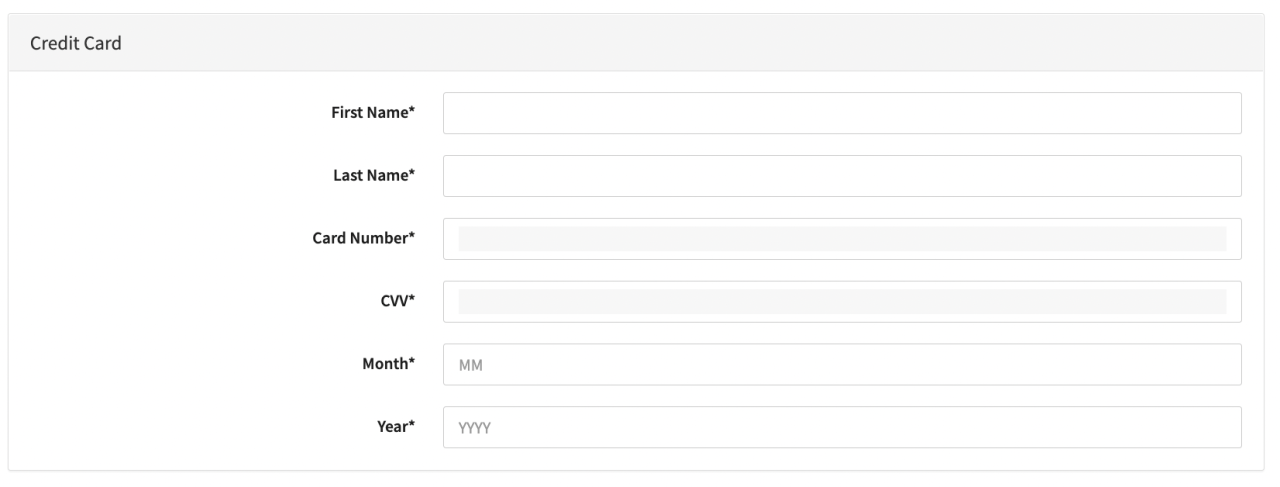
| Field | Description |
|---|---|
| First Name | First Name of Cardholder |
| Last Name | Last Name of Cardholder |
| Card Number | Creditcard number |
| CVV | Creditcard CVV |
| Month | Expiry month of creditcard |
| Year | Expiry year of creditcard |
Additional Transaction Data
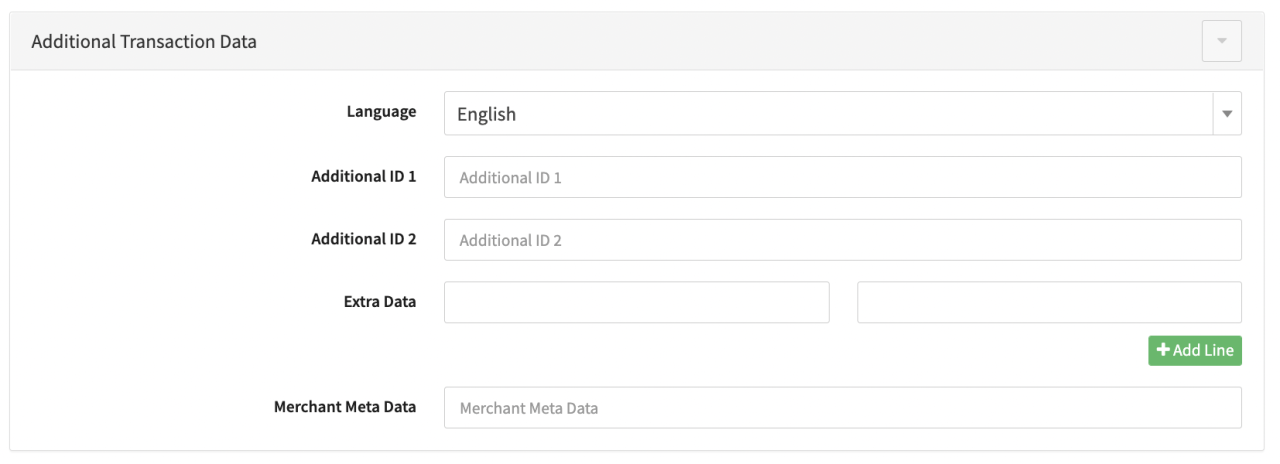
In this section you can fill in the Additional Transaction Data (optional) regarding the scheduled Transaction (see Additional Transaction Data Table).
| Field | Description |
|---|---|
| Language | Select a language |
| Additional ID 1 | Fill in an Additional ID 1 |
| Additional ID 2 | Fill in an Additional ID 2 |
| Extra Data | Fill in additional Key-Value Extra Data pairs. Add new Extra Data lines by selecting + Add Line |
| Merchant Meta Data | Fill in additional Merchant Meta Data (not availalable by default) |
Start Schedule
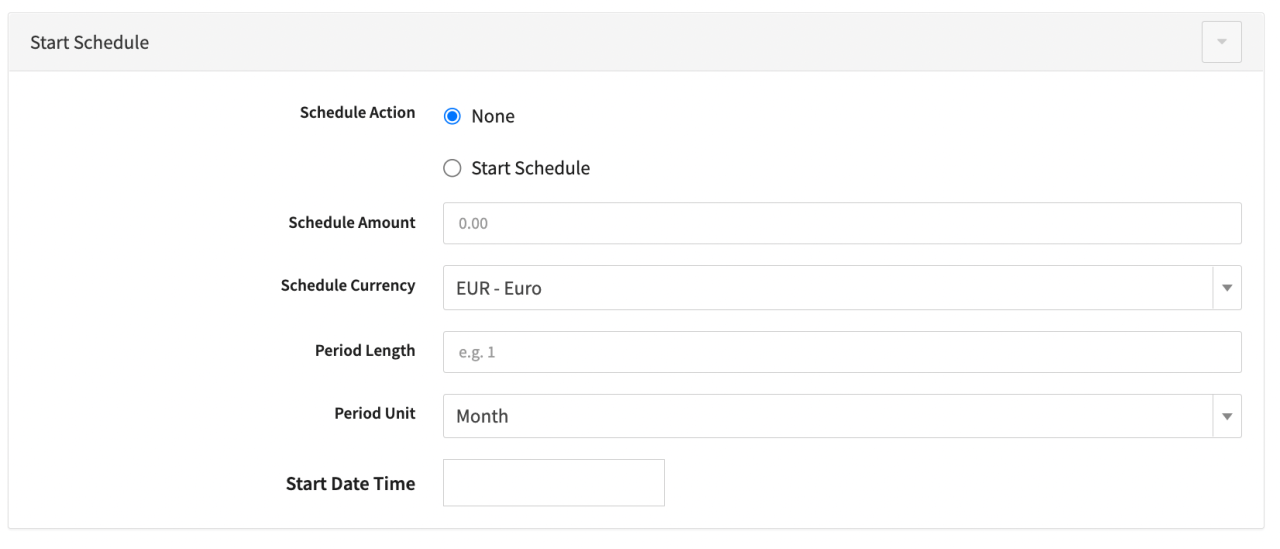
In this section you can fill in the Details regarding the Schedule itself (see Start ScheduleTable).
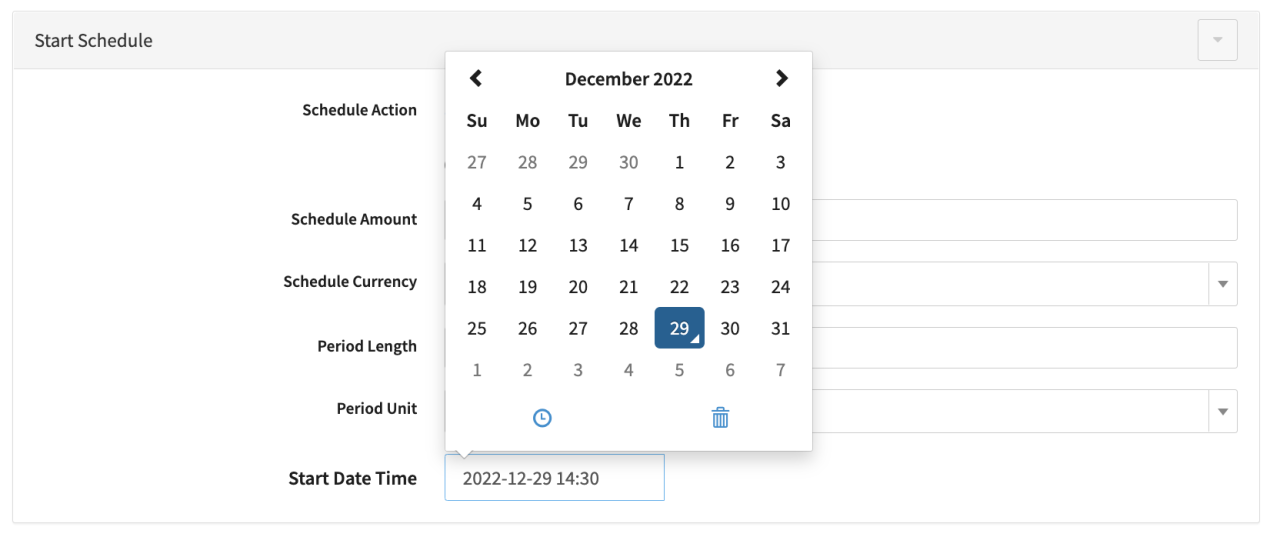
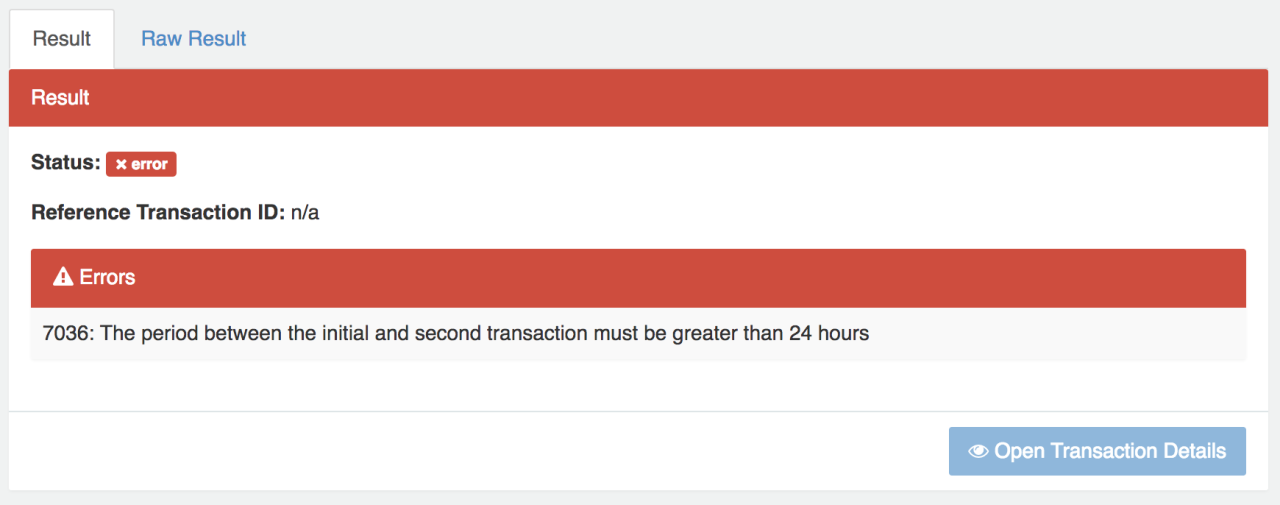
For debit transactions the Start Date Time must be greater than 24 hours from the schedule creation, otherwise the request will fail because the period between the initial and the follow-up transaction must be greater than 24 hours.
Keep in mind that for recurring debits the defined interval (Period Length and Period Unit) is scheduled based on the last processed transaction. If for any reason the processing of a transaction initiated by the schedule is delayed in regards to the initial defined Start Date Time, the next transaction initiated by this schedule will be delayed too.
| Field | Description |
|---|---|
| Schedule Action | None is set per default. To define a schedule, select Start Schedule |
| Schedule Amount | Fill in an amount for the scheduled transaction(s) |
| Schedule Currency | Select a currency for the scheduled transaction(s) |
| Period Length | Fill in a Period Length. The interval between recurring transactions will be defined by the period length and unit |
| Period Unit | Select a Period Unit: Day, Week, Month or Year. The interval between recurring transactions will be defined by the period length and unit |
| Start Date Time | Select a Start Date Time (UTC) for the first scheduled transaction |
Customer
In this section you can fill in Customer Details regarding the scheduled Transaction (see Customer Table).
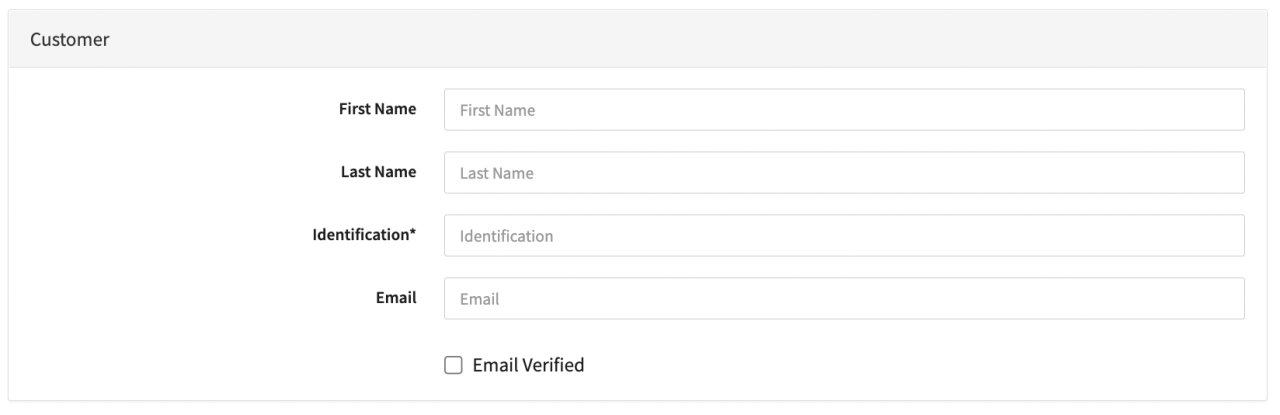
| Field | Description |
|---|---|
| First Name | Fill in the Customer First Name |
| Last Name | Fill in the Customer Last Name |
| Identification | Fill in the mandatory Identification ID for the Customer |
| Fill in the Customer Email | |
| Email Verified | Enable if the Customer Email is verified |
Additional Customer Data
In this section you can fill in additional optional Customer Details (see Additional Customer Data Table).
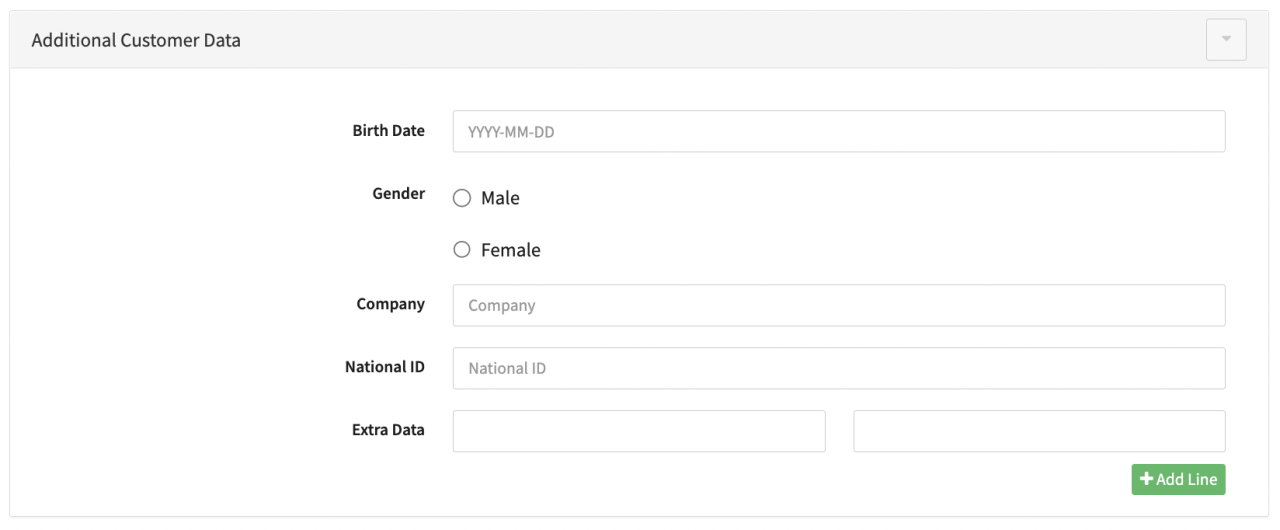
| Field | Description |
| ----------- | --------------------------------------------------------------------------------------------------- | | Birth Date | Fill in the Customers Birth Date in the format YYYY-MM-DD | | Gender | Select optional Male or Female | | Company | Fill in the Customers Company | | National ID | Fill in the National ID | | Extra Data | Fill in additional Key-Value Extra Data pairs. Add new Extra Data lines by selecting + Add Line |
Customer Billing Data
In this section you can fill in additional optional Customer Billing Details (see Customer Billing Data Table).
| Field | Description |
|---|---|
| Address 1 | Fill in Address Line 1 of Customers Billing Address |
| Address 2 | Fill in Address Line 2 of Customers Billing Address |
| City | Fill in the City |
| Post Code | Fill in the Postal Code |
| State | Fill in the State |
| Country | Select the Country |
| Phone | Fill in the Phone number |
Customer Shipping Data
In this section you can fill in additional optional Customer Shipping Details (see Customer Shipping Data Table).
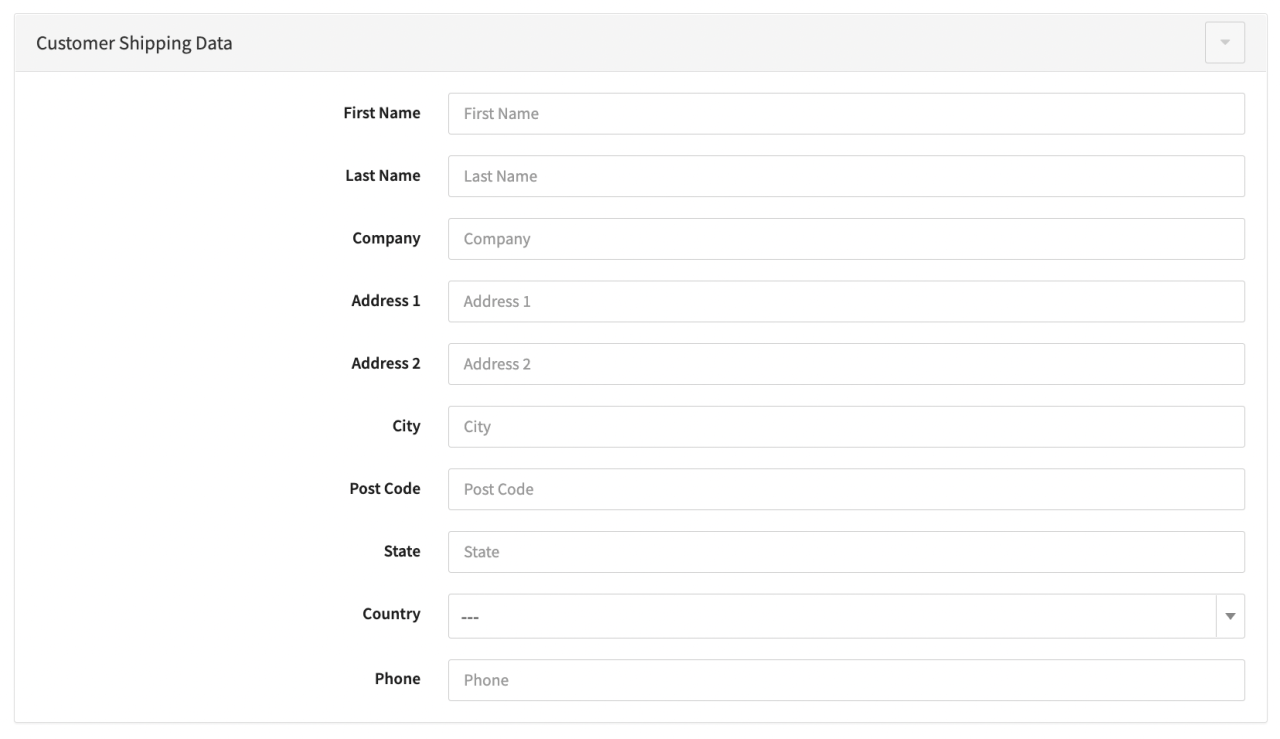
| Field | Description |
|---|---|
| First Name | Fill in the First Name |
| Last Name | Fill in the Last Name |
| Company | Fill in the Company of Customers Shipping Address |
| Address 1 | Fill in Address Line 1 of Customers Shipping Address |
| Address 2 | Fill in Address Line 2 of Customers Shipping Address |
| City | Fill in the City |
| Post Code | Fill in the Postal Code |
| State | Fill in the State |
| Country | Select the Country |
| Phone | Fill in the Phone number |
Item
In this section you can fill in additional details about Items (see Items Table). Click +Add Item to add additional items
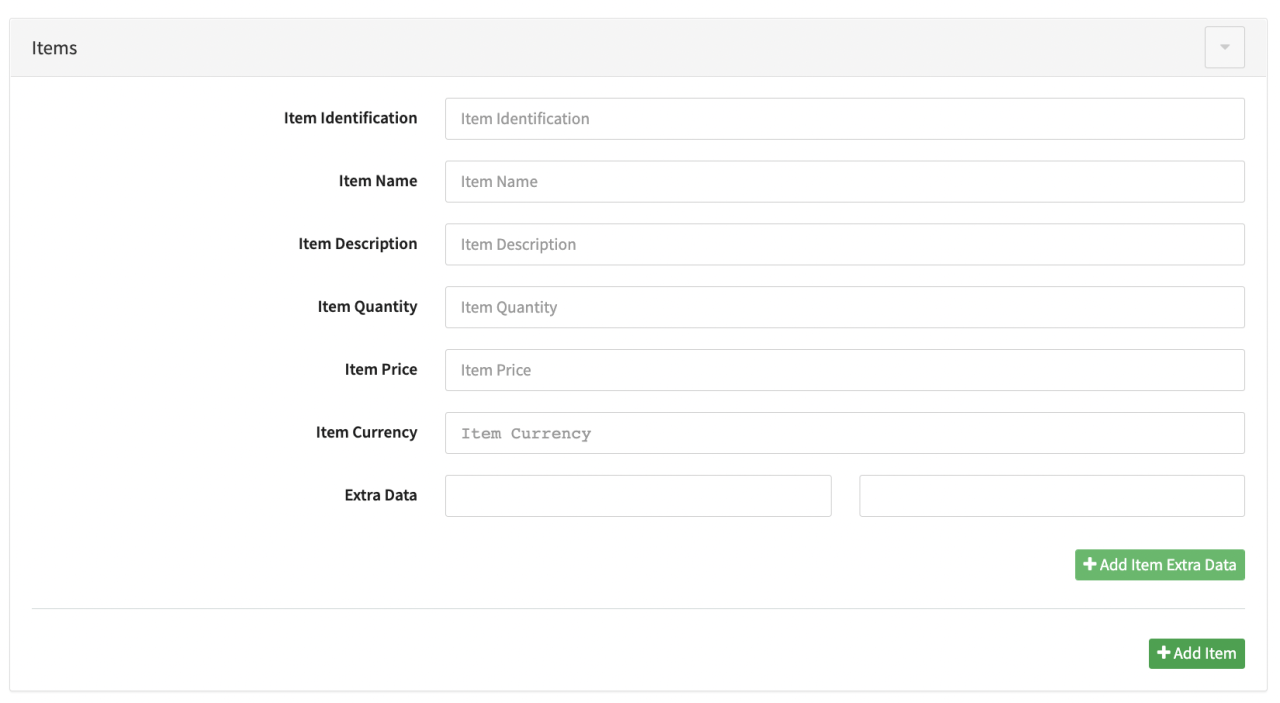
| Field | Description |
|---|---|
| Item Identification | Fill in an Item Identification |
| Item Name | Fill in an Item Name |
| Item Description | Fill in an Item Description |
| Item Quantity | Fill in an Item Quantity |
| Item Currency | Fill in an Item Currency |
| Extra Data | Fill in additional Key-Value Extra Data pairs. Add new Extra Data lines by selecting + Add Item Extra Data |
Create the Schedule by clicking Start Transaction in the Scheduler Form. A schedule confirmation with the Schedule ID, (Reference) Transaction ID will be shown and the schedule will appear in the Schedule Overview.
Alert Settings for Schedules
You can subscribe to Alert Notifications in case a scheduled transaction changes to an error state. Follow these steps to subscribe to Schedule Alert Notifications:
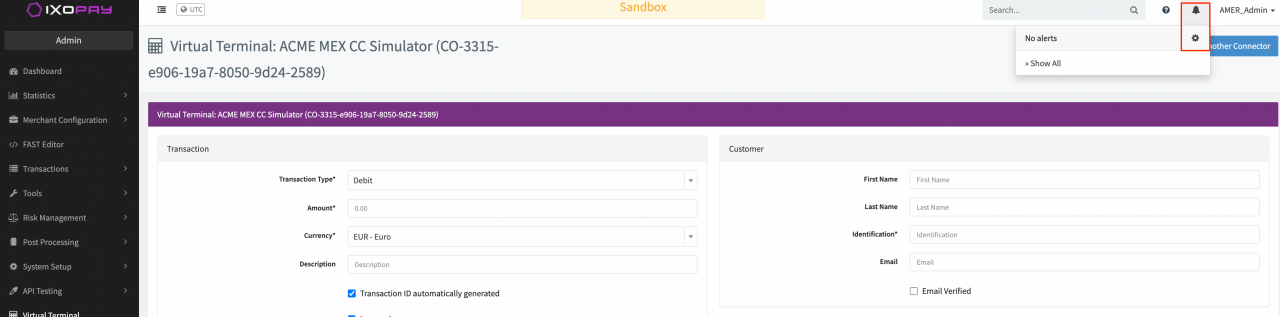
- Open the Alert Settings by clicking the Bell Icon in the top right corner of the Navigation Bar, clicking the Gear-wheel Icon
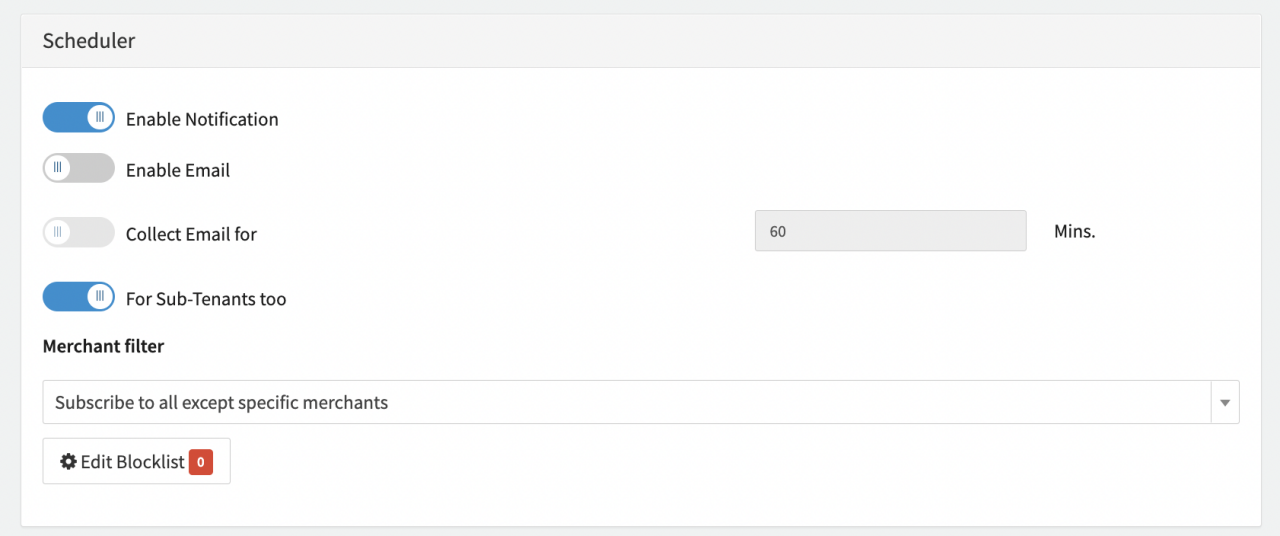
- In the Scheduler section set up your alerts as needed (see Manage and Visualize Alerts for more information)