Overview
The Transaction list provides an overview of all transactions (Successful, Failed, Pending) stored in the IXOPAY platform including key information on the transactions. You can create and customize the data visualization as needed for your reports using the extensive filter options. Detailed information on a specific transaction are available in the Transaction Details.
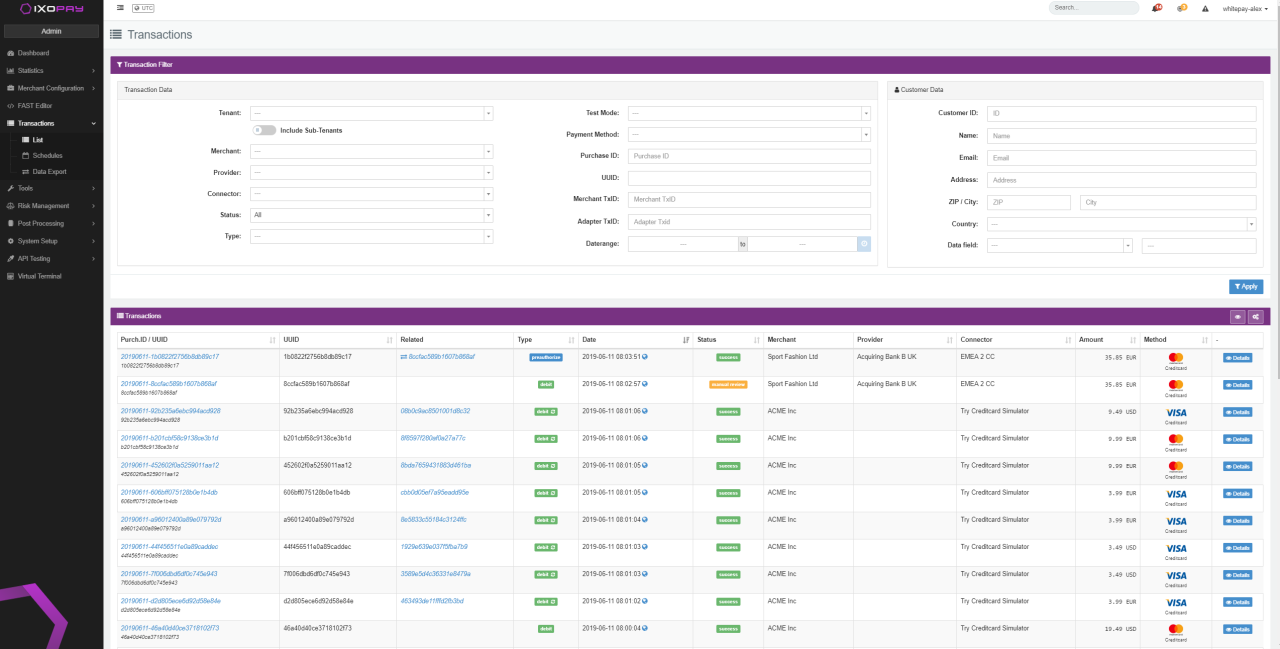
Use the Transaction Filter to narrow your results by filtering according to various Transaction and Customer data points.
Transaction Data Filters
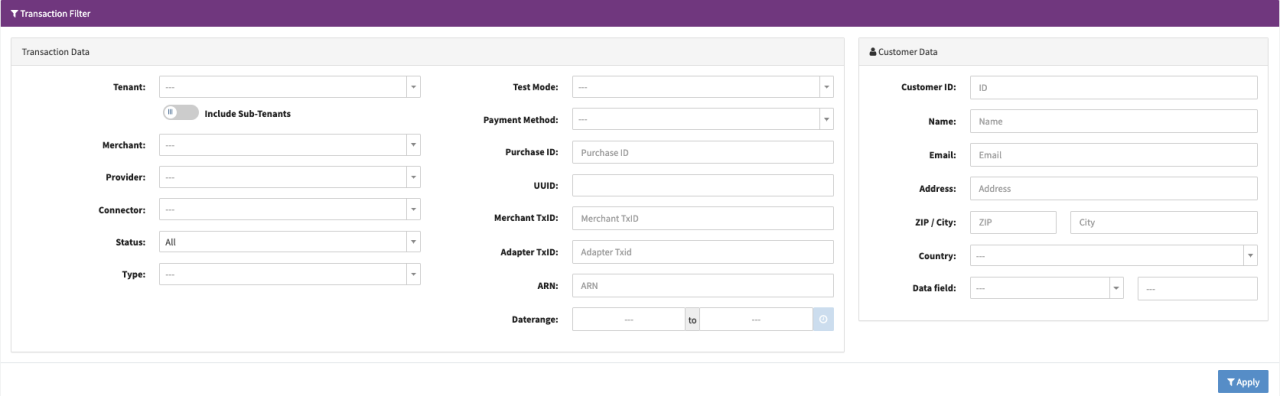
| Field | Description |
|---|---|
| Tenant | Select a specific Tenant. You can select whether sub-tenants should be included in the filter results. |
| Merchant | Select a specific Merchant from the list |
| Provider | Select a specific Provider |
| Connector | Select a specific Connector |
| Status | Select the Transaction status: All, Success, Failed (Options: All Failed, Error Adapter, Error Internal, Invalid, Cancelled), Open (Options: All Open, Pending, Await Redirect, Await Completion, Redirect) |
| Type1 | Select a Transaction type: Debit (Options: All debit, Initial Debit, Recurring Debit), Preauthorize (Options: All Preauthorize, Initial Preauthorize, Recurring Preauthorize), Capture, Void (Options: Partial Void), Register, Deregister, Refund, Chargeback, Payout |
| Description | Enter a Transaction Description received by the IXOPAY platform in the API Transaction Request |
| Additional ID1, Additional ID2: | Enter an Additional ID1 or ID2 received by the IXOPAY platform in the API Transaction Request |
| Test Mode | Select Yes to see all Transactions including Transactions done in Testmode. Select No to filter only real Transactions |
| Adapter | Select a specific Adapter |
| CC Token Type | Select CC Token Type: Apple Pay, Google Pay |
| Payment Method | Select a specific Payment Method |
| Transaction Tag | If used and activated you can filter for Transaction Tags |
| Purchase ID | Enter a Purchase ID, a unique Identifier the Merchant received within the API Transaction Response referring to a Transaction. |
| UUID | Enter a UUID, Universal Unique Identifier, a unique Identifier the Merchant receives within the API Transaction Response referring to a Transaction. |
| Merchant TxID | Enter the Merchants Transaction ID received by the IXOPAY platform in the API Transaction Request |
| Adapter TxID | Enter the Adapter Transaction ID, received by the IXOPAY platform in the PSP's / Acquirers response |
| Auth Code | Enter the Credit card Authorization Code, received by the IXOPAY platform in the PSP's / Acquirer's response |
| ARN | Enter one or multiple Acquirer Reference Numbers |
| RRN | Enter one or multiple Retrieval Reference Numbers |
| Daterange | Restrict results to a specific date range by selecting a from and to date. To narrow down the range even more, select the Clock Button to modify the exact time for from and to date |
Filtering by Customer Data
Use this section to filter transactions by customer data. These filter options are useful if a customer contacts your support team regarding a specific transaction. The support team can enter the customer's email address to display all relevant data about transactions involving this email address, etc.
| Field | Description |
|---|---|
| Customer ID | Enter the Customer Identification |
| Name | Enter the Customer name |
| Enter the Customer email address | |
| Address | Enter the Address of your specific customer (Shipping or Billing Address will be filtered) |
| Zip/ City | Enter specific locations such as zip and/ or city |
| Country | Select a specific country (Shipping or Billing Country will be filtered) |
| Data Field | Depending on your configuration there can be different data fields to be searched for |
| Card number | Enter the fist six and/or last four digits of customers creditcard number |
| IBAN | Enter the Customer IBAN |
| Data field | Select a data field from the list and enter a value to filter for |
Advanced Filter
If the Transaction Data Filter and Customer Data Filter are not sufficient to narrow down your search, the IXOPAY platform provides a more granular search to filter your Transaction List with Advanced Filters. Create an individual set of filter rules as follows:
- In the Transaction List, navigate to the Advanced Filter (see Transaction List).
- Optional: Copy the filters selected from the Standard Filter.
- Add a filter rule by selecting a Filter Criteria (e.g. Transaction initiated by),
Comparator (e.g. one of) and Values (e.g. merchant) (see Advanced Filter).
- You can add as many filter rules as you want using the Plus icon next to your filter rule. The Minus icon removes the current filter rule.
- Filter rules are combined using the logical operators AND or OR (e.g. AND).
- You can add additional filter rules to be evaluated by adding Groups. You can add as many groups as you want using + Group. Use the Minus icon next to a group to remove the group (i.e. all filter rules defined in the group).
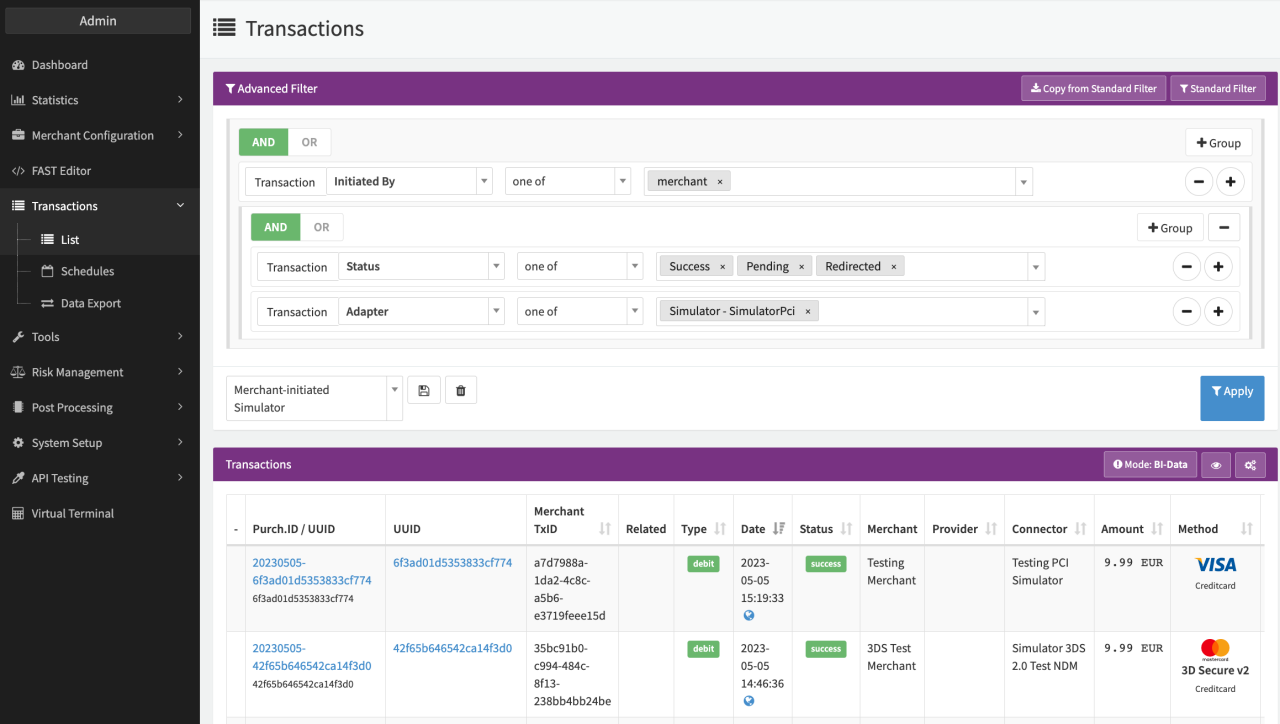
See the example in "Advanced Filter":
The defined advanced filter first filters for all transactions which have the parameter initiated by merchant. If this filter rule is true then the filter checks whether the transaction's Status is one of either success, pending or redirected AND if the transaction was processed by the Adapter Simulator - SimulatorPCI.
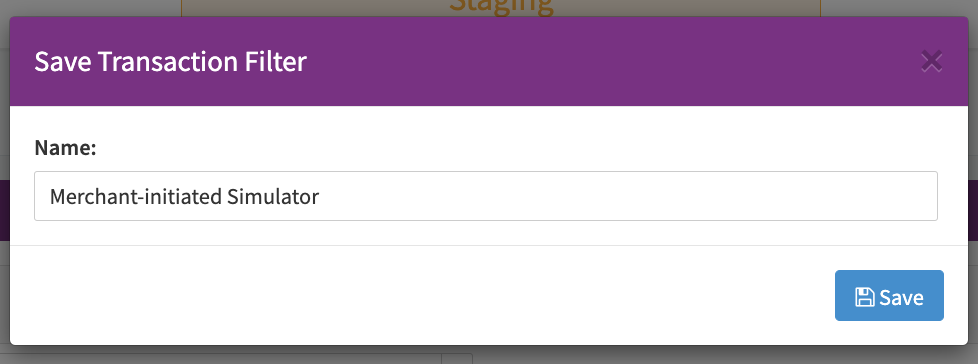
You can save your advanced filters using the Disk icon. Enter a Name in the dialog (see Save Filter). The Trashcan icon deletes the advanced filter.
Select Apply to execute your advanced filter.
Filter Results in the Transaction List
Depending on the complexity or number of results, the filter is applied in Mode: BI-Data, using the BI Data Source technology also available to clients, or Live (see Filter Mode).

Transaction data is not provided in real time (at the time of the transaction), though generally within a maximum of 24 hours in the BI Data Source.
Once you have applied the filter you can customize the results using the eye icon. All available columns including the current selection (marked blue) are displayed and can be selected/de-selected. To view more details on a specific transaction, click the Details button to navigate to the Transaction Details.
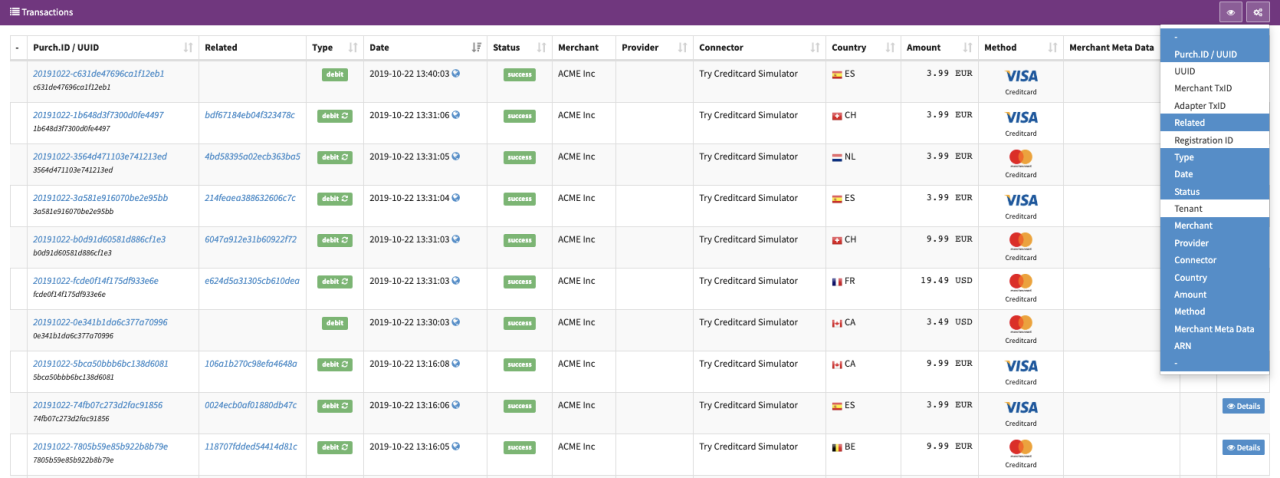
| Column name | Description |
|---|---|
| Purch. ID/ UUID | Purchase ID / Universal Unique Identifier |
| UUID | UUID (Universal Unique Identifier) only |
| Merchant TxID | Merchant Transaction ID |
| Adapter TxID | Adapter Transaction ID |
| Related | Related Transactions |
| Registration ID | Customer registration ID |
| Type | Transaction Type |
| Date | Transaction Date |
| Status | Transaction Status |
| Tenant | Tenant Name |
| Merchant | Merchant Name |
| Provider | Provider Name |
| Connector | Connector Name |
| Country | Customer Country |
| Amount | Transaction Amount |
| Method | Payment Method - Transaction performing 3-D Secure are indicated below the creditcard name |
| Merchant Meta Data | Merchant Meta Data of the Transaction |
| ARN | Acquirer Reference Numbers |
| RRN | Retrieval Reference Numbers |
| Auth-Code | Creditcard Authorization Code |
| Card Holder | Card Holder Name |
| First Six Digits | fist six digits of customers creditcard number |
| Last Four Digits | last four digits of customers creditcard number |
| Card Type | BIN DB: Creditcard Type |
| CC Token Type | Apple Pay or Google Pay |
| Card Level | BIN DB: Card Level |
| Card Bank | BIN DB: Issuing Bank |
| Card Country | BIN DB: Country |
| Customer E-Mail | Customer email address |
| - | Details Button |
Exporting Transactions
The IXOPAY platform allows you to quickly export the Transactions as displayed in the Transaction List with filters applied. Select the intermeshing gears icon on the right corner of the Transaction list (below the Apply Filter option) and select the Option Export all visible data.
This will create and download a .csv file containing a maximum of 25 Transactions shown on the current page with the previously selected columns. For details on creating a customized .csv export, refer to the Data Export and Job Configuration sections.