Security Center
Changes to these settings are applied immediately!
Use this section to configure Security Settings, as well as create Audit Log Exports for your tenant (incl. sub-tenants).
Security Settings
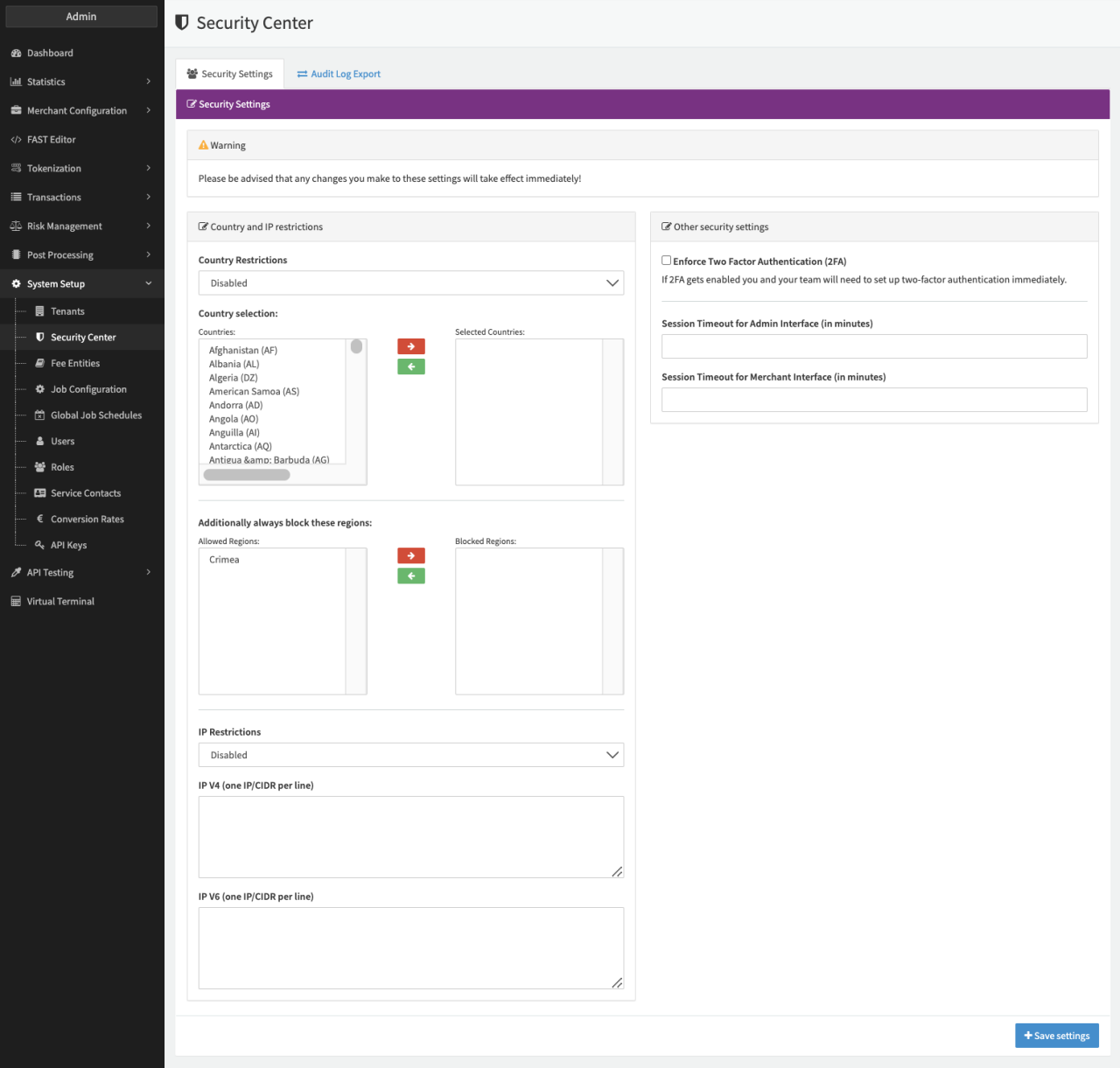
Use the Security Settings tab to configure Country Restrictions and IP Restrictions, Enforce Two Factor Authentication or define session timeouts.
Country and IP Restrictions
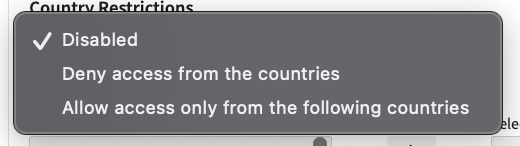
Use the Country Restrictions option to either allow or deny access to your IXOPAY platform tenant from specific countries.
You can also block specific regions under Additionally always block these regions. Selected regions are always blocked regardless of the settings under Country Restrictions.
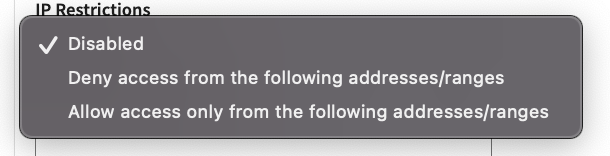
Depending on the selected IP Restrictions option, you can either allow or deny access to your IXOPAY platform tenant from specific IP ranges for IP V4 and IP V6.
Other security settings
Enforce 2 Factor Authentication (2FA) for users accessing the platform by checking the Enforce Two Factor Authentication (2FA) checkbox.
You can also set session timeouts (in minutes) for Admin (Session Timeout for Admin Interface (in minutes)) and Merchant (Session Timeout for Merchant Interface (in minutes)) interface users.
The Auto-deactivation of users who are inactive setting automatically disables accounts for users who have not logged in within the specified number of days. The allowed range is 30 to 720 days. Inactive users are disabled in the background at regular intervals, not immediately after saving the setting.
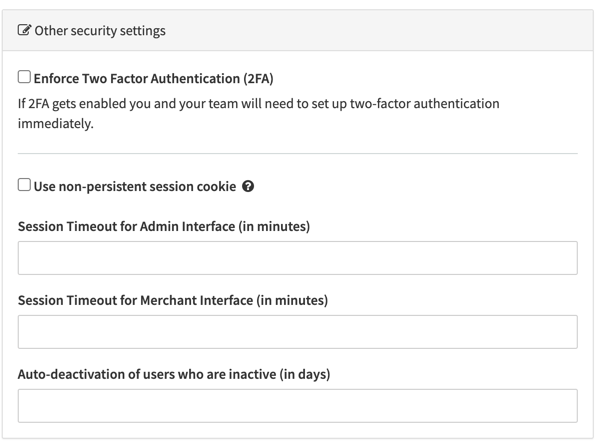
The Enforce 2 Factor Authentication, Session Timeout and Auto-deactivation of users who are inactive options do not apply to API Users.
Audit Log Export
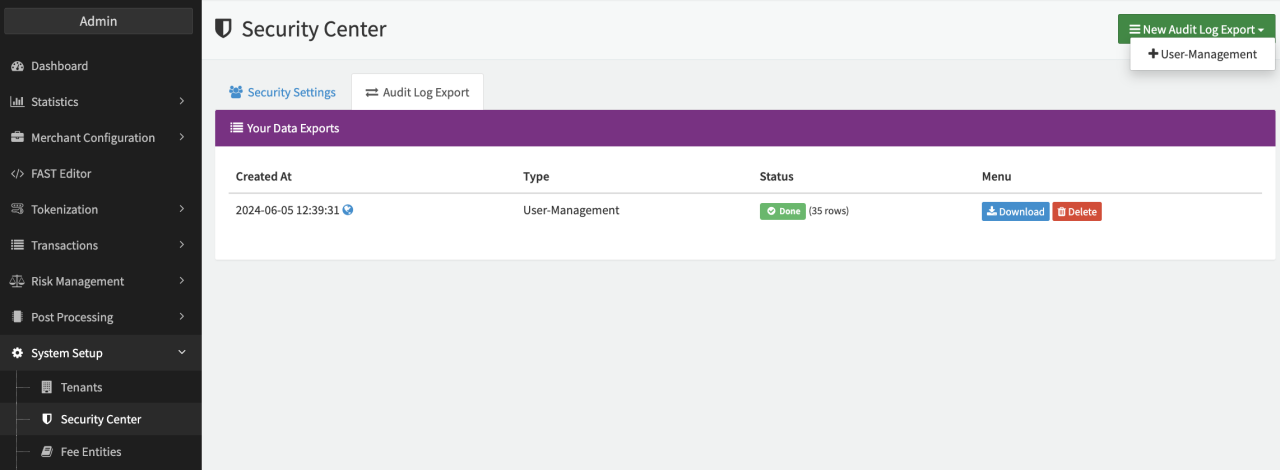
Switch to the Audit Log Export tab to create, download and delete user management audit logs (see Audit Log Export overview screenshot).
To create a new audit log export:
- Click on New Audit Log Export and select + User Management.
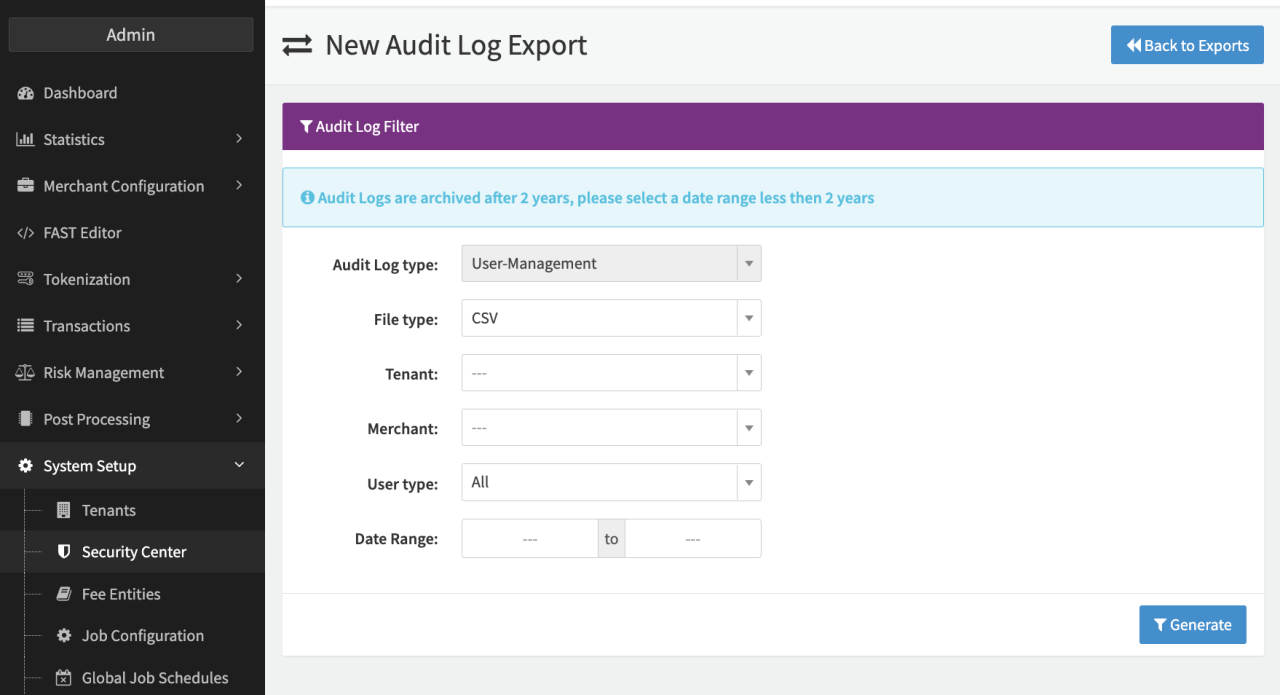
- Define filters to restrict the data that is exported (see Export Filters screenshot):
- Tenant: If no tenant is selected, the current tenant including all sub-tenants is included in the report.
- Merchant: If no merchant is selected, all merchants assigned to the selected tenant are included in the report. Multi-merchant access: Only users created for the selected merchant are included in the report.
- User type: All, Admin, Merchant (API), Merchant (Web).
- Date Rang: Select the date range to export. Audit logs are archived after 2 years; the range should not be further than 2 years in the past.
- Click on Generate to create the report.
The report is created and displayed on the Audit Log Export tab. You can Download or Delete the audit log from here.
Files are retained for 12 months and permanently deleted thereafter.