Currency Conversion Rates
If you want to get access to all IXOPAY platform features you need to upgrade your plan. Please contact our Support Team in the IXOPAY Customer Experience Portal for more information.
The IXOPAY platform supports businesses to handle multiple currencies and thus facilitates accounting functions, such as reporting but also Risk Management teams, when it comes to setting up Rules based on certain Transaction amounts.
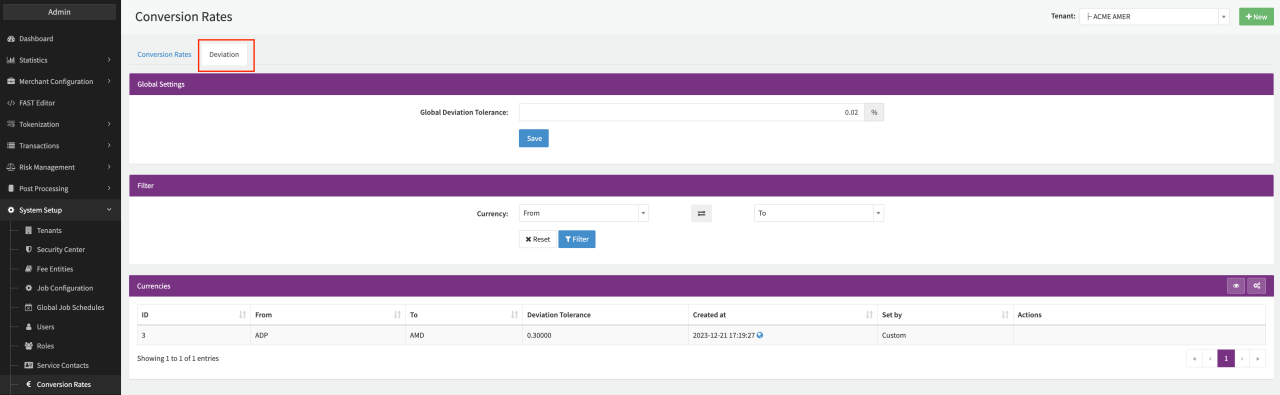
As currency prices constantly vary, the IXOPAY platform daily updates a large number of common used currencies automatically based on the conversion rates provided by the European Central Bank (ECB). As an administrator you also have the possibility to add and edit additional currencies as well as to define deviations tolerances for each currency conversion to be considered during transaction Post Processing.
New Conversion Rates
To add new Conversion Rates to the IXOPAY platform, follow these steps:
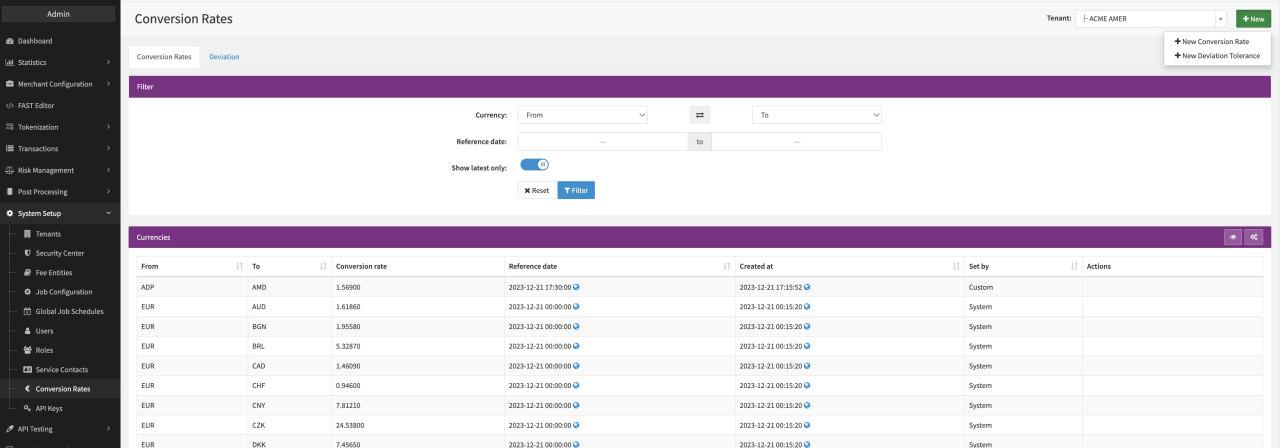
- Navigate to System Setup - Conversion Rates (See Conversion Rates Overview)
- Select + New - + New Conversions Rates if you are missing currencies
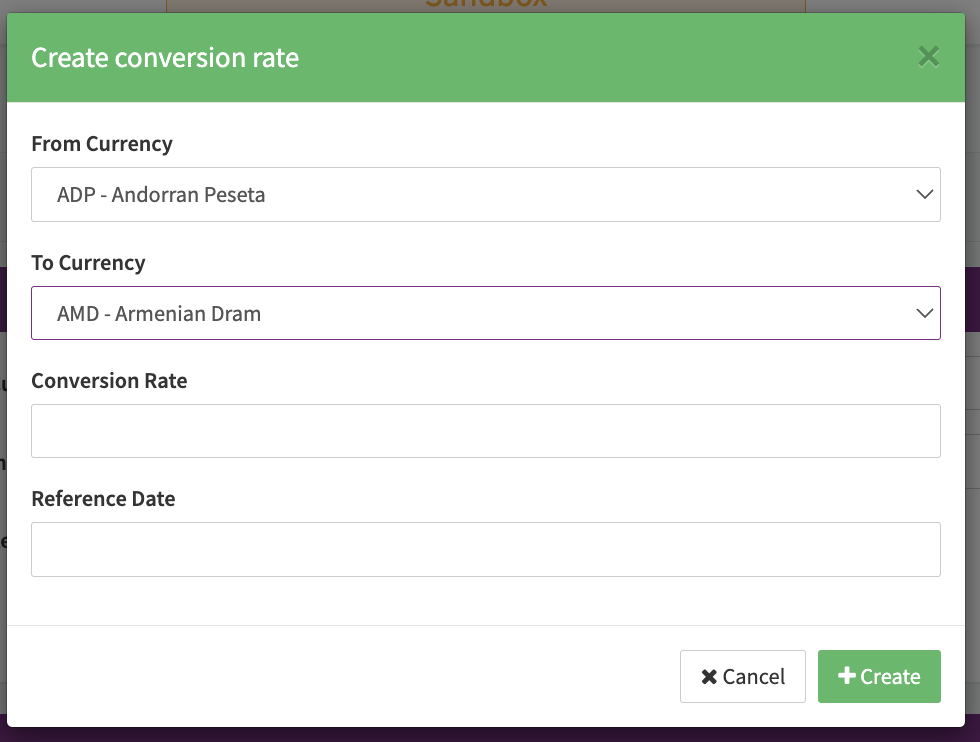
- Fill in the
- From Currency: Choose which currency you would like to add or edit
- To Currency: Choose to which currency you would like to convert
- Conversion rate: Conversion rate for the currency conversion
- Reference Date: Date to be shown in the Conversion Rates Overview
- Select + Create to save your conversion rate
The new customized currency will appear in the Conversion Rates Overview with Set by - Custom.
Customized Currencies should be regularly updated to be accurate.
Deviation Tolerance
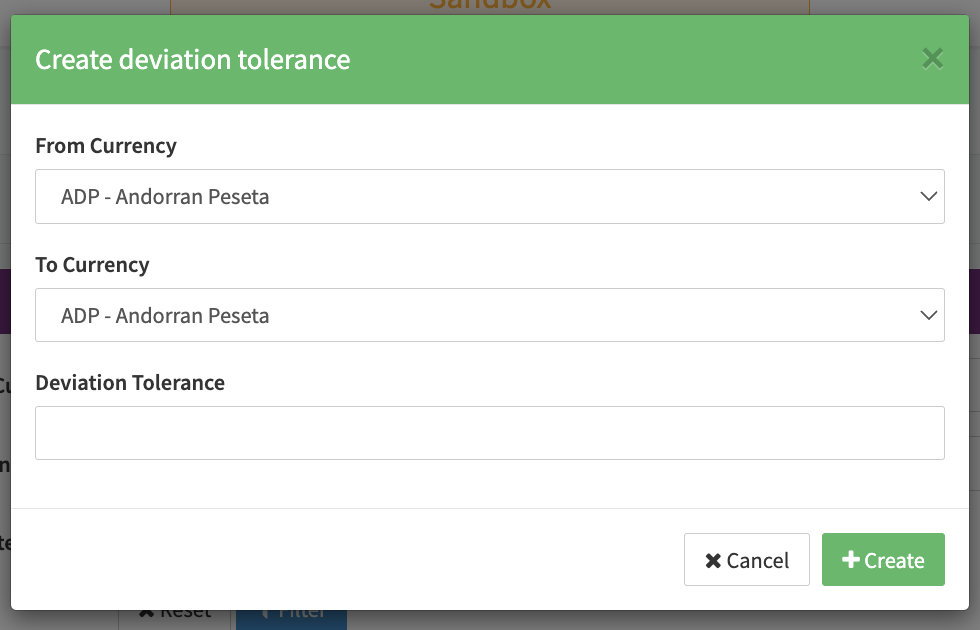
To add or edit Deviation Tolerances, follow these steps:
- Navigate to System Setup - Conversion Rates (See Conversion Rates Overview)
- Select + New - + New Deviation Tolerance
- Fill in the
- From Currency: Choose which currency you would like to add or edit
- To Currency: Choose to which currency you would like to convert
- Deviation Tolerance: Tolerance to be considered during transaction Post Processing for the currency conversion
- Select + Create to save your deviation tolerance
The new deviation tolerances will appear in the Deviation Tolerance Overview with Set by - Custom. In this view you can also edit the Global Deviation Tolerance set for the tenant.