Post Processing Jobs
If you want to get access to all IXOPAY platform features you need to upgrade your plan. Please contact our Support Team in the IXOPAY Customer Experience Portal for more information.
With IXOPAY platform's Post-Processing Job Engine, you can automate ETL (Extract, Transform, Load) Jobs dealing with Transactions.
It can be used for a multitude of use cases, such as invoicing, settlement processing, automated Excel/ CSV reports, or data transfer to any third party systems (e.g. your ERP or bookkeeping system). Some of them are described by way of example in subsections.
Basics
First, we want to explain some terms which are necessary to understand the further documentation.
Job Type
A job type defines the kind of job and needs to be configured before execution. In general, the type is just an empty "Container" for which you configure the desired steps to be executed.
Each job type contains one or more steps for "Collecting" information (e.g. fetch Transaction based on the configured criteria), "Processing" the collected data (e.g. calculate sum of Transaction values or Fees, those are written to so-called "Job Line Items") and "Exporting" data (e.g. writing the Transaction data or the processing results to files or external systems).
Job Schedule
Once a job type is configured, a job schedule needs to be created to define parameters. If the parameters match the actual jobs get executed in the IXOPAY platform. Within the schedule you define:
- in which intervals the job gets triggered (e.g. weekly, or monthly, or every 3 days, etc. or manually)
- for which related entity (Merchant, (Sub-)Tenant, Provider) the job gets executed.
Through this related entity, the system knows which Transactions it shall consider during the Collecting phase. E.g. the Schedule is defined for Merchant "ABC", then the job will only consider Transactions of this particular Merchant.
Job
The job is the final executed job based on your configured job type. Every time the schedule criteria matches (e.g. "every Monday at 07:00"), the system creates a new job and runs the steps configured in the particular job type.
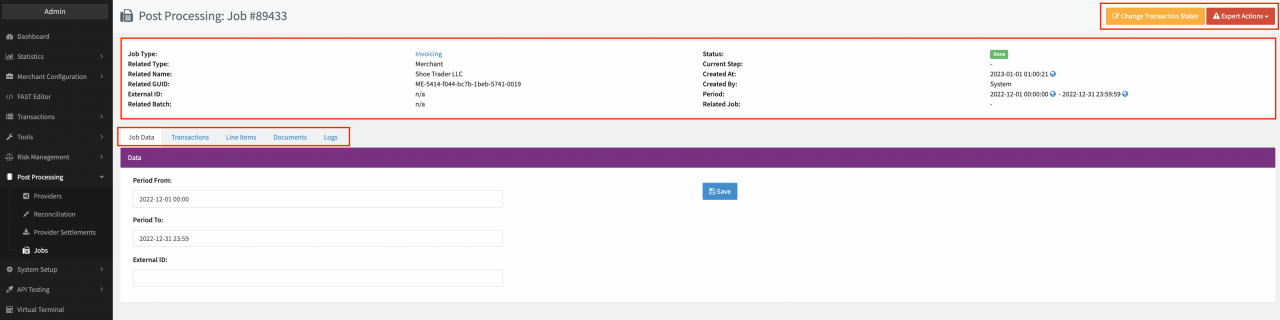
A job (after fully processed) will contain the following elements among other information (see Example Job):
- Transactions: all Transactions that were collected through the "Collecting" steps
- Line Items: these are the results from the "Processing" steps (e.g. sum of Transaction Fees, split by certain criteria, etc.)
- Documents: these are any files that were generated through the "Exporting" steps
Step-By-Step Guide
First of all you need to create and configure a Job Type to be able to run Post Processing Jobs in the IXOPAY platform:
Job Type
Follow these steps to set up a new Job Type:
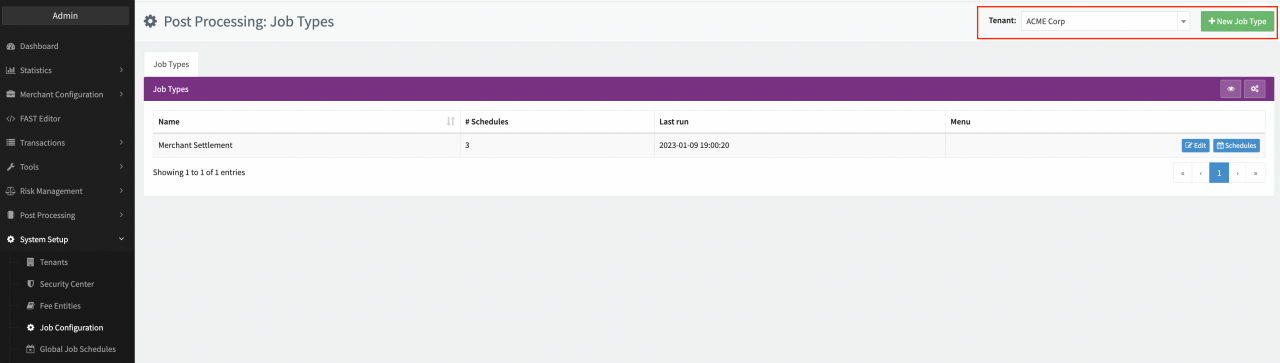
- Navigate to the System Setup section, sub-section Job Configuration
- Select + New Job Type - you can already pre-select the (Sub-)Tenant for which the new job type should be created (see Job Type Overview)
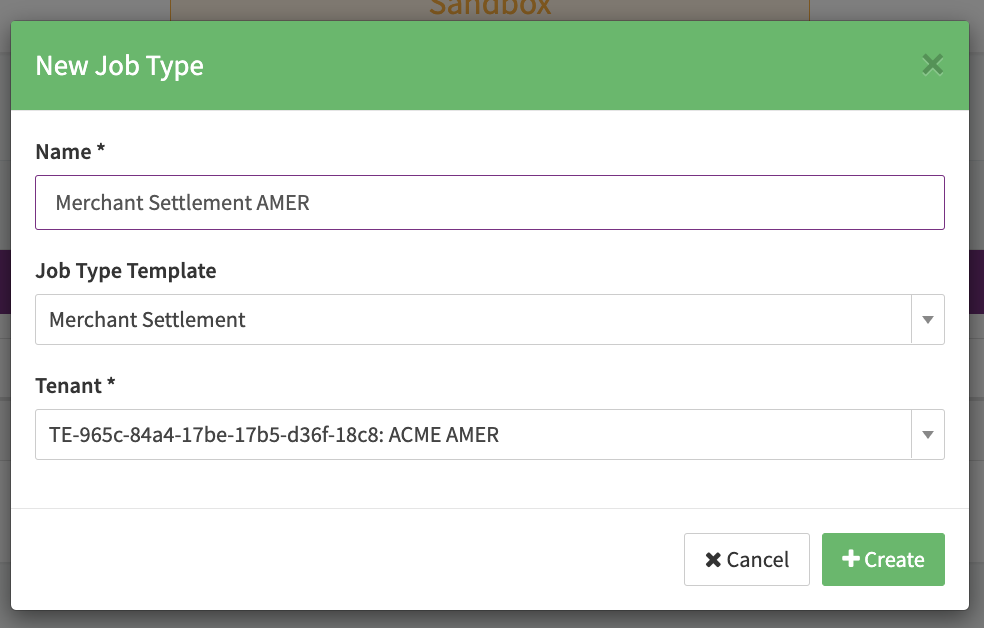
- Fill in the Job Type Name and "owning" (Sub-)Tenant and click + Create (see Create new Job Type)
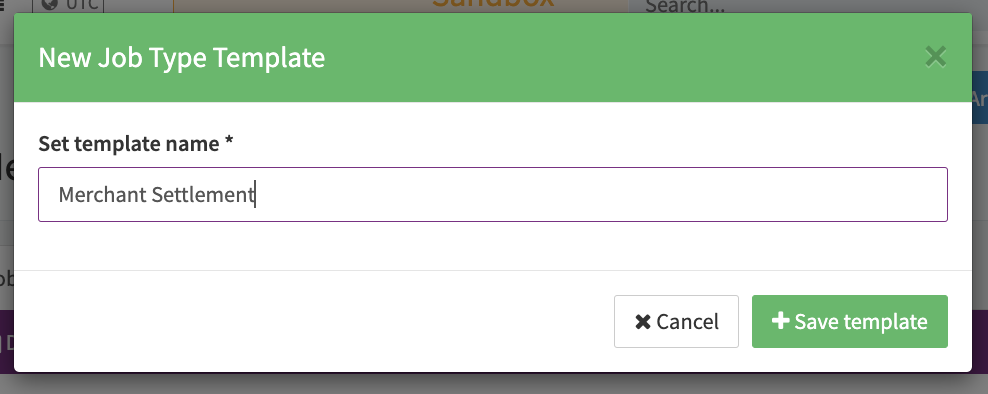
- Optional you can select a predefined Job Type Template to be edited (see Job Type Template)
You are redirected in the configuration view for this Job Type in which you can configure the different tabs (Job Data, Collecting, Processing, Exporting) or save the configured Job as a Job Type Template with + Save as Template (see Create Job Type Template). The Job Type will be shown in the the Job Type overview of the "owning" tenant and can be edited or archived there anytime.
In the next section you will find details about the configuration, namely Job Data and Step Configuration, or you can jump directly to the Job Schedules, which is the next logical step to run Post Processing Jobs in the IXOPAY platform.
Job Types can only be scheduled on entities within the hierarchy of the entity the Job Type was configured for: E.g. Job Type is defined for Tenant ACME Corp. The Job Type can only be scheduled on Sub-Tenants, Provider, Merchants created under the ACME Corp tenant.
Scheduled Job Types cannot be archived, first you need to delete all schedules before being able to archive the Job Type.
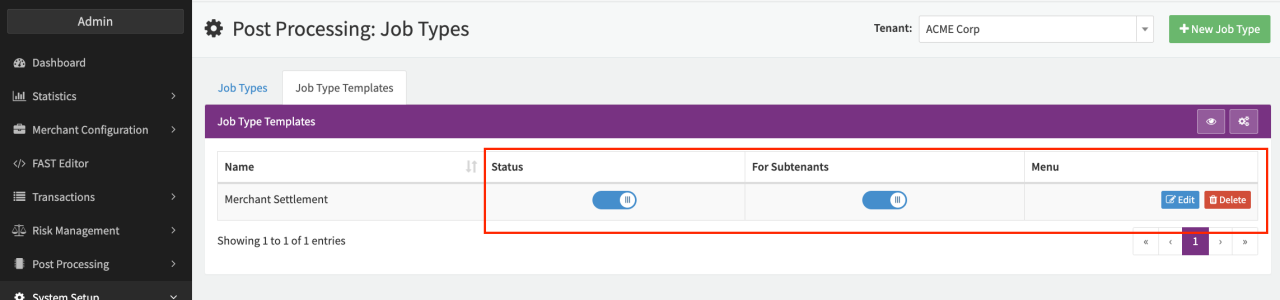
With the Permission postprocessing.job-config.templates.* Job Type Templates can be created and found in the Job Type Templates Tab where they can be made available for Sub-Tenants, enabled /disabled, edited or deleted.
Job Data
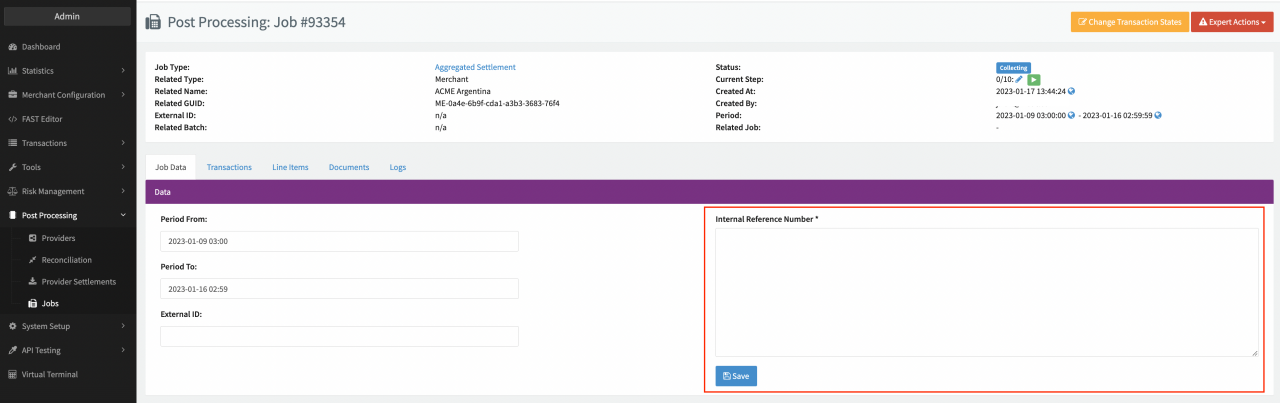
The Job Data section is the first tab in the Job Type Configuration. Here you can configure fields to be available on each executed job to be filled — so basically some base data on head-level for each job. This is only the declaration of the data fields, not the values itself. E.g. you can define a job shall contain a field for your "Internal Reference Number" so you would configure a "TextParam", which can then be filled individually for each triggered job (see executed Job).
The available field types split into primitive types and complex types.
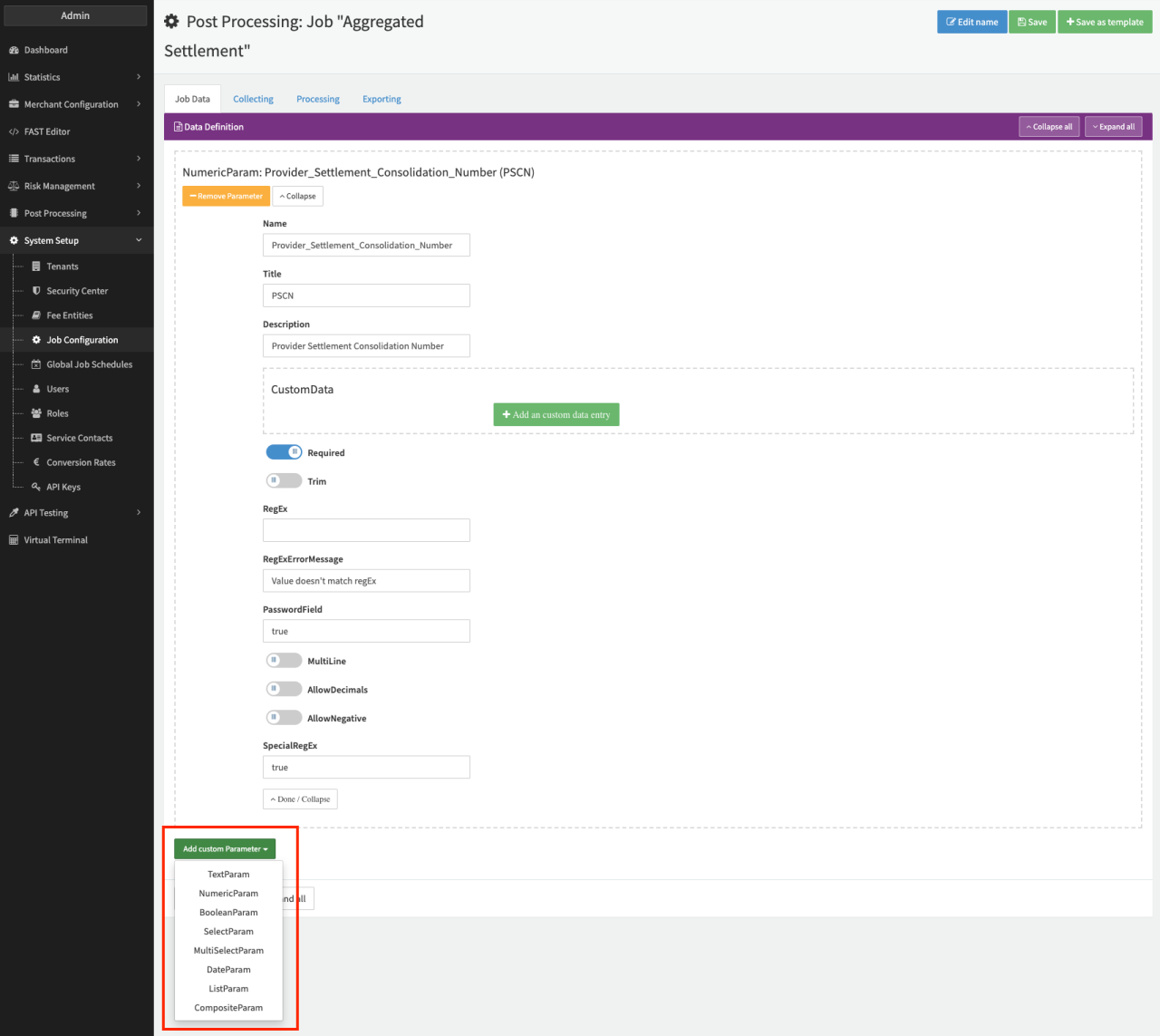
The primitive types are:
- TextParam: a text input field
- NumericParam: an input field for numbers
- BooleanParam: a field which can either be "on" or "off" (resp. "Yes" or "No")
- SelectParam: a dropdown field which allows to select a pre-defined value
- MultiSelectParam: same as SelectParam, but allows multiple values to be selected
- DateParam: a field containing a Date value
Each field contains the following generic configuration parameters among further self-explanatory parameters:
| Field | Description |
|---|---|
| Name | Internal field name for element, this can be used within certain steps afterward |
| Title | Display name of the field |
| Description | Descriptive text for the field |
| Required | Marks field as mandatory |
| CustomData | Configuration to enable special behavior for a field — Contact our Support Team in the IXOPAY Customer Experience Portal for further information |
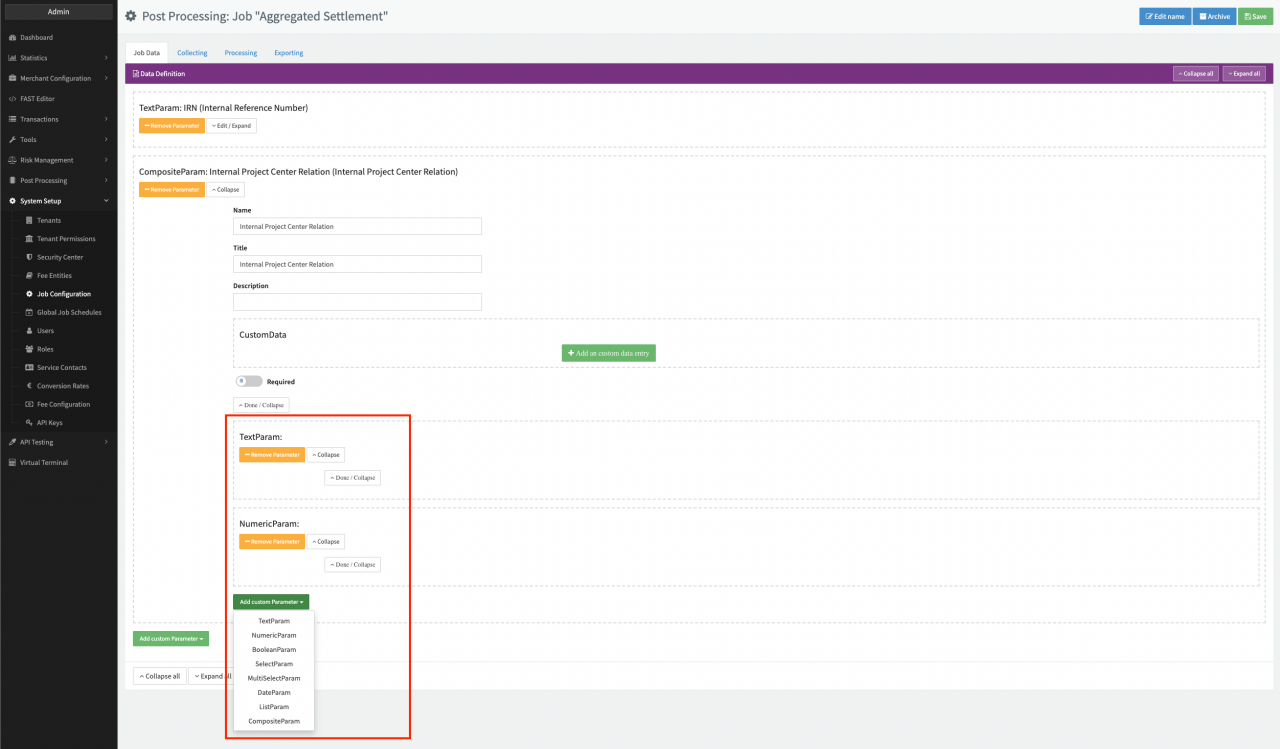
The complex types are:
- CompositeParam: A collection of multiple primitive fields, which shall be grouped together or can be used as a line-based group of fields for the ListParam
- ListParam: A list of primitive values, or a list of CompositeParam.
Step Configuration
Each job type contains one or more steps for "Collecting" information (e.g. fetch Transaction based on the configured criteria), "Processing" the collected data (e.g. calculate sum of Transaction values or Fees, those are written to so-called "Job Line Items") and "Exporting" data (e.g. writing the Transaction data or the processing results to files or external systems).
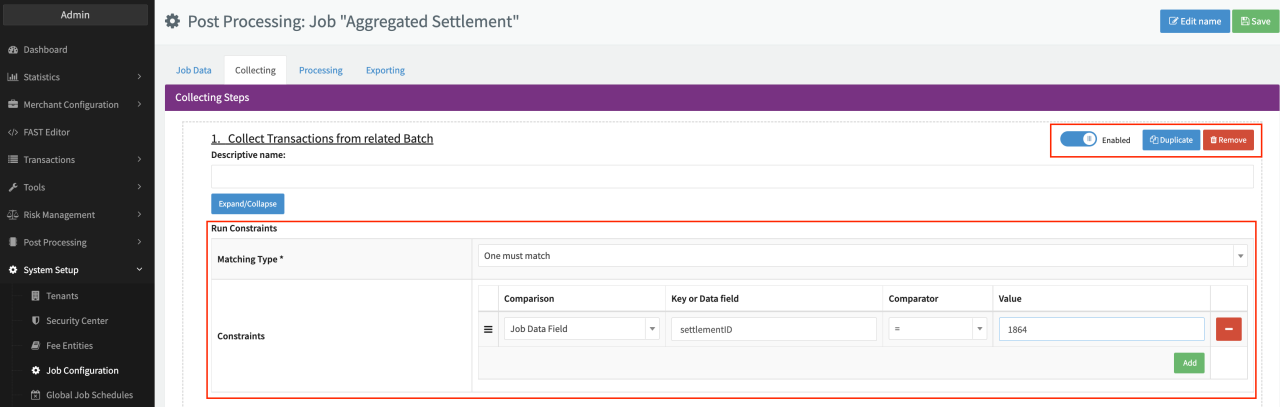
For each step there are some generic configuration parameters you can configure such as:
- Descriptive name: Description of the individual configured step
- Enable/Disable step: Disabled steps will not be considered in executed Post Processing Jobs
- Run Constraints: Define constraints, which must be met in order for the step to be executed.
Matching Type: Define if one, all or none of the constraints must be met
- Constraint: Define the constraint quadruple of Comparison (see Comparison options table), Key or Data field, Comparator (see Comparator table) and Value
Expand/Collapse to see the configuration details for each step or Remove/Duplicate the step.
Other configuration details are specific per Collecting, Processing and Exporting step.
| Comparison | Description |
|---|---|
| Job Data Field | Compares a field within the Job Data against the defined constraint value |
| Line Item Exists | Checks the existence of a particular line item (generated through the Processing steps) |
| Incoming Settlement State of all Transactions | Validates if all Transactions have a particular settlement state. E.g. you could "pause" the job if not all Transactions are yet settled by the PSP/ Acquirer |
| Line Item Value | Checks a particular line item (generated through the Processing steps) against the define constraint value |
| Comparator | Description |
|---|---|
| = | Checks against the value. Results true if values are equal |
| != | Checks against the value. Results true if values are NOT equal |
| > | Checks against the value. Results true if the checked value is greater than the specific value. |
| < | Checks against the value. Results true if the checked value is smaller than the specific value. |
| contains | Checks against the value. Results true if the checked value is contained in the specific value (e.g. "12" contains "2") |
Collecting Steps
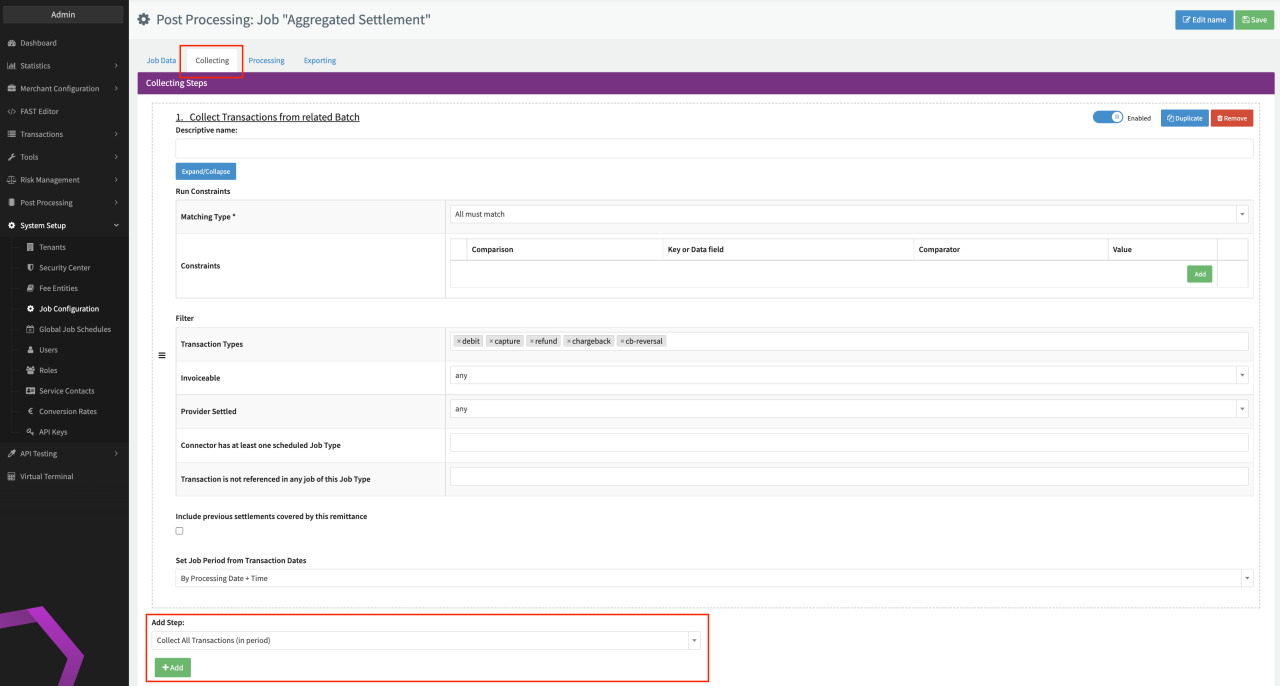
Collecting Steps are the first phase of a job. They are supposed to collect all data (Transactions or top-level data), that are necessary for further processing the job. You can add and configure as many Collecting Steps as you want. Below you can find a definition and key configuration parameters for every step.
| Step | Description |
|---|---|
| Convert Job Timezone | The job period is always set based on UTC time. If you want to process the Transactions in the jobs based on a different timezone, this should be the first step as it changes the job period to the chosen timezone. |
| Collect (all) Transactions from period | This step collects all Transactions based on the configured criteria and adds them to the job. Generally, it considers Transactions of the related entity (the job is scheduled on) and within the job period of the job (see Job Schedules section). The Reference date defines whether the processing date or the settlement date must lie within the job period. With the Filter section you can define additional criteria to filter the collected and therefore considered Transactions for further job steps. |
| Collect Transactions from related batch | For Jobs that were triggered based on Provider settlements (see Job Schedule section), this step collects all Transactions, that were included within the Provider settlement triggering this job. With the Filter section you can define additional criteria to filter the collected and therefore considered Transactions for further job steps. The option Set Job period from Transaction dates sets the job period automatically based on the included settled Transactions |
| Copy data from related batch | For Jobs that were triggered based on Provider settlements (see Job Schedule section), this step copies data and/ or files from the related Provider settlement to the current job. For files the filename pattern is expected to be a regular expression. You can configure per file if it should be added as merchant visible |
| Check Fee Calculation Queue finished for all Transactions | This step verifies that all Transaction Fees have been calculated already in the IXOPAY platform. Especially in case of tiered pricing strategies, for which the Transaction Fees get calculated only after the current calculation period. To ensure all Fees are calculated, you can use this step to either pause the job or wait for a defined period of time before continuing the job execution. |
| Collect Transactions from Provider settlements (created/ settled in period) | For Jobs that were triggered based on Provider settlements (see Job Schedule section), this step collects all Transactions, that were created or settled (based on Referenced date of provider settlement) within the Job's period. With the Filter section you can define additional criteria to filter the collected and therefore considered Transactions for further job steps. The option Set Job period from Transaction dates sets the job period automatically based on the included settled Transactions |
| Collect Transaction by settlement state | Collects all Transactions from the related entity (see Job Schedule section), regardless of the job period, that have the configured Incoming/Outgoing settlement state. With the Filter section you can define additional criteria to filter the collected and therefore considered Transactions for further job steps. |
| Pause Execution | Pause the execution of a Post Processing Job (e.g. to upload a file before the collecting step Collect Transactions by Uploaded CSV File). You can either configure to manually continue the Job or define an amount of time before continuing the Job. |
| Set Job to Done/Cancel | Sets the Job status automatically to Done/Cancel in case the defined Condition matches |
| Set Outgoing Settlement State on Transactions | Sets the Outgoing Settlement State of collected Transactions to the configured New State. Transaction splits can be included as well. Usually, this is used for jobs that process Merchant Settlements to mark those Transactions as settled. |
| Set Incoming Settlement State on Transactions | Sets the Incoming Settlement State of collected Transactions to the configured New State. Transaction splits can be included as well. |
| Collect Transactions by Uploaded CSV File | This step collects all Transactions based on an uploaded CSV File (e.g. during Job Execution) Define which parameter (Map from field (CSV header column)) from the CSV File should be Map(ped) to field and therefore collected. Generally, it considers Transactions of the related entity (the job is scheduled on), but you can configure to Include Sub-Tenants. |
Files are retained for 12 months and permanently deleted thereafter.
Processing Steps
Processing Steps are the second phase of a job.
These steps define calculations done using the collected data (Transactions) from the collecting tab
(e.g. summing up volumes, fees etc.).
Steps in this phase also include copying of Job line items from the related jobs (e.g. Provider settlement).
Every Processing Step creating a job line item, will have a configuration field (or multiple) for Item Type
to configure the name resulting line item to be referenced in the Exporting step.
Many steps have configuration parameters for Line Item Grouping to define how data should be grouped.
E.g. you could sum up all Transaction volumes, and then group it by payment method and Provider.
You can add and configure as many Processing Steps as you want. Below you can find a definition and
key configuration parameters for every step.
| Processing Step | Description |
|---|---|
| Aggregate Connector Line Items to Job Line Items | Aggregates Connector Fees to job line items. It considers Connectors that are assigned within the Job Schedule. With the Filter section you can define additional criteria to filter the collected and therefore considered Transactions for this job steps. Define if you want to use Value Manipulation (e.g. aggregate fees with negative values) Select how you which type of Aggregation should be executed |
| Aggregate Merchant Line Items to Job Line Items | For Jobs scheduled on a Merchant, this step aggregates Merchant Line Items With the Filter section you can define additional criteria to filter the collected and therefore considered Transactions for this job steps. You can also Limit Currencies to copy to already existing currencies. Define if you want to use Value Manipulation (e.g. aggregate fees with negative values) Select how you which type of Aggregation should be executed |
| Copy Previous Job Line Items | Copies a previous line item from Item Type to Copy to New Item Type. You can configure any Value Manipulation for the copied line item. You can also configure the data field to Set Reference Batch ID to Batch Data Field (e.g. Job ID) and/or the data field to Set Reference External Batch ID to Batch Data Field (e.g. Settlement ID). |
| Pause Execution | Pause the execution of a Post Processing Job (e.g. to add/check Transactions to the job before executing further Processing Steps). You can either configure to manually continue the Job or define an amount of time before continuing the Job. |
| Aggregate Transaction Fees To Job Line Items | Aggregates selected Fees from the collected Transactions to job line items. With the Filter section you can define additional criteria to filter the collected and therefore considered Transactions for this job steps. Define which Transaction Value To Use for the Aggregation (e.g. fee amount, processing amount, settled amount) and if you want to use Value Manipulation (e.g. aggregate fees with negative values) and/or some kind of Currency Conversion. Select how you which type of Aggregation should be executed. Additionally to the Item Type you can also define a Item Type for Line Items Count, an Item Type for Transaction Count and an Item Type for Conversion Rate. |
| Aggregate Transaction Values to Job Line Items | Aggregates Transaction values of collected Transactions With the Filter section you can define additional criteria to filter the collected and therefore considered Transactions for this job steps. Define which Transaction Value To Use for the Aggregation (e.g. transaction amount, total settled amount, outgoing settlement amount) in which currency (conversion is done automatically) and if you want to use Value Manipulation (e.g. aggregate fees with negative values) and/or if you want to Include Fees in Calculation Select how you which type of Aggregation should be executed. Additionally to the Item Type you can also define an Item Type for Transaction Count |
| Calculate Rolling Reserve for Merchant | This step calculates the Rolling Reserve for all collected Transactions based on the Rolling Reserve configuration in the Merchant base data. With the Filter section you can define additional criteria to filter the collected and therefore considered Transactions for this job steps. Define which Transaction Value To Use for the Aggregation (e.g. transaction amount, total settled amount, outgoing settlement amount) in which currency (conversion is done automatically) and if you want to use Value Manipulation (e.g. aggregate fees with negative values). Additionally to the Item Type you can also define a key to Write Payout Date to Batch Data with this key |
| Retrieve Rolling Reserve Payout | This steps calculates the Rolling Reserve Payout amount. Define the Item Type of Rolling Reserve Deduction (Rolling Reserve for this Job Period), which kind of Value Manipulation you want to use and the resulting New Item Type for Rolling Reserve Payout. You can define to the data field to Set Reference Batch ID to Batch Data Field or the line item attribute to Set Reference Batch ID to Line Item Attribute (e.g. Job ID) and/or the data field to Set Reference External Batch ID to Batch Data Field or the line item attribute to Set Reference External Batch ID to Line Item Attribute. |
| Count Transaction Value To Job Line Items | This step counts the defined Transaction Value To Use (e.g. Transaction ID, Provider GUID, Merchant GUID) of collected Transactions within the job according to the chosen type of Aggregation. With the Filter section you can define additional criteria to filter the collected and therefore considered Transactions for this job steps. |
| Distribute Rolling Reserve To Merchants | This step takes the Line Item Name of Total Rolling Reserve and creates, based on the Transaction volumes of the various Merchants related to the jobs Transactions, new line items for each Merchant, containing the aliquot amount of the total Rolling Reserve. E.g. your Acquirer reports a total Rolling Reserve for a particular settlement statement, and you want to distribute that Rolling Reserve to the individual Merchant affected by this. Define to either Consider Refunds, Chargebacks, Chargeback Reversals and Payouts or not for the calculation as well as a Data Key for Due Date. |
| Copy Line Items from related Batch | For Jobs that were triggered based on Provider settlements (see Job Schedule section), this step copies line items from the related Provider settlement to job line items. You can also define to Copy Line Item attributes as well or Limit Currencies to copy to already existing currencies. You can also Include previous settlements covered by this remittance. In case the related batch includes line items with the same name that should not be aggregated, select the option Do not aggregate line items with the same name |
| Copy Line Items from Transaction related Settlements | |
| Copy Line Items from Settlements for Merchants created after the last Job of this type | |
| Copy Line Items from FIRST Settlement for Merchants created after the last Job of this type | |
| Duplicate Job Line Items | Duplicates an existing line item to a new line item. You can define if you want to use Value Manipulation for the copied line item. |
| Calculate Job Line Items and Set Value | Performs the defined Calculation on the configured input line items (configured by Line Item Names). Based on the result (e.g. greater than, lower than etc.) you could take various Actions, such as setting an attribute on job level or conflict the job. E.g. This could be used to set various values in case the total settlement/ invoice etc. is negative or positive. |
| Calculate Register Count | Counts the transaction of type register to determine the amount of token stored in the IXOPAY platform PCI Vault. You can define Job Types to Exclude Merchants having this Job Types scheduled and/or Exclude Connectors having this Job Types scheduled. Define Which count (e.g. Total count begin of period) and if the Count should be grouped by Count per merchant and if you want to Subtract De-Registers. Define if you want to Write Result To the Job Data or a Line Item (Data Key or Line Item Name). |
| Split Job by Criteria | Using this step you can split the Post Processing job into multiple jobs, based on the Split By Values. E.g. you could split the job based on settlement currency so for each currency, a separate job will be initiated. Define therefore the Split Mode - individual jobs or child jobs including Child Job Type. Define therefore also the NULL Value handling as well if you want to Set Job Period from Transaction Dates |
| Line Item Calculation | This step takes 1 or 2 line items as input value, and creates a new line item based on your chosen Operation (sum or difference). Define if you want to Round Result and how many Decimal places for rounding |
| Set Job to Done/ Canceled | Sets the Job status automatically to Done/Cancel in case the defined Condition matches E.g. use that step with the Run Constraints: check if a specific line items exists, and if not, cancel the job. |
| Set Outgoing Settlement State on Transactions | Sets the Outgoing Settlement State of collected Transactions to the configured New State. Transaction splits can be included as well. Usually, this is used for jobs that process Merchant Settlements to mark those Transactions as settled. |
| Set Incoming Settlement State on Transactions | Sets the Incoming Settlement State of collected Transactions to the configured New State. Transaction splits can be included as well. |
| Calculate Outgoing Settlement Amount | This step calculates for all collected Transactions and an outgoing settlement.. By default the outgoing settlement amount is equal to the incoming settlement amount. Using this step you can e.g. convert it to a different settlement currency (Target Currency) or select a Fee Entity to store FX Markup on Transaction and add FX Markup. |
| Add Transaction Tag | Not available by default see also Transaction Tags. You can add a Transaction Tag to all collected Transactions and Parent Transactions. |
| Add Blocklist Item | This steps can be configured to put CC Fingerprint, customer email address, customer ID on either Tenant or Merchant blocklist for all collected transactions |
| Add Comment To Transaction | Step to add a dynamic / static comment to a transaction optional parent transaction. |
| Calculate Account Updater Count and Fees | Counts the updates of account information in the IXOPAY platform PCI Vault and calculates the resulting (Merchant) Account Updater Fees. Define the Parameters for Calculator: The Fee Entity for which the Merchant Line Item was added. Line Item Type for the calculation result and enable the option Write Zero Value if needed. For further information see Account Updater |
Exporting Steps
Exporting Steps are the last phase of a job. These steps define the creation of reports and files using the collected and processed data (Transactions) from previous steps. Further, you can define various exporting steps to 3rd party system (e.g. your ERP or bookkeeping system).
Steps in this phase can be grouped into 3 categories:
You can add and configure as many Exporting Steps as you want. Below you can find a definition and key configuration parameters for every step.
File creation
| File creation step | Description |
|---|---|
| Export Transactions to CSV | Exports all collected Transactions to a CSV file. You can configure a Static or Dynamic File Name for the created report, as well as mark it as Visible to Merchant Furthermore you can define the Columns for the Transaction data that should be included in the report (e.g. UUID; MerchantName). |
| Export Transactions to XLSX | Exports all collected Transactions to a XLSX file. You can configure a Static File Name for the created report, as well as mark it as Visible to Merchant. In this step you can configure to generate an Overview Sheet incl**. Overview Data** additionally to the Data Sheet with the configured Columns for the Transaction data. For Jobs that were triggered based on Provider settlements (see Job Schedule section), you can configure to Consider settlement and fee amount of related batch. |
| Export Transactions to XLSX (Version 2) | This is an updated version of Export Transaction to XLSX step. You can configure a Dynamic File Name instead of only a static one. Furthermore, it gives you more flexibility on the exported columns by Coalesce to previous column (writing the value of the data in the previous column in case the previous column is empty) |
| Export Transactions as NACHA File | Exports Transactions as NACHA File. This Export step is used for the Bank of America Adapter You can configure a Static File Name and various File Configuration Parameters (see adapter-specific Bank of America for further information) |
| Export Job Line Items to CSV | This step exports job line items (calculated / processed in the Processing steps) to a CSV file, in comparison to the Export Transactions to CSV which exported Transaction data. You can configure a Dynamic File Name for the created report, as well as mark it as Visible to Merchant. Furthermore you can Filter Line Item Types to be included in the report, as well as define criteria for Lines grouped by as defined in the Processing steps. |
| Export Job Line Items to XLSX | This step is identical to Export Job Line Items to CSV, but exports the report as an Excel file. |
| WriteSettlementCsv | This step exports the settlement data of the collected Transactions to an IXOPAY platform standard CSV file. Mark it as Visible to Merchant or Accessible by Merchant (through <DeveloperLink path="/api/settlement/settlement-api">Settlement-API</DeveloperLink>) Define if/what kind of Fee (Currency) Conversion should be applied to the settlement data. Further configure the Statement Date and Settlement Number as well as additional information (Include Payment Reference Data, Include Merchant Name, Include GUIDs, Include payment instrument info, Summary Line) to be included in the file. |
| Write Standard Settlement CSV with Aggregation File | This is an extended version of WriteSettlementCsv step including an aggregated file (File Name - Aggregated File and Aggregated File incl. additional line items, provider and merchant data). Additionally you can Verify data and add further information (Include Connector Country ("country_of_business"), Include connector GUIDs, Include additional IDs) |
| Write customized Settlement CSV | This is the most powerful step in terms of settlement file creation. Mark it as Visible to Merchant or Accessible by Merchant (through <DeveloperLink path="/api/settlement/settlement-api">Settlement-API</DeveloperLink>). You can define an Aggregation Data Style to either have a separate Aggregated File (incl. File Name - Aggregated File (only if separate), Aggregated Columns and Line Item Keys) or combine it with the Transaction List (incl. File Name - Transaction List and Transaction Columns) Further configure the Statement Date and Settlement Number as well as additional configuration parameters (Limit decimal places in numbers to, Display a negative total sum of the initial transaction amount plus fees, Hide header lines, No empty rows, Transaction row indicator, Show Aggregation row indicator header, Write negative fee amounts) |
| Write Settlement Report in camt.053 Format | This steps exports the settlement report to a camt.053 file. Configure the Statement Date and Settlement Number. |
Files are retained for 12 months and permanently deleted thereafter.
Job steps
| Job step | Description |
|---|---|
| Pause Execution | Pause the execution of a Post Processing Job (e.g. to check data before executing further Exporting Steps). You can either configure to manually continue the Job or define an amount of time before continuing the Job. |
| Set Job to Done/Canceled | Sets the Job status automatically to Done/Cancel in case the defined Condition matches E.g. use that step with the Run Constraints: check if a specific line items exists, and if not, cancel the job. |
| Set Outgoing Settlement State on Transactions | Sets the Outgoing Settlement State of collected Transactions to the configured New State. Transaction splits can be included as well. Usually, this is used for jobs that process Merchant Settlements to mark those Transactions as settled. |
| Set Incoming Settlement State on Transactions | Sets the Incoming Settlement State of collected Transactions to the configured New State. Transaction splits can be included as well. |
| PGP encrypt files | With this step you are able to encrypt the generated files from the previous Exporting steps using your PGP public key with or without ASCII armour. You need to configure the generated public PGP Key generated on your side. Configure the File name pattern to identify the relevant files for encryption, created during job execution (e.g. /\.(csv|xlsx)$/ for csv and xlsx files). |
| PGP Sign Files | With this step you are able to sign the generated files from the previous Exporting steps according to your selected Signing Mode using your PGP secret key and PGP key password (generated on your side). Configure the File name pattern to identify the relevant files for encryption, created during job execution (e.g. /\.(csv|xlsx)$/ for csv and xlsx files). |
Upload/Export Steps
| Upload/Export step | Description |
|---|---|
| Send document to endpoint | With this step you can send the generated documents from previous Exporting steps to an HTTP(S) (Http Method, Strict SSL) Endpoint URL. Configure the File name (regex pattern, start and end delimiter required) to identify the relevant files for sending. To authenticate either use Basic Auth (Basic Auth User, Basic Auth Password) or OAuth2 (Enable OAuth2 and additional parameters) Further add Additional Headers, Additional Form Fields and Field name for file content. |
| Send Email | With this step you can send emails to configured Recipients (e.g. Custom Email, Merchant Risk Alert Email). Email Subject and Body can be configured, e.g. using Job Data or Pivot Data to write job line items directly in the Email Body (similar to File Creation steps). Additionally you can define Attachments (using File Name Pattern) to be included in the email from previous exporting steps. You might as well want to configure the Retry (Retry Counter, Retry Minutes) option in case of email issues. |
| Upload document to SFTP server | With this step you can upload the generated documents from previous Exporting steps to a configurable SFTP target (Host, Port, Root directory). Configure the File name (regex pattern, start and end delimiter required) to identify the relevant files for uploading. Authenticate with Username and Password and secure the connection with SSH (SSH Private Key, SSH Private Key Passphrase). In case the SFTP target is not available you might want to configure the Retry (Retry Counter, Retry Minutes) option. Note: By default ports 22 and 4222 are allowed, contact our Support Team in the IXOPAY Customer Experience Portal if you have different requirements |
| Upload document to OneDrive | With this step you can upload the generated documents from previous Exporting steps to a configurable OneDrive (Scopes, Tenant Id, Directory) . Configure the File name (regex pattern, start and end delimiter required) to identify the relevant files for uploading. Authenticate with Client Id, Username and Password. |
| Upload document to S3 Bucket | With this step you can upload the generated documents from previous Exporting steps to a configurable S3 Bucket (Bucket, Region, Root directory) . Configure the File name (regex pattern, start and end delimiter required) to identify the relevant files for uploading. Authenticate with Key and Secret. |
Job Schedules
Once a job type is configured, you must schedule this job on the designated related entity so the job "knows" which scope of Transactions shall be considered for processing. The related entity can either be a Merchant, a Provider, or a Tenant:
- Merchant: Navigate to the Merchant Overview, select the (Sub-)Tenant for which the desired Merchant is configured and click Job Schedules from the More drop-down of the desired Merchant
- Provider: Navigate to the Post Processing section, sub-section Providers. Select the (Sub-)Tenant for which the desired Provider is configured and click Schedules for the desired Provider in the Provider Overview
- Tenant: Navigate to the System Setup section, sub-section Tenants. Click Jobs Schedules for the desired (Sub-)Tenant in the Tenant Overview
You are redirected in the Job Schedule Overview for the related entity. Follow these steps to create a new schedule:
- Select + Create new Schedule in the Job Schedule Overview of the related entity (see Job Schedule Overview)
- Select the Job Type to be scheduled from the drop-down
- Select the Schedule: Either manual (option Manual trigger only) or using a Cron Expression (similar to Unix CronJobs, in UTC).
The Cron Expression can be generated using the build-in wizard.
For Provider Job Schedules there is the additional option to trigger jobs on incoming Provider settlement processing.
This automatically sets a link between the job and the Provider settlement entity.
- Using the IXOPAY Account Updater, there is also the option to trigger jobs on Account Update
- Select the Job Period incl. Offset (from execution date): The job period is important for the "Collecting" steps, so the job knows Transactions from which time frame should be collected during execution. It always considers the full period interval before the current execution (day, week, month). Example: A period of "1 month" would always consider the full previous month, regardless if the job was triggered on the 1st, 2nd, or any day of the current month. However, the period also allows you to configure offsets: You execute a job weekly on Wednesday and want to consider the Transactions of the calendar week before (Monday to Sunday), then set the period to "7 days", and the offset to "2 days". (Wednesday -> full day before is Tuesday, minus 2 days is Sunday, period of 7 days means Monday to Sunday). The resulting period (start date/time and end date/time) is automatically stored in the job's base data once the Schedule triggers
- Select + Create to save the schedules
- Edit the Job Schedule to assign Connectors for the Job Schedule (in case Processing Steps using Connector Line Items will be used)
- Enable the Job Schedule in the Job Schedule overview - by default new Job Schedules are disabled.
You can disable, edit or delete Job Schedules anytime.
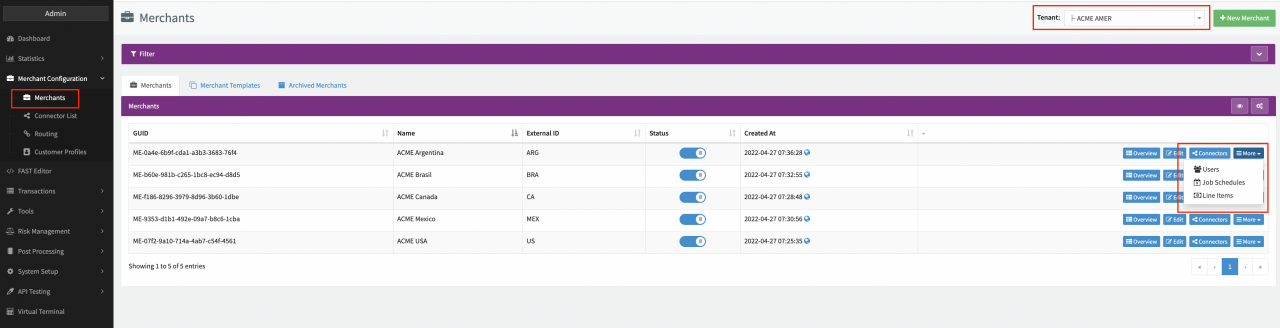
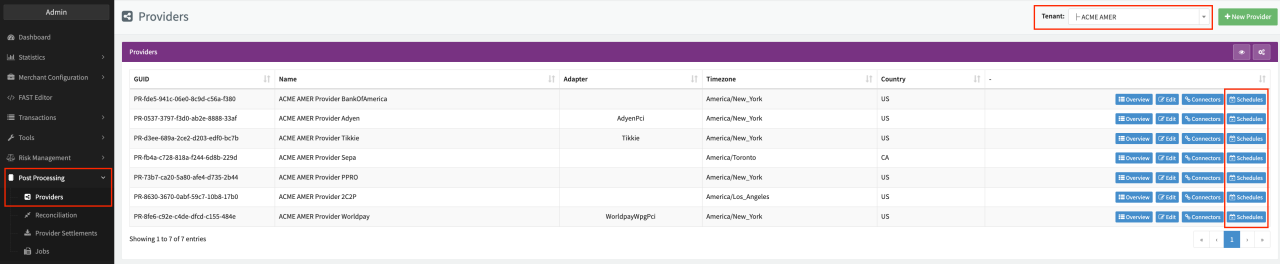
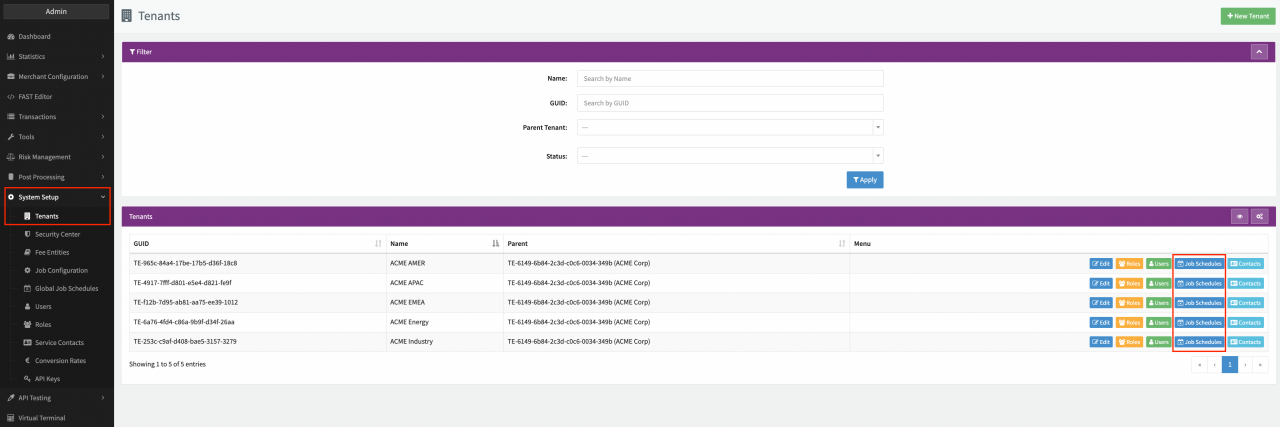
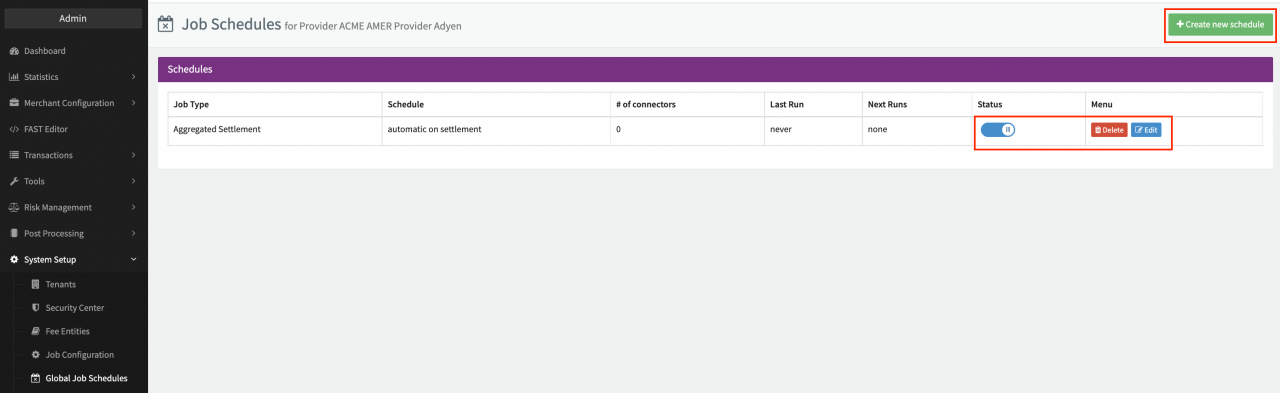
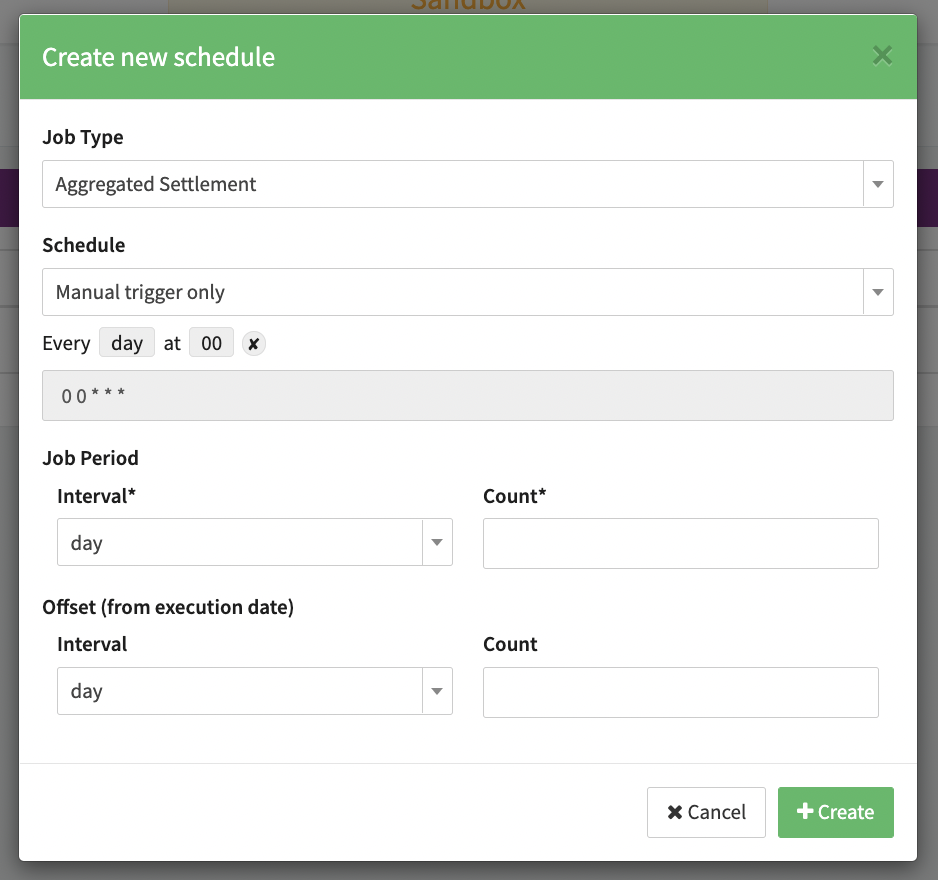
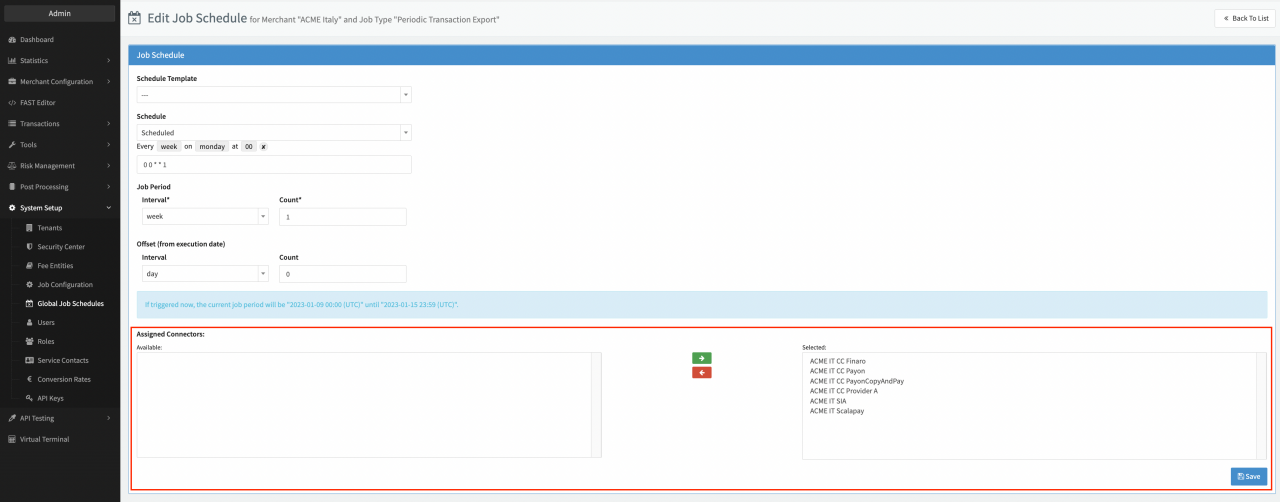
The configuration view for the Job Schedules will always highlight the Global Schedule navigation section independently of the related entity. The related entity can be found in the title of the job schedule overview.
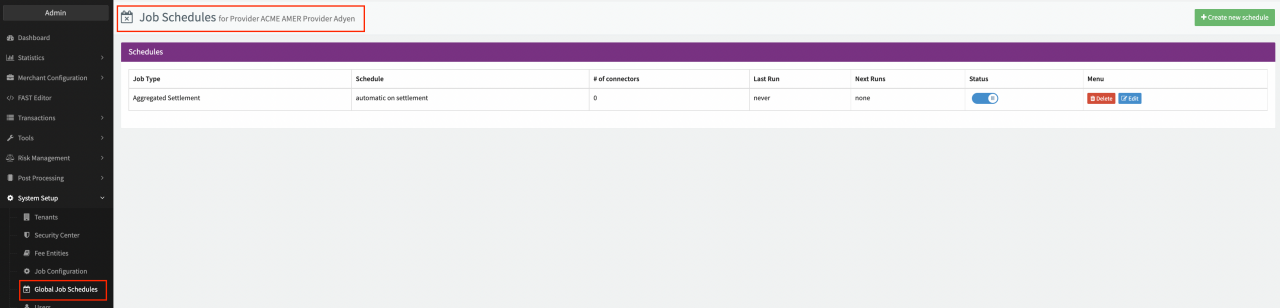
The schedule option On Provider Settlement triggers Post Processing jobs only once the Settlement is completely processed and has no conflicts.
Jobs
A Job is the executed job based on your configured job type. Every time the schedule criteria matches (e.g. "every Monday at 07:00"), the system creates a new job and runs the steps configured in the particular job type.
The executed job itself can be found in the Job Overview.
- Navigate to the Post Processing section, sub-section Jobs.
- Filter the Jobs Overview according to your criteria, for example:
- Filter for Status "Paused" to
- Bulk continue all paused jobs with the multi-selection option (see Bulk Continue) or
- Select Details to navigate to the Job Details of an individual Job
- Select Continue Job
- Leave a Comment (see Confirmation)
- Filter for Status "Conflicted" and
- See in the Jobs Overview the in which phase ("Collecting", "Processing", Exporting") the Job became conflicted
- Select Details to navigate to the Job Details of an individual Job. The General Information shows the exact step the Job became conflicted. Hint: if configured the descriptive name will be shown additionally to the step number
- Filter for Status "Paused" to
- Customize and sort the Job Overview to contain all desired information, for example:
- Job ID
- Related entity
- Job Type
- Job Period
- Job Status (Collecting, Processing, Exporting, Paused, Done)
- # of Tx
- ...
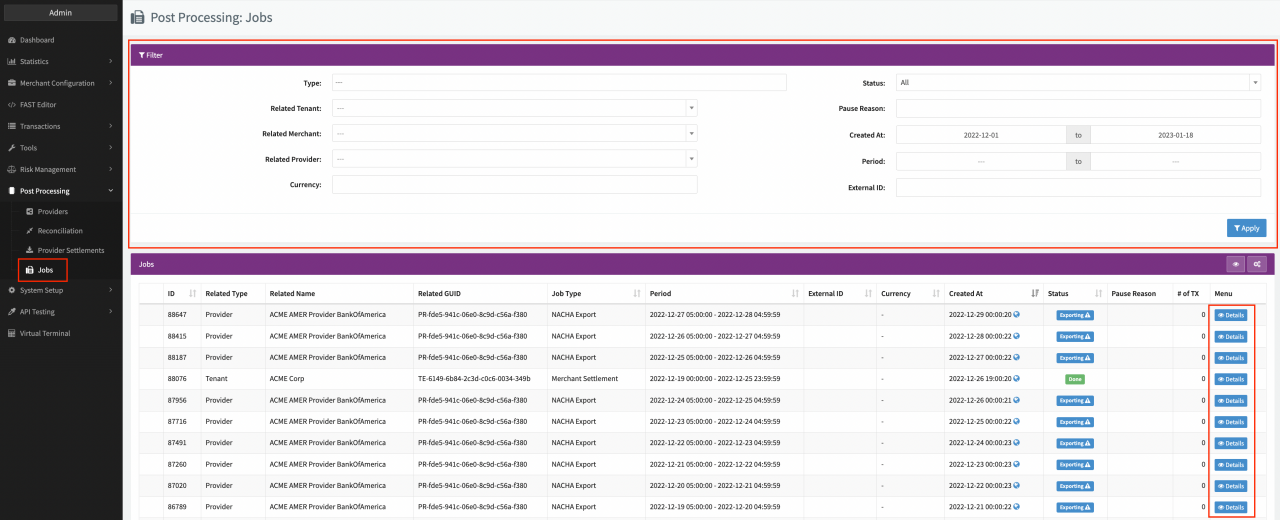
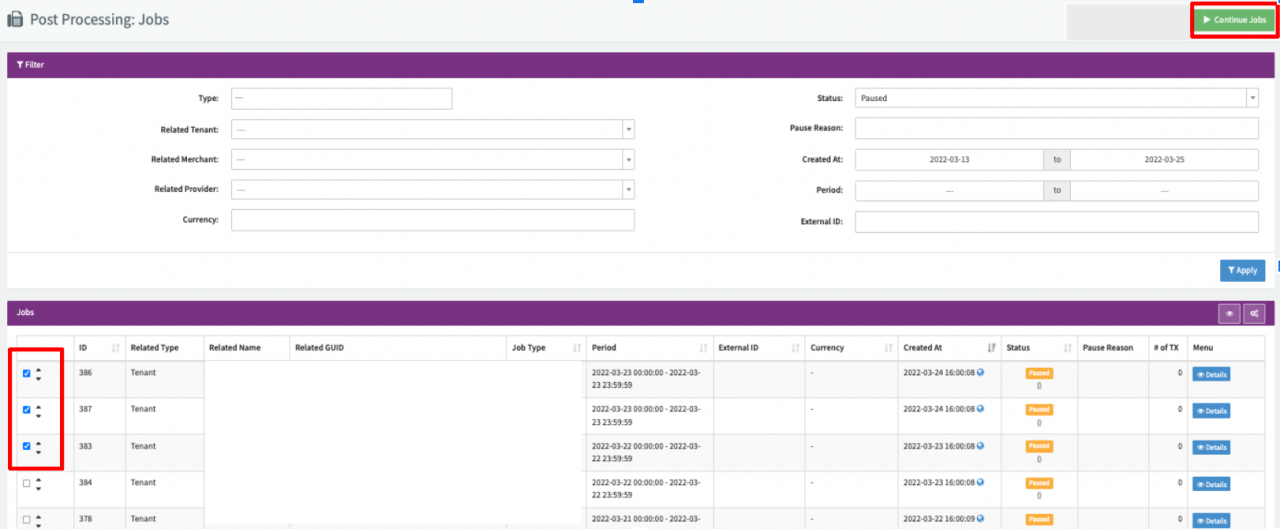
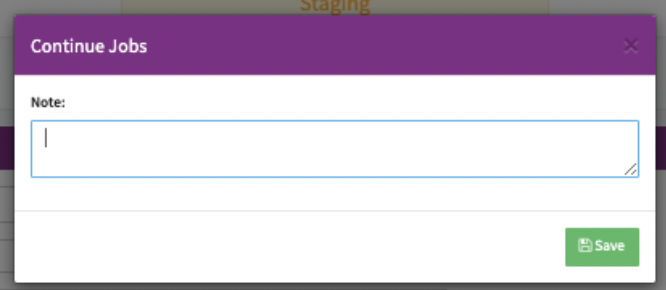
You can search for a specific Job ID by using the Search Bar in the Top Bar of the User Interface. For conflicted Jobs there is also the option to configure Alerts.
Job Details
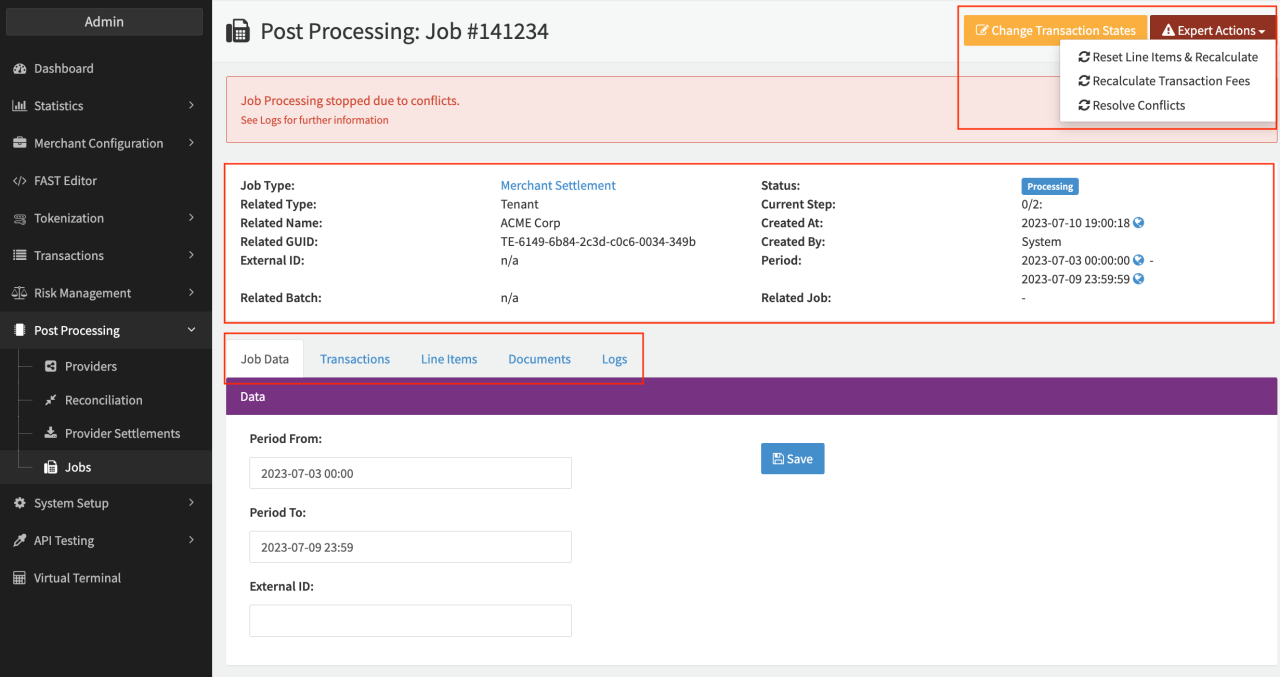
The Job Details of a executed Post Processing Job contain several different sections and tabs:
- General information
- Job Data
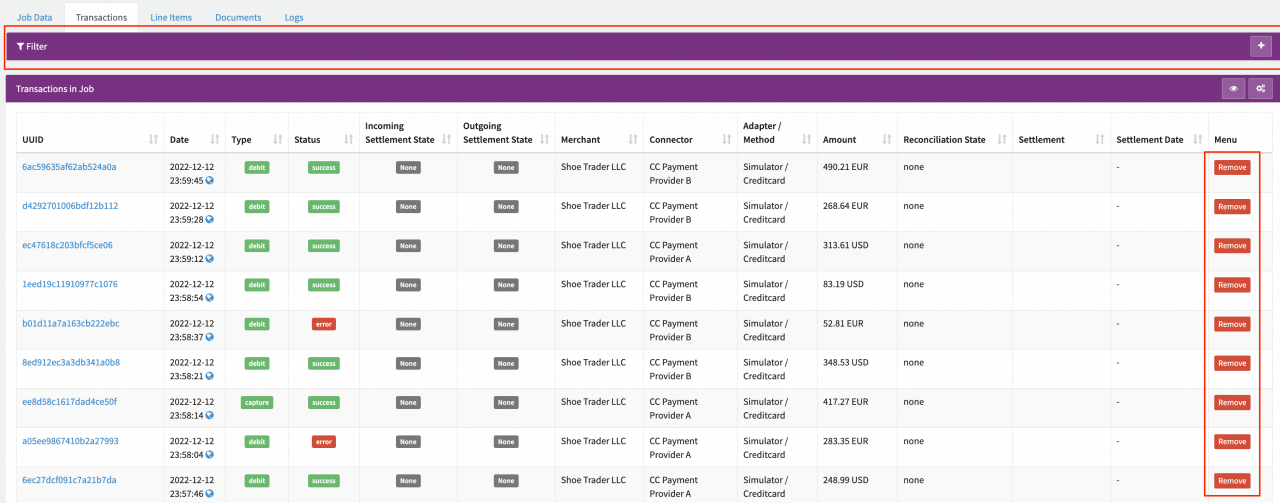
- Transactions
- Line Items
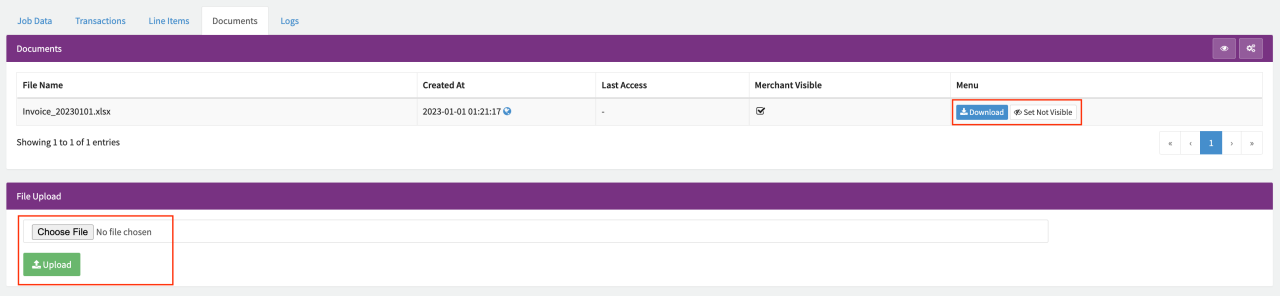
- Documents
- Logs
- Action Buttons
General Information
This section contains information about the Job Typ, related entity, Status / Current Step and Job Period
Job Data
This section contains the Job Period and External ID as well as the in the Job Type configured Job Data fields. This data can be edited and saved.
Transactions
This tab contains the collected Transactions from the Job Types configured Collecting steps. You can filter the Transaction list and remove Transactions if necessary before continuing a paused Job (see Transaction Tab).
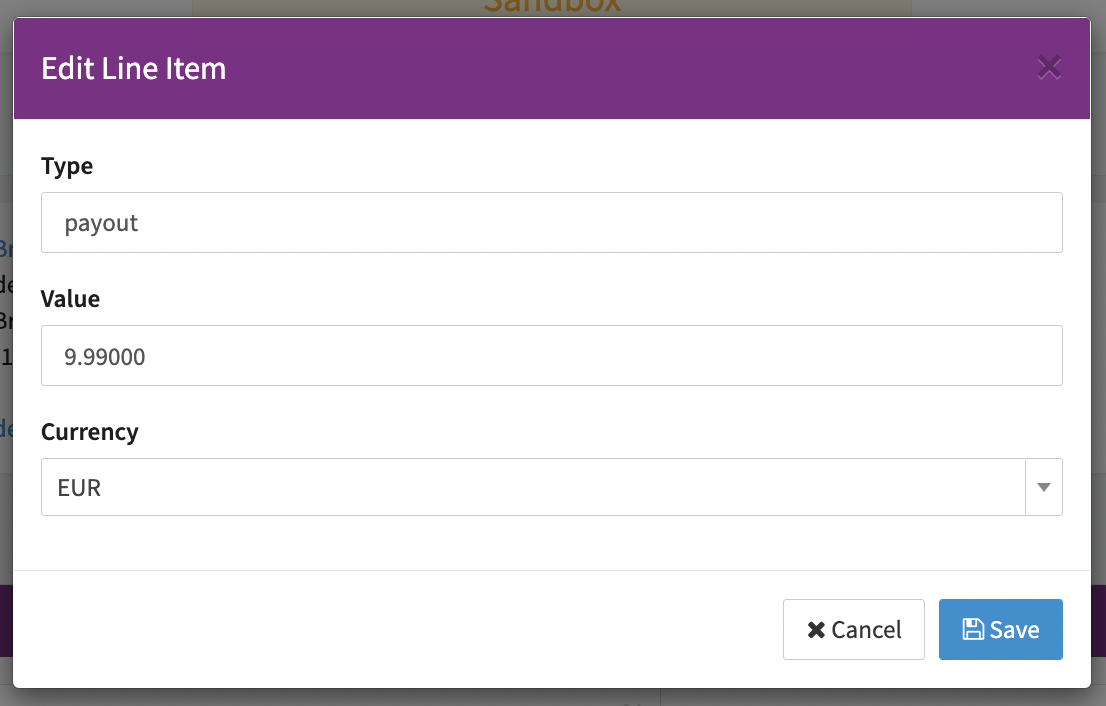
Line Items
This tab contains the created or copied Line Items from the Job Types configured Processing steps. You can edit and confirm the changes to line items if necessary before continuing a paused Job (see Line Item Tab and Confirmation Line Item Change)
Documents
This tab contains all created documents for this job. Which kind of documents will be created is configured in the Job Types Exporting steps. You can also upload files manually and decide per file individually if it should be visible to Merchant Users. Furthermore you can download the documents to your local drive.
Logs
This tabs contains any errors occurred during job execution. Further any Note inserted when manually continuing a job is logged in this tab as well.
Action Buttons
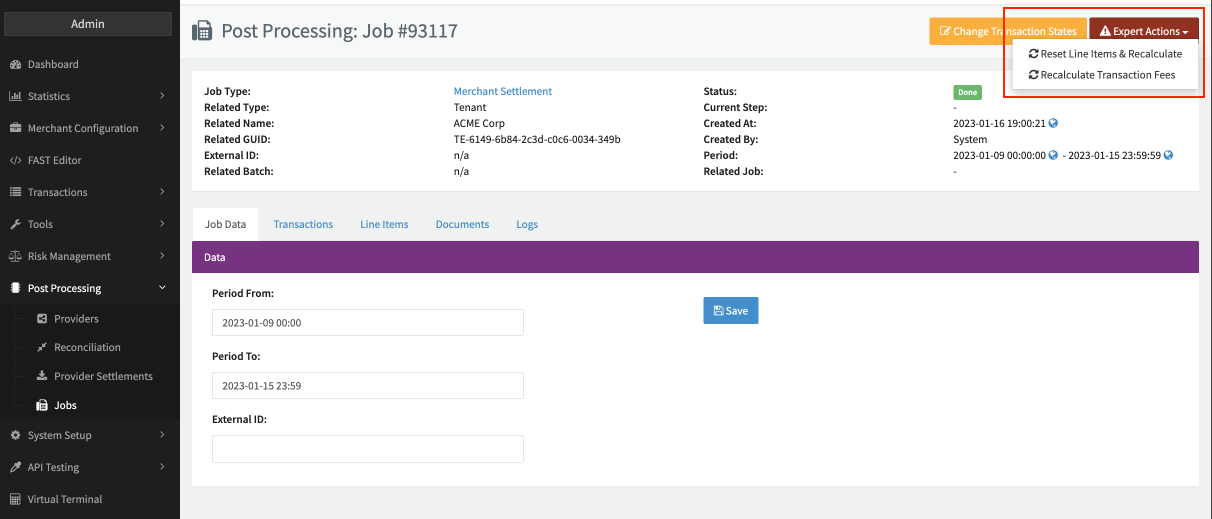
With the Action Buttons you can perform several different actions on the Job or Transactions collected by the Collecting steps.
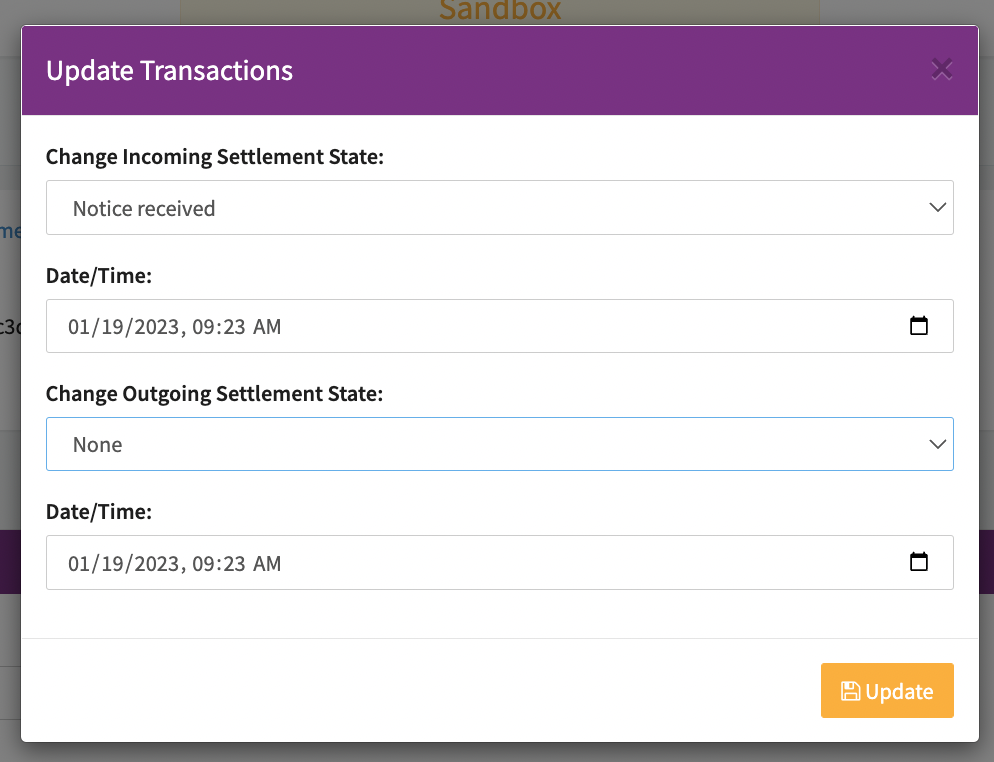
- Change Transaction States: Manually change the Incoming / Outgoing Settlement State incl. change date/time (see Change Transaction States)
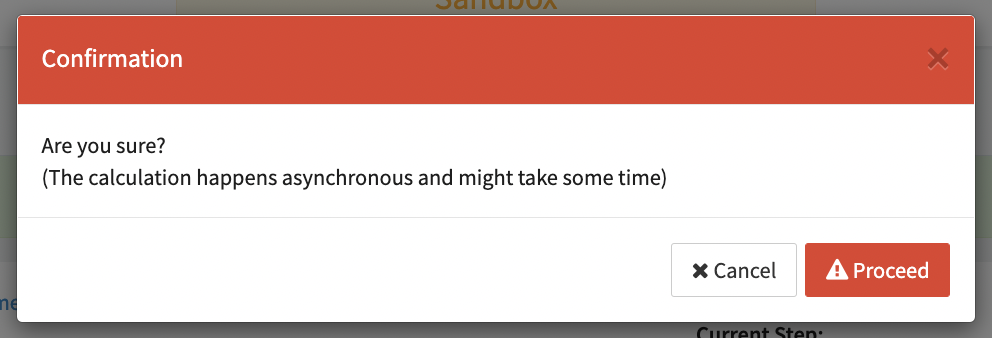
- Expert Actions: Reset Line Items & Recalculate, Recalculate Transaction Fees, Resolve Conflicts
- + Add Pause Reason, Cancel Job, Continue Job: Manually change the Job state

Files are retained for 12 months and permanently deleted thereafter.