FAST Editor
Setup
You can create payment templates using the FAST Editor for adapters and payment methods that support (or require) payment form rendering, as well as email templates for adapters (e.g. Pay-By-Link).
General
When the consumer is redirected to the payment page, the gateway determines which template to use based on the following rules.
The template path contains variables which are determined dynamically:
LAYOUT_NAME: You can define a Custom Payment Template Layout in the connector settings. If none is specified, the default layout is used. You can also define a layout for email templates for pay-by-link in the Pay by Link tab in the connector's configuration.ADAPTER_KEY: Each Adapter requires its own templates. The available placeholders differ for each adapter.LANGUAGE: The merchant can include the desired language in the API call (see the Transaction API Documentation). If a template does not exist for the specified language, the default language defined in the connector's configuration is used instead. Languages are specified using 2-letter ISO codes, e.g. "en" for English, "de" for German, "es" for Spanish etc.
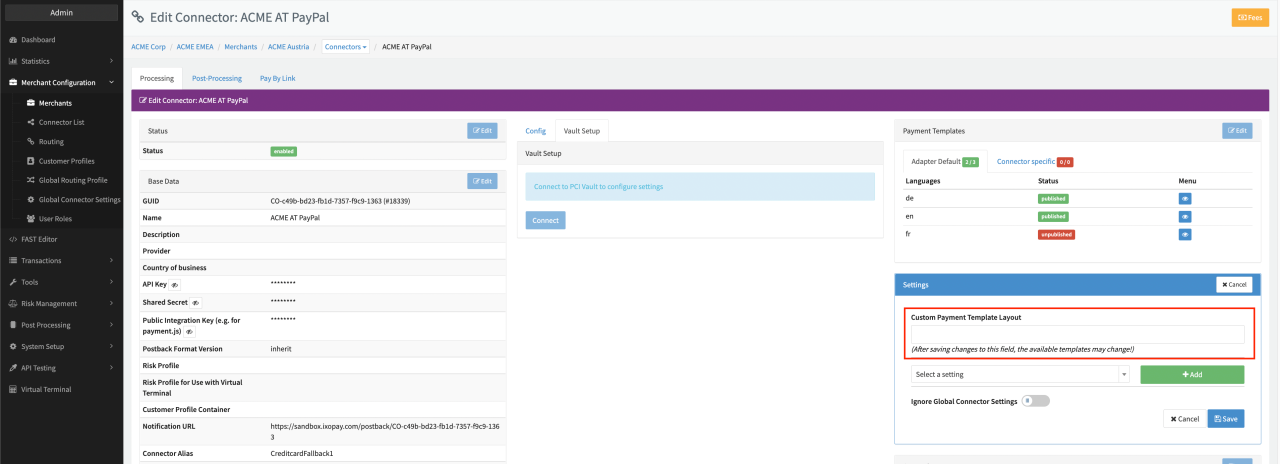
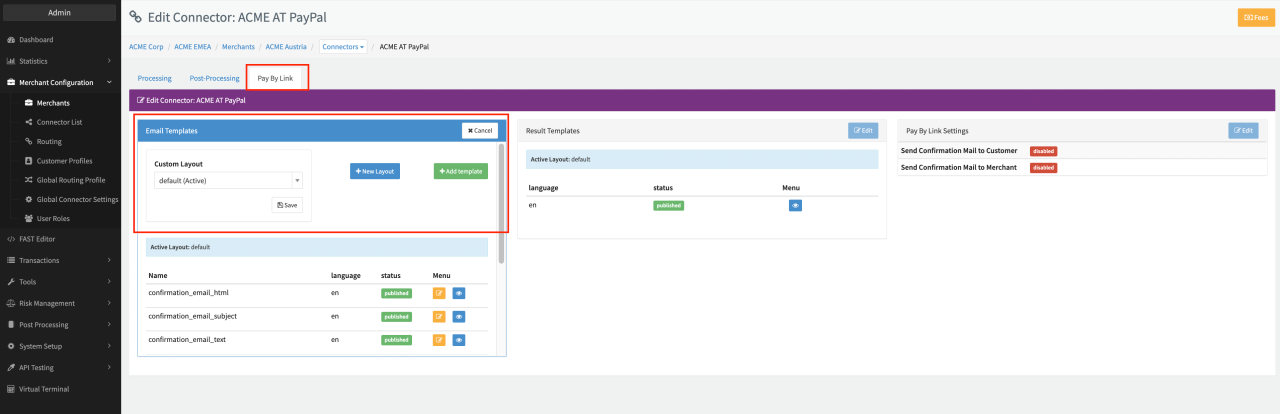
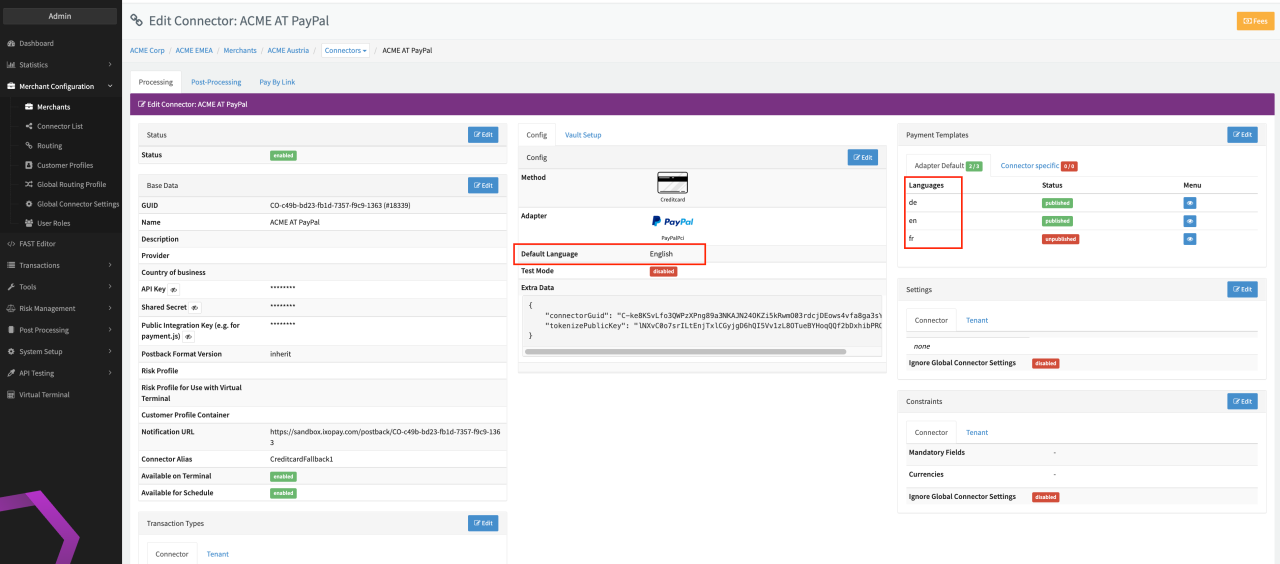
Using the LAYOUT_NAME (= the custom payment template layout defined in the Connector Settings or created email
template layout in the Pay by Link section), you can set up various templates based on different requirements for your
Merchants (e.g. one default, one with inverse colors, one with requiring the address data of the consumer etc.)
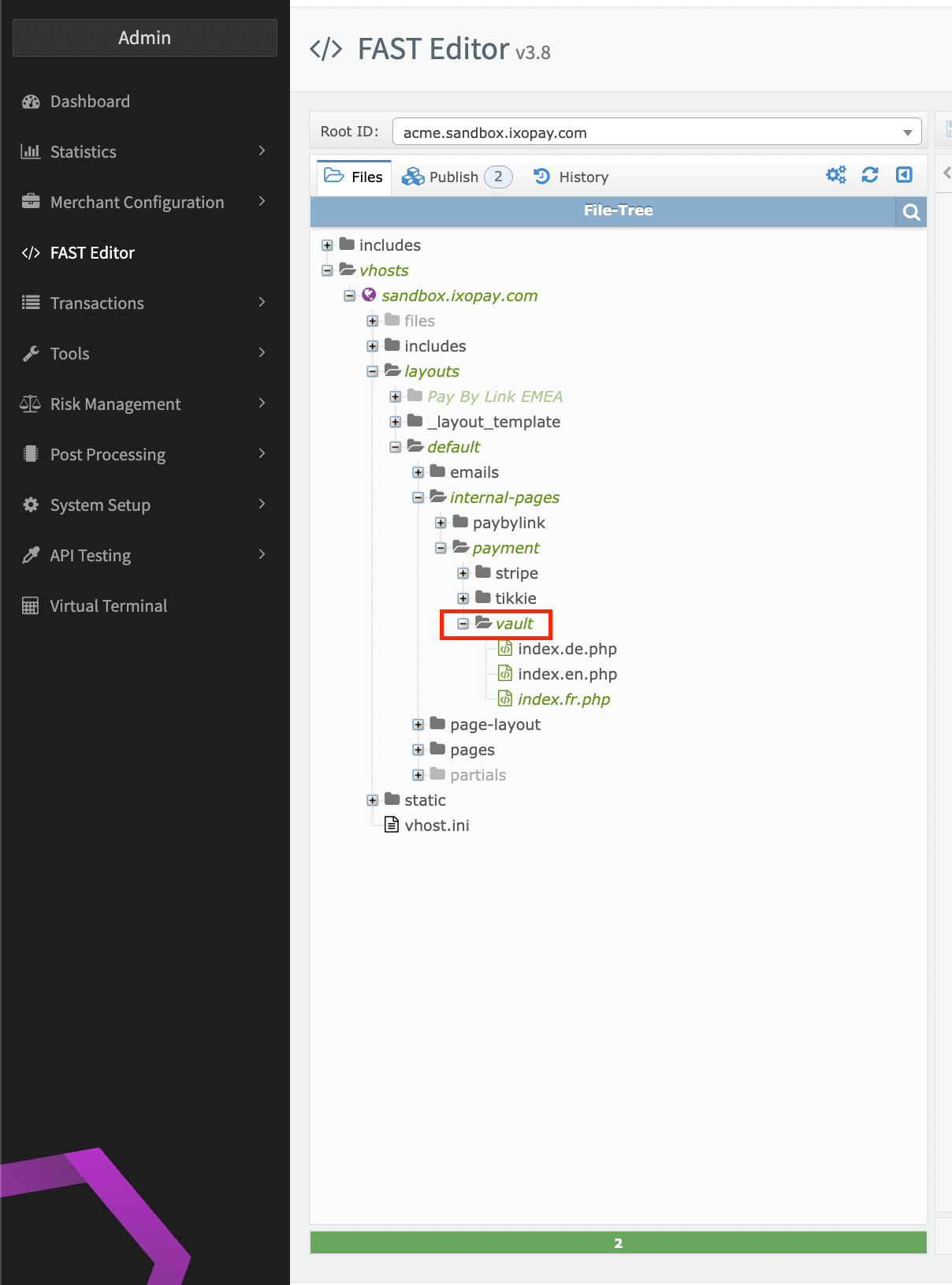
If created in the Connector Detail Overview the correct Adapter*Key is generated by the Gateway automatically,
including the correct path.
Keep in mind that PCI adapter are created under the ADAPTER_KEY vault.
The payment template is resolved according to the following Rules:
| Priority | Template | Path within FAST Editor |
|---|---|---|
| 1 | Connector-specific with given language | /vhosts/gateway.ixopay.com/layouts/[LAYOUT_NAME]/internal-pages/payment/[ADAPTER_KEY]/[CONNECTOR_GUID]/index.[LANGUAGE].php |
| 2 | Connector-specific with default language | /vhosts/gateway.ixopay.com/layouts/[LAYOUT_NAME]/internal-pages/payment/[ADAPTER_KEY]/[CONNECTOR_GUID]/index.[DEFAULT_LANGUAGE].php |
| 3 | Adapter-default with given language | /vhosts/gateway.ixopay.com/layouts/[LAYOUT_NAME]/internal-pages/payment/[ADAPTER_KEY]/index.[LANGUAGE].php |
| 4 | Adapter-default with default language | /vhosts/gateway.ixopay.com/layouts/[LAYOUT_NAME]/internal-pages/payment/[ADAPTER_KEY]/index.[DEFAULT_LANGUAGE].php |
In general it is recommended to create and adapt templates within the embedded (FAST) Editor screen with in the Connector Details Overview - Payment Templates Edit View in order to ensure the correct path and variables to be set by the gateway. Nevertheless you also have the option to use the Fast Editor section itself.
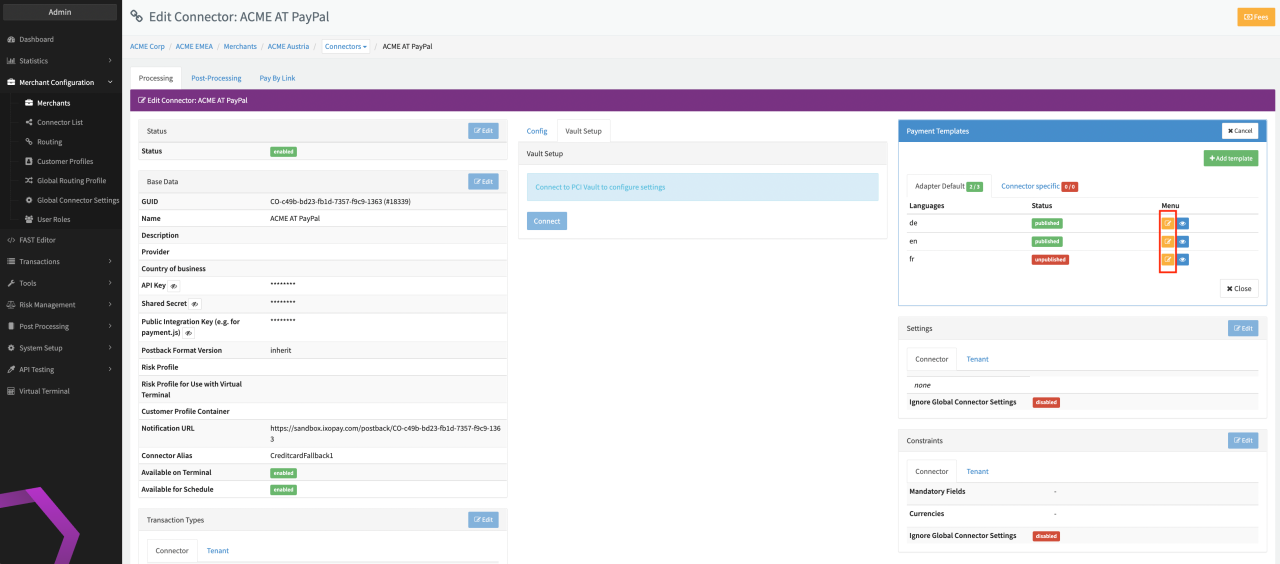
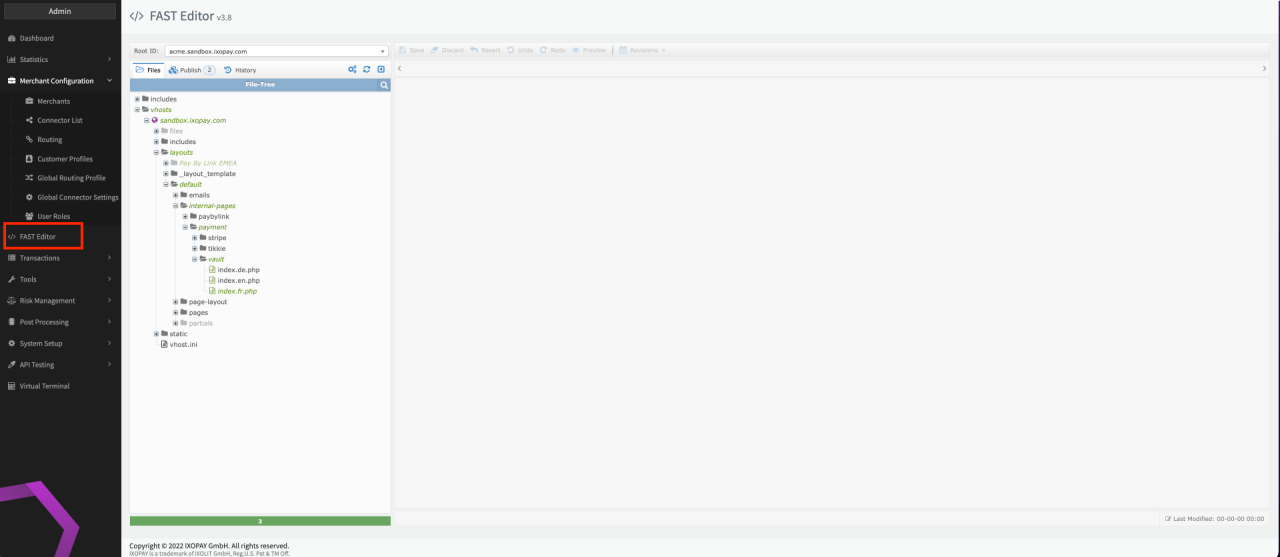
Placeholders
Each Adapter provides different elements and data for rendering the payment form.
These data are inserted in the template using placeholders.
A placeholder is embedded by surrounding it with {{ and }} (e.g.: {{ fields.firstname.id }})
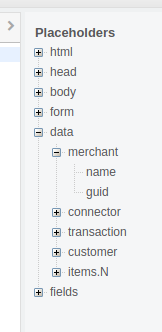
For ease of use, you may also use the placeholder helper on the right sidebar of the FAST Editor which should
appear when you select a template page.
Depending on the Adapter, different fields may be available.
E.g. to insert the merchant name, simply click on "name" under the merchant node.
It will automatically place {{ data.merchant.name }} into the current cursor position in the Editor.
Some placeholders are generally available, others are available depending on the used adapter. Mandatory, as described below ones MUST always be used within each template:
| Variable | Mandatory | Placement | Description |
|---|---|---|---|
html.doctype | Yes | Top of the HTML page | DOCTYPE tag for HTML document |
head.metatags | Yes | Within | Metatags used by Adapter implementation |
head.css | Yes | Within | CSS Stylesheets used by Adapter implementation |
head.js | Yes | Within | Javascripts used by Adapter implementation |
body.jsTop | Yes | Directly after | Javascripts used by Adapter implementation |
body.jsBottom | Yes | Directly before | Javascripts used by Adapter implementation |
form.open | Yes | Within | The opening tag |
form.close | Yes | Within | The closing tag |
data.merchant.name | No | Name of the Merchant as set up in Admin interface | |
data.merchant.guid | No | GUID of the Merchant as set up in Admin interface | |
data.connector.name | No | Name of the Connector as set up in Admin interface | |
data.connector.guid | No | GUID of the Connector as set up in Admin interface | |
data.connector.description | No | Description of the Connector as set up in Admin interface | |
data.transaction.type | No | The Transaction type, one of "Debit", "Preauthorize", "Register", "Payout" | |
data.transaction.transactionId | No | The Merchant's Transaction ID | |
data.transaction.token | No | The Transaction token passed by the Merchant (seldom used) | |
data.transaction.amount | No | Transaction amount | |
data.transaction.surchargeAmount | No | Sucharge Amount if available | |
data.transaction.currency | No | Transaction currency (3-letter code) | |
data.transaction.description | No | Description passed by the Merchant | |
data.transaction.testMode | No | Whether this is a test Transaction ("true" or "false") | |
data.customer.identification | No | Customer data | |
data.customer.first_name | No | Customer data | |
data.customer.last_name | No | Customer data | |
data.customer.birth_date | No | Customer data | |
data.customer.gender | No | Customer data | |
data.customer.billing_address1 | No | Customer data | |
data.customer.billing_address2 | No | Customer data | |
data.customer.billing_city | No | Customer data | |
data.customer.billing_postcode | No | Customer data | |
data.customer.billing_state | No | Customer data | |
data.customer.billing_country | No | Customer data | |
data.customer.billing_phone | No | Customer data | |
data.customer.shipping_firstname | No | Customer data | |
data.customer.shipping_lastname | No | Customer data | |
data.customer.shipping_company | No | Customer data | |
data.customer.shipping_address1 | No | Customer data | |
data.customer.shipping_address2 | No | Customer data | |
data.customer.shipping_city | No | Customer data | |
data.customer.shipping_postcode | No | Customer data | |
data.customer.shipping_state | No | Customer data | |
data.customer.shipping_country | No | Customer data | |
data.customer.shipping_phone | No | Customer data | |
data.customer.company | No | Customer data | |
data.customer.email | No | Customer data | |
data.customer.ip_address | No | Customer data | |
data.customer.national_id | No | Customer data | |
data.customer.iban | No | Customer data | |
data.customer.bic | No | Customer data |
Page layout inheritance
Every template has some common HTML content which is required independently from the used Adapter (such as HTML header, Javascript, form tags etc.). To simplify the actual payment templates, these elements can be defined in a so called page layout, which gets included automatically when rendering the payment template.
Page layouts can be defined under this path:
vhosts / [ hostname ] / layouts / default / page-layout
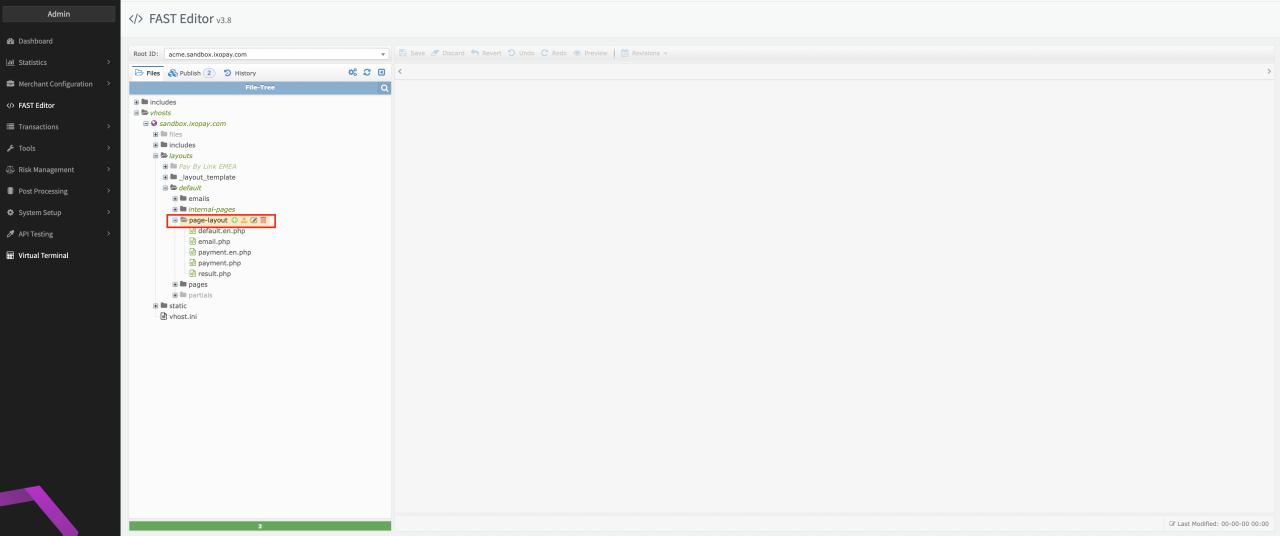
The page layout is resolved similar to the payment template according to the following Rules:
| Priority | Template | Path within FAST Editor |
|---|---|---|
| 1 | Page layout with language template | /vhosts/gateway.ixopay.com/layouts/[LAYOUT_NAME]/page-layout/payment.[LANGUAGE].php |
| 2 | Page layout without language template | /vhosts/gateway.ixopay.com/layouts/[LAYOUT_NAME]/page-layout/payment.php (Note: No language variable used here) |
You can find predefined templates inside the _layout_template folder (see Page Layout Templates Path) — vhosts / [ hostname ] / layouts / _layout_template
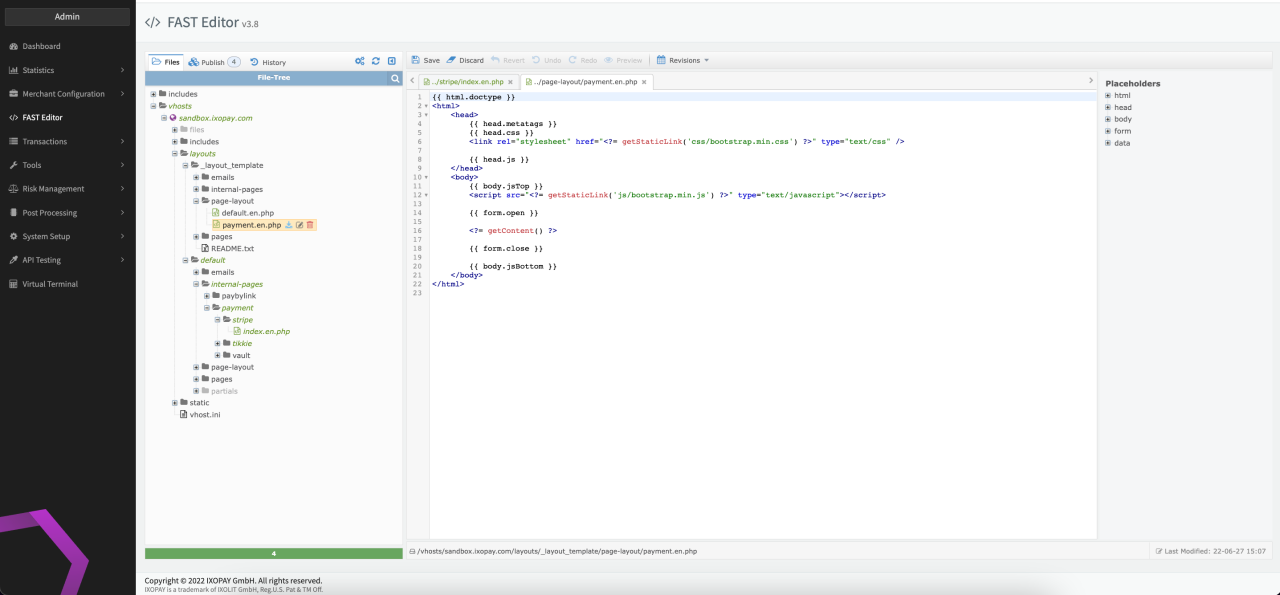
Based on this logic it will first try to look for a page layout specific to the given language (e.g. payment.en.php), and if that doesn't exist, it will eventually fallback to payment.php.
A typical page layout could look like this:
{{ html.doctype }}          <!-- This is the placeholder for the doctype element -->
<html>
    <head>
        {{ head.metatags }} <!-- Metatags required by the Adapter are inserted using this placeholder --->
        {{ head.css }}      <!-- CSS Stylesheets required by the Adapter are inserted using this placeholder -->
        {{ head.js }}       <!-- Javascript files required by the Adapter are inserted using this placeholder -->
    </head>
    <body>
        {{ body.jsTop }}    <!-- Javascript snippets for the adapter -->

        {{ form.open }}     <!-- the opening form tag -->

        <?= getContent() ?> <!-- this is where the magic happens: this function call inserts the payment template content on this position -->

        {{ form.close }}    <!-- the closing form tag -->

        {{ body.jsBottom }} <!-- more Javascript snippets for the adapter -->
    </body>
</html>
Form validation & Error handling
In many cases you may want to validate additional fields and display error messages. For this, the payment templates provide a Javascript API to influence the form submission.
For validation you have to define the Ixopay.onValidation method:
<script type="text/javascript">
  /**
   * @return true|false - whether to continue processing or not
   */
  Ixopay.onValidation(function (data) {
    if (!data.values.first_name) {
      alert("You have to enter a first name");
      return false;
    }
    if (!data.values.last_name) {
      alert("You have to enter a last name");
      return false;
    }
    return true;
  });
</script>
In case of errors, the Ixopay.onError method will be called, where it should display the error messages to the User:
<script type="text/javascript">
  Ixopay.onError(function (errors) {
    for (var i = 0; i < errors.length; i++) {
      var attribute = errors[i].attribute;
      var errorCode = errors[i].key;
      var errorMessage = errors[i].message;

      alert(errorMessage);
    }
  });
</script>
PCI compliant fields
Fields which require additional compliance, such as Credit Card number and CVV code, are not included in the payment form directly, but provided by the external PCI compliant vault.
To embed them in the designated spot, you have to provide a DIV element with the appropriate ID (see API Documentation: payment.js).
However since you don't have full HTML code control for these fields,
you cannot apply CSS styles directly via style attribute or CSS class definitions.
Instead you must use the Ixopay.PaymentFormV2.setCss method to apply those styles upon document ready event.
You can also apply styles in the validation and error handler methods.
<script type="text/javascript">
  // this is a shortcut event handler for document.ready provided by the awesome jQuery library
  // see http://api.jquery.com
  $(function () {
    // set card number style
    Ixopay.PaymentFormV2.setCss("creditcard_number", {
      width: "200px",
      color: "#333333",
      "font-family": "Helvetica, Arial, sans-serif",
      "font-size": "10pt",
    });
    // set CVV style
    Ixopay.PaymentFormV2.setCss("cvv", {
      width: "200px",
      color: "#333333",
      "font-family": "Helvetica, Arial, sans-serif",
      "font-size": "10pt",
    });

    //set style on validation failure
    Ixopay.onValidation(function (data) {
      if (data.custom.number_valid == false) {
        //you can even call it here
        Ixopay.PaymentFormV2.setCss("creditcard_number", { color: "red" });
        return false;
      }
      if (data.custom.cvv_valid == false) {
        //...
      }
      return true;
    });
  });
</script>
If needed, you can also include placeholders for PCI compliant fields:
| Placeholder | Description |
|---|---|
Ixopay.PaymentFormV2.setNumberPlaceholder('...') | Placeholder Creditcard Number |
Ixopay.PaymentFormV2.setCvvPlaceholder('...') | Placeholder CVV |
Event listening
Events may be listened to via following functions:
-
Ixopay.PaymentFormV2.numberOn -
Ixopay.PaymentFormV2.cvvOn
Both, number and CVV fields support listening for the following events:
- input
- focus and blur
- mouseover and mouseout
- enter and esc
- tab and shift-tab
For all events, the callback function will receive a data object which will contain following:
- cardType (amex, diners, discover, jcb, maestro, mastercard, uatp, unionpay, visa, visa_electron)
- cvvLength (number)
- numberLength (number)
- validCvv (boolean)
- validNumber (boolean)
Ixopay.PaymentFormV2.numberOn("focus", function (data) {
  // do something here
});

Ixopay.PaymentFormV2.cvvOn("blur", function (data) {
  // do something here
});
Static content
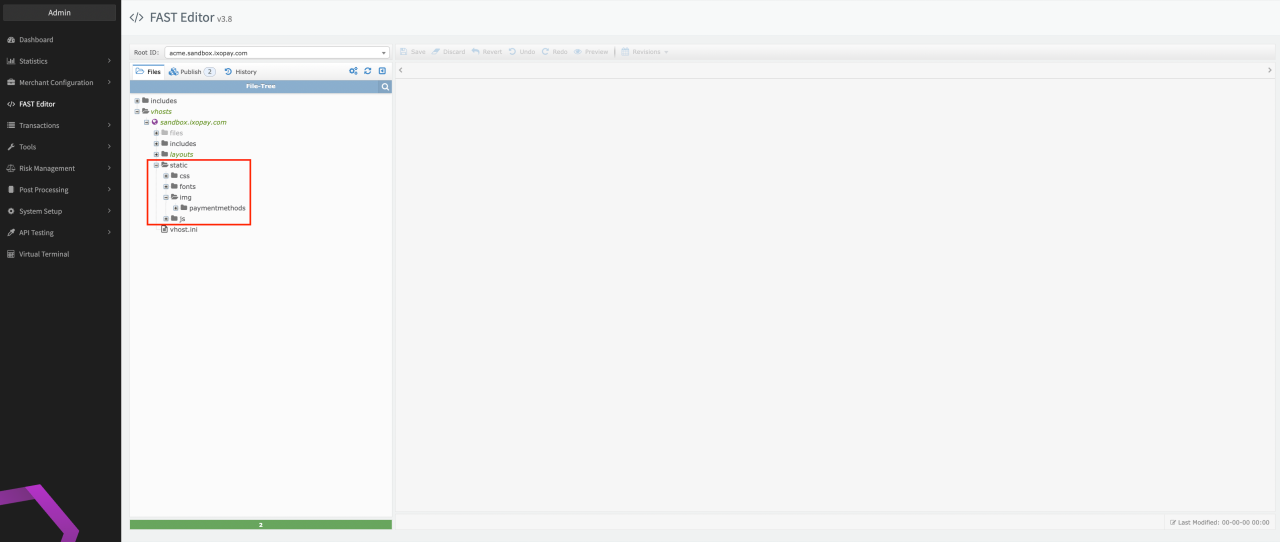
You may also insert images, css and js which you have uploaded to the FAST Editor. To make such elements accessible, navigate to the static folder where you will find a css, img and js folder. Simply upload your files into the appropriate folders or create your own folder structure (see Static Section).
vhosts / [ hostname ] / static
To link your uploaded element into your template use the getStaticLink tag which will automatically create a link to the specified file.
<?= getStaticLink('path/to/file'); ?>
Example
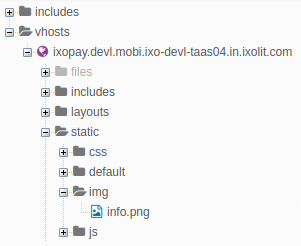
If you have uploaded a 'info.png' into the static/img/info.png you can embed it into your template as an image by doing
The static directory itself is not part of the given URL.
Publish
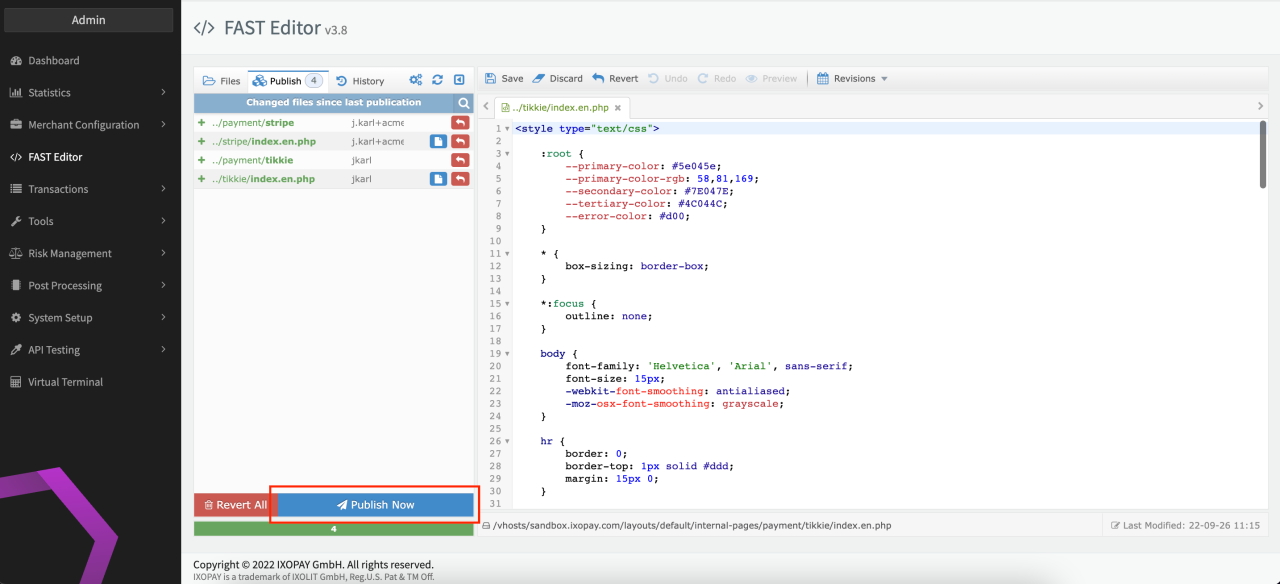
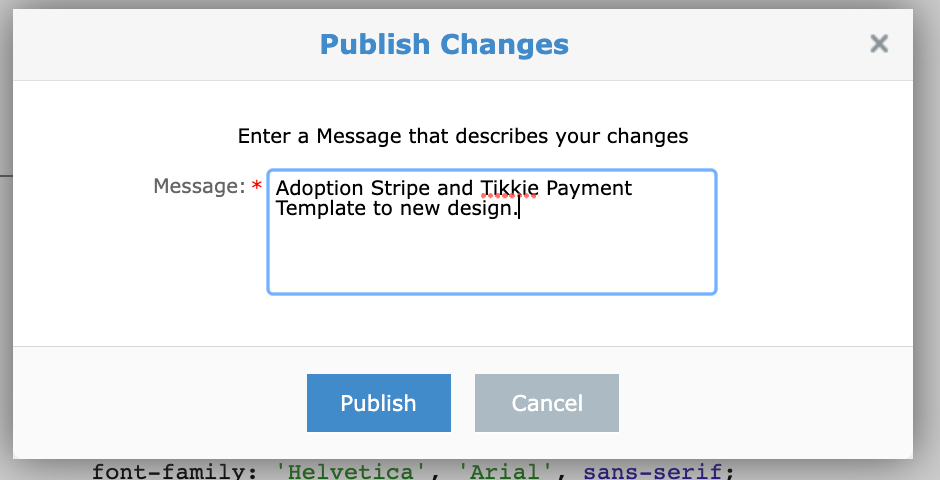
Once finished, you need to publish your changes or created templates, before they can be used. This needs to be done in Publish Section of the Fast Editor (see Fast Editor Publish)
- Click on Publish Now
- Enter a Comment to document the changes applied (see Change Log)
- Click Publish
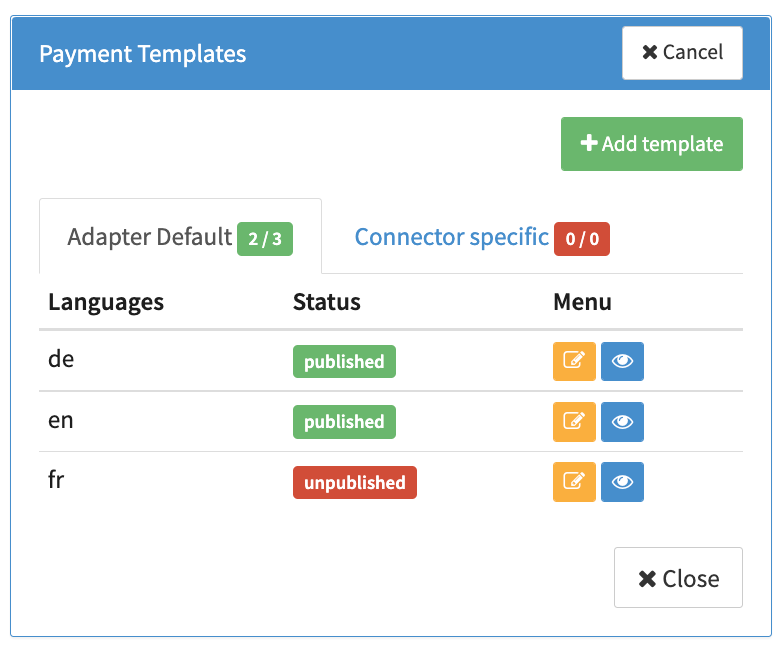
Now your templates will be shown as published in the Connectors Detail Overview - Payment Templates section.
During the publish step all changes will be published performed on templates in the structure regardless of the editor. Same is true for reverting of changes: all changes done after the the change that you want to revert will be lost.