Post Processing - Reconciliation / Settlement on the Connector Level
In order to perform Post Processing activities such as reconciling transaction and settlement data from Providers so called Data Fetchers need to be configured to gather the information and data from Providers. Depending on your setup and used PSPs, these data fetchers can either be set up per Connector as described below or per so called Provider entity in the IXOPAY platform. Second option having the advantage to retrieve settlements for multiple Merchants from one Provider and therefore preventing Reconciliation and Settlement Errors due to "unknown transactions" from other Merchants in one Settlement report.
To set up Reconciliation and/or Provider Settlement Data Fetchers, follow these steps:
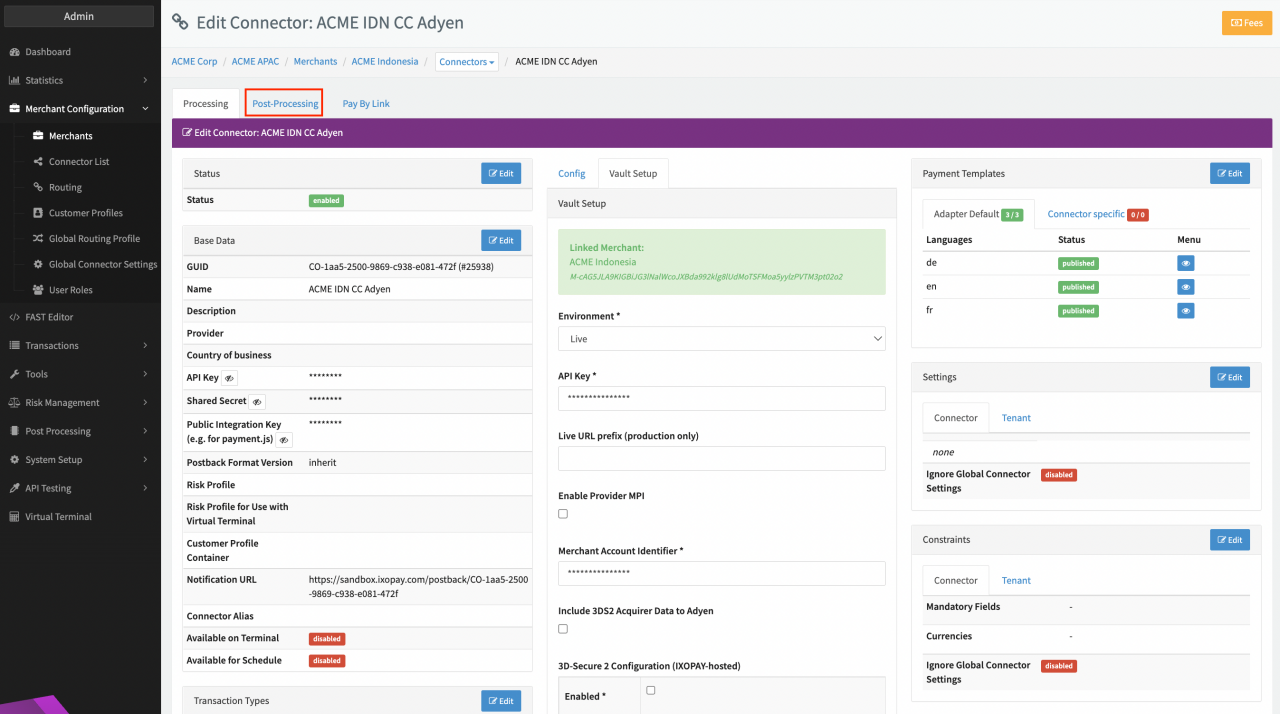
- Navigate to the Connector Detail Overview
- Select the Tab Post-Processing
In order to be able to include transactions processed by a Connector in the Reconciliation and Provider Settlement, the Connector must be assigned to the Provider entity in the IXOPAY platform.
Reconciliation
To enable Reconciliation on the Connector configure a Reconciliation Data Fetcher and Reconciliation Settings (if needed) according to the adapter-specific documentation
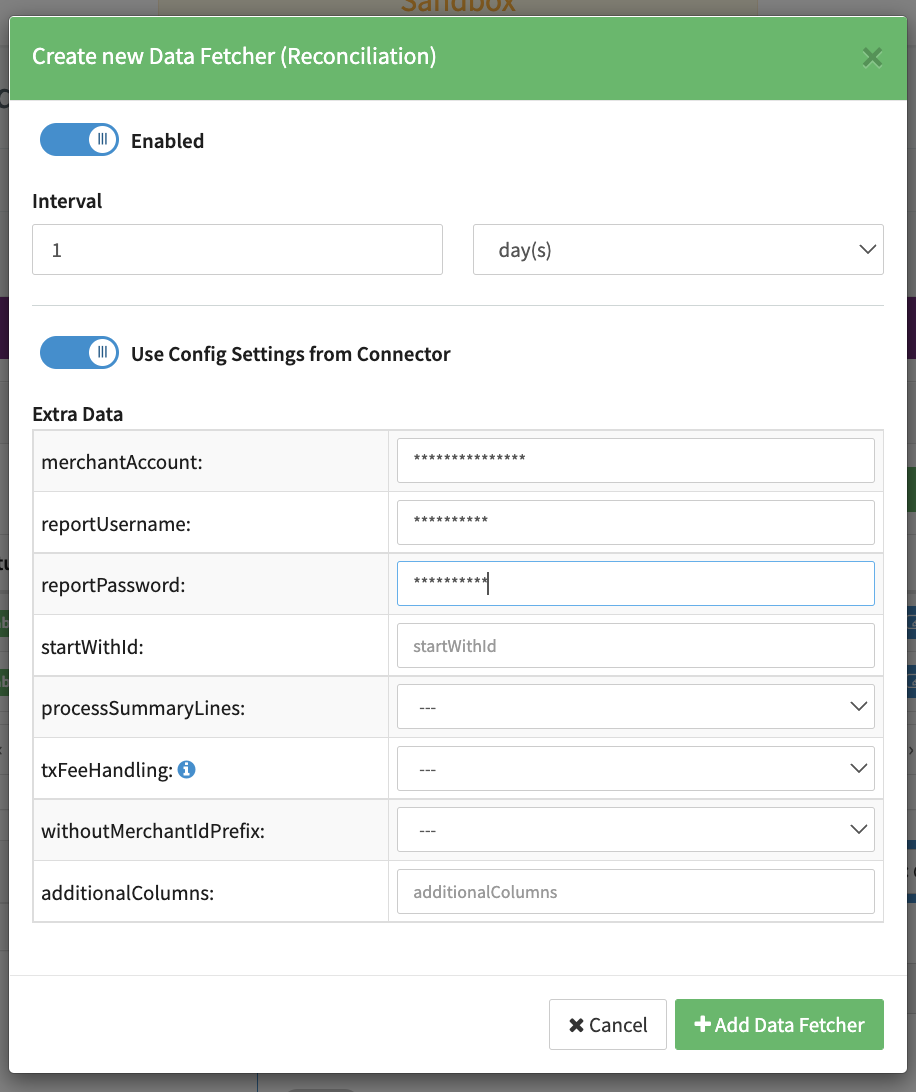
- Click + Add to configure a new Reconciliation Data Fetcher
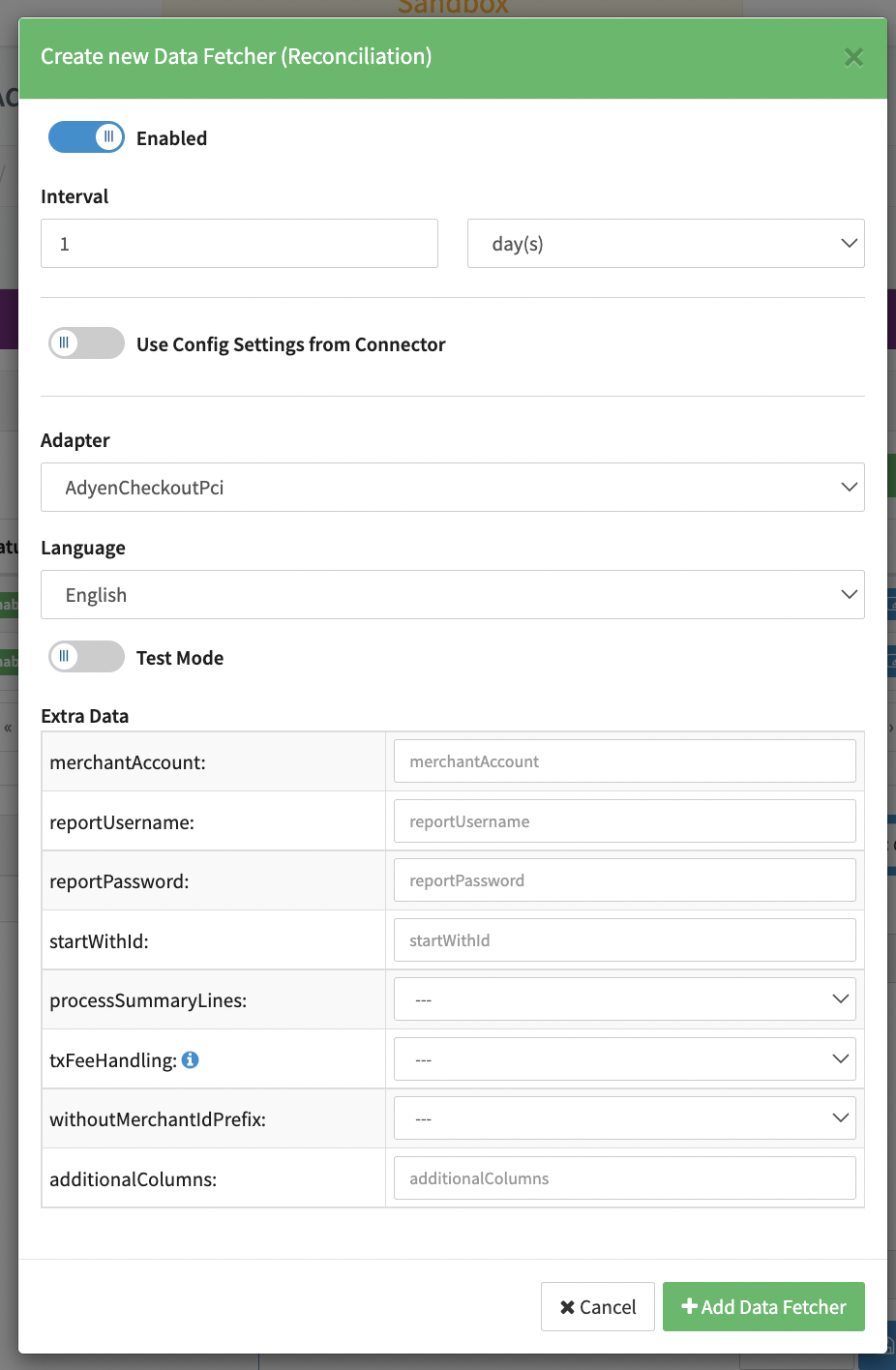
- Enable the Data Fetcher
- Fill in an optional Name
- Define the interval (number of day(s), hour(s)) for fetching data from the Provider
- Enable the option Use Config Settings from Connector or
- Disable the option Use Config Settings from Connector in case you need to customize the set up
- Select the Adapter for which you want to set up the data fetcher
- Fill in the required parameters (e.g. Username, Password, API secret, Certificate Path, Certificate password)
- Select a language
- Fill in the required Extra Data (adapter-specific)
- Save your configuration with + Add Data Fetcher
Depending if you selected the option to Use Config Settings from Connector the Adapter name itself will show up in the Reconciliation Data Fetcher overview. You can edit your data fetcher by clicking Edit.
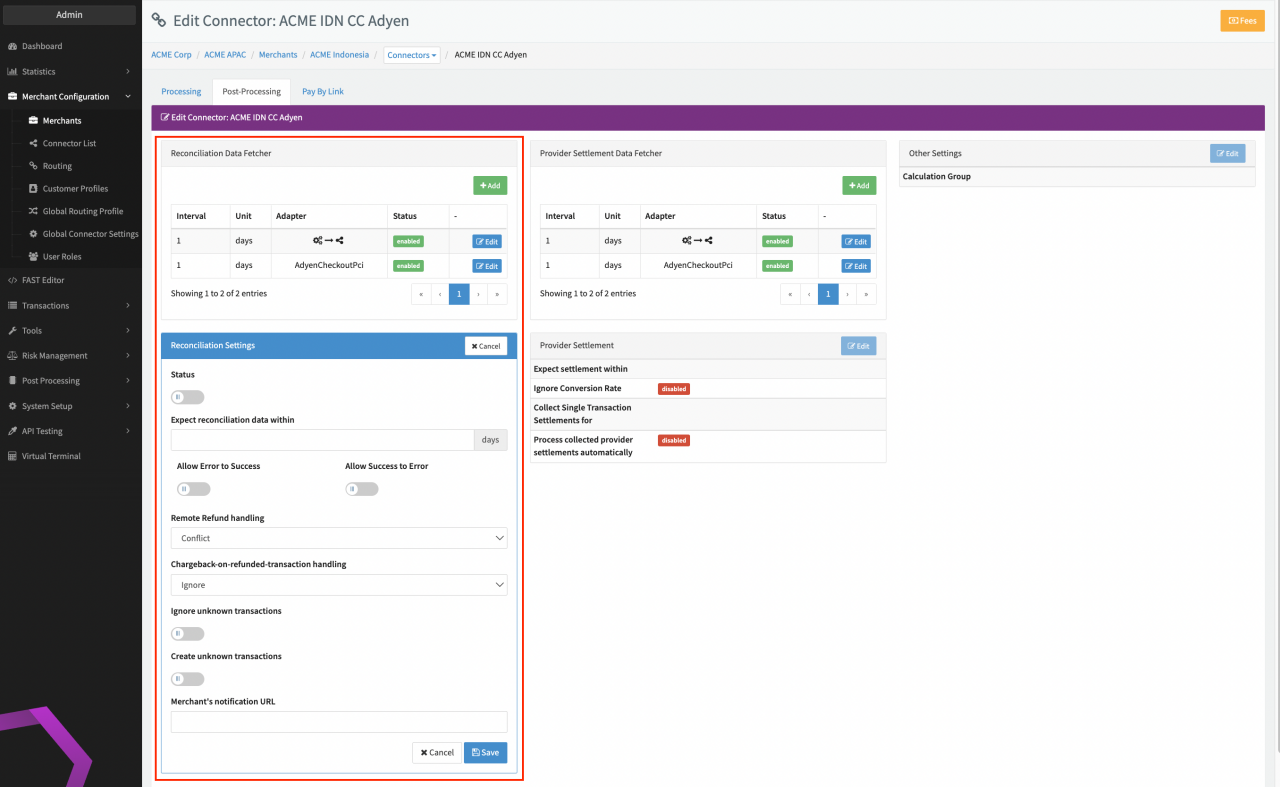
Additionally, you can configure Reconciliation Settings:
- Enable Reconciliation Settings
- Fill in the number of days in Expect Reconciliation data within before a Transaction will appear in Missing Reconciliation Tab, if no Reconciliation is found for this transaction
- Enable the option Allow Error to Success and/or
- Enable the option Allow Success to Error for transaction status changes without user interaction. If disabled, transactions will be shown in the Conflicts Tab
- Select the option for Remote Refund handling in case a transaction was refunded on Provider side unknowingly
in the IXOPAY platform:
- Ignore: Refund is completely ignored
- Pass-through: Refund Transaction is automatically created and sent to the Merchant as Postback notification (to the configured Merchant’s notification URL)
- Conflict: Transaction will appear in the Conflicts Tab (default)
- Select the option for Chargeback-on-refunded-Transaction handling in case of a chargeback to an already refunded
transaction unknowingly in the IXOPAY platform:
- Ignore: Chargeback is completely ignored
- Pass-through: Chargeback Transaction is automatically created and sent to the Merchant as Postback notification (to the configured Merchant’s notification URL)
- Conflict: Transaction will appear in the Conflicts Tab (default)
- Enable the option Ignore unknown Transactions to ignore any unknown Transactions from Reconciliation files unknowingly in the IXOPAY platform. If disabled transactions will be shown in the Unknown tab.
- Fill in the Merchant’s notification URL to receive Postback notifications for new Transactions (Notifications for Transactions created by the Merchant itself are sent to the Callback URL)
- Save your configuration
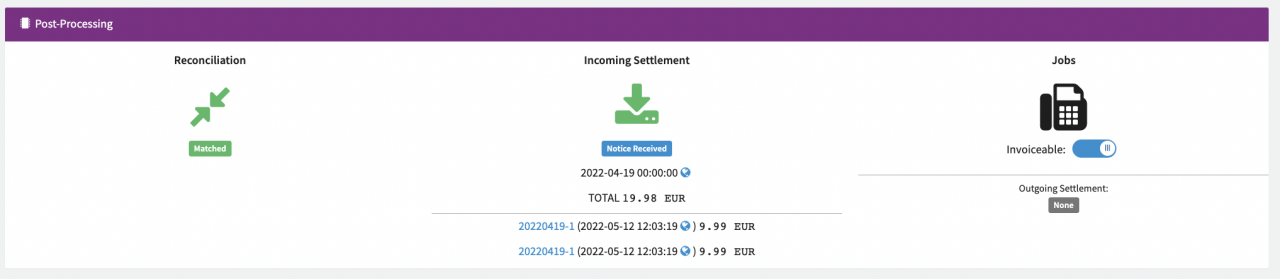
Once configured and enabled the data fetcher will retrieve Reconciliation data from the Provider and match it to the data available in the IXOPAY platform. In case the data matches the transaction will be marked as reconciled in the Transaction Details Overview. Otherwise a Reconciliation conflict is raised (see Reconciliation Section).
Provider Settlement
To enable Provider Settlements on the Connector configure a Provider Settlement Data Fetcher and Provider Settlement Settings (if needed) according to the adapter-specific documentation
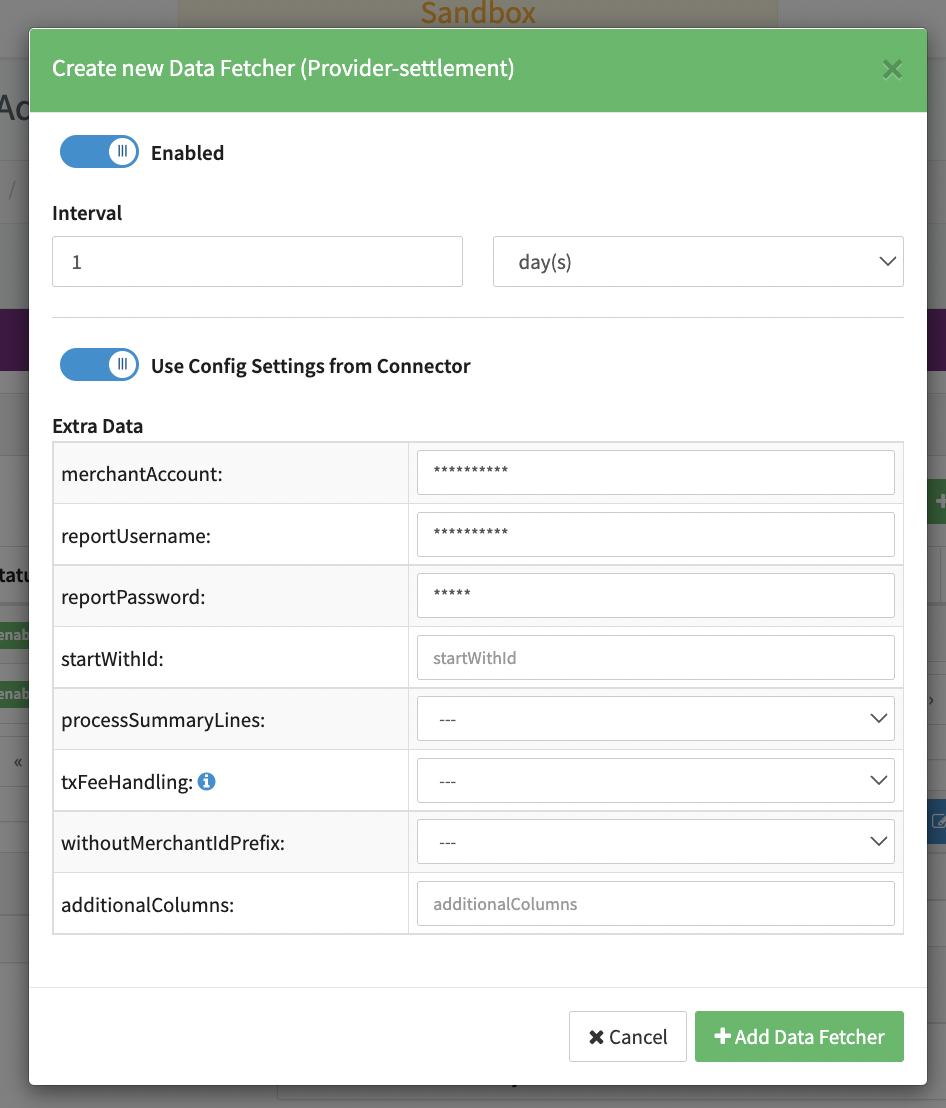
- Click + Add to configure a new Provider Settlement Data Fetcher
- Enable the Data Fetcher
- Fill in an optional Name
- Define the interval (number of day(s), hour(s)) for fetching data from the Provider
- Enable the option Use Config Settings from Connector or
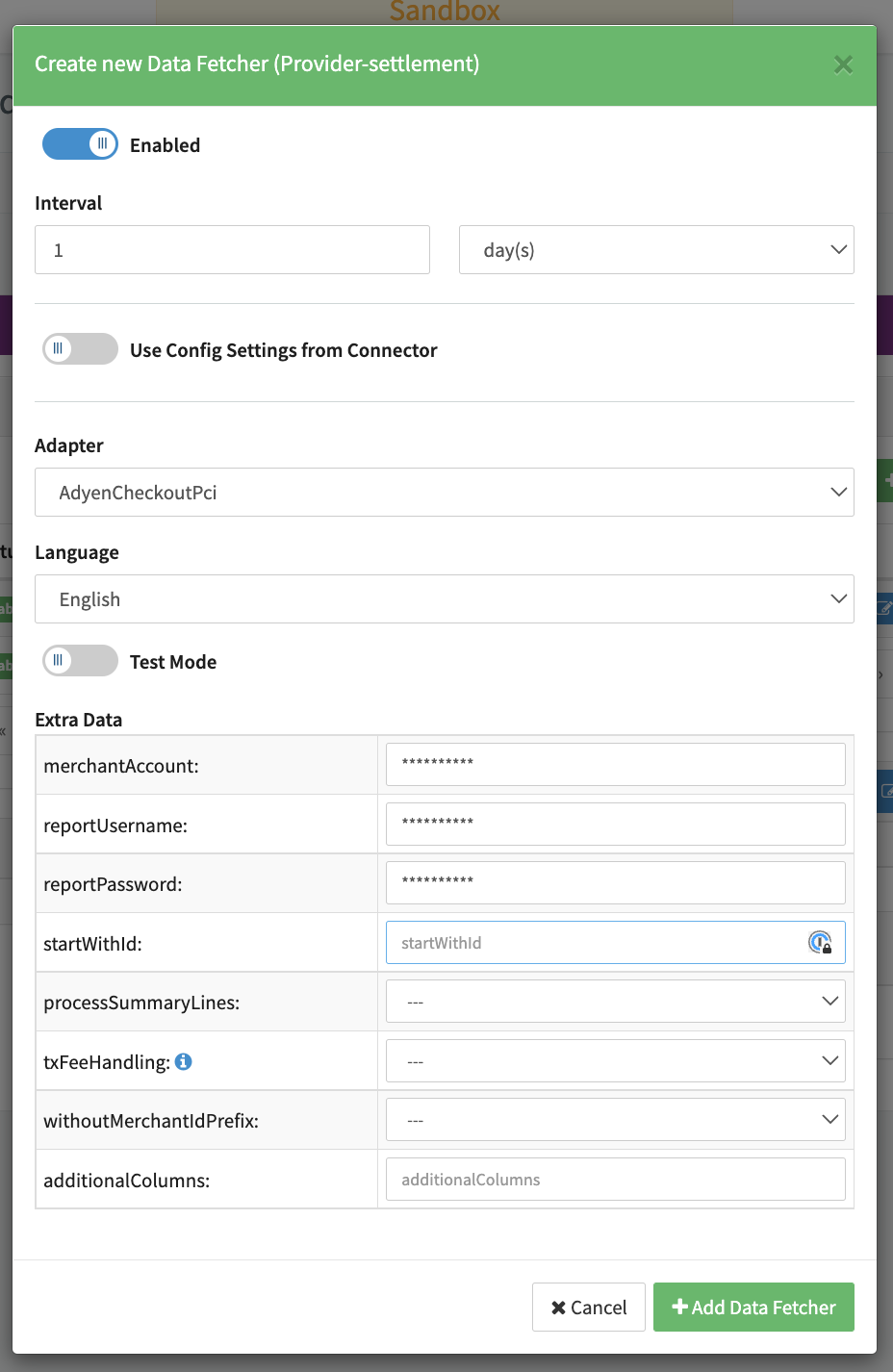
- Disable the option Use Config Settings from Connector in case you need to customize the set up
- Select the Adapter for which you want to set up the data fetcher
- Fill in the required parameters (e.g. Username, Password, API secret, Certificate Path, Certificate password)
- Select a language
- Fill in the required Extra Data (adapter-specific)
- Save your configuration with + Add Data Fetcher
Depending if you selected the option to Use Config Settings from Connector the Adapter name itself will show up in the Provider Settlement Data Fetcher overview. You can edit your data fetcher by clicking Edit.
Additionally, you can configure Provider Settlement Settings:
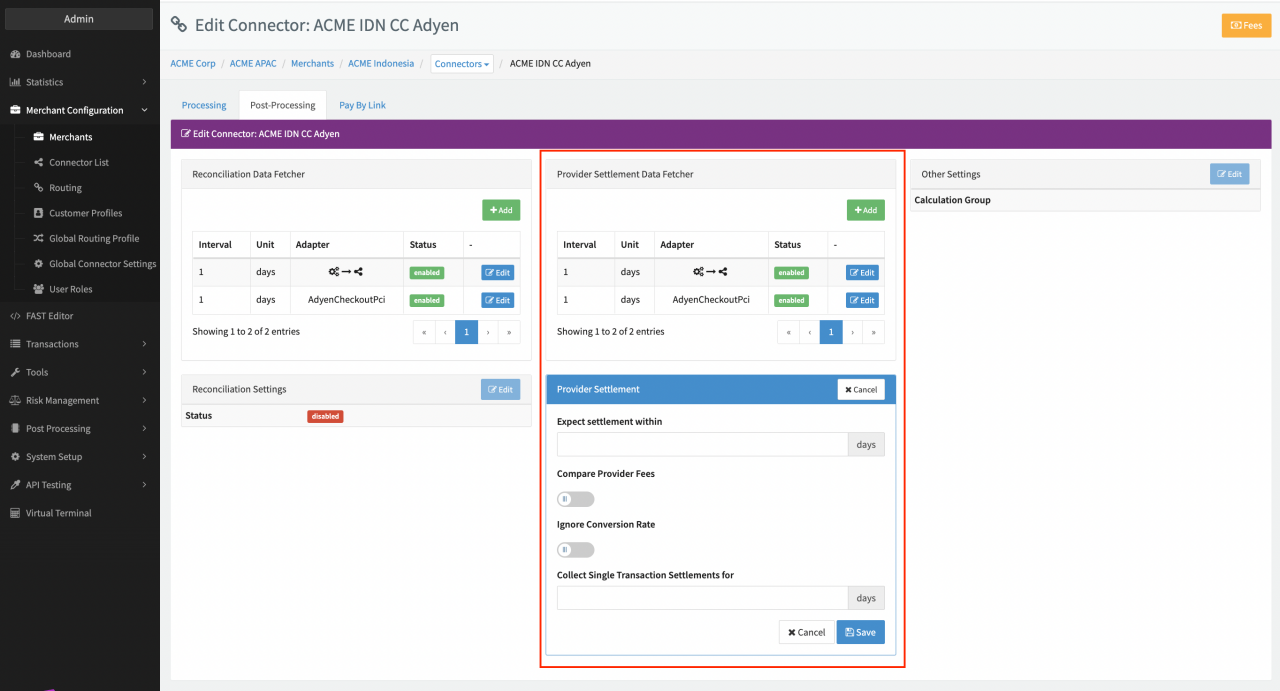
- Fill in the number of days in Expect settlement within before a Transaction will be marked as Unsettled, if no Provider Settlement is found for this transaction
- Enable the option Compare Provider Fees to compare the configured Fees for transactions with actual Fees applied in the settlement. Any non-matching values will be shown in the Conflicted Transaction Tab of a Provider Settlement
- Enable the option to Ignore Conversion Rate
- Fill in the number of days to Collect Single Transaction Settlement for a Settlement Batch in case of Adapters not supporting cumulated settlement files (such as SEPA, Direct Debit)
- Save your configuration
Once configured and enabled the data fetcher will retrieve Provider Settlement data and match it to the data available in the IXOPAY platform. In case the data matches the transaction will be marked as settled in the Transaction Details Overview. Otherwise a Settlement conflict is raised (see Provider Settlement Section)
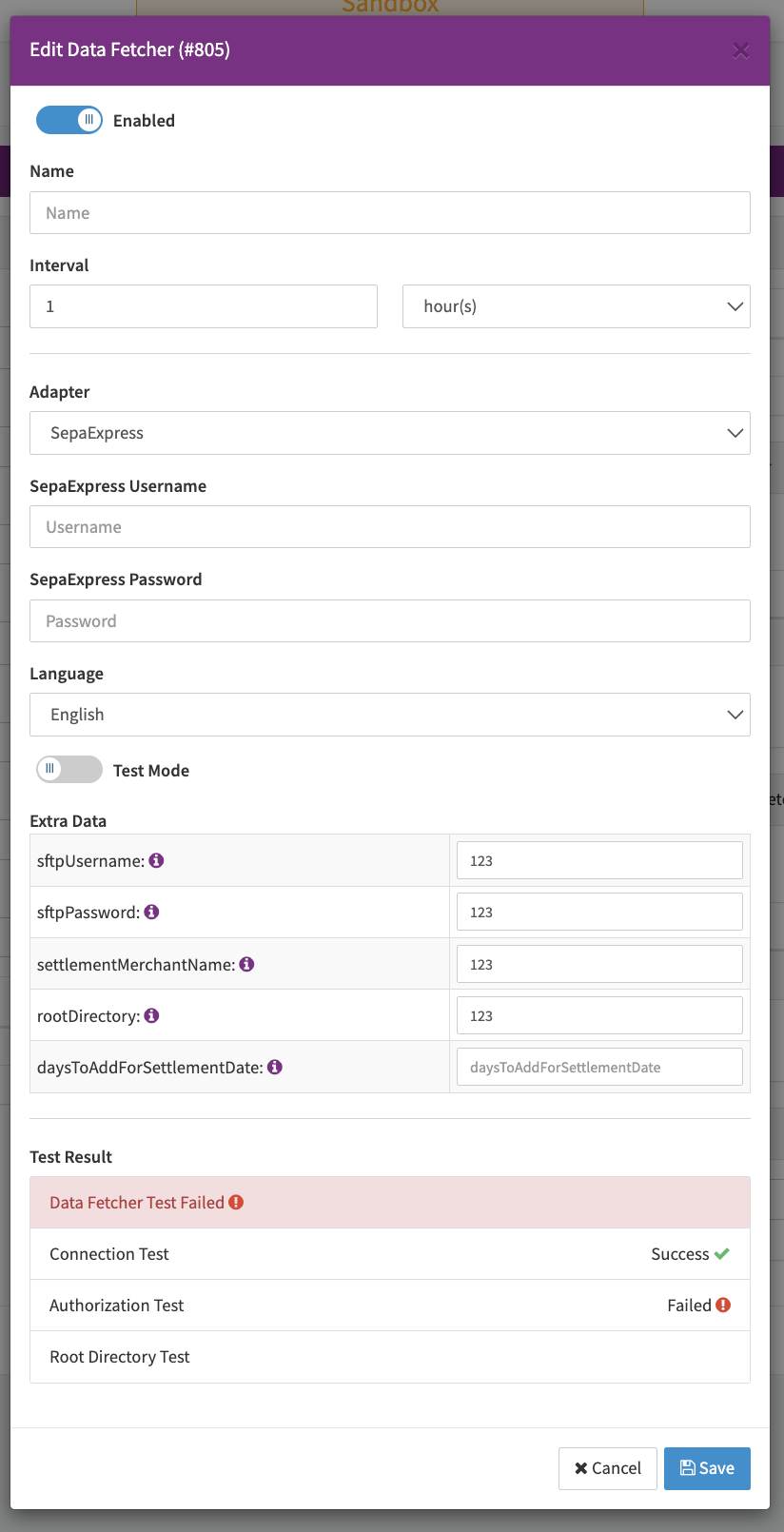
For some adapters the IXOPAY platform will automatically test the data fetcher connection after creation to verify data fetchers are set up correctly. You can see the test results in the data fetcher edit view (see Test data fetcher connection).
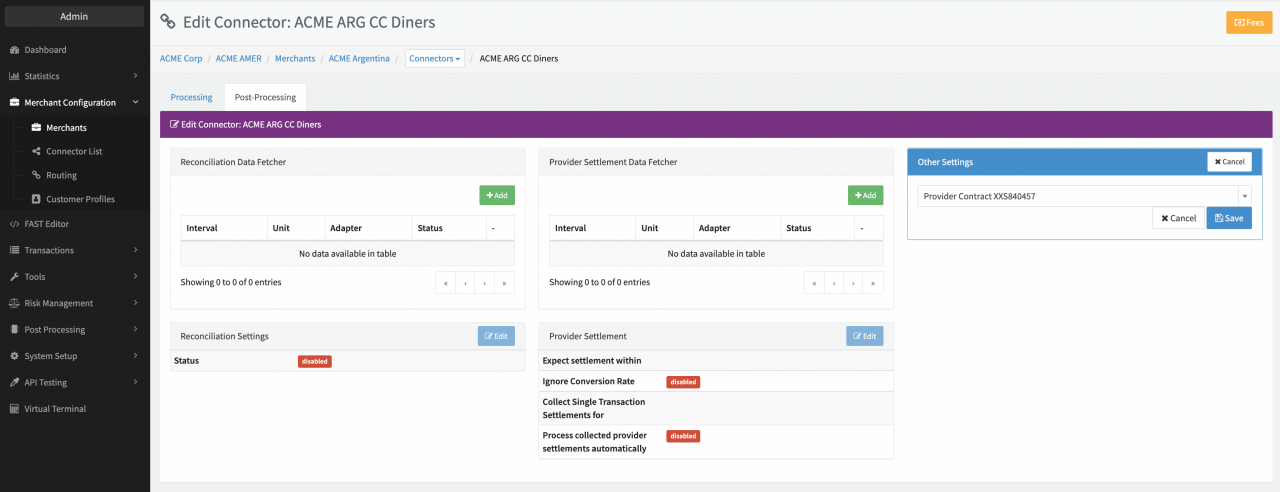
Other Settings
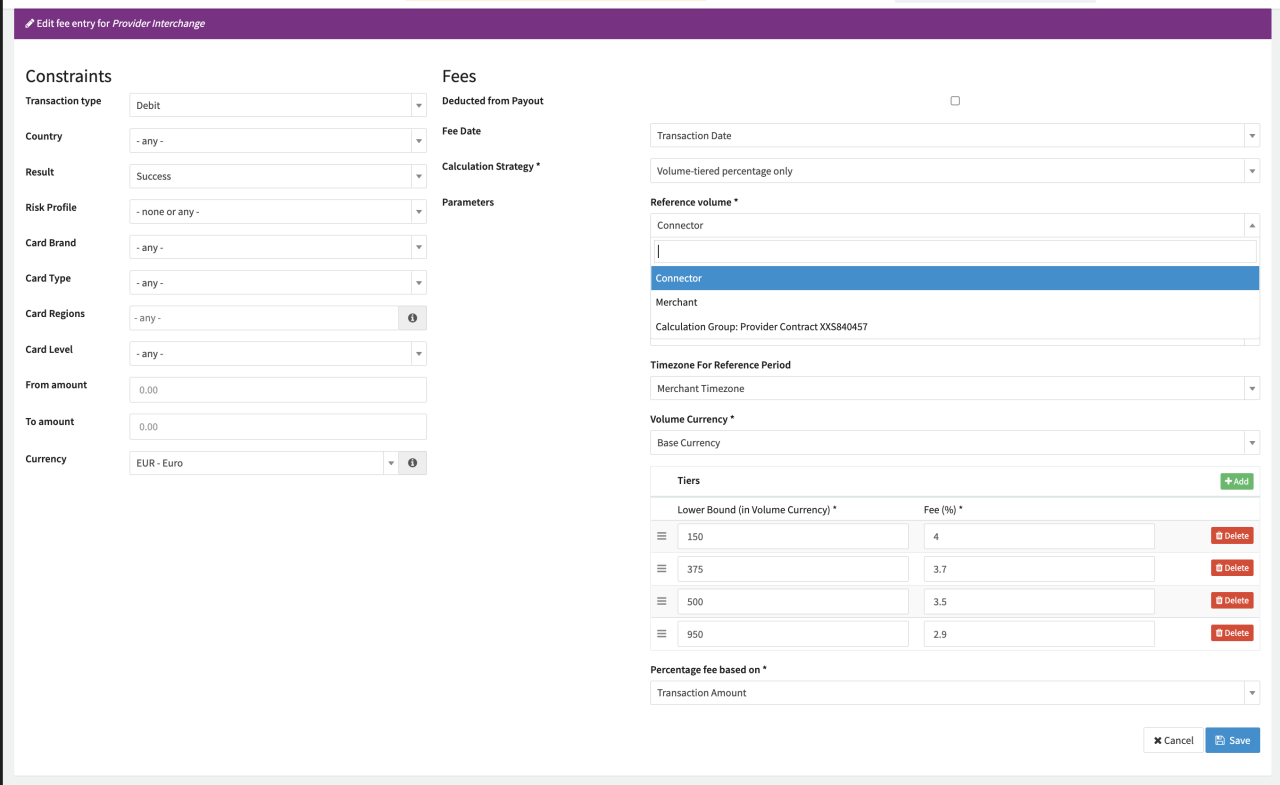
In the Post Processing tab you can define furthermore so called Calculation Groups. These Groups can then be used in for the Fee Calculation (e.g. to calculate volume-tiered/count-tiered fees over multiple merchants) as Reference Volume /Reference Count.