Set up Fees
In order to be able to set up Fees on Connector level, Fee Entities created on (Sub-)Tenant level first.
In the following section you will learn how to set up and assign individual transactional and periodic Fees on the Connector level using previously predefined Fee Entities.
In case you want to set up fees on Merchant level, please refer to the Merchant Line Items section.
Fee-Sets
In the IXOPAY platform, Fees are organized in so called Fee-Sets. Generally speaking, a Fee-Set is a collection of configured Fees against which all Transactions of the associated Connector will be checked and, if relevant, will be calculated for by the IXOPAY platform Fee Management Engine. Grouping Fees into Fee-Sets makes it easier to copy and apply the same group of Fees onto multiple Connectors.
Create Fee-Set
To create a Fee Set, follow these steps:
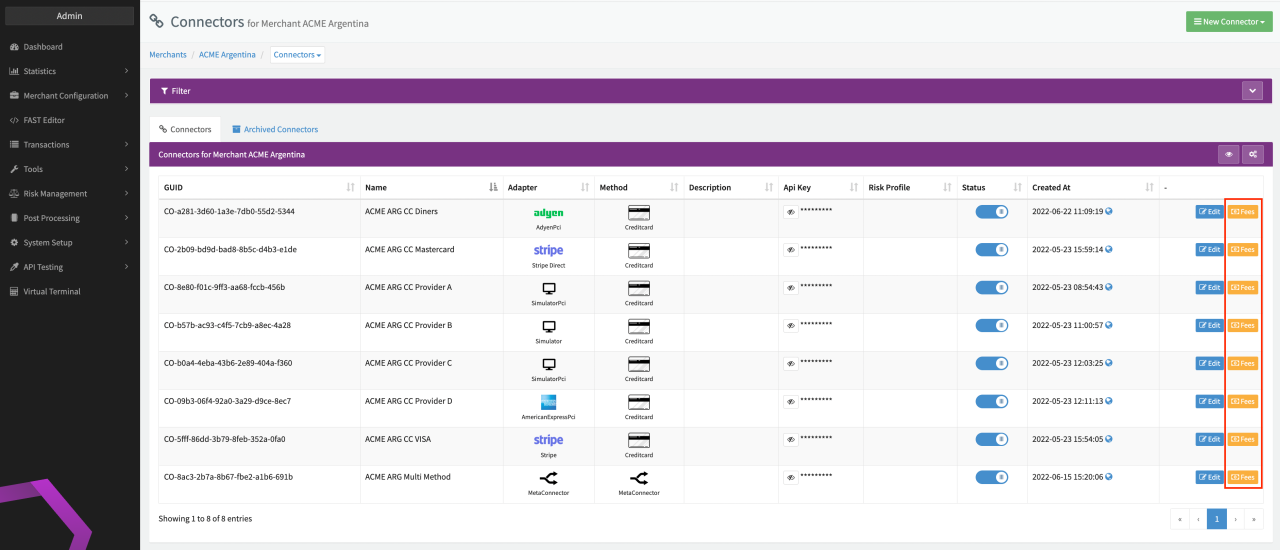
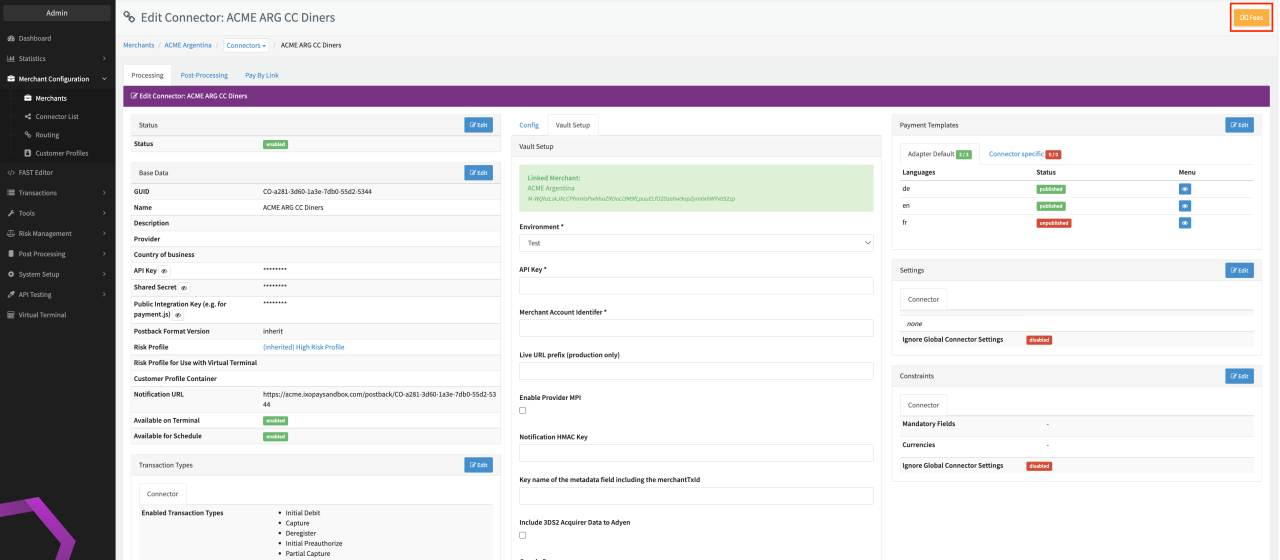
- Navigate to the Connector Overview and Click Fees for the desired Connector. Alternatively, navigate to the Connector Details Overview and Click Fees.
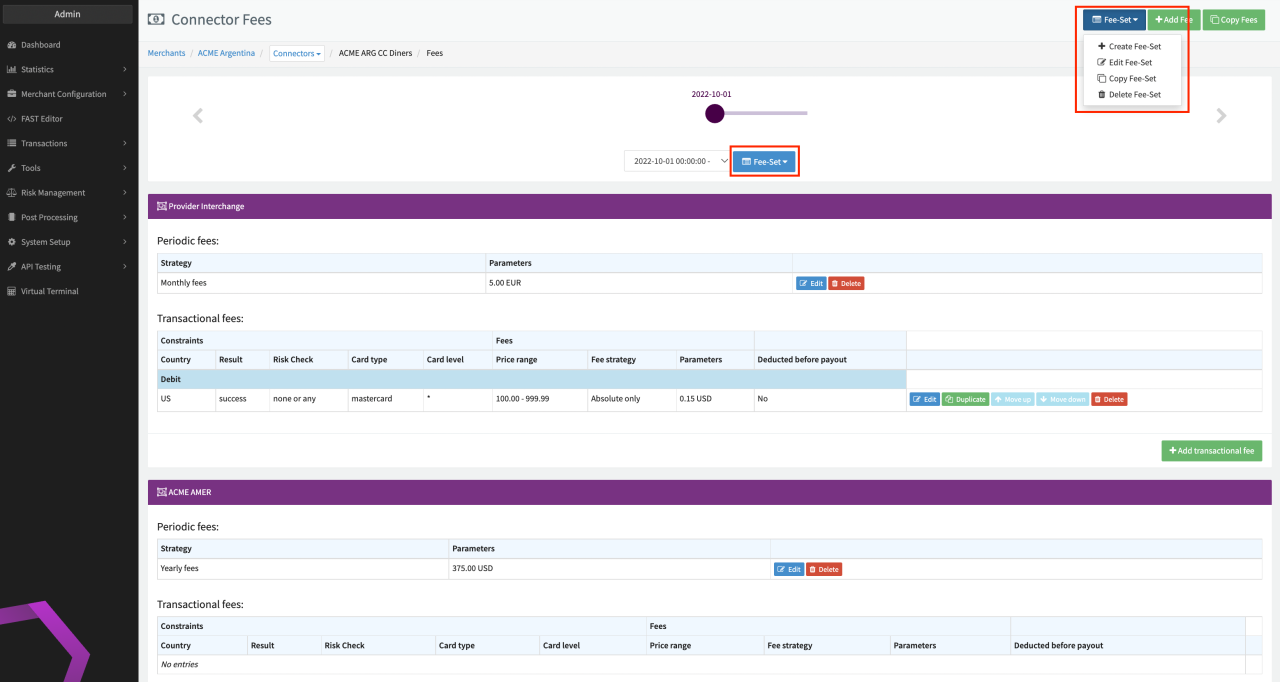
- Select + Create Fee-Set from the Fee-Set drop-down (see Connector Fees) on the top right (or in the timeline if you already have an active Fee Set).
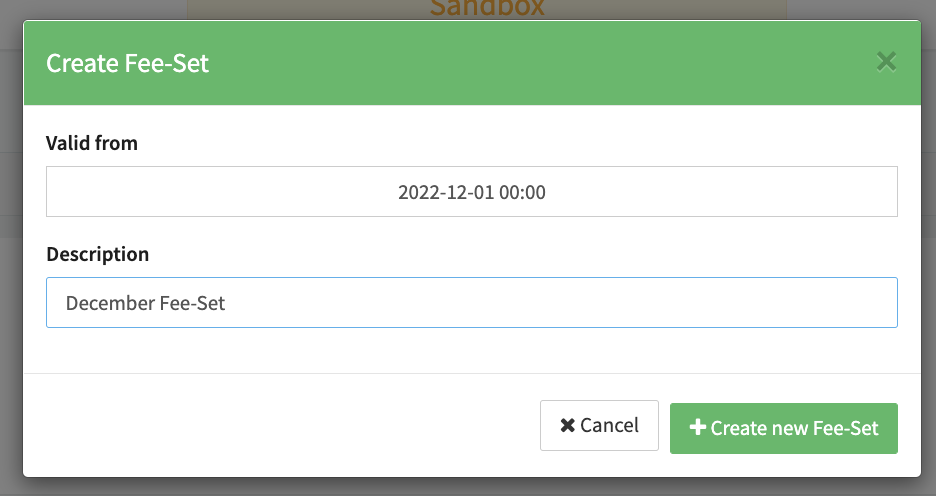
- Select a Valid from Date and Time and fill in an optional Description for the Fee-Set (see Create Fee Set).
With the Valid from value clients can apply different Fee Strategies to Connectors (e.g. higher Fees for the first month, and lower Fees for any subsequent month). Starting form the Valid from date, the associated Fee-Set will be apply to Transactions of this Connector, until a more recent Valid from date with associated Fee-Set is available. You can create as many Fee-Sets as you want, each Fee-Set representing a node on the timeline (see Timeline Fee-Sets).
Example: If today were May 1st, and we had Fee-Set A which started from February 1st, and another Fee-Set B which will start from May 5th, we can conclude that Fee-Set A is applied. On May 5th, Fee-Set B will become the applicable Fee-Set with the most recent Valid from date and will become active, therefore Fee-Set B is disabling Fee-Set A. In order to re-use Fee-Set A, for example if Fee-Set B was only temporary, you can either delete Fee-Set B on the day it's not needed anymore or, more elegantly, copy (see Copy Fee-Set) Fee-Set A and set a Valid from date from which on you want Fee-Set B to be invalid.
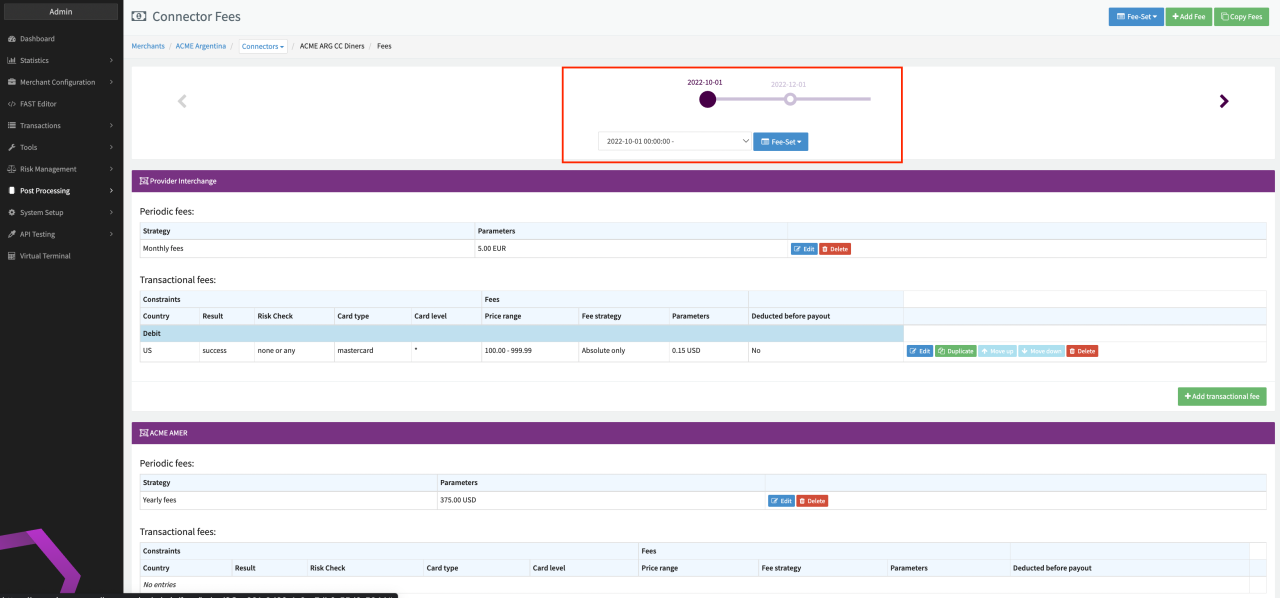
It can only be one Fee-Set active at any time. The Fee-Set with the most recent Valid From date is applied.
Copy Fee-Set
In case you do not want to start from scratch with a new Fee-Set for your Connector or in case you only temporarily changed the applicable Fee-Set, the option to Copy an existing Fee-Set might be useful.
To copy an existing Fee-Set, follow these steps:
- Select the Fee-Set you want to copy from the timeline (see Timeline Fee-Sets)
- Select the option Copy Fee Set (see Connector Fees) from the Fee-Set drop-down
- Select a Valid from Date and Time and fill in an optional Description for the copied Fee-Set
The Fee-Set will be copied including all configured Fees.
Fee-Sets can only be copied within the same Connector Fees. If you want to copy fees across Merchants see section Copy Fees.
All actions (Copy Fee-Set, Delete Fee-Set, Edit Fee-Set) apply always to the currently selected Fee-Set.
Edit Fee-Set
The Edit Fee-Set option you can change the Valid from date or the option Description for the selected Fee Set.
Delete Fee-Set
The Delete Fee-Set option deletes the selected Fee-Set.
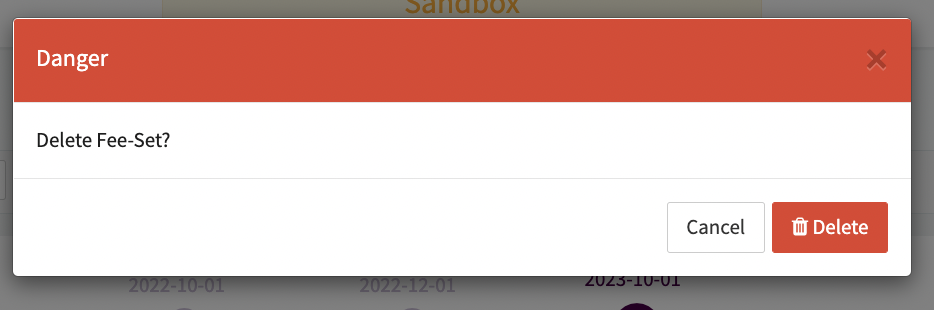
Deleting a Fee-Set cannot be undone!
Fee-Set Timeline
The timeline allows you to get an overview of all Fee-Sets for this Connector over time (past, current, and future Fee-Sets). Each Fee-Set is represented by a node on the timeline, labeled with the Valid from date and ordered chronologically from oldest to newest (left to right). The filled node represents the currently active Fee-Set, while past or future Fee-Sets are represented by unfilled nodes.
To switch between Fee-Sets, you can either
- Use the timeline arrows
- Use the timeline dropdown
- Click directly on the node
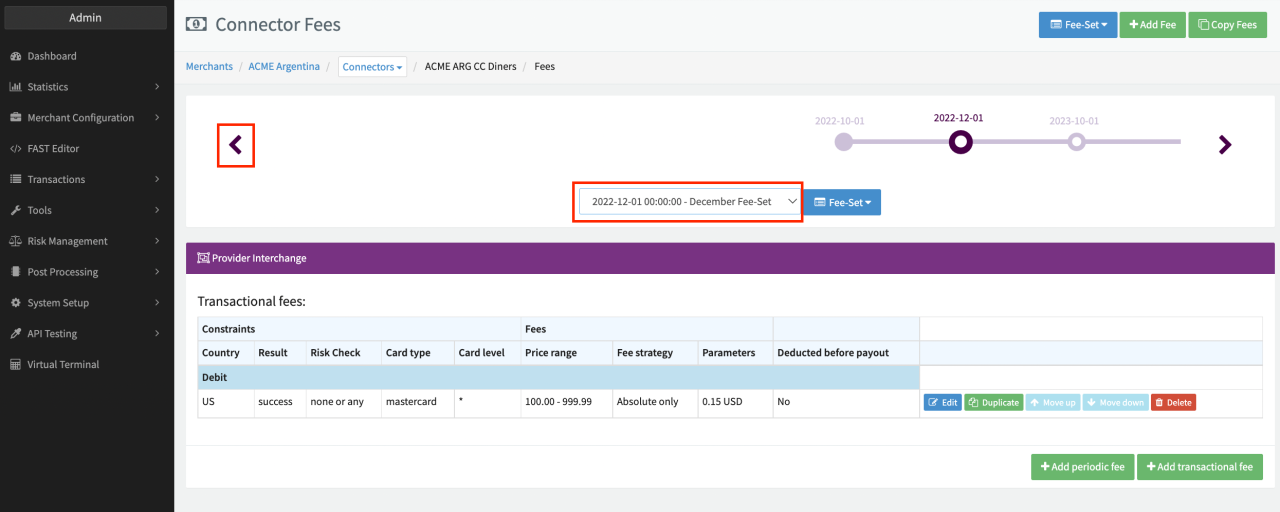
If you did not create a Fee-Set before adding Fees, a new Fee-Set will be created automatically with Valid from date set to the 1st day of the current month.
Fees (transactional and/or periodic)
Add Fees
Define and assign individual transactional and/or periodic fees for your Connector using predefined Fee Entities by following these steps:
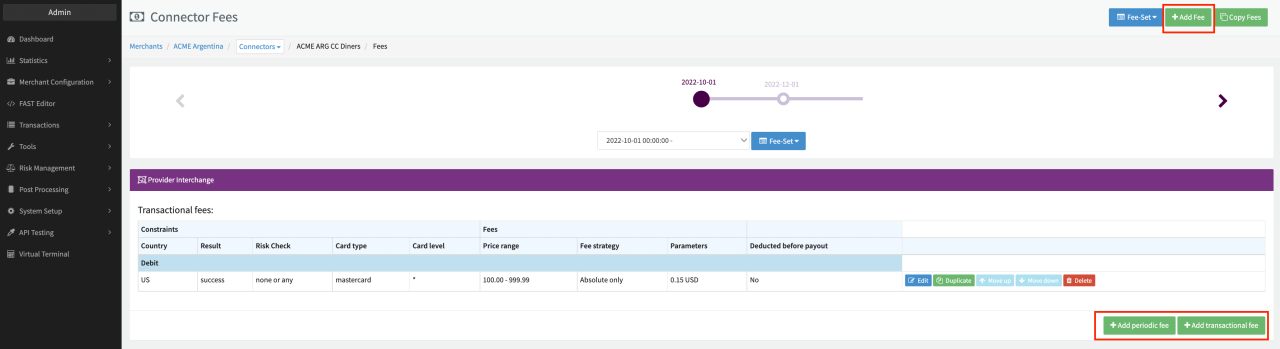
- Click + Add Fee in the Connector Fees (see Add Fee)
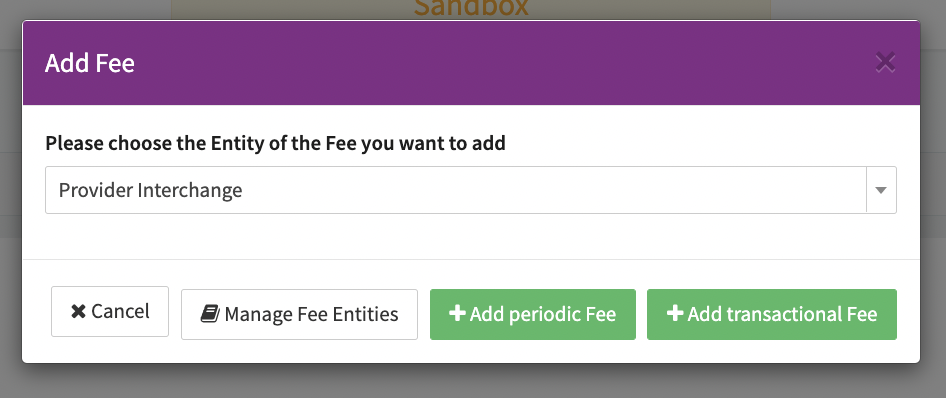
- Select the Fee Entity for which the Fee should be added from the drop-down. Click Manage Fee Entities to go to the Fee Entities Overview (see Add Fee Dialog)
- Click either + Add periodic Fee or + Add transactional Fee depending on the type of Fee you want to add
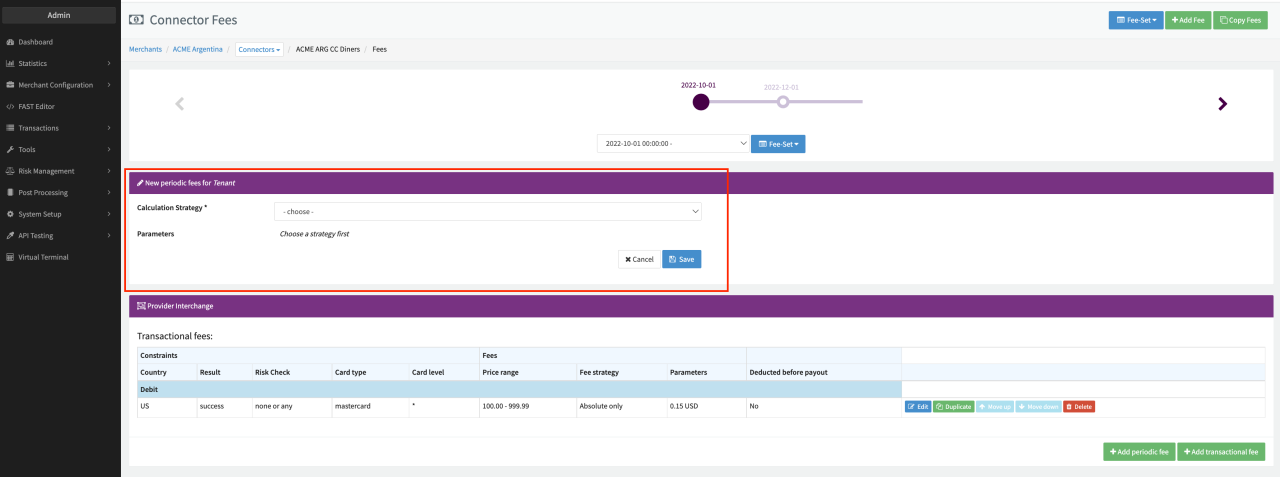
Depending on your selection, you will see different options to configure the added Fee (see Fee Configuration Example), see section Fee Configuration for further details.
Alternatively, in case the Fee Entity for which you want to add Fees is already part of the Fee Set, you can also add either periodic or transactional Fees directly in the Fee Entity's section (see Add Fees).
Selecting a Fee-Entity
For each Fee you add, you must select a Fee Entity the new Fee will be added to. There are different types of Fee Entities:
Generic Entities
Generic Entities are Fees Entities that are charged by the payment Provider. Some Providers automatically report their Fees via their integration, in this case the Fees will be applied to the Transactions automatically.
User defined Entities
User defined entities are Fee Entities which are defined in the IXOPAY platform. With theses Entities you can charge your Merchants your individual Fees.
Merchants will NOT see any Fees added for Generic Entities.
Copy Fees
In case you want to use an already configured Fee-Set on multiple Connectors of the same or a different Merchant, the option Copy Fees (of an existing Fee-Set) might be useful.
To copy Fees (of an existing Fee-Set) follow these steps:
- Select the Fee-Set to which you want to copy the fees to from the timeline
- Click Copy Fees (see Copy Fees)
- Select the Merchant, Connector and Fee-Set from which you want to copy the fees
- Enable/Disable the option Hard Copy (Purge old existing Fees). If checked Fees will be permanently moved from one Connector to another by copying and deleting the selected fees.
- Check/Uncheck the Fee Entities or individual Fees that should be copied
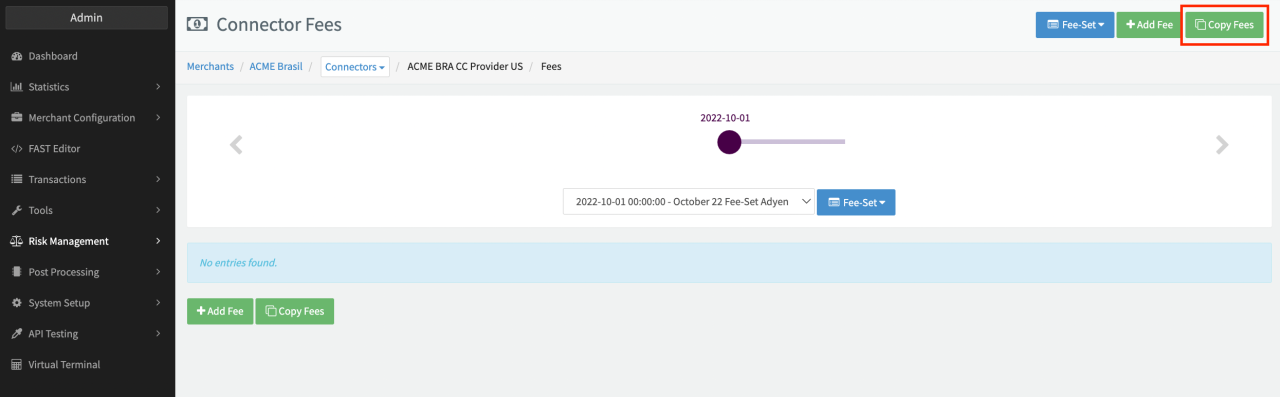
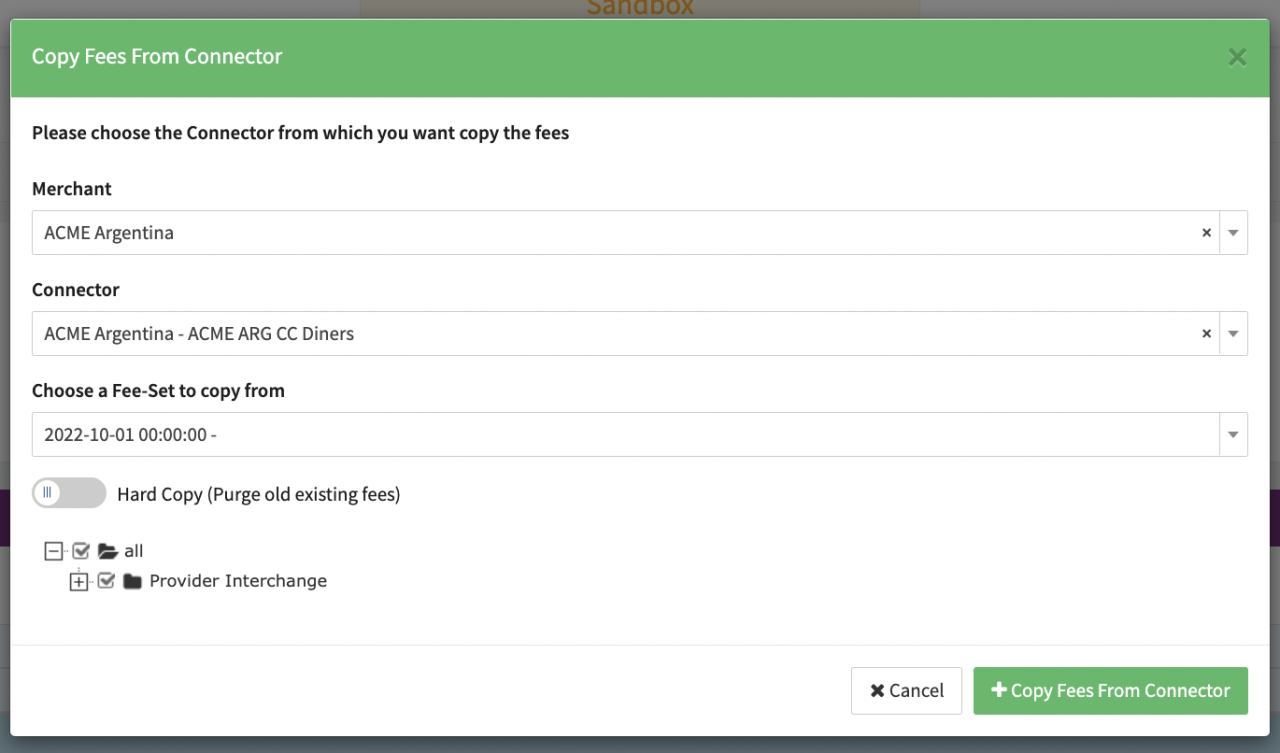
If you did not create a Fee-Set before copying Fees, a new Fee-Set will be created automatically with Valid from date set to the 1st day of the current month.
Fee Configuration
Transactional Fees
Transactional Fees, in comparison to periodic Fees, are directly related and applied to Transactions processed by the Connector. You can configure as many Transactional Fees as you want.
Create a new transactional Fee (see Add Fees) either by:
- Click + Add Fee
- Select the Fee Entity for which the Fee should be added from the drop-down.
- Click + Add Transactional Fee
or alternatively:
- Click + Add Transactional Fee in the Fee Entity, you already configured Fees for
and start with the Fee Configuration. There are two sections to configure Constraints and Fees (see New Fee Entry). Within the Constraints section you define criteria for the Transaction to meet in order for the Fees to be applied (see the Constraints table for Configuration Details).
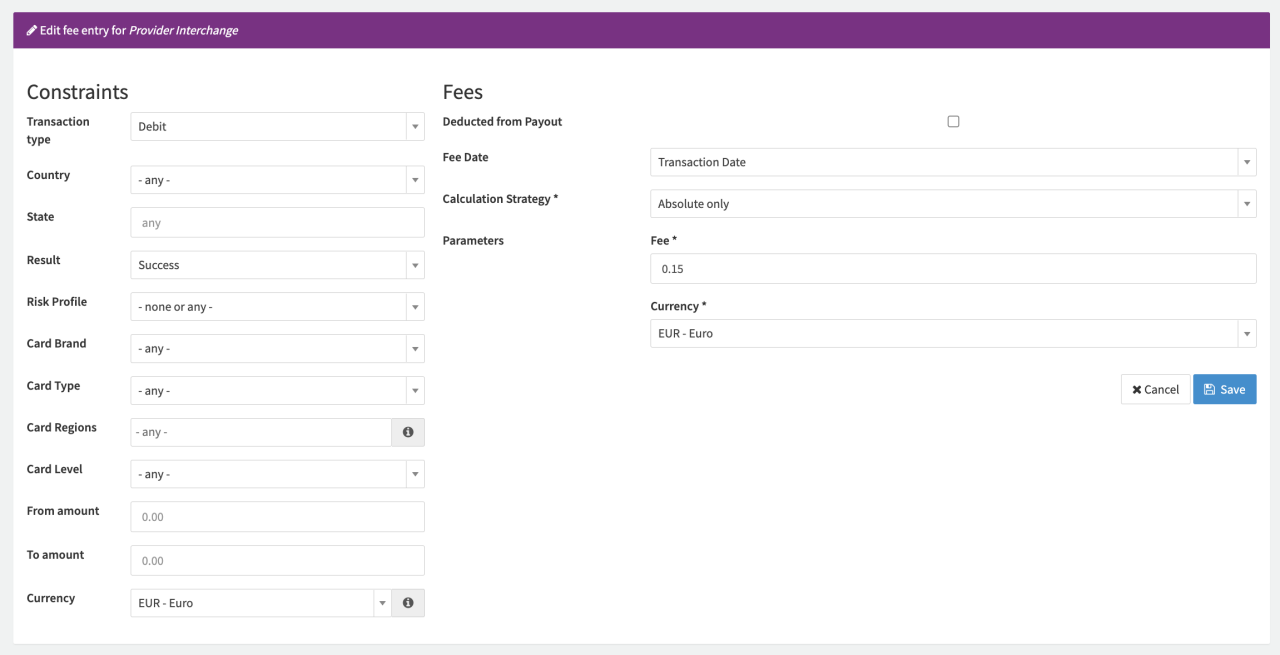
| Constraint Criteria | Description | Options |
|---|---|---|
| Transaction type | Single-Select to specify the Transaction type or choose -any- | All available Transaction Types |
| Country | Single-Select to specify a country or choose -any- | Country Selection |
| State | Define the Customer Billing State | String |
| Result | Single-Select to specify the Transaction state or choose -any- |
|
| Risk Profile | Single-Select to specify what kind of Risk check have been applied or choose -none or any- | No Risk Check applied Any Risk Check applied Any External Risk Check applied |
| Card Brand | Single-Select to specify what kind of Card Brand was used or choose -any- | Card Brand Selection |
| Card Type | Single-Select to specify what kind of Card type was used or choose -any- | Credit Debit |
| Card Regions | Single-Select to specify the card regions. Available Options are depending on selected Card type. Leave empty for any card region |
|
| Card Level | Single-Select to specify the card level or choose -any- | Consumer Commercial |
| From and To Amount | Define the amount range | numbers |
| Currency | Currency is only relevant if From amount and To amount have been specified | Currency selection |
In the Fees section you define the actual Fee Strategy to be applied to Transactions meeting the previous defined criteria (see Fee table for Configuration Details).
| Fee Settings | Description | Options |
|---|---|---|
| Deducted from Payout | Checkbox to specify whether Fees are charged separately or deducted them automatically from the Payout amount | |
| Fee Date | Single-Select to specify the date used for the Fee Date | Transaction Date Final State change (Date) Settlement Date |
| Calculation Strategy | Single-Select to specify the Fee Calculation Strategy. For a detailed description refer to Transactional Fee Strategies section |
|
| Parameters | Fill in and/or Select the Parameters depending on the choosen Strategy. For a detailed description refer to Transactional Fee Strategies section | Fee Parameter Options |
Manage Transactional Fees
Changes to existing Fee Configurations will not be applied to already calculated Fees for Transaction.
You can change or delete Transactional Fees with the options Edit and Delete.
With the option Duplicate an already configured Transactional Fee can be duplicated. The newly created transactional Fee will be pre-filled with using the Constraints and Fees of the duplicated Fees. This option is especially helpful if only changing specific Parameters or Constraints. Click Save to add the new Transactional Fee.
For multiple Transactional Fees for Transactions of the same Type within a Fee Entity, organize your Fees from the highest to the lowest priority using the options Move up and Move down.
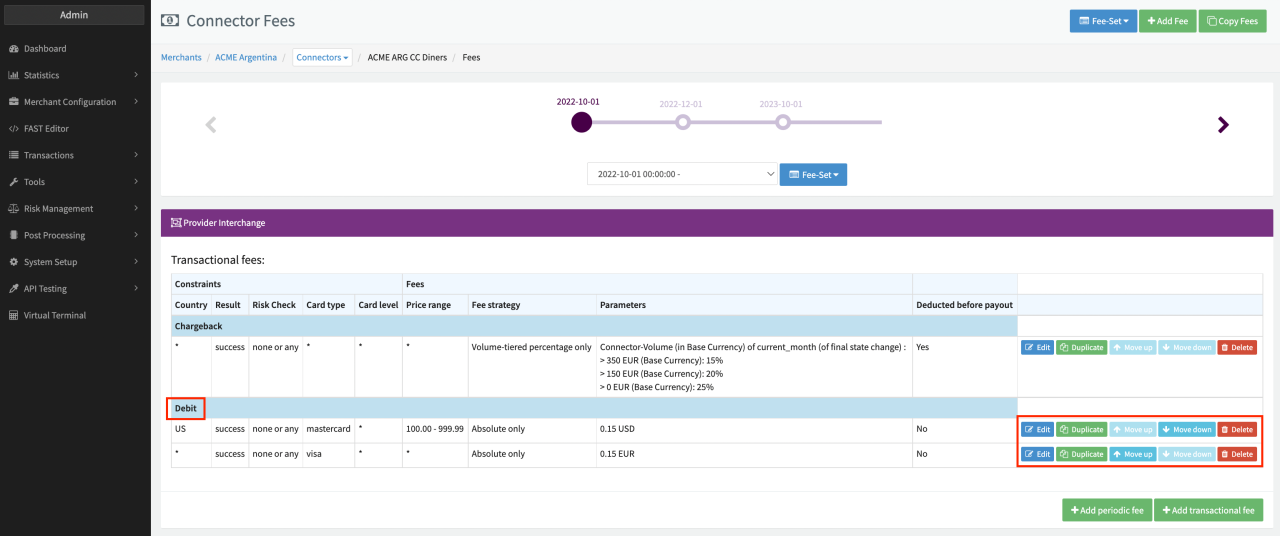
Depending on your Fee Strategy make sure to organize your Transactional Fees from the highest to the lowest priority, since for Transactions of the same Type within a Fee Entity the Fee with the higher priority will override Fees with lower priorities. The first Fee whose constrains are met will be used for calculation. You can move up / move down the fees thus change the order easily.
Periodic Fees
Periodic Fees, in comparison to transactional Fees, are applied based on a time period instead per Connector. You can only configure one periodic Fee per Fee Entity.
Create a new periodic Fee (see Add Fees) either by:
- Click + Add Fee
- Select the Fee Entity for which the Fee should be added from the drop-down.
- Click + Add periodic Fee
or alternatively:
- Click + Add periodic fee in the Fee Entity, you already configured Fees for
and start with the Fee Configuration (see Periodic Fee table for Configuration Details).
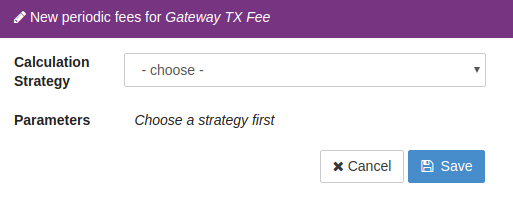
| Fee Settings | Description | Options |
|---|---|---|
| Calculation Strategy | Single-Select to specify the Fee Calculation Strategy. For a detailed description refer to Periodic Fee Strategies section |
|
| Parameters | Fill in and/or Select the Parameters depending on the chosen Strategy. For a detailed description refer to Periodic Fee Strategies section | Fee Parameter Options |
Transactional Fee Strategies
In this section we are taking a closer look at the different transactional fee strategies including some examples (see Transactional Fee Strategies)
- Absolute Only - An absolute fee amount is added for Transactions, independent of the transaction / settlement / outg. settlement / base currency amount
- Example: For a successful debit Transaction with transaction amount 10 EUR a fee of 0.25 EUR is added
- Percentage Only - A fee dependent on the transaction / settlement / outg. settlement / base currency amount or Surcharge Fee (for GST Fee only)
- Example: For a successful capture Transaction with transaction amount 10 EUR a fee of 0.20 EUR is added (Fee of 2%)
- Percentage plus absolute - A fee dependent on the transaction / settlement / outg. settlement / base currency Amount and adds an absolute amount on top
- Example: For a successful refund Transaction with transaction amount 10 EUR a fee of 0.45 EUR = 0.20 EUR (Fee of 2%) + 0.25 EUR (0.25 EUR absolute fee) is added
- Percentage with Minimum - A fee dependent on the transaction / settlement / outg. settlement / base currency Amount is added, unless a defined minimum fee is not reached
- Example: For a successful preauthorize Transaction with transaction amount 10 EUR a fee of 0.25 EUR (minimum fee 0.25 EUR > Fee of 2% = 0.20 EUR) is added
- Volume-tiered: Volume-tiered strategies depend on the overall transaction / settlement / outg. settlement / base currency Amount within a reference period and entity (Merchant, Connector).
You can define individual tiers and associated fees to apply different Fees based on the total Transaction volume.
- Volume-tiered percentage only - Fee dependent on the transaction amount on the transaction / settlement / outg. settlement / base currency Amount for each tier
- Volume-tiered absolute only - An absolute fee amount is added for Transactions, independent of the transaction / settlement / outg. settlement / base currency amount for each tier
- Volume-tiered percentage plus absolute - Fee dependent on the transaction / settlement / outg. settlement / base currency Amount and an absolute amount on top for each tier
- Volume-tiered percentage with minimum - Fee dependent on the transaction / settlement / outg. settlement / base currency Amount is added, unless a defined minimum fee is not reached for each tier
- Volume-tiered percentage plus absolute with minimum - Fee dependent on the transaction / settlement / outg. settlement / base currency Amount and an absolute amount on top, unless a defined minimum fee is not reached for each tier
- Reference volume - Select the entity for which the volume should be calculated: Merchant (Sum of volume over all Connectors of this Merchant), Connector (Sum of volume of the Connector you configure the fees for)
- Reference period - Select the period for which the volume should be calculated: This month (calculated at the end of month), Last month, Last week, Last year
- Volume Currency - Currency to be considered for the Volume
- Tiers - Define Lower Bounds for your tiers including the associated fee configuration (see Example Volume-tiered Fee)
- Click + Add to add a new Lower Bound (the Upper Bound is defined by the Lower Bound of the next tier)
- Configure the associated fees as for non-volume-tiered / non-count-tiered fee strategies fee strategies
- Date for Reference Period - Optionally select either Settlement Date or Final State Change (Date)
- Timezone For Reference Period - Optionally select either Accounting Timezone or Merchant Timezone
- Example: For a successful debit Transaction within the last month with transaction amount 10 EUR a fee of 0.35 EUR (Fee of 3.5%) is added for our volume-tiered percentage only fee strategy, since the volume of 500 EUR was reached (see Example Volume-tiered Fee - Tier 3)
- Count-tiered: Count-tiered strategies, compared to the volume-tiered strategies, depend on the overall count of Transactions within a reference period and entity (Merchant, Connector). You can define individual tiers and associated fees to apply different Fees based on the total Count.
- Count-tiered percentage only - Fee dependent on the transaction amount on the transaction / settlement / outg. settlement / base currency Amount for each tier
- Count-tiered absolute only - An absolute fee amount is added for Transactions, independent of the transaction / settlement / outg. settlement / base currency amount for each tier
- Count-tiered percentage plus absolute - Fee dependent on the transaction / settlement / outg. settlement / base currency Amount and an absolute amount on top for each tier
- Count-tiered percentage with minimum - Fee dependent on the transaction / settlement / outg. settlement / base currency Amount is added, unless a defined minimum fee is not reached for each tier
- Count-tiered percentage plus absolute with minimum - Fee dependent on the transaction / settlement / outg. settlement / base currency Amount and an absolute amount on top, unless a defined minimum fee is not reached for each tier
- Reference volume - Select the entity for which the count should be calculated: Merchant (Sum of volume over all Connectors of this Merchant), Connector (Sum of volume of the Connector you configure the fees for)
- Reference period - Select the period for which the count should be calculated: This month (calculated at the end of month), Last month, Last week, Last year
- Volume Currency - Currency to be considered for the Volume
- Tiers - Define Lower Bounds for your tiers including the associated fee configuration (see Example Count-tiered Fee)
- Click + Add to add a new Lower Bound (the Upper Bound is defined by the Lower Bound of the next tier)
- Configure the associated fees as for non-volume-tiered / non-count-tiered fee strategies
- Date for Reference Period - Optionally select either Settlement Date or Final State Change (Date)
- Timezone For Reference Period - Optionally select either Accounting Timezone or Merchant Timezone
- Transaction Types to consider - Multi-Select to determine which transaction types should be considered for the total count
- Example: For a successful debit Transaction within this month with transaction amount 10 EUR a fee of 0.9 EUR (Minimum Fee > 0.1525 = 0.0025 Fee of 0.25% + 0.15 absolute fee) is added for our count-tiered percentage plus absolute with minimum fee strategy, since the count of 10000 was reached (see Example Count-tiered Fee - Tier 3)
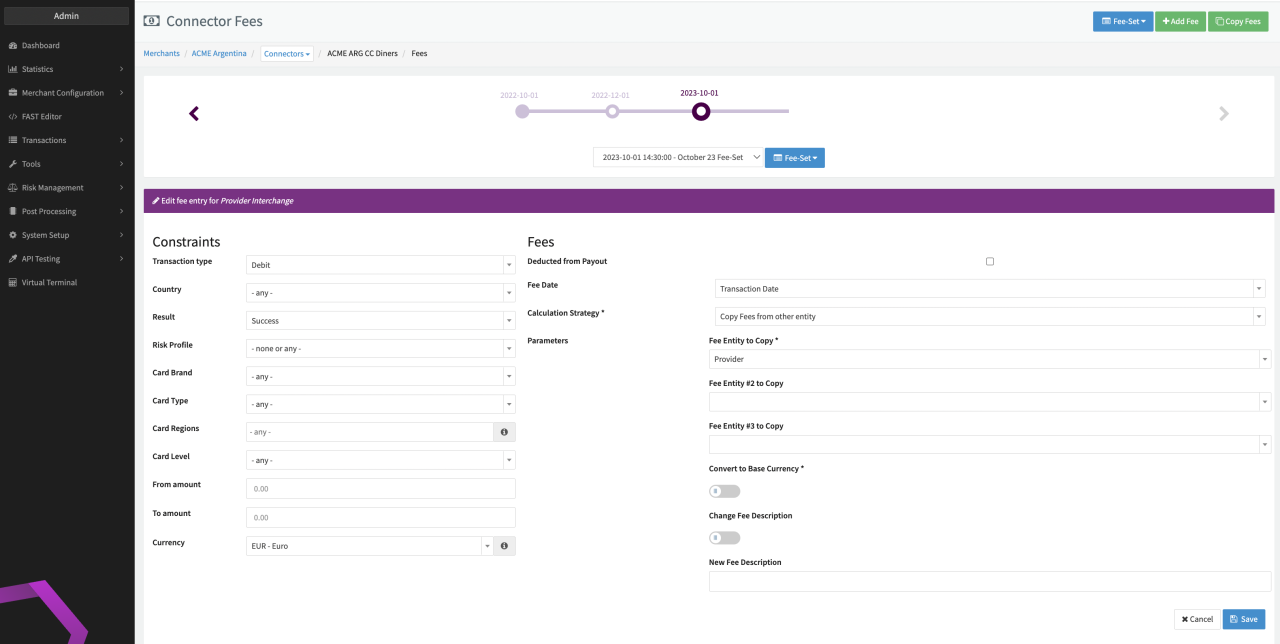
- Copy fees from other entity - Option to copy configured fees of another Fee Entity (see Copy fees from other entity)
- Fee Entity to Copy - Select from which Fee Entity you want to copy the fees from
- Convert to Base Currency - Enable/Disable to change the Currency for the Fee to Base Currency
- Change Fee Description - Enable/Disable to change the fee description
- New Fee Description - Fill in the new Fee Description (only applicable if Change Fee Description is enabled)
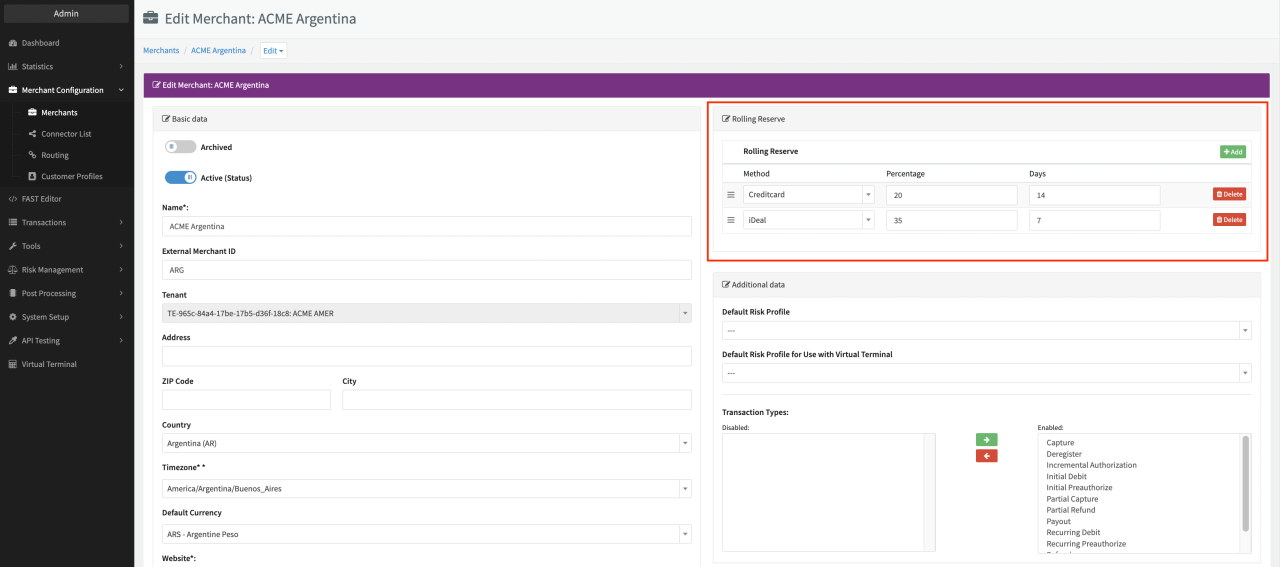
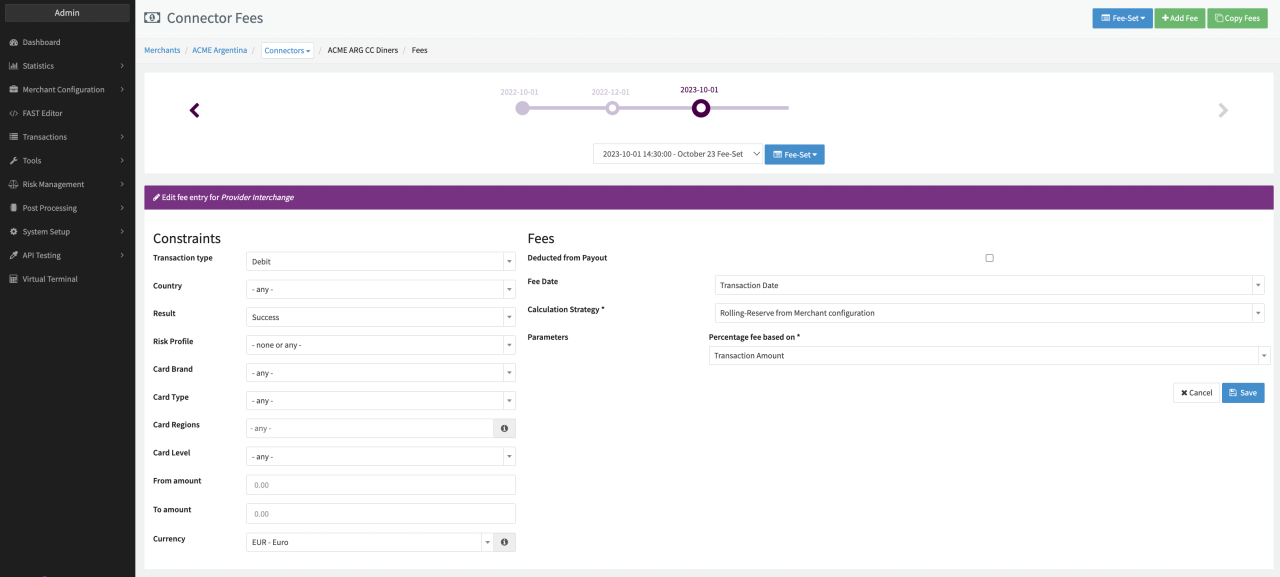
- Rolling-Reserve from Merchant Configuration - Rolling Reserve Calculation based on the Merchant Rolling Reserve Configuration (see Rolling-Reserve and section Rolling Reserve)
- Percentage fee based on - Select the transaction / settlement / outg. settlement / base currency Amount for calculation
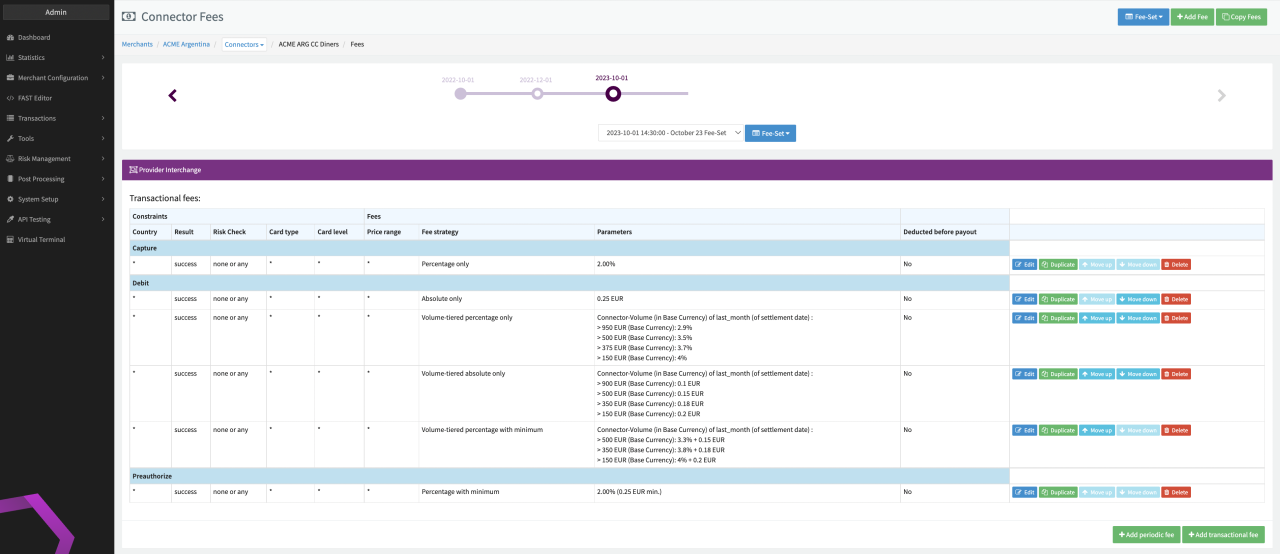
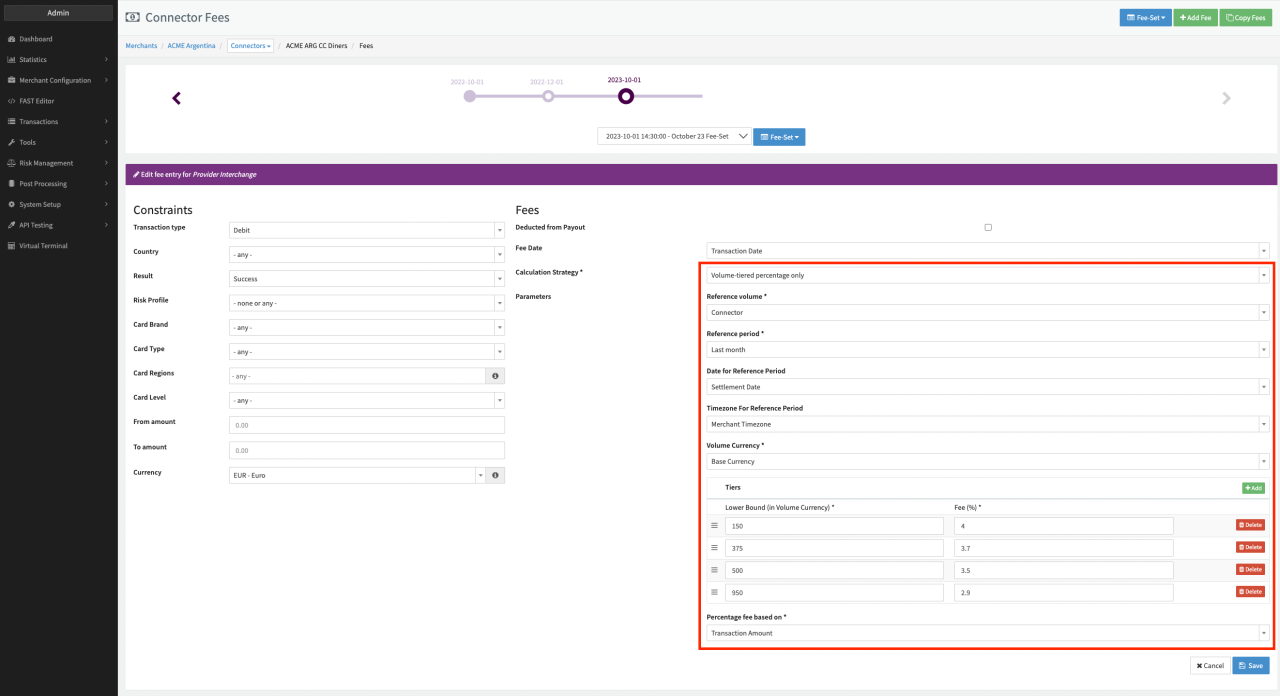
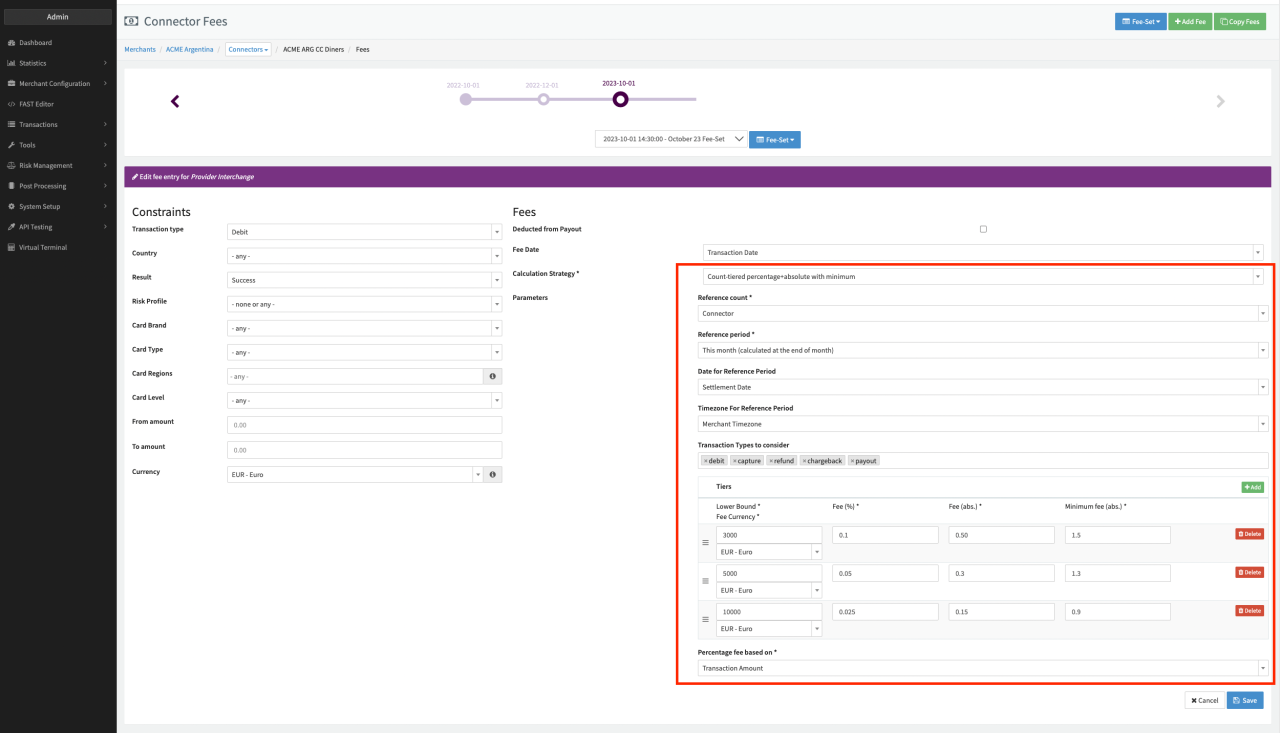
Volume-tiered and Count-tiered fees are not calculated progressively (e.g, for the first x Transaction the fees of the first tier apply, for the second y Transaction the fees of the second tier apply) but are calculated depending on the tier and associated fees based on the overall volume of all Transactions referring to the same reference period / entity
Overall volume is calculated by summing up transaction / settlement / outg. settlement / base currency Amount of all successful debit & preauthorize Transactions.
Periodic Fee Strategies
In this section we are taking a closer look at the different periodic fee strategies
- Monthly Fee - An absolute fee amount is added per month
- Yearly Fee - An absolute fee amount is added per year
- Monthly Minimum -
- Consider fees of - Select the entity (Connector, Merchant) for which previous fees should be considered to determine if the Minimum has been reached
- Consider Fees of these entities - Select the Fee Entities of which previous fees should be considered to determine if the Minimum has been reached
- Timezone for reference period - Select a Timezone for which the fees should be calculated to determine if the Minimum has been reached
- Value to Calculate - Difference of existing fees and minimum fee in case only the difference should be added, or Full minimum fee if the full minimum fee amount should a added with this fee
- Monthly volume-tiered - A monthly Fee based on the total Transaction volume. See Volume-tiered strategies for more details.
- Monthly count-tiered - A monthly Fee based on the number of Transactions. See Count-tiered strategies for more details.
Fee Calculation
As soon as you defined your Fee structure on Connector level each Transaction will be queued for calculation when created and again with every status change, since Fees can also be applied based on the Transaction result. Depending on the load, this might result in a display delay of Fees within the Transaction Details (up to 10 minutes).
Since tier-based Fee Calculation is dependent on the overall Transaction volume or count for the Reference period (e.g. current month), Fees will be calculated earliest on the first day of the subsequent month.
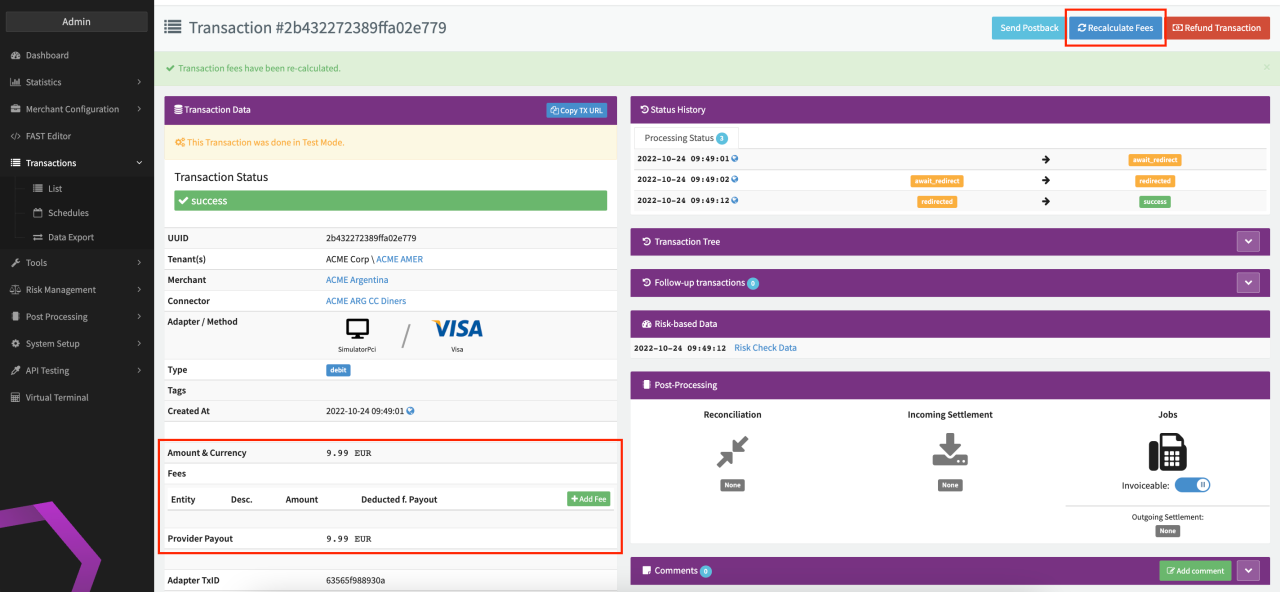
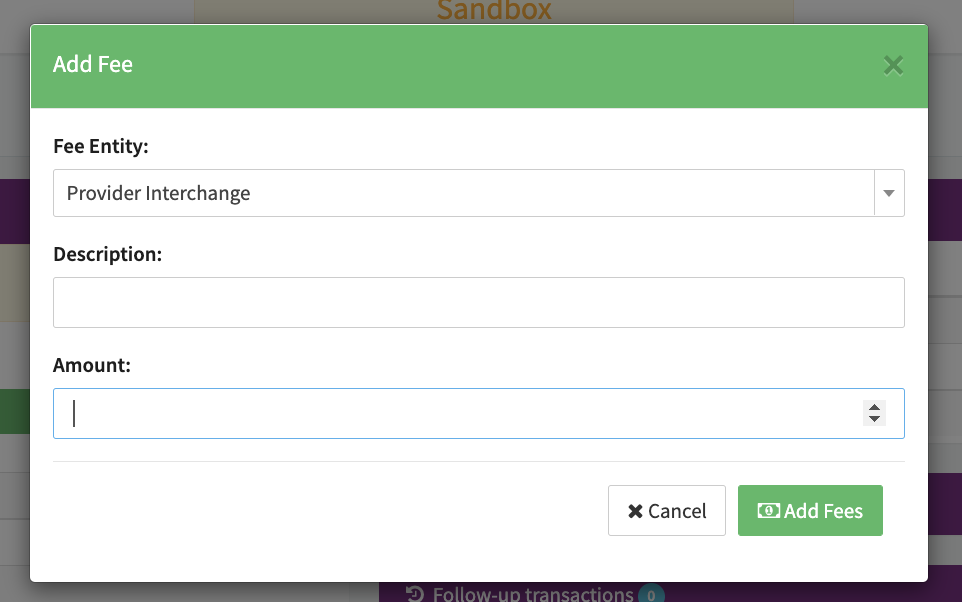
At any time, you have the option to Recalculate Fees for Transactions within the Transaction Details as well as to add additional Transactional Fees with + Add Fee (see Add Fee).