Edit Connectors
Edit Connectors
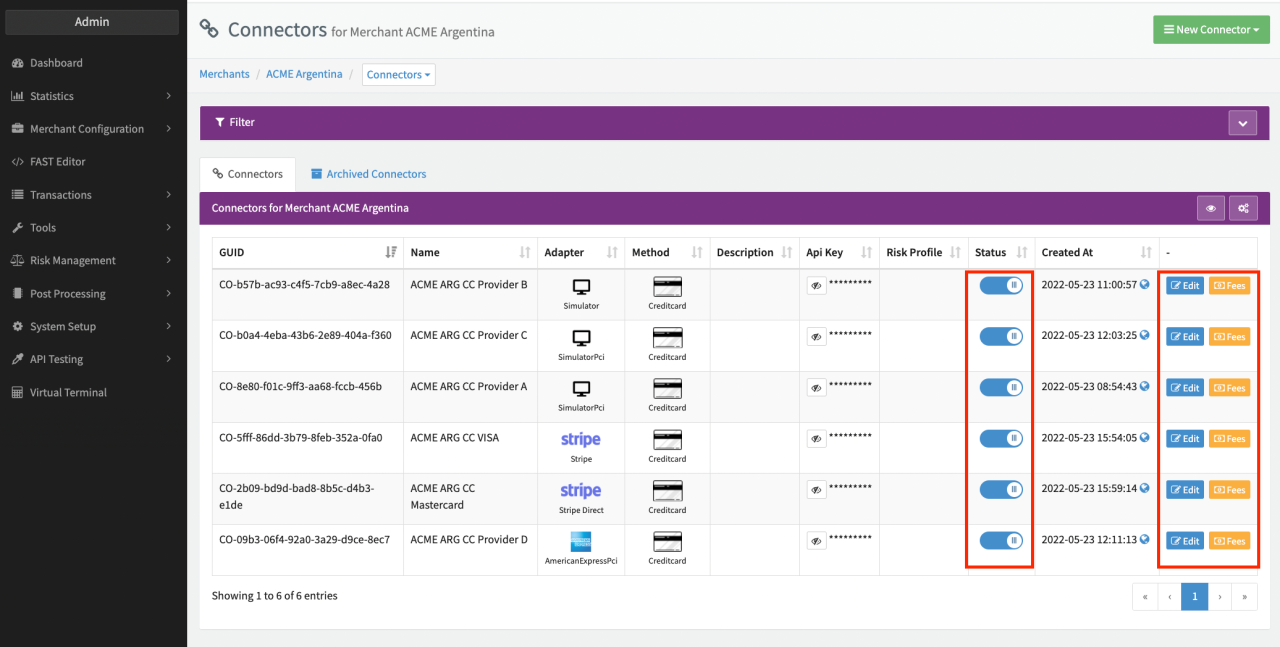
Once created you have the option to edit and update your Connectors by navigating to the Connectors Overview. For each Connector in this view you can:
- Edit the Connector Configuration Parameters
- Enable/Disable the Connector
- Archive the Connector
Edit Connector Configuration Parameters
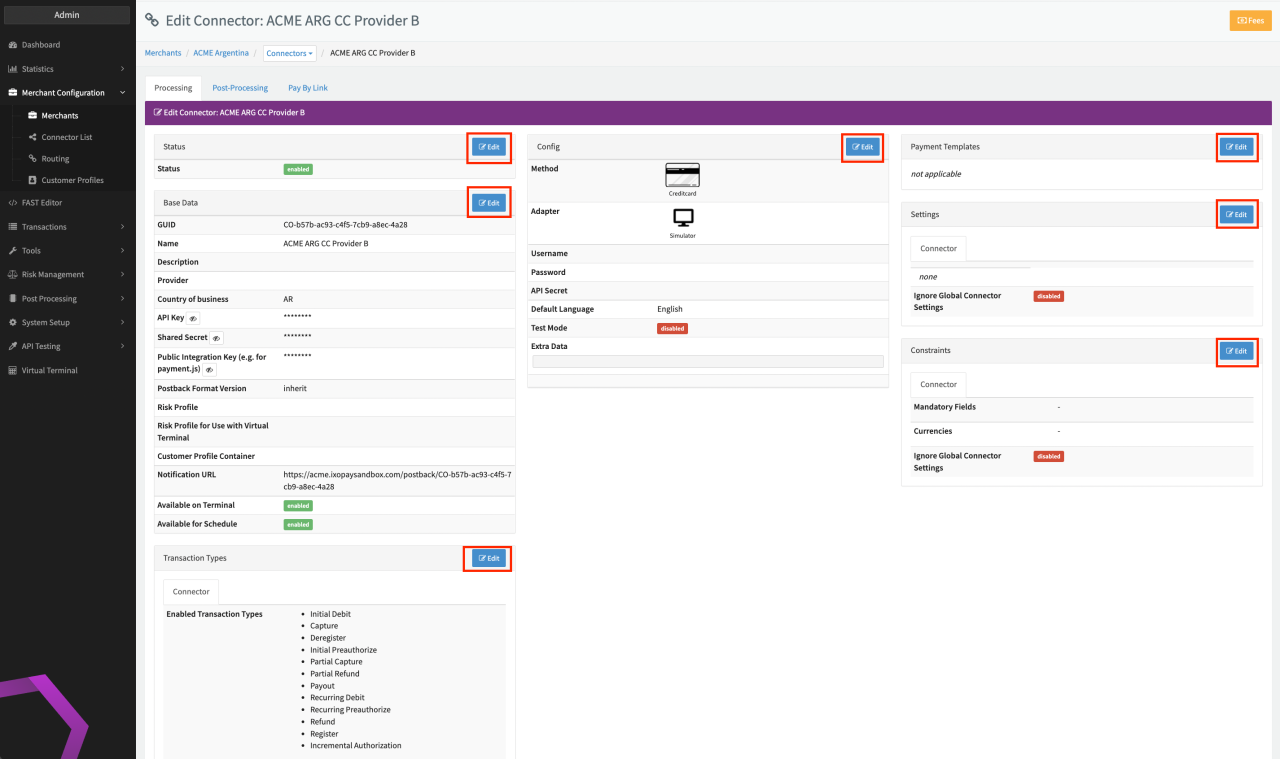
Go to the Connector Detail Overview by clicking Edit in the Connector Overview for the desired Connector. In this view you see the different Connector Configuration Parameters that you can change by clicking Edit:
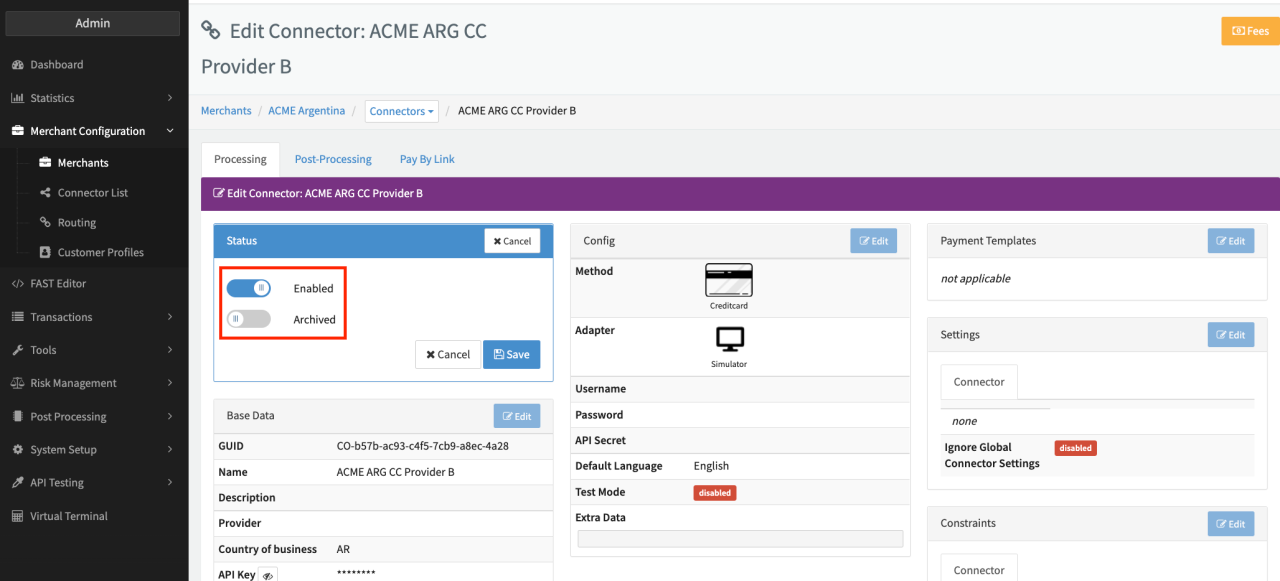
- Status: Switch to Enable/Disable the Connector and Switch to Archive/Un-Archive the Connector (see also Section Enable/Disable and Archive Connectors)
- Base Data: Different mandatory and optional Parameters to be edited and updated as described in the Create and Assign Connectors & Adapters
- Transaction Types: Transfer Lists for Enabled and Disabled Transaction Types for this Connector
- Connector Config and Vault Setup: Different mandatory and optional Parameters to be edited and updated as described in the Create and Assign Connectors & Adapters
- Payment Templates: Edit and view payment templates for the Connector and Payment Methods
- Settings: Different Connector-specific Settings that can be assigned and updated on Connector level
- Constraints: Transfer Lists for Mandatory Fields as well as Currencies for this Connector
Click Save or Cancel to get back to the Connector Detail Overview.
Some Connector Configuration Parameters can be set as Global Settings on Merchant level for all Connectors under this Merchant.
In the Connector Detail Overview you may see additional tabs such as Post-Processing and Pay-By-Link that will be further explained in the linked sections.
Enable/Disable and Archive Connectors
Enable/Disable Connectors
In case you want to immediately prevent transaction processing by a PSPs/Acquirer via a configured Connector, you can Disable the Connector. This can either be done in the Connector Overview itself by switching off the Status Switch or in the Connector Detail Overview in the Status section by switching off the Enabled Switch.
You can enable the Connector any time be enabling any of the above described Switches.
Keep in mind that Connectors might be in use for Transaction Routing. We recommend to use a Fallback Connector to ensure Transaction Processing.
Archive Connectors
If you want to get access to all IXOPAY platform features you need to upgrade your plan. Please contact our Support Team in the IXOPAY Customer Experience Portal for more information.
To keep the Connector Overview clean and tidy, you have the option to archive Connectors. This can be done in the Connector Detail Overview in the Status section by switching on the Archived Switch.
The archived Connectors are shown in the Archived Connectors tab and can be un-archived by disabling the Archived Switch in the Connector Detail Overview, Status section. The Status of the Connector (Enabled/Disabled) will be as before archiving.
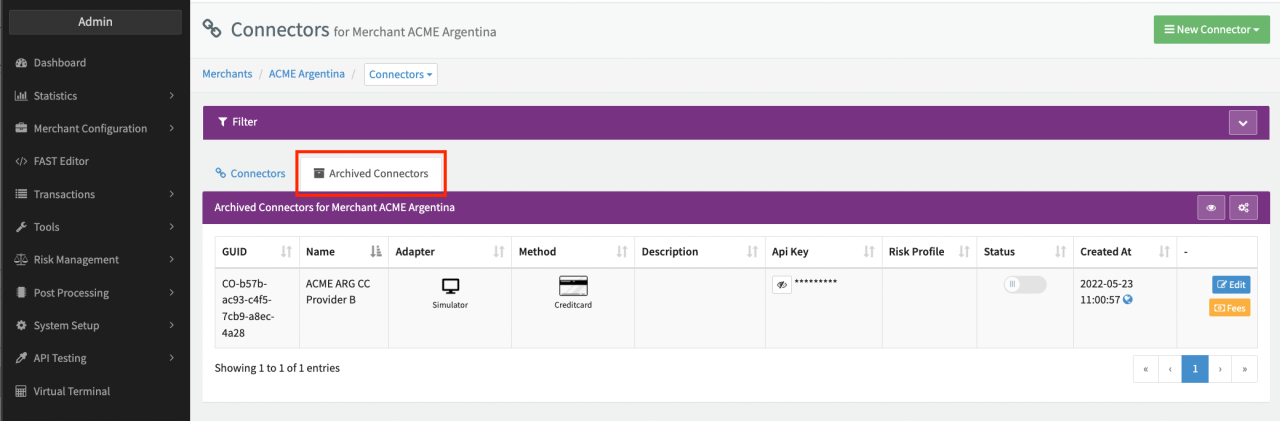
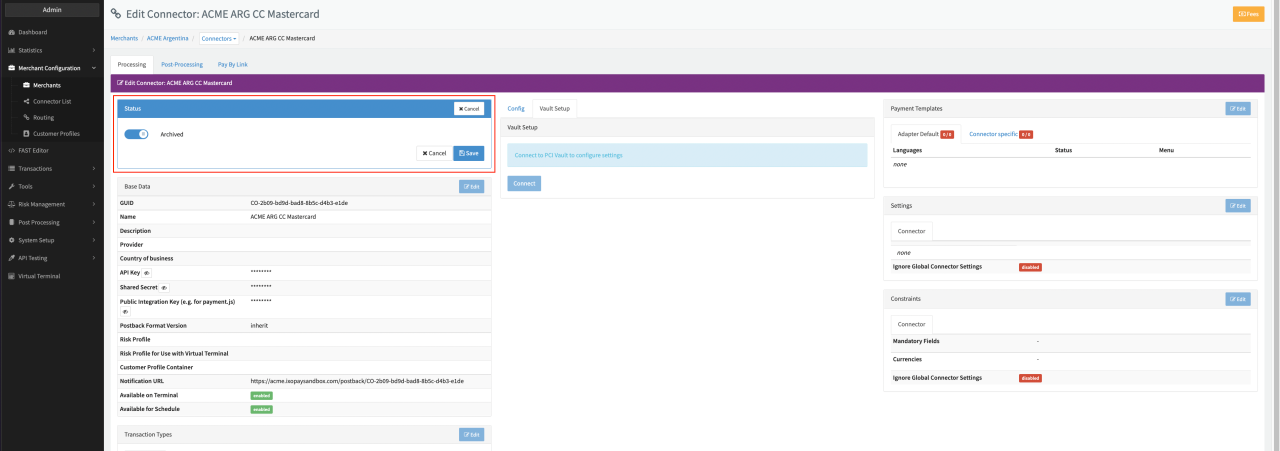
Archived Connectors are disabled by default.