3D-Secure Configuration
Overview
The IXOPAY platform enables you to add an additional layer of security for your Credit Card payments by configuring 3D-Secure authentication for Adapters if supported. You can either use our IXOPAY-hosted 3D-Secure authentication service or use an external one (provided by the PSP/Acquirer themselves).
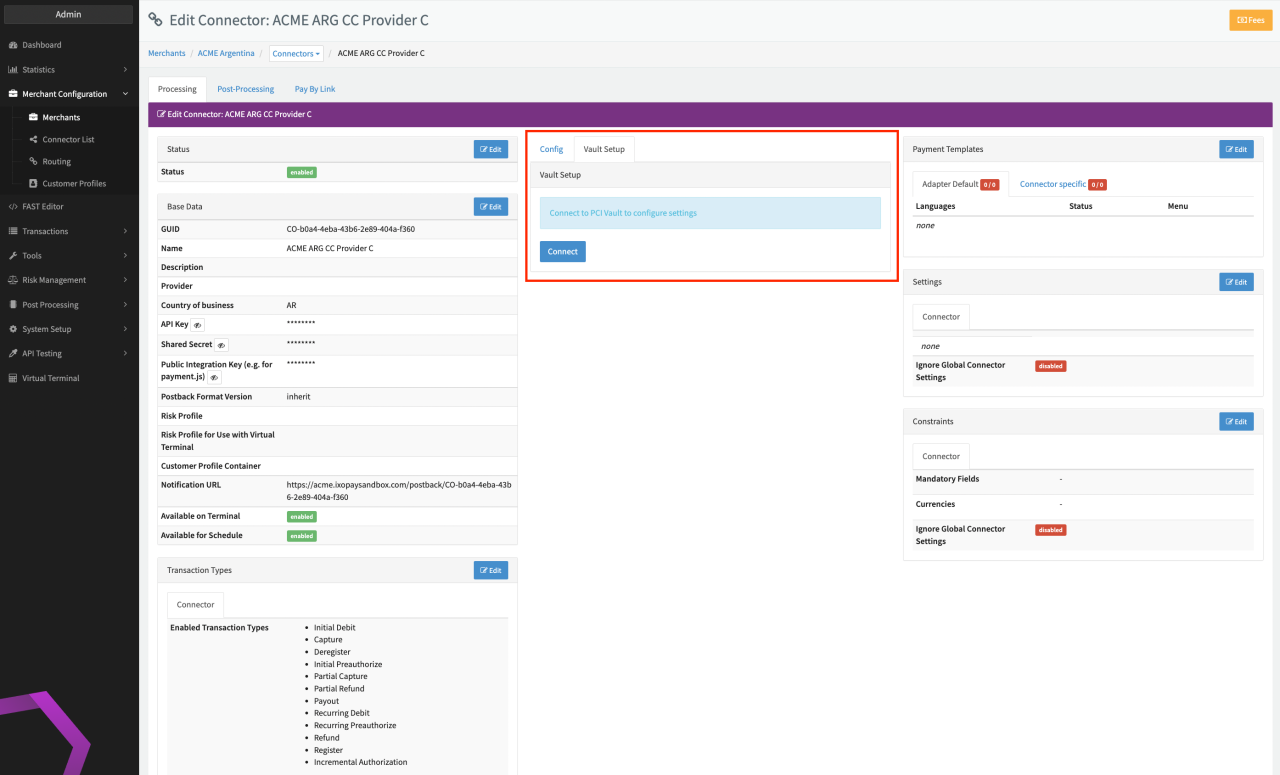
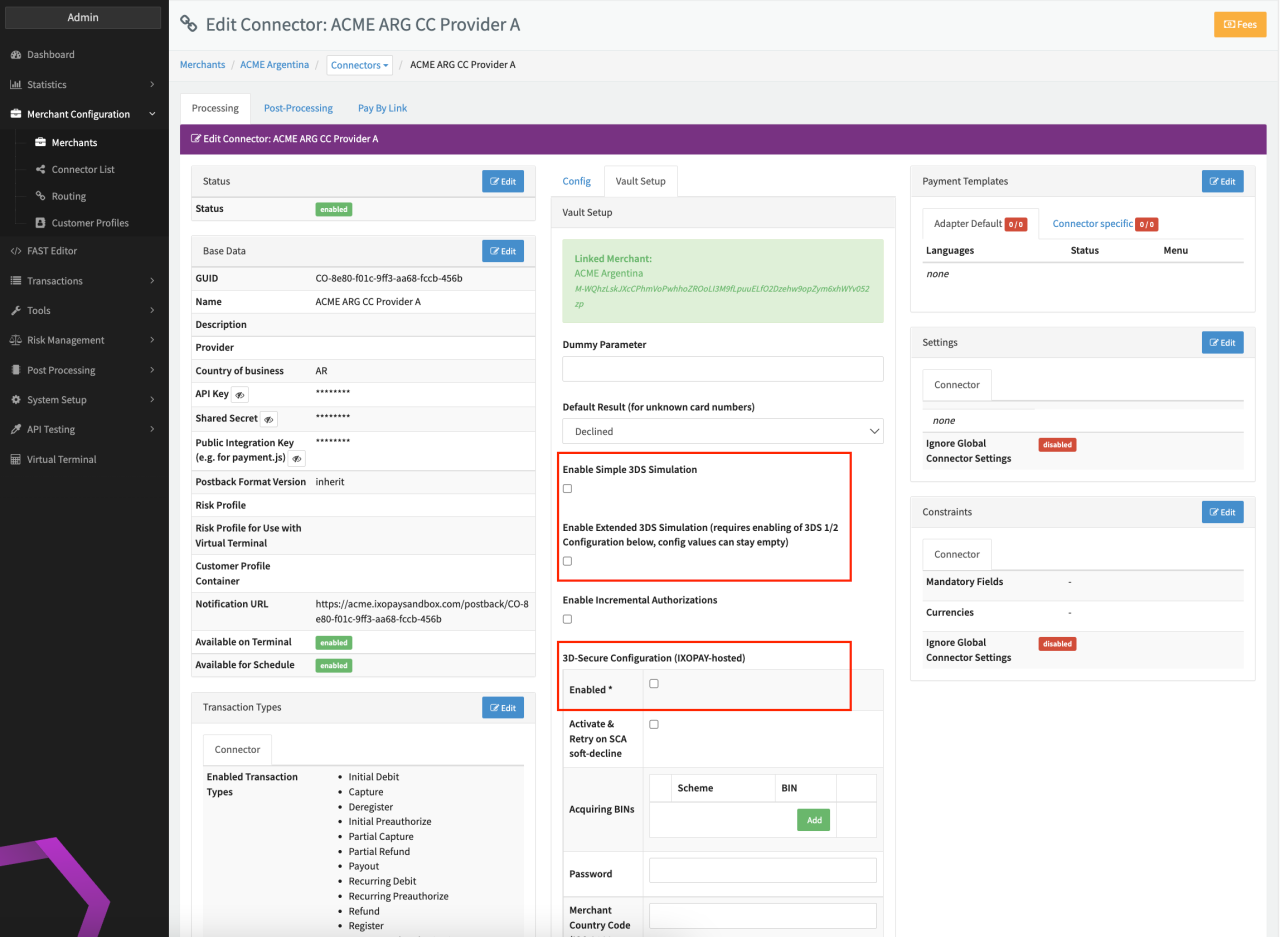
You can find those configuration options in the Connector Detail Overview under the Vault Setup tab (see Vault Setup Tab).
Please note, that you have to connect to the PCI Vault first, before being able to edit the 3DS Configuration.
3DS version 1 is deprecated and no longer supported. All credit card schemes discontinued the support for 3DS version 1 and all related technology by the end of October 2022.
If you are using IXOPAY-hosted 3-D Secure Infrastructure, please make sure, your IXOPAY-hosted 3-D Secure 2 Configuration is configured and enabled. Keep in mind that also a fallback to 3-D Secure 1 will not be supported anymore.
For more information on how to get prepared, reach out to your Customer Success Team or contact our Support Team in the IXOPAY Customer Experience Portal.
Provider 3DS
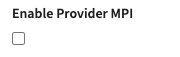
If the Adapter supports using the 3D-Secure Environment of the PSP/Acquirer, you usually just have to enable the appropriate checkbox for it.
IXOPAY-hosted 3D-Secure (1) + (2) is also available in the Sandbox environment. Please keep in mind that in the Sandbox environment no test cards are supported in contrast to the Production environment.
IXOPAY-hosted 3D-Secure 2
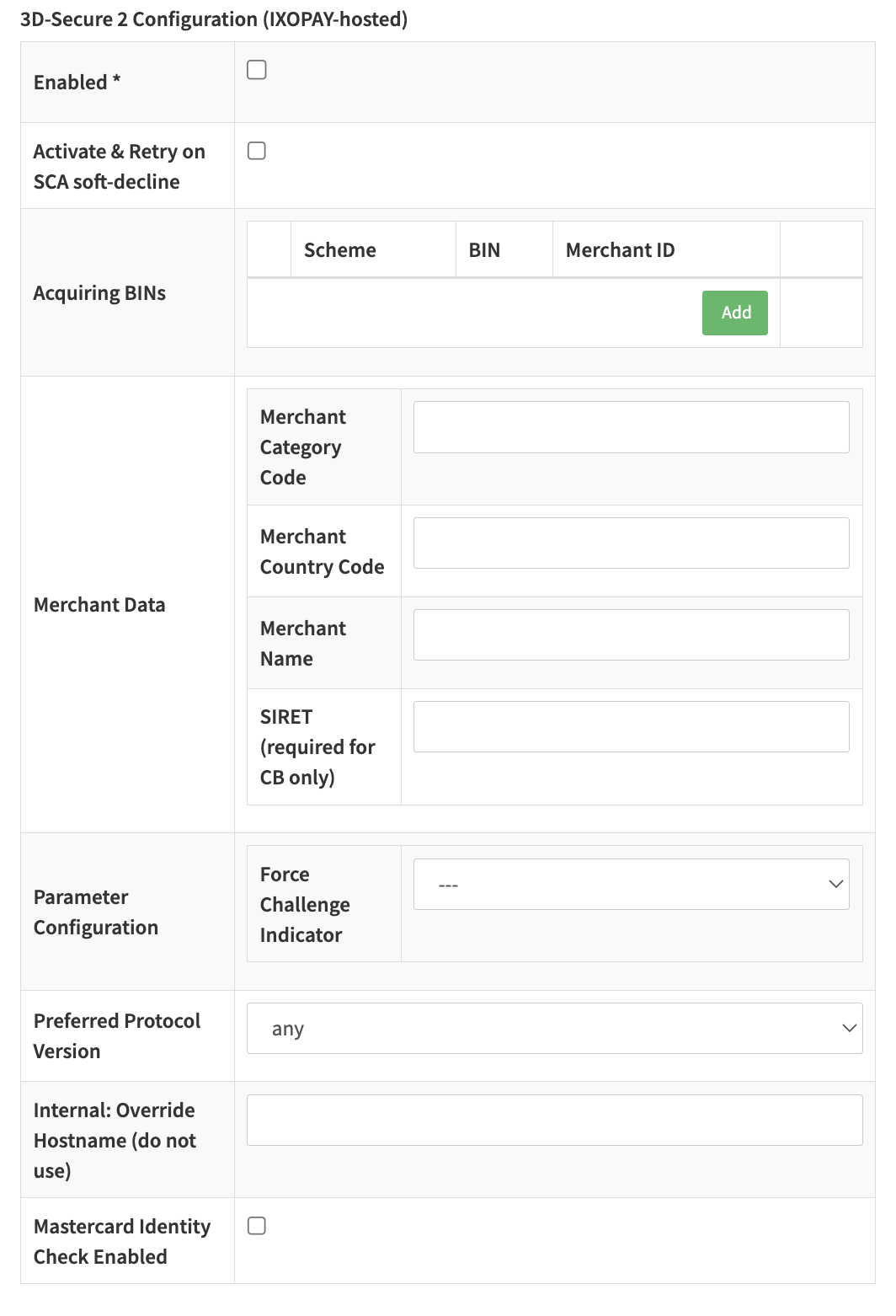
If the adapter supports 3D-Secure version 2 transactions, the following parameters must be configured:
- Enabled: Enables 3DS authentication for the connector.
- Activate & Retry on SCA soft-decline: Automatically triggers a 3DS authentication if the transaction is soft-declined by the issuer.
- Acquiring BINs: Enter the BIN number(s) of the acquirer and your merchant ID ("MID") per scheme.
- Merchant Data
- Merchant Category Code: 4-digit Merchant Category Code (assigned by your acquirer)
- Merchant Country Code: 3-digit code of the merchant country (refer to ISO 3166-1 numeric )
- Merchant Name: The printed name of your Merchant Account
- SIRET (required for CB only): Unlike other schemes like Visa and Mastercard, Carte Bancaire (CB) requires you to provide the acquiring BINs, merchant ID and SIRET in a specific format (see 3D-Secure Carte Bancaire).
- Parameter Configuration:
- Force Challenge Indicator: Allows you to override the challengeIndicator (see API Documentation) for all transactions.
- Mastercard Identity Check Insights Enabled: Enables the Mastercard Identity Check Insights feature; only applicable for Challenge Indicators None or Optional.
If you do not know certain IDs, please get in touch with your Acquirer for the information. To our knowledge the Mastercard Identity Check Insights feature does not result in liability shift, for more information get in touch with Mastercard.
3D-Secure Carte Bancaire
Please consider if the adapter, for which 3D-Secure for Carte Bancaire is configured, is an actual Carte Bancaire acquirer, as this has an influence on the 3DS configuration.
Carte Bancaire requires adherence to specific configuration convention:
- Acquiring BINs:
- If the adapter is is an actual Carte Bancaire acquirer: Identification number of the acquirer (mapped with CB2A field DE32 in the ISO protocol by the acquirer; 11 numeric characters = Acquirer BIN (6 characters) + Bank Code (5 characters))
- If the adapter is is NOT an actual Carte Bancaire acquirer: Any value (1 - 11 characters)
- Merchant ID:
- If the adapter is is an actual Carte Bancaire acquirer: Concatenated value consisting of "Merchant ID" (send by acquirer in CB2A field DE42; 15 characters blank-padded on the right), "-" (1 character), "Terminal ID" (send by acquirer in CB2A field DE41; 8 characters blank-padded on the right), e.g. Merchant ID=“123456789” (assigned by acquirer) and Terminal ID=“13579”, results in Merchant ID = "123456789-13579")
- If the adapter is is NOT an actual Carte Bancaire acquirer: Any value (1 - 35 characters)
- SIRET (required for CB only):
parameter mapped to ThreeDSRequestorId in the AReq (the CB Directory Server does not assign 3DS Requestor IDs as defined by EMVCo.)
- If the adapter is is an actual Carte Bancaire acquirer and NOT a payment/enrollment with/for a Wallet approved by CB: CB2A field DE47.96 = SIRET Number of the 3DS Requestor (numeric value of 14 characters)
- If the adapter is is an actual Carte Bancaire acquirer and a payment/enrollment WITH/FOR a Wallet approved by CB: CB2A field DE47.96 + CB2A field DE59.0418 = SIRET Number of the 3DS Requestor + 'Identifiant Wallet' of the approved Wallet (numeric value of 20 characters)
- If the adapter is is NOT an actual Carte Bancaire acquirer: Any value (1 - 35 characters)
Transaction Flow
The mentioned configuration generally just enable the 3D-Secure capabilities for a certain Connector. It does not necessarily trigger 3D-Secure Authentication flow for a particular Transaction.
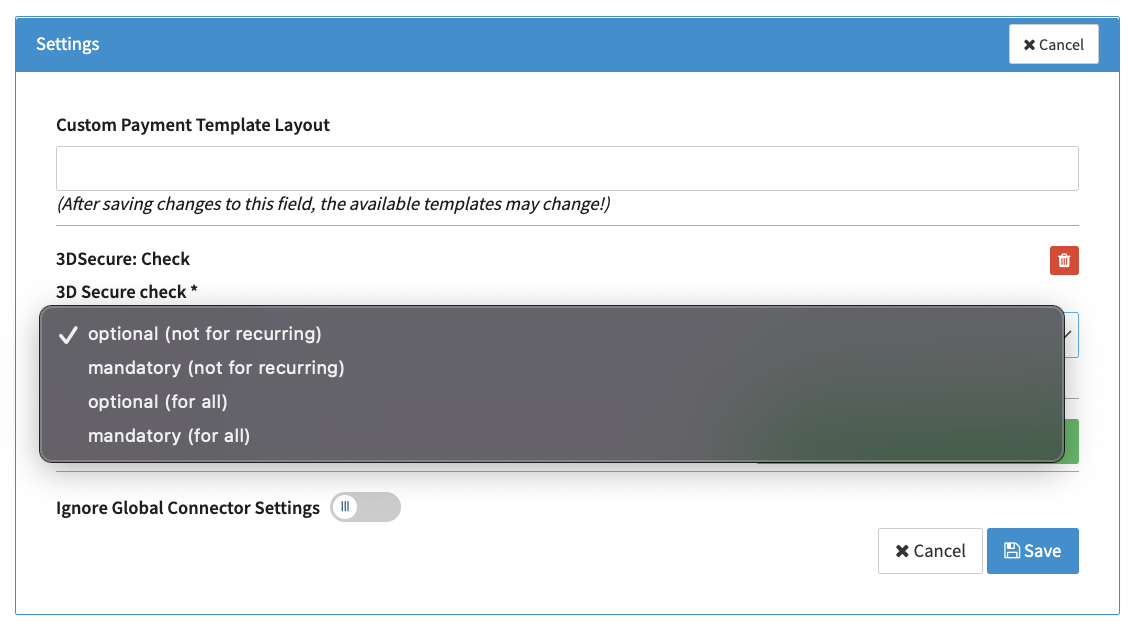
This can be triggered either through the Transaction request data itself (see also API Documentation), through the Risk Engine configuration, or through a static Connector setting (3D-Secure: Check).
Testing IXOPAY-hosted 3D-Secure Configuration
3D-Secure Flow can either be mocked (see Mock 3D-Secure Flow for Testing) or tested using the Simulator adapter. In order to test your setup with your Acquirer/PSP, due to technical restrictions, only real credit cards can be used.
The IXOPAY platform enables Clients to test their IXOPAY-hosted 3D-Secure Configuration either for the SimulatorPCI adapter or in combination with the PSP's/Acquirer's test environment.
Simple 3DS Simulation is enabled by activating the Checkbox (see Vault Setup Setting). In this case the 3D-Secure Configuration (IXOPAY-hosted) and 3D-Secure 2 Configuration (IXOPAY-hosted) are disabled. The result of this simple 3D-Secure Simulation is controlled by the test cards used as described in the API Documentation.
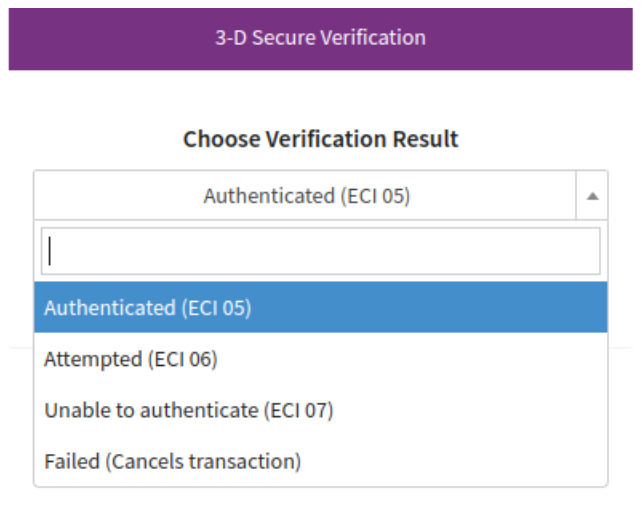
If activated, an additional 3D-Secure Verification Screen is shown during the payment process with dropdown field Choose Verification Result to select the outcome (see 3D-Secure Verification Screen). The status of the Transaction will then be set depending on the used testcard.
Extended 3DS Simulation is enabled by activating the Checkbox for the Simulator Adapter(see Vault Setup Setting). In this case the Checkbox Enabled for the 3D-Secure Configuration (IXOPAY-hosted) or 3D-Secure 2 Configuration (IXOPAY-hosted) must be activated (other configuration fields can remain empty). The result of this extended 3D-Secure Simulation is controlled by the test cards used as described in the API Documentation section Extended 3D-Secure Testing.
If activated, customers will be redirected to perform methods fingerprinting, frictionless or challenge, depending on the used testcard.
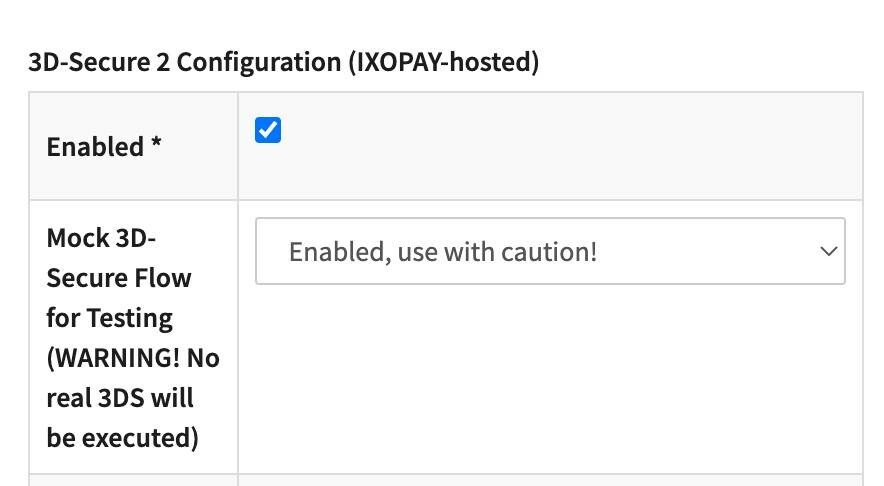
The Connector Setting Mock 3D-Secure Flow for Testing is not activated by default for all Adapters. If you do not see the Setting in the IXOPAY-hosted 3D-Secure Configuration, please get in contact with your customer success manager or contact our Support Team in the IXOPAY Customer Experience Portal. Keep in mind that activation is dependent on the Release Cycles and takes minimum 4 weeks.
Testing IXOPAY-hosted 3D-Secure Configuration with the PSP's/Acquirer's test environment can be done by enabling the Connector Setting Mock 3D-Secure Flow for Testing in the IXOPAY-hosted 3D-Secure 2 Configuration.
In case the setting is enabled, use the PSPs testcards in order to test, however the outcome of the 3DS authentication is controlled through the card holder name:
E.g. with a cardholder name: "ENROLLED CHALLENGE" you will get into the challenge flow. The outcome of the challenge can be chosen on the challenge screen itself then.
Card Holder contains 2 inputs (Firstname, Lastname). The first name defines the Versioning Result (see Table Versioning Result) the last name the Authentication Result (see Table Authentication Result):
| Cardholder | Versioning Control |
|---|---|
| NOT_ENROLLED ... | Card not enrolled |
| ENROLLED ... | Card enrolled, no Method Fingerprinting |
| METHOD ... | Card enrolled, with Method Fingerprinting |
| TIMEOUT ... | Timeout Error |
| INVALID ... | Invalid Card Error |
| NETWORK_ERROR ... | Network Error |
Authentication Results are only applicable, in case the Versioning Result was either ENROLLED OR METHOD.
| Cardholder | Versioning Control |
|---|---|
| ... FRICTIONLESS | Frictionless - Fully Authenticated |
| ... ATTEMPTED | Frictionless - Attempted |
| ... CHALLENGE | Challenge |
| ... UNAUTHENTICATED | Not Authenticated |
| ... REJECTED | Rejected |
| ... ACCESS_DENIED | Error: Access Denied |
| ... SYSTEM_ERROR | Error: Transient System Error |
| ... FORMAT_ERROR | Error: Invalid Format |
| ... TIMEOUT | Error: Network Timeout |
| ... NETWORK_ERROR | Error: Network Error |
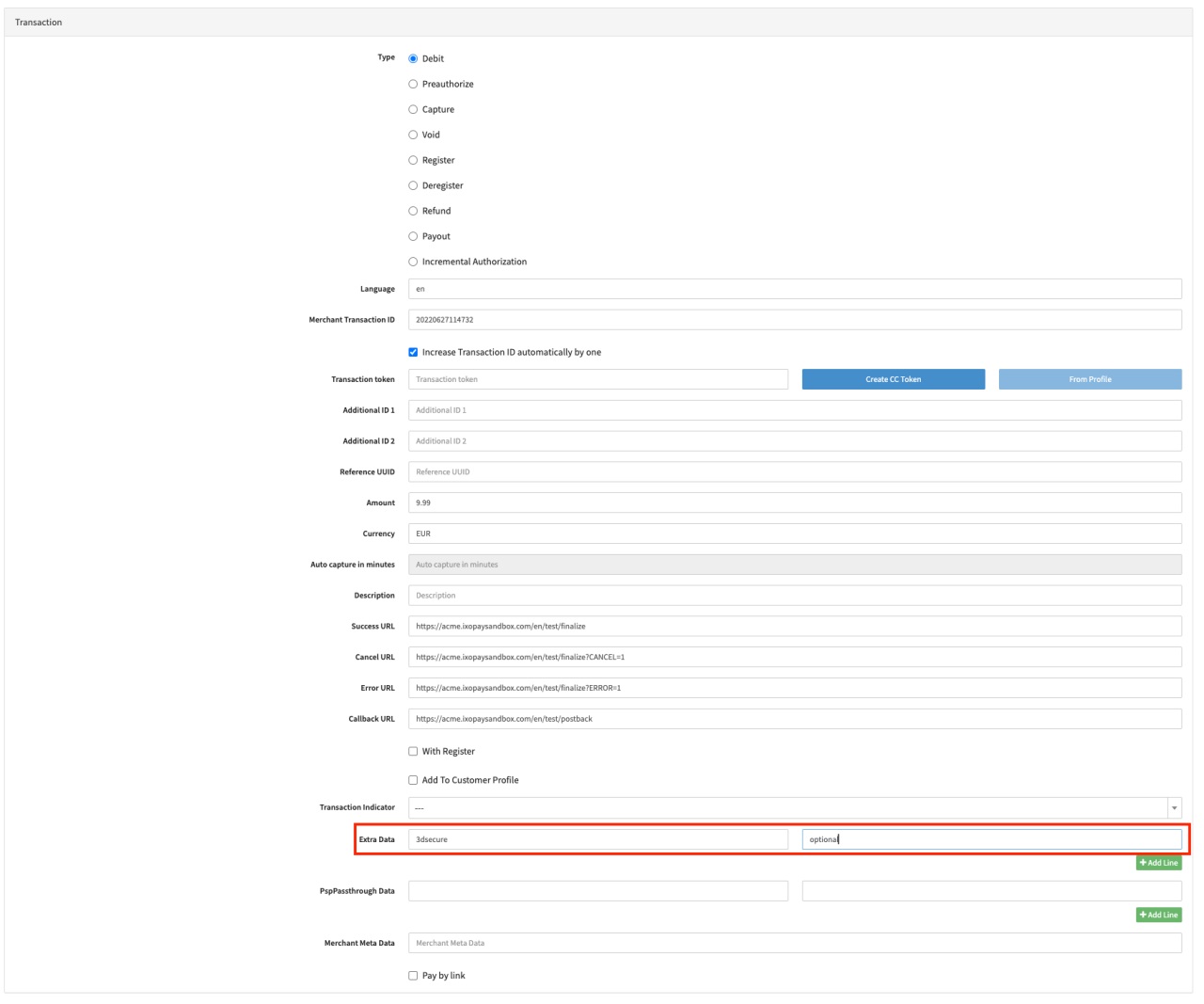
Keep in mind, that 3D-Secure Verification is not enforce by default. To do so you can either enable the Connector Setting 3DSecure: Check or send the Transaction Extra Data: 3dsecure - optional or mandatory.
IXOPAY-hosted 3D-Secure 1 - deprecated
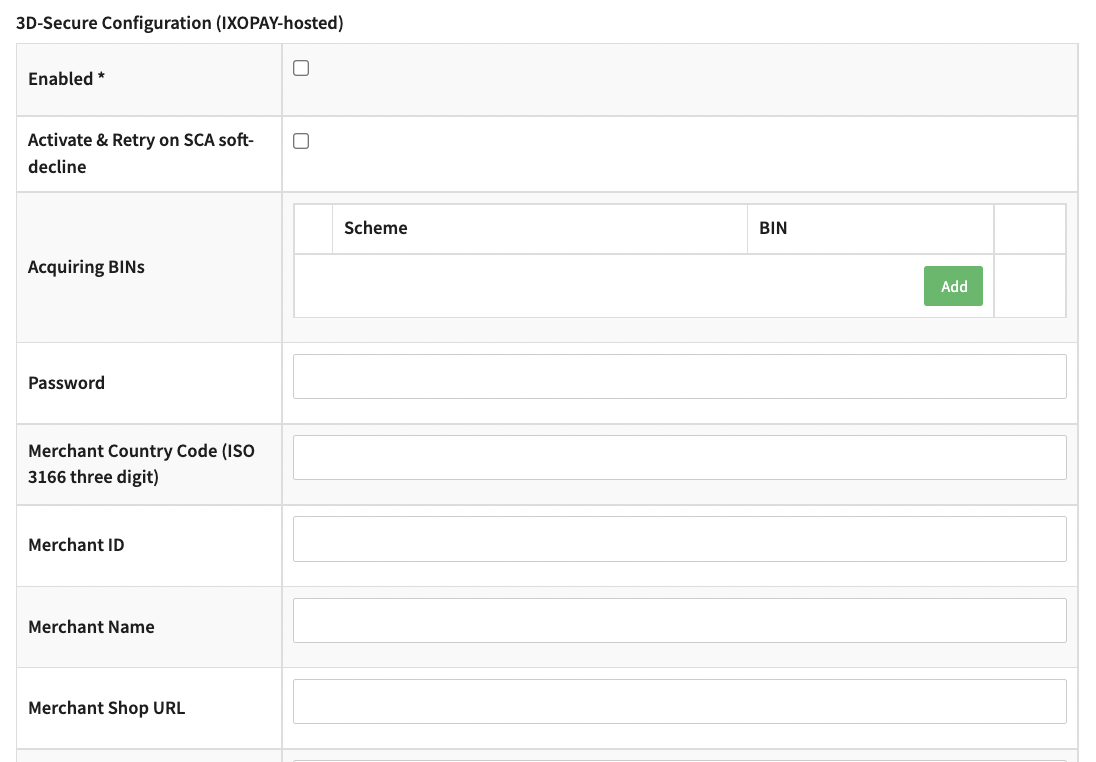
If the Adapter supports 3D-Secure Version 1 Transactions, the following parameters have to be configured:
Enabled: Enable 3DS authentication for this Connector
- Activate & Retry on SCA soft-decline: This will automatically trigger a 3DS authentication, in case the Transaction was soft-declined by the Issuer.
- Acquiring BINs: The BIN number(s) of the Acquirer per Scheme.
- Password: usually left empty if not explicitly advised otherwise.
- Merchant Country Code: a 3-digit code of the Merchant country (refer to ISO 3166-1 numeric).
- Merchant ID: the Merchatn ID you've got assigned from your Acquirer.
- Merchant Name: The printed name of your Merchant Account.
- Merchant Shop URL: The main URL of your online shop/platform.
If you do not know certain IDs, please get in touch with your Acquirer for the information.