Marketplace
If you want to get access to all IXOPAY platform features you need to upgrade your plan. Please contact our Support Team in the IXOPAY Customer Experience Portal for more information.
The Marketplace feature in IXOPAY supports different Marketplace setup. Before configuring the feature it is important to think about which setup fits your business case best:
- Marketplace Connector — Transaction with its split information is sent to one provider and therefore processed as a whole (see section Marketplace Connector Configuration)
- Marketplace Meta-Connector — Transaction are split into separate individual transactions that may be processed by different providers (see section Marketplace Meta-Connector Configuration)
For the Marketplace Meta-Connector only transaction type pre-authorize can be processed.
Marketplace Permission
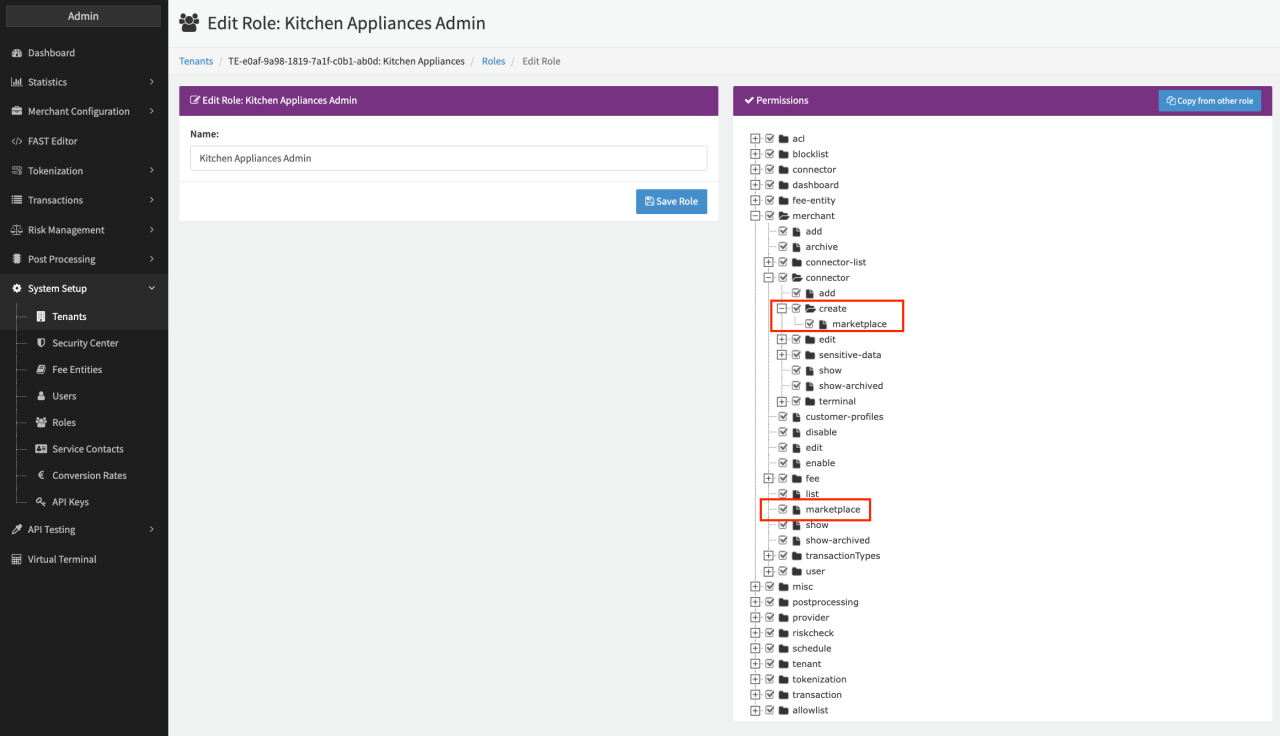
To be able to setup the feature, the permission must be enabled for your tenant and activated for your Admin User Role. This will be done by you Customer Success Manager for you.
Marketplace Merchants Configuration
In order to configure the Marketplace feature in your IXOPAY tenant it is necessary from a technical perspective to configure a so called Marketplace Operator merchant additional to all Marketplace Sellers merchants in the marketplace setup. Create (new) Merchants within your tenant as described here with the following specifics (see Image Marketplace Operator specifics):
- External Merchant ID: Insert the Marketplace ID
- Marketplace Settings - Marketplace Type: Select Marketplace Operator.
Respective for all merchants in the marketplace setup the following specifics must be configured:
- External Merchant ID: Insert a unique seller ID to be referenced in the split for this merchant in a marketplace transaction
- Marketplace Settings - Marketplace Type: Select Marketplace Seller
- Marketplace Settings - Marketplace Type: Select the corresponding Marketplace Operator
- Marketplace Settings - ESP Seller ID: Insert the ESP Seller ID


The marketplace settings of a merchant can only be set during merchant creation, these settings can not be added or changed later on!
Marketplace Connector Configuration
After the creation of the Marketplace merchants the Marketplace connector needs to be configured on the Marketplace Operator merchant as described here with the following specifics (see Image Marketplace Connector specifics):
The Marketplace Modal Marketplace Connector is only available in case the adapter supports it (see also adapters.ixopay.com).
Create Marketplace Meta-Connector
Marketplace Seller Connectors
Before configuring the Marketplace Meta-Connector for the Marketplace Operator merchant, the (meta-)connector you want to use for each split must be configured for each Marketplace Seller merchant as described here.
The Marketplace Modal Marketplace Meta-Connector is only available in case the adapter supports it. Transaction types preauthorize, void and capture must be supported as well (see also adapters.ixopay.com).
Marketplace Operator Connector Configuration
Marketplace Operator Default Connector
A so called Default Connector for the Marketplace Operator merchant needs to be configured as described here.
This connector is only used for the mandatory 3DS authentication of the full amount of all split transactions. At the moment the IXOPAY platform supports the following two adapters:
- ThreeDSOnly — restricted to the usage of the IXOPAY platform 3DS authentication
- Payline
For the ThreeDSOnly connector no specifics need to be configured in the vault configuration. For the Payline connector the the two options Use Payline's 3DS environment and Only do 3DS for Verifies need to be checked to ensure no transaction will be processed and only 3DS authentication will be done. These settings can be found in the Vault configuration settings.
Marketplace Meta-Connector
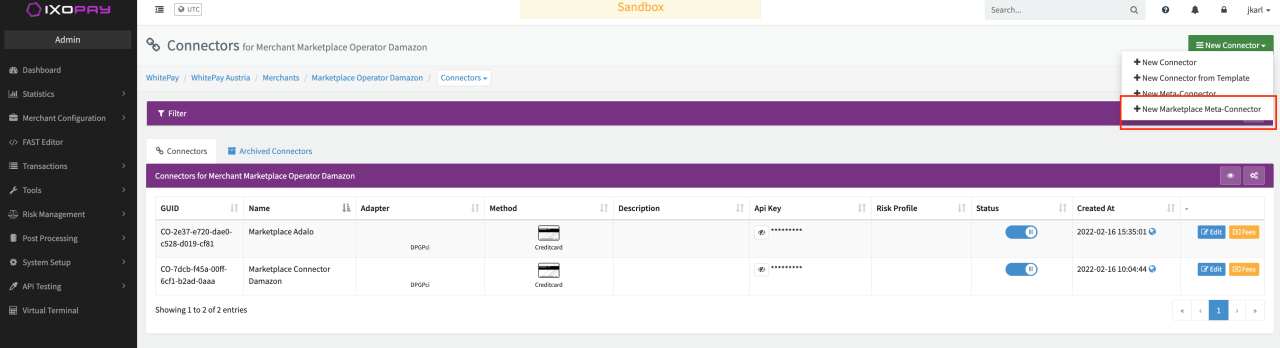
Once all these connectors are configured the Marketplace Meta-Connector can be configured. The option is only available for Marketplace Operator merchants (see Image Marketplace Meta-Connector Option):
- Navigate to the Connectors Overview of the Marketplace Operator
- Select New Connector - New Marketplace Meta-Connector
- Configure the Connector Base Data
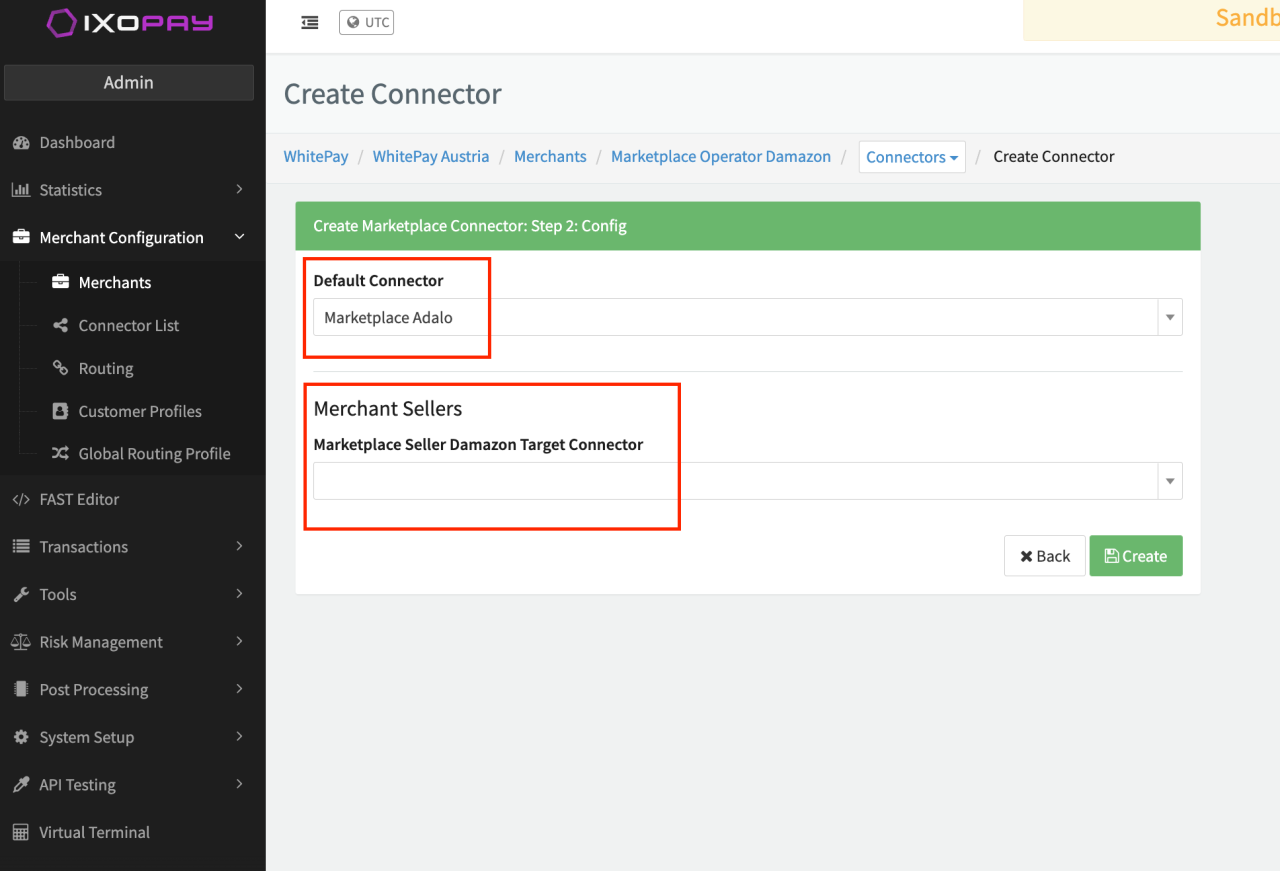
- Configure the Marketplace Data (see Image Marketplace Meta-Connector specifics).
- Select the configured Default Connector on Marketplace Operator level from the drop-down
- Select the desired connector as configured on the corresponding merchant for each Marketplace Seller merchant.
- Click Create to save the configuration.
Marketplace Transaction — API Testing
Testing the Marketplace setup can be done via the API Testing Tool (see here). Depending on the configured Marketplace setup select either the Marketplace Connector or the Marketplace Meta-Connector.
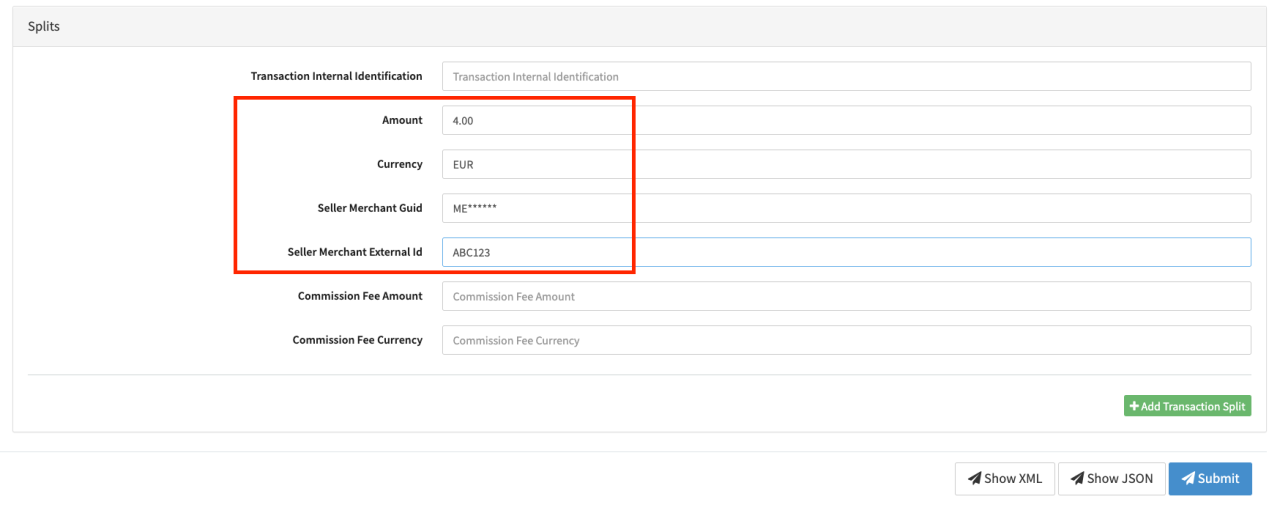
In the section Splits the following fields must be filled (see Image Marketplace transaction specifics):
- Transaction Internal Identification — an internal identifier for the split
- Seller Merchant Guid or the Seller Merchant External ID as set in the Marketplace Seller merchant creation. Only with this information the split can be related to the correct merchant.
- Split amount
- Split currency — must be identical to the currency of the total amount
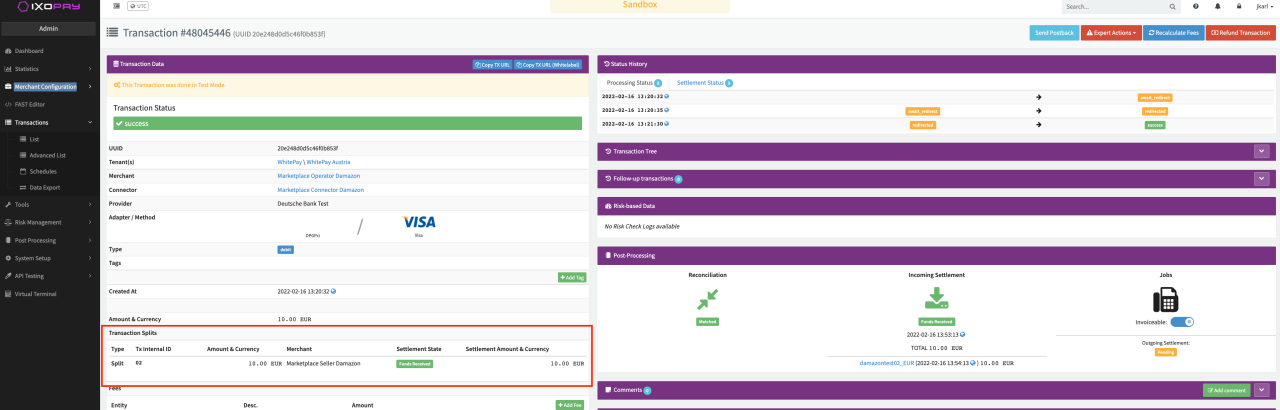
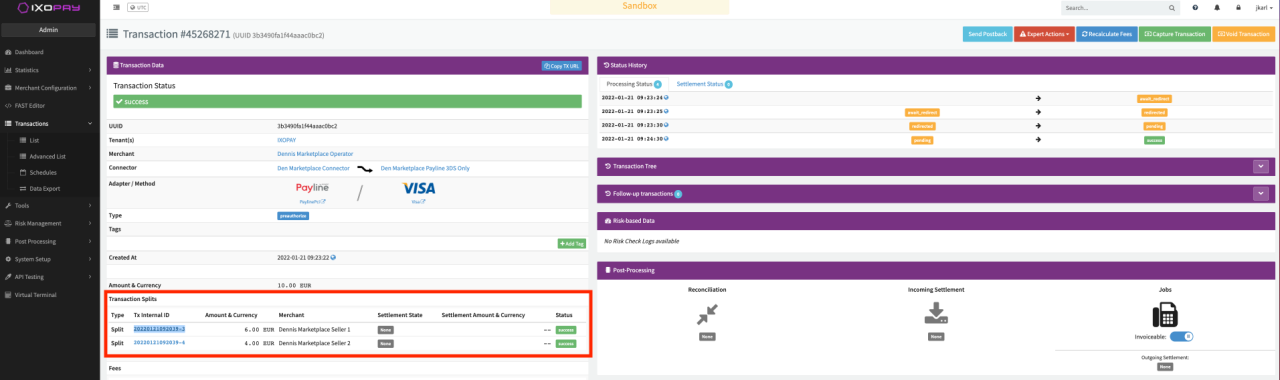
Click on +Add Transaction Split to add as many splits as you want, keep in mind that all splits need to add up to the total amount. The splits will be shown in the successful processed transaction details (see Image Marketplace Connector transaction details and Image Marketplace Meta-Connector transaction details).
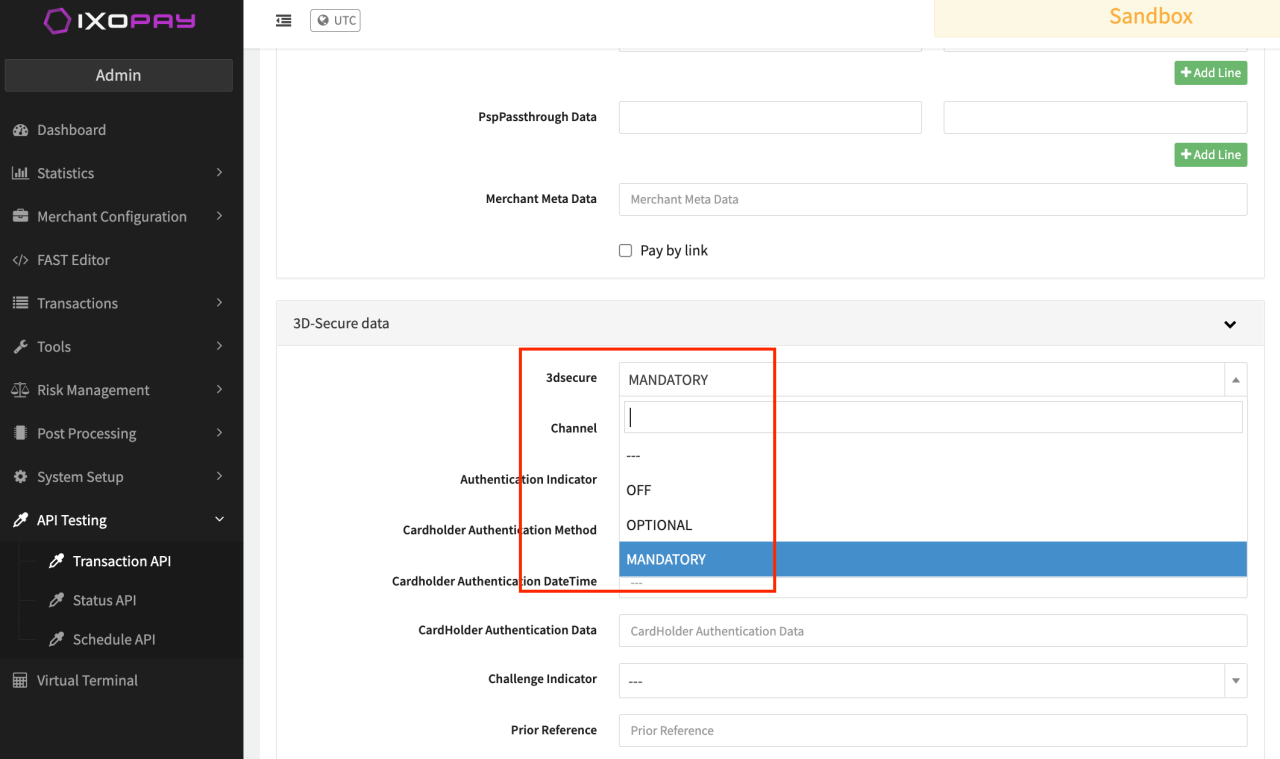
Note: For the Marketplace Connector the Customer Billing Country is a mandatory field for the transaction to be processed. For the Marketplace Meta-Connector in the 3d-Secure section the parameter 3dsecure must be set to mandatory (see image Marketplace Meta-Connector transaction details 2).
The Marketplace Meta-Connector can only be used for transaction type pre-authorize to avoid unnecessary chargebacks. The transaction flow is setup in a way that after the successful 3DS authorization on the Default Connector, the transaction is split and queued up. When all transaction splits have been processed successfully, the main transaction (full amount) is set to success and a postback request will be sent back including the UUIDs of the transaction splits which can then be captured.
If any of the transaction split should fail the remaining queued up splits will be cancelled and any processed splits will be voided.
Marketplace Commission Fees (Only available for Marketplace Connector)
With the IXOPAY platform Marketplace feature it is possible to charge a commission fee to the Marketplace Seller merchant for the Marketplace usage. The commission amount will be subtracted from the split amount and can be tested by adding the commission fee amount and currency into the split (see Image Commission details).
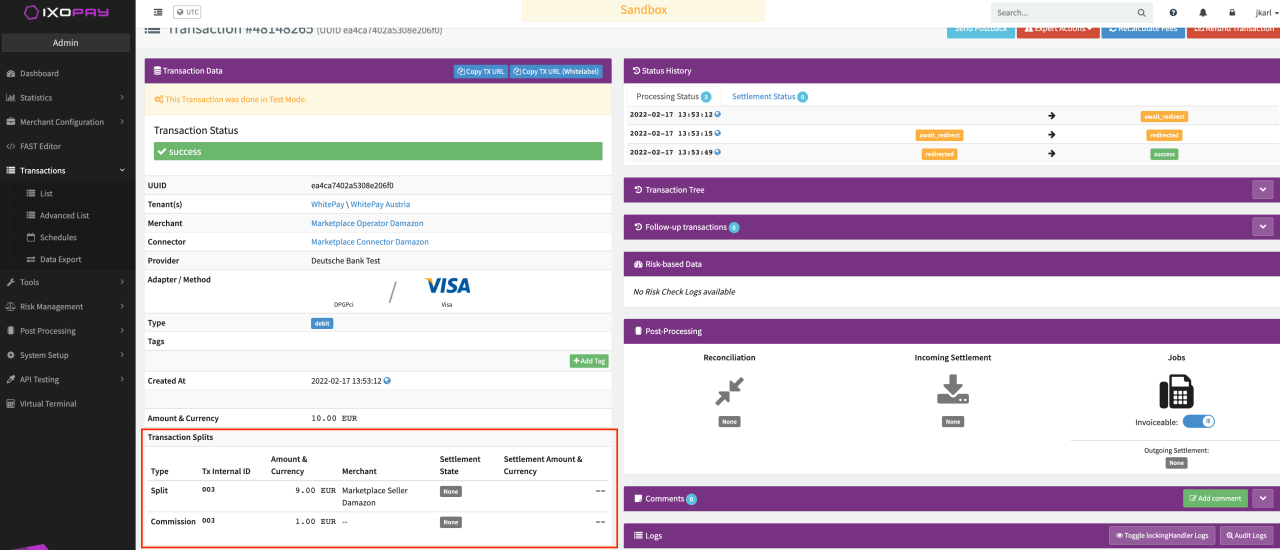
The commission will be shown in the successful processed transaction details (see Image Commission transaction details).
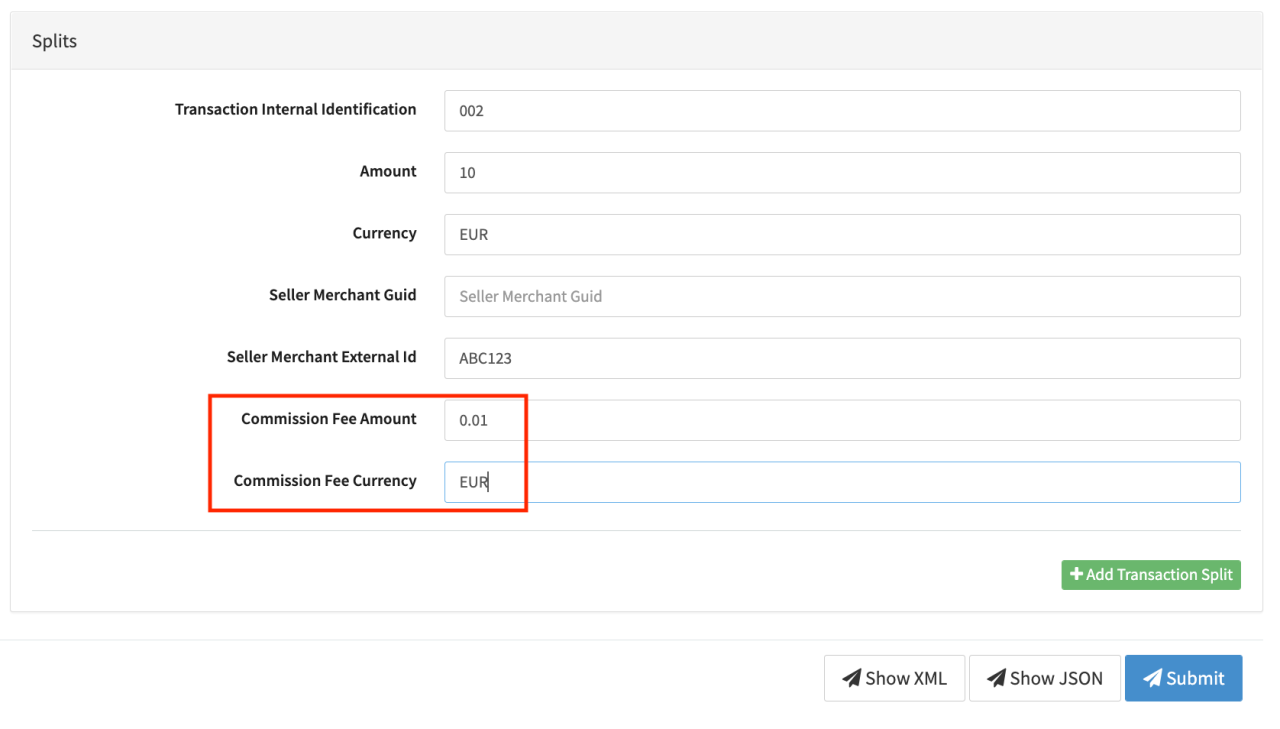
The commission currency must be identical to the currency of the total amount and split amount.
Reconciliation (Only available for Marketplace Connector)
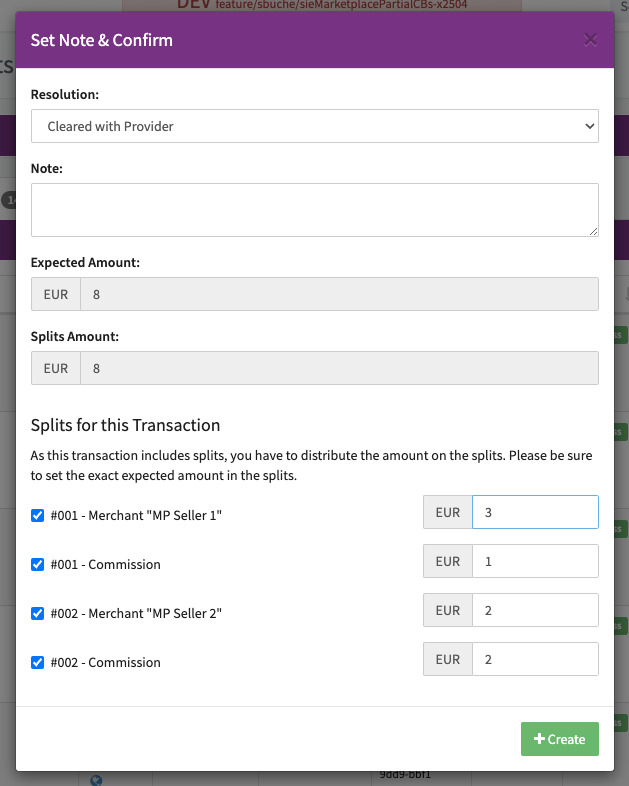
In case of partial chargebacks / chargeback reversals a reconciliation conflict is raised along with a postback notification to the Marketplace Operator. To resolve this conflicts the Marketplace Operator needs to:
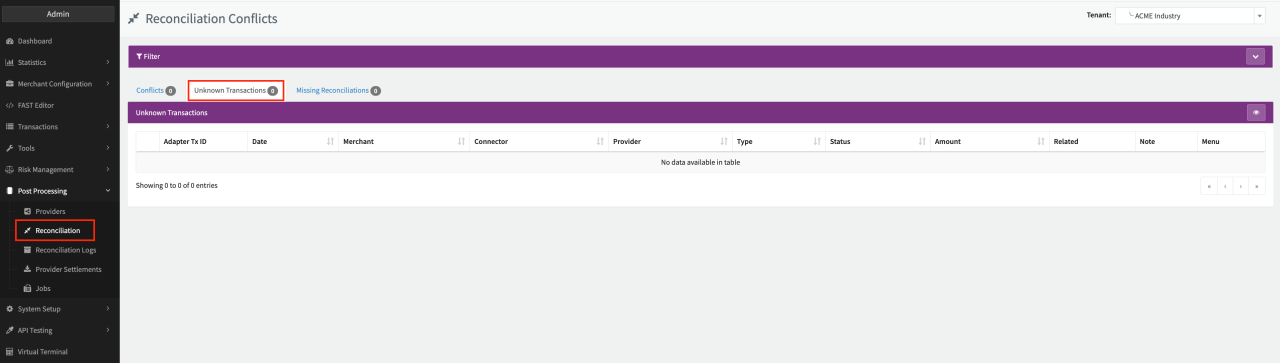
- Navigate in the Reconciliation - Unknown Transactions section
- Click on Create
- Distribute the correct amounts to the related splits (see Split mapping) to end up with the expected amount.
- Click on Create