Manage and Visualize Alerts
The IXOPAY platform notifies Admin users when their attention is required. Alerts and notifications show up directly on the Dashboard or can be sent via email.
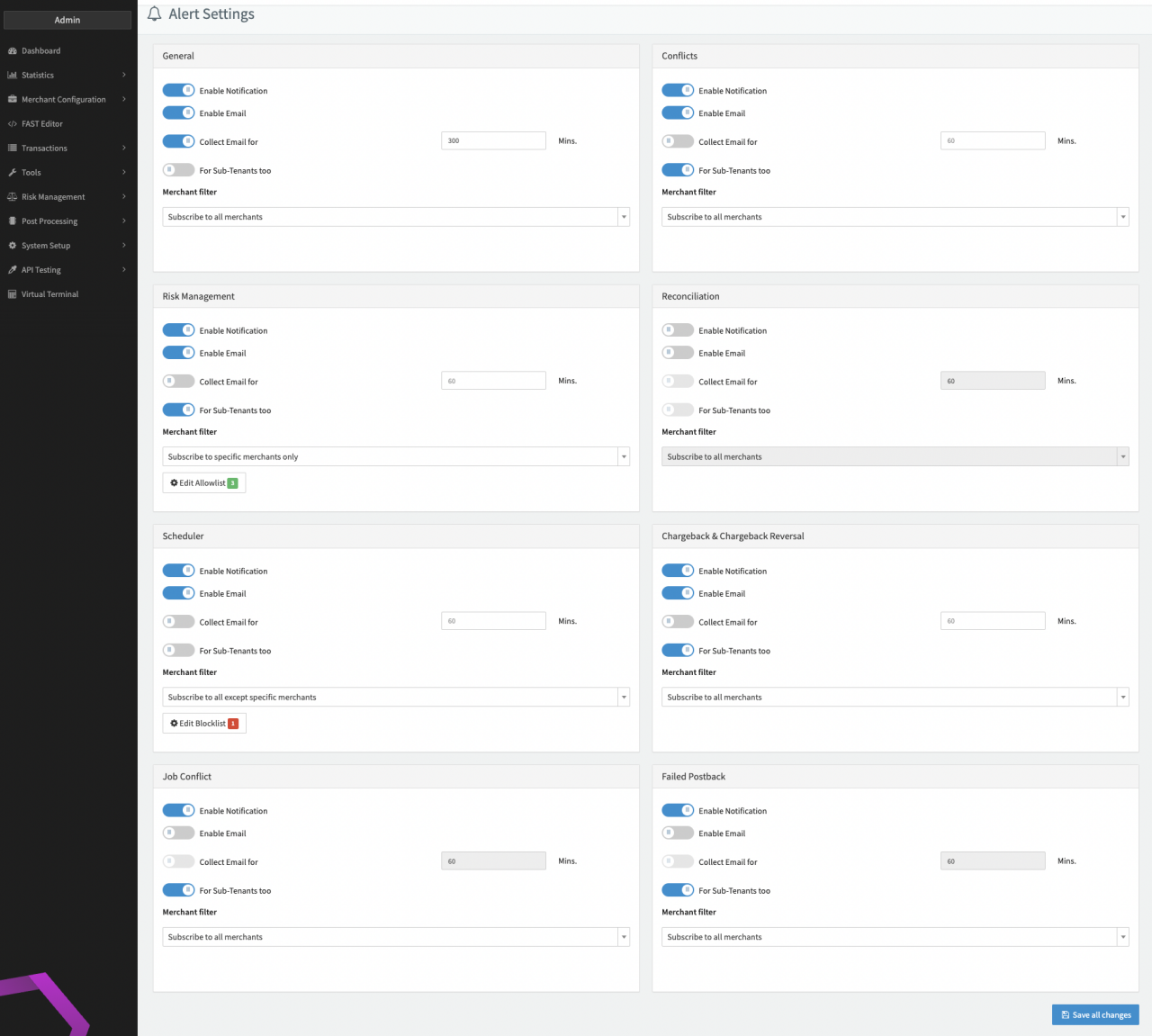
In the Alert settings section you can enable notifications for your user and decide how you would prefer to be informed (e.g. directly on the Dashboard and/ or via email - bundled emails). The IXOPAY platform differentiates between different notification categories: General, Conflicts, Risk Management, Reconciliation, Scheduler, Chargeback & Chargeback Reversal, Job Conflict and Failed Postback. Setting for each category can be configured individually.
Failed Postback alerts are only emitted for connectors that have the Postback/Notification: Trigger Postback Failed notification after (x) amount of tries connector setting configured. Without a threshold, no alert is sent even when postbacks fail.
To change your alert settings:
- Click the Bell icon in the top bar (see Alert Settings) to open the drop-down
- Click the Gear icon to navigate to the Alert Settings (Notification Categories)
- Edit the individual categories by:
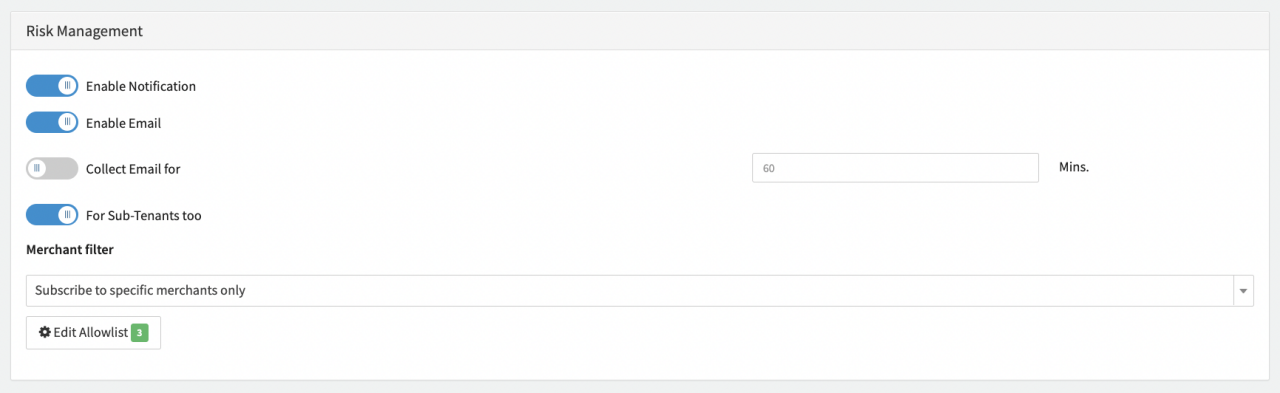
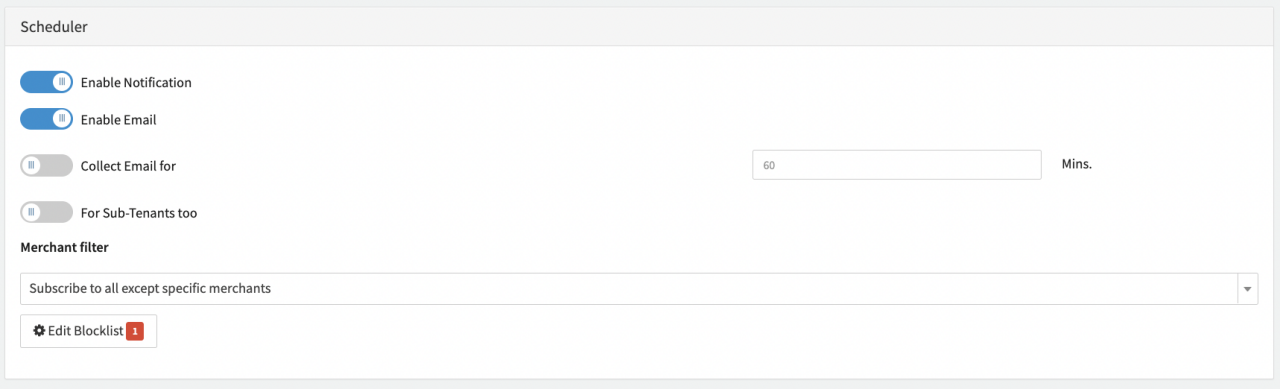
- Enable notification: Enable to get notifications directly in your Dashboard
- Enable Email: Enable to get notifications via email
- Collect Email for: Enable bundled emails for the selected time in minutes
- For Sub-Tenants too: Enable your Sub-Tenant to receive notifications
- Merchant Filter: Refine your settings by subscribing to selected Merchant alerts. Options to choose from:
- Subscribe to all Merchants
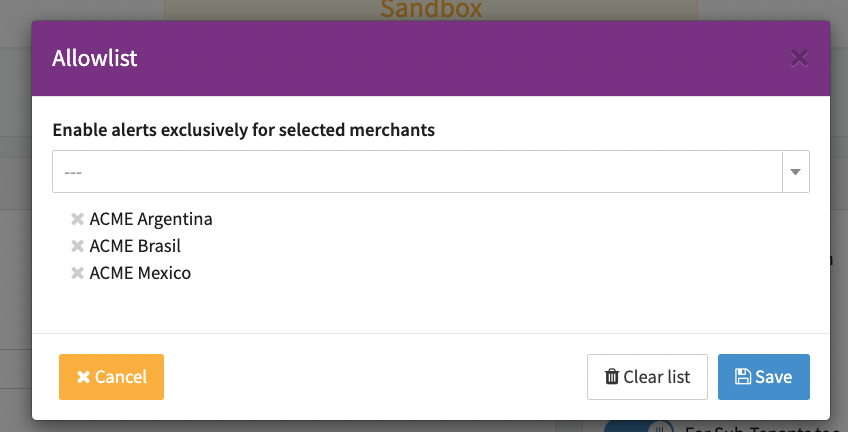
- Subscribe to specific Merchants only: Click Edit Allowlist and select one or more Merchants. (see Subscribe to specific Merchants only and Modify Allowlist / Blocklist)
- Subscribe to all except specific Merchants: Click Edit Blocklist to exclude specific Merchants (see Subscribe to all except specific Merchants)
- Click Save all changes
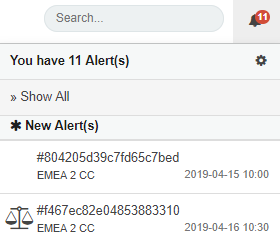
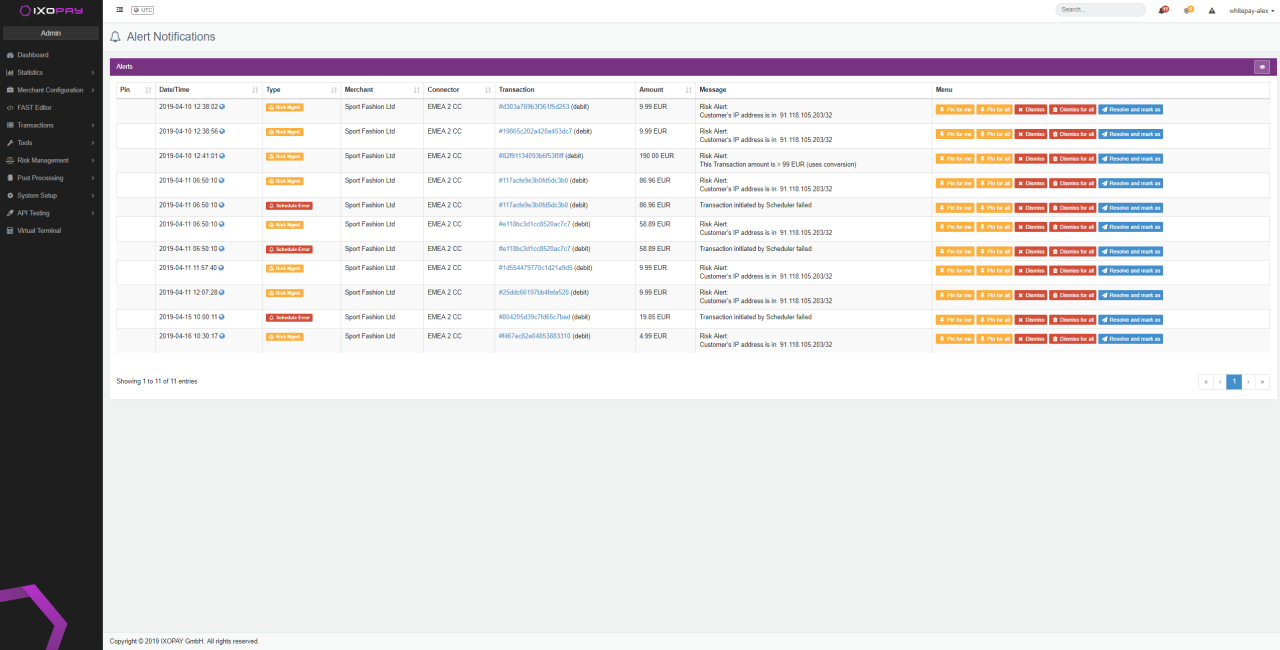
To visualize and analyze the notifications/ conflicts select Show all from the drop-down under the bell icon**.** You’ll be redirected to the Alert Overview. This list includes all alerts that need your particular attention.
- Date/ Time: Transaction time
- Type: Alert category (e.g. Risk Management)
- Merchant: The merchant who initiated the transaction
- Connector: The connector used to process the transaction
- Transaction: UUID and Transaction type
- Amount: The transaction amount
- Message: Reason why the alert was sent (e.g. due to various Risk checks)
- Menu: Enable to Pin an alert, or mark a transaction as dismiss, ignore or resolve