Add/Customize Dashboards
You can add as many dashboards as you want and customize them in order to optimize that analysis of different aspects of you payment stack.
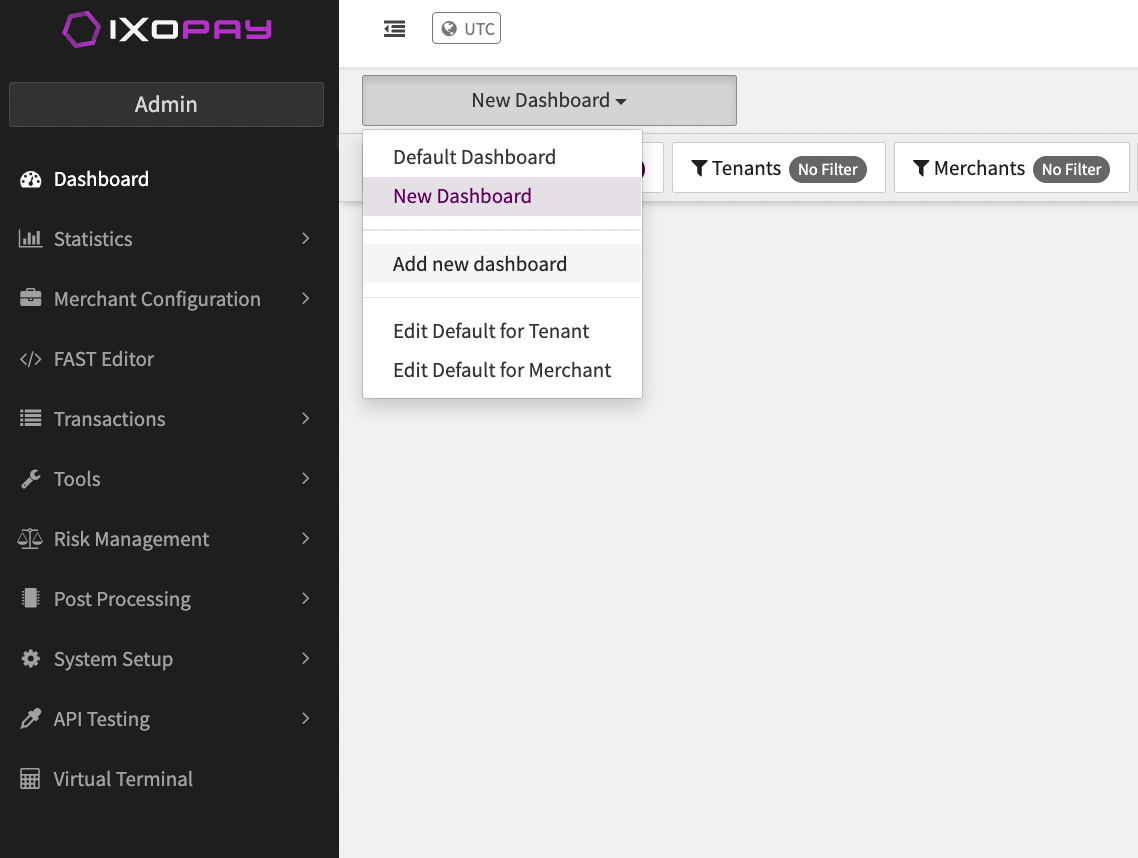
Select Add new Dashboard from the Dashboard drop-down to add a new dashboard and customize it.
Customize Dashboard
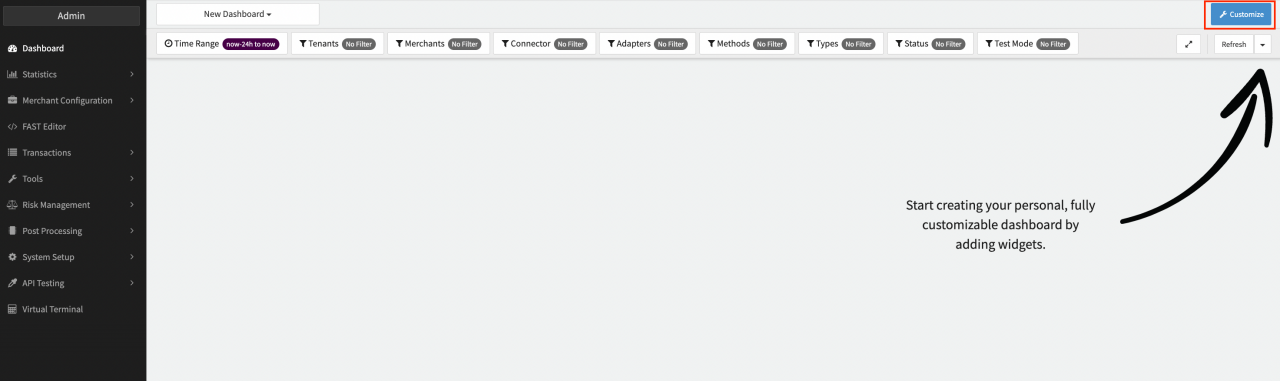
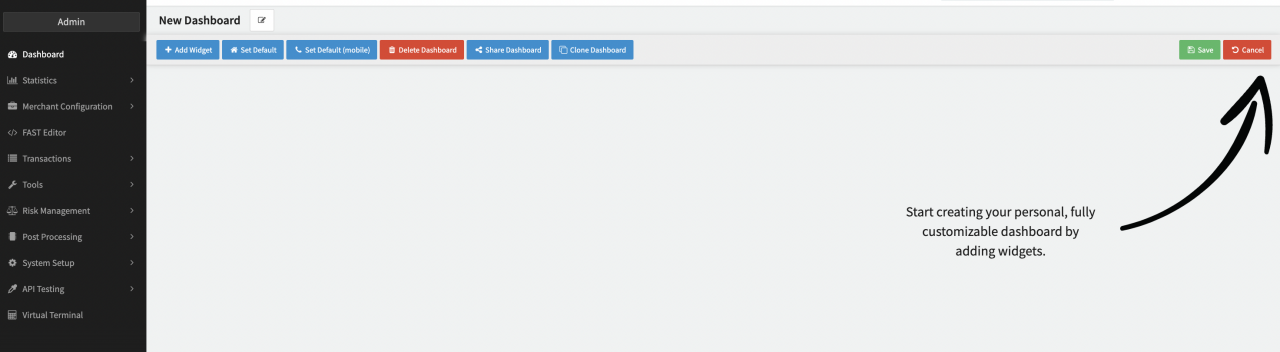
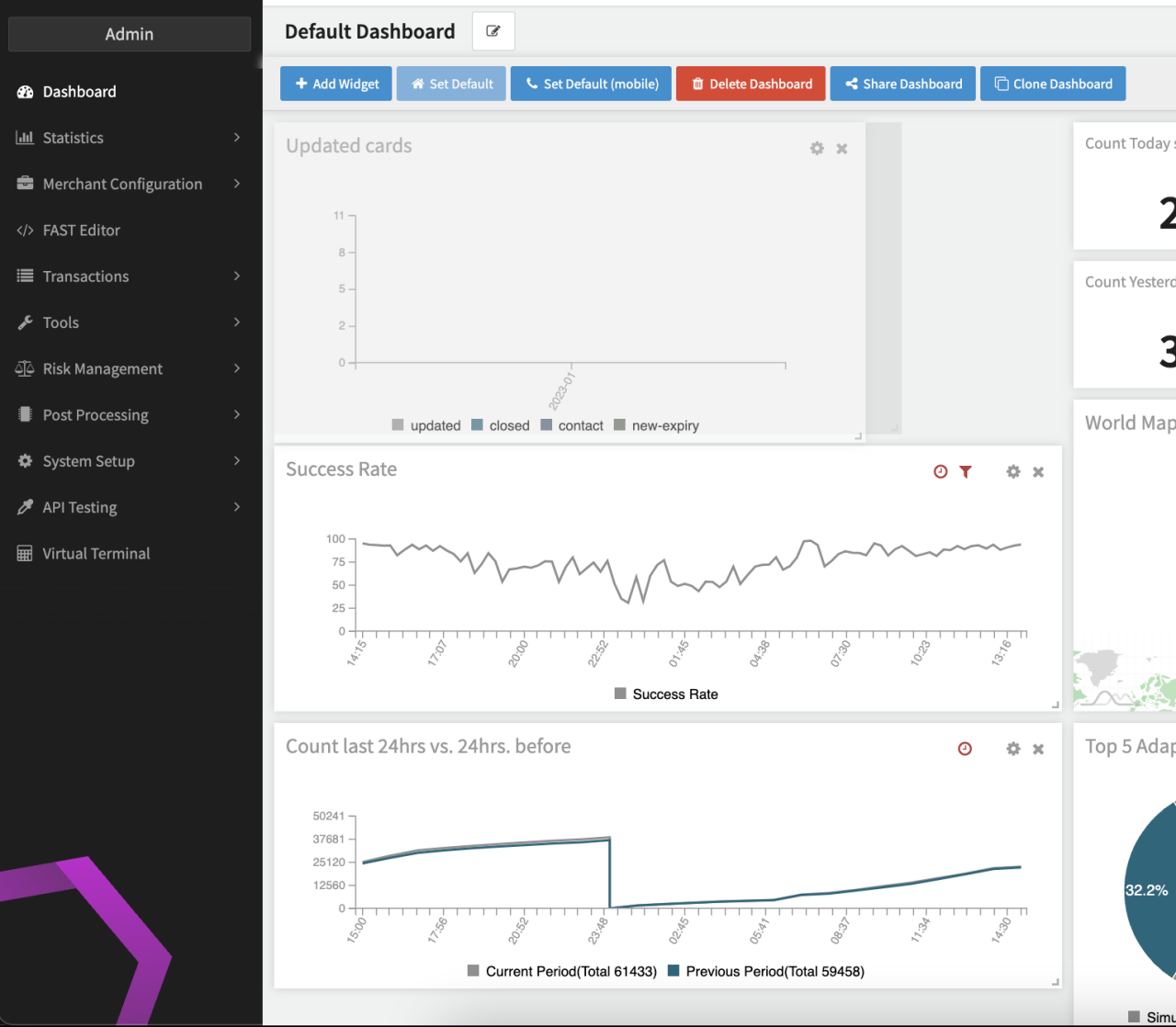
Click on Customize to customize a new or existing dashboard. The following options are available:
- Add/Remove Widget
- Configure Widget
- Reorder/Resize Widget
- Rename Dashboard
- Clone Dashboard
- Share Dashboard and edit shared Dashboards
- Delete Dashboard
Click on Save after customizing the dashboard to save your changes, or click on Cancel to revert back to the previously saved state.
Add/Remove Widget
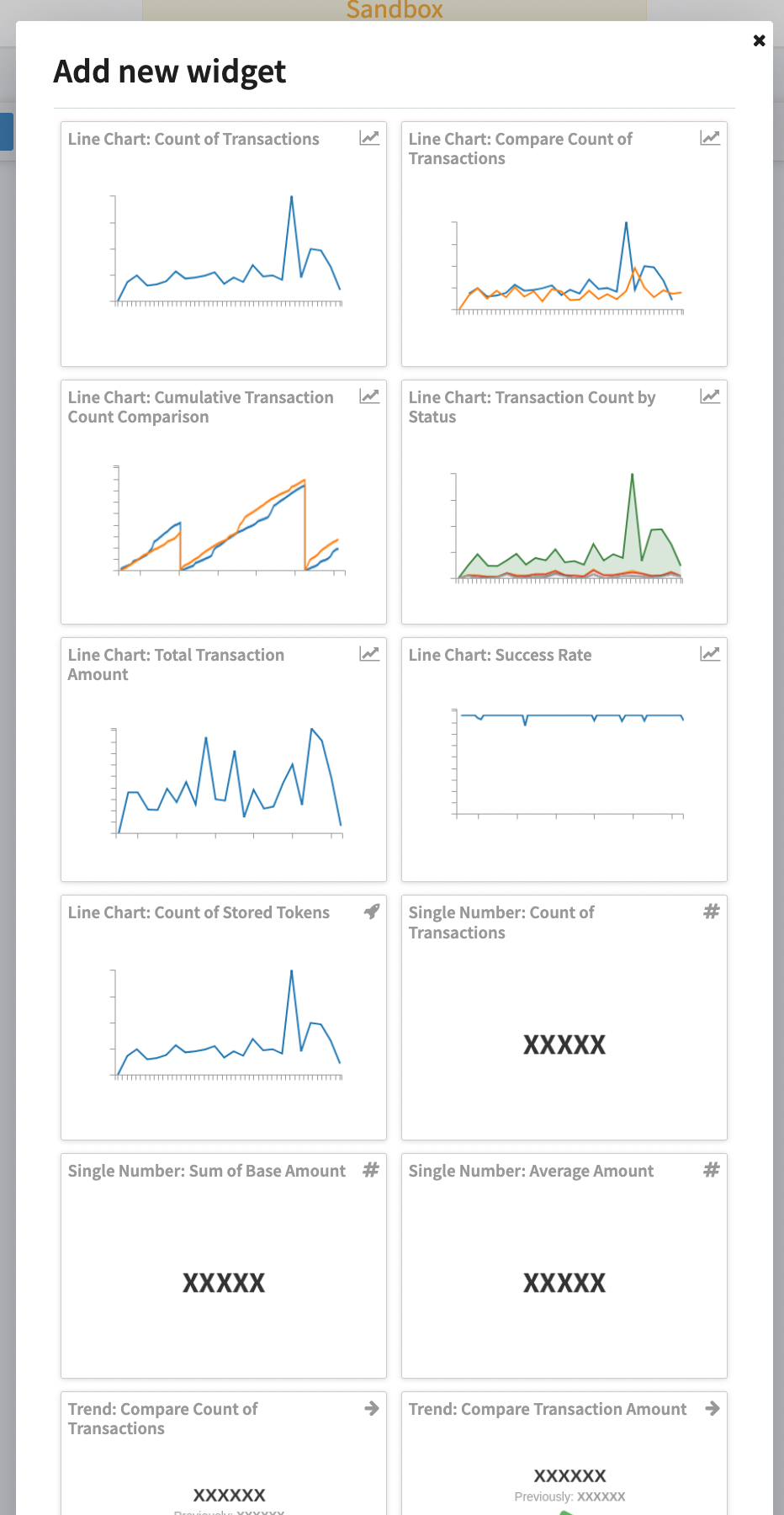
Click Add Widget to add a new widget to the dashboard. A list of available widgets is displayed. Click on a widget in the list to add it to the dashboard.
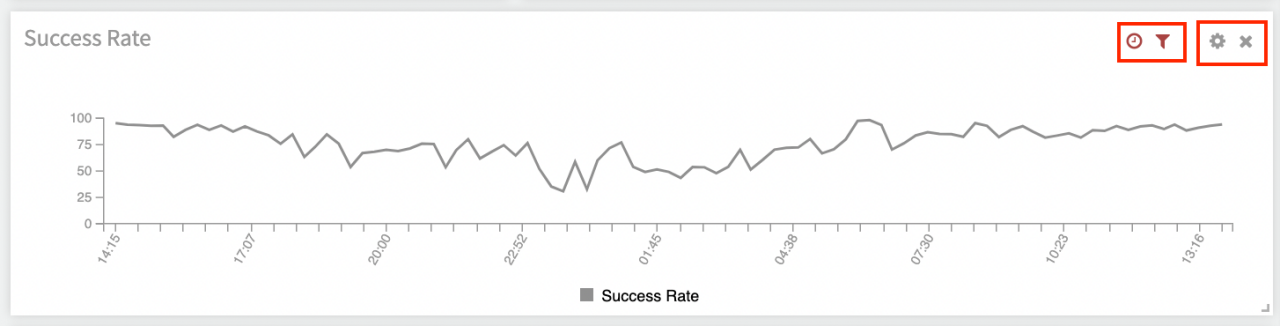
Remove a widget by clicking the X icon on the widget itself.
Configure Widget
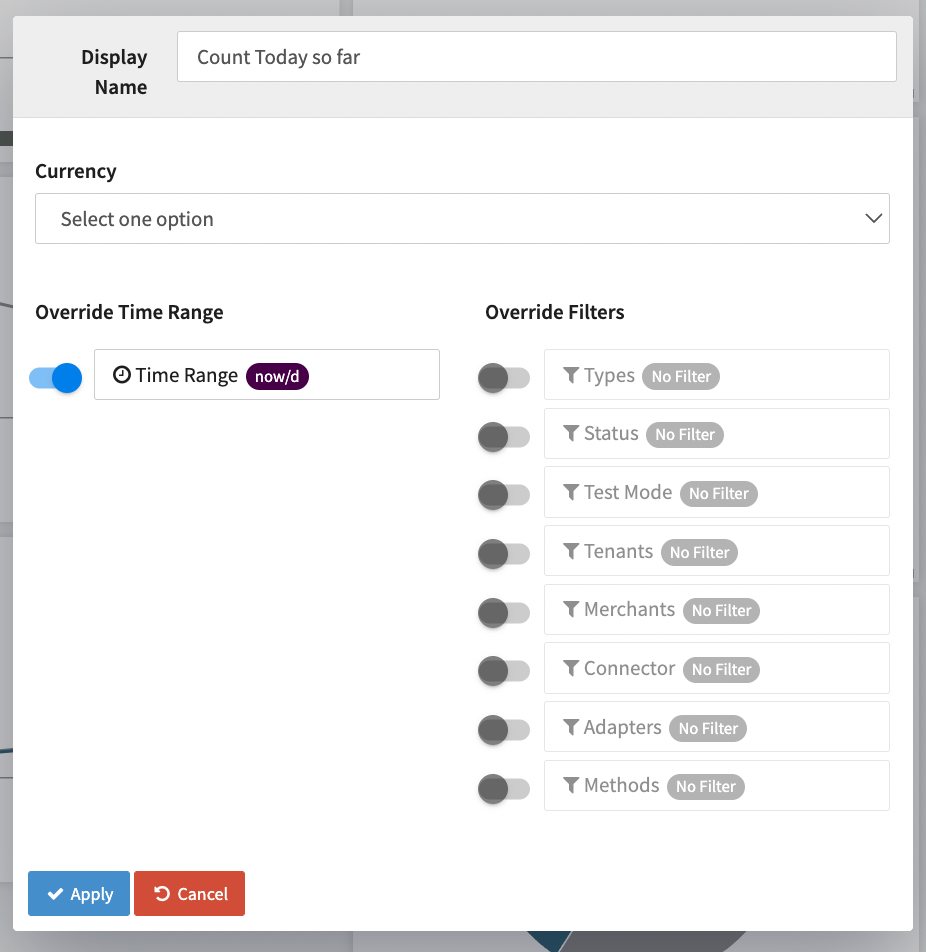
Click on the gear icon in a widget to configure it. You can:
- Change the name of the widget displayed in the dashboard
- Override the global filter
- Define additional settings depend on the widget type
When applying changes to a a widget's configuration or filter, the data displayed in the widget is reloaded, providing instant visual feedback.
Reordering & Resizing Widgets
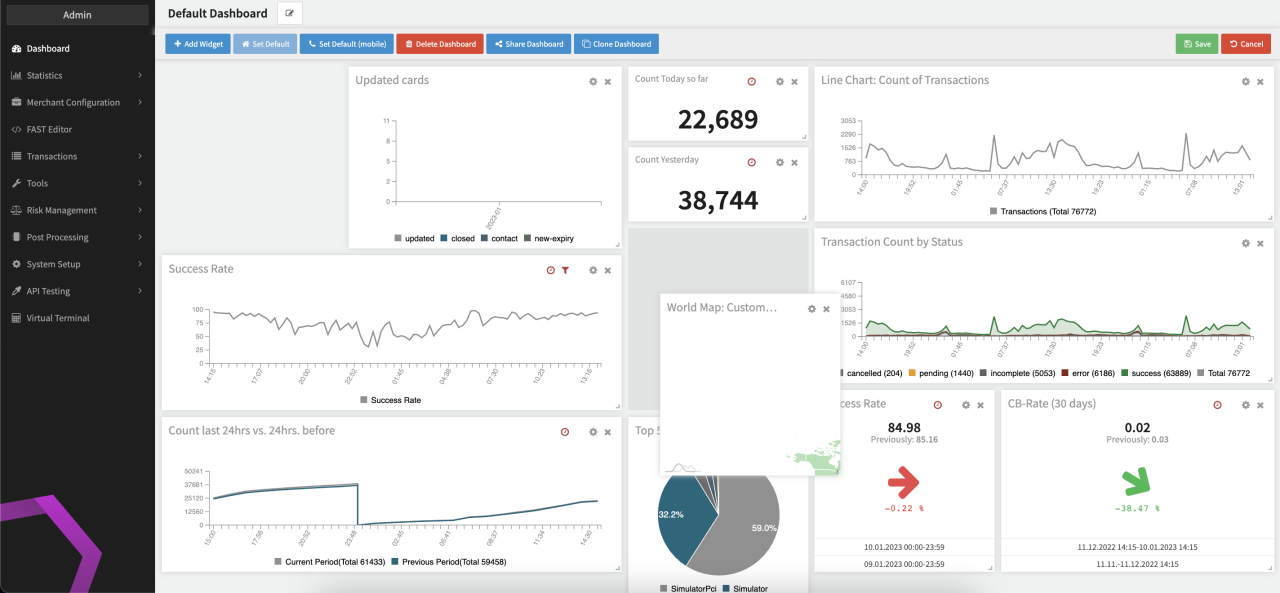
Reorder the widgets in your dashboard via drag & drop. Surrounding Widgets are reordered automatically. Resize a widget by dragging the bottom right corner to the desired size.
Rename Dashboard
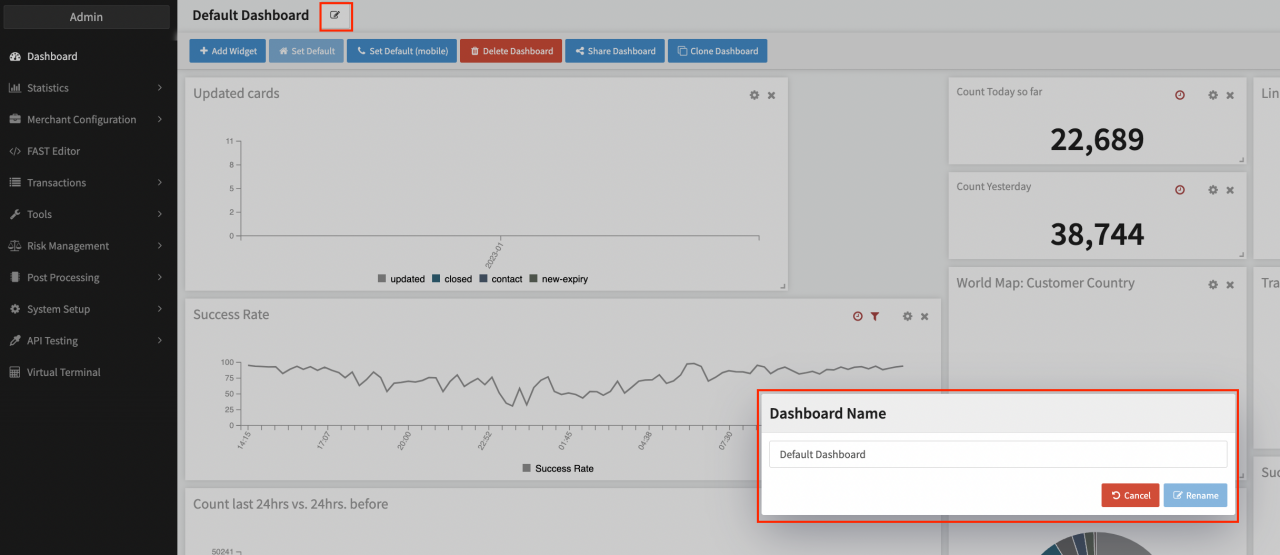
Click Edit and enter a name in the Dashboard Name field to rename the entire dashboard (see Rename).
Clone Dashboard
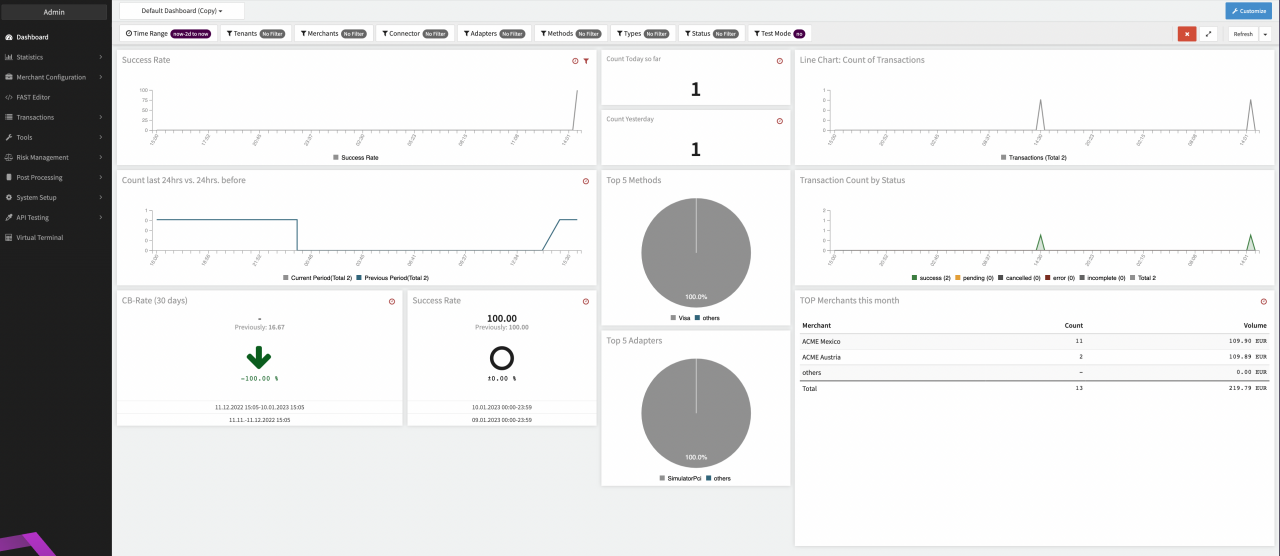
Click Clone Dashboard to clone a dashboard (e.g. to adapt the dashboard to a new use case without starting from scratch). A copy of the current dashboard is created and opened without saving the original dashboard first.
Share Dashboard
Click on Share Dashboard to share the current dashboard. Sharing dashboards allows you to provide other users in you enterprise with access to general reports (like top merchants, transaction stats or chargeback rate). Once shared, the dashboard is automatically available to all users.
Editing Shared Dashboards
Users can only edit or delete a shared dashboard if they have the necessary permissions. Users without the required permission may customize the Dashboard but cannot save their changes. To save changes, users need to clone the dashboard and edit the copy instead.
Delete Dashboard
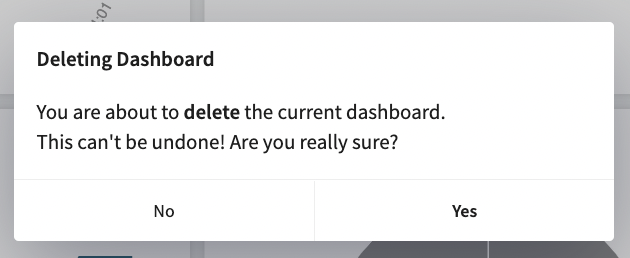
Click on Delete Dashboard to delete a dashboard. Confirm the prompt. The dashboard is deleted and the next dashboard in the list is displayed. If you deleted the last dashboard, you can create a new Dashboard.