EmerchantPay
Direct Debit
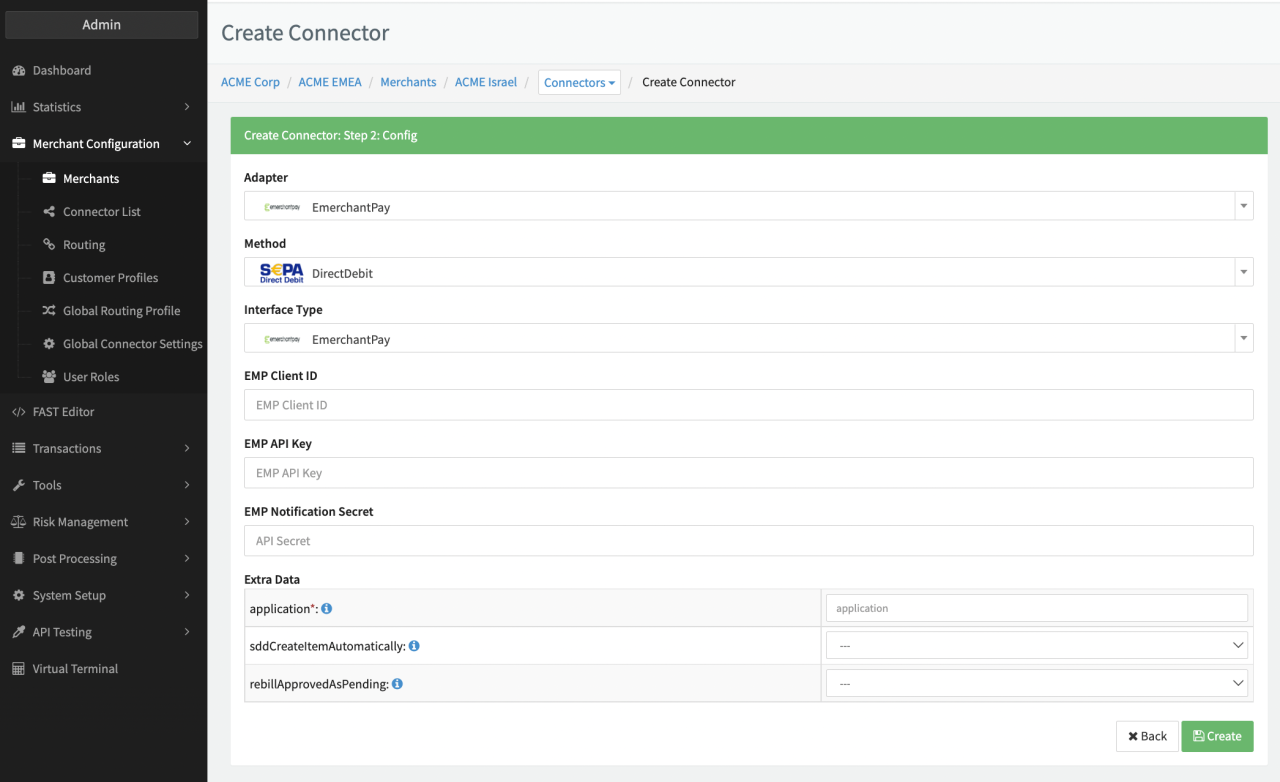
Configure the following parameters for the Connector (see Connector Configuration):
- Fill in the mandatory EMP Client ID
- Fill in the mandatory EMP API Key
- Fill in the mandatory EMP Notification Secret
- Fill in the Extra Data: application
- Select the Extra Data: sddCreateItemAutomatically — true, false
- Select the Extra Data: rebillApprovedAsPending — true, false
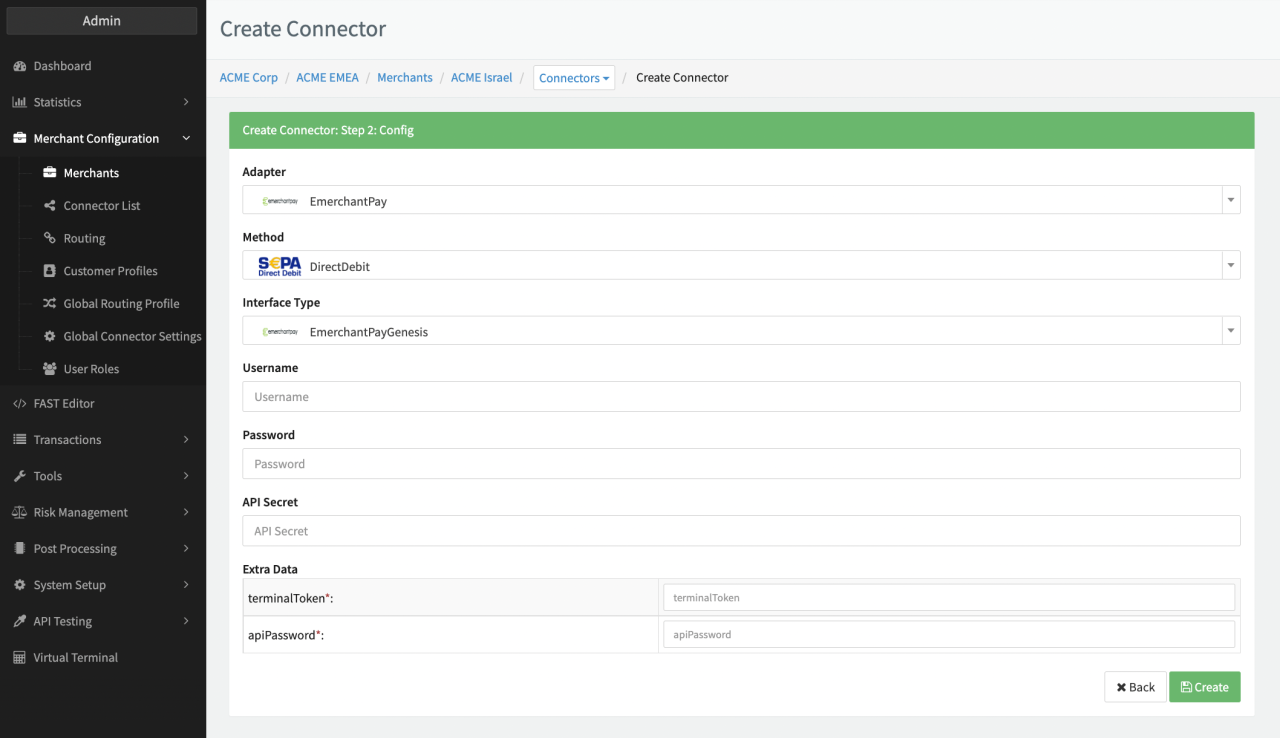
Configure the following parameters for the Connector (see Connector Configuration Genesis):
- Fill in the mandatory Username
- Fill in the mandatory Password
- Fill in the mandatory API Secret
- Fill in the Extra Data: TerminalToken (request authentication)
- Fill in the Extra Data: apiPassword (notification verification)
The Terminal Token and the Login Credentials can bei found under the related terminal in the EmerchantPay Admin Dashboard > Configurations > Merchants (choose the one you want to configure the connector for)
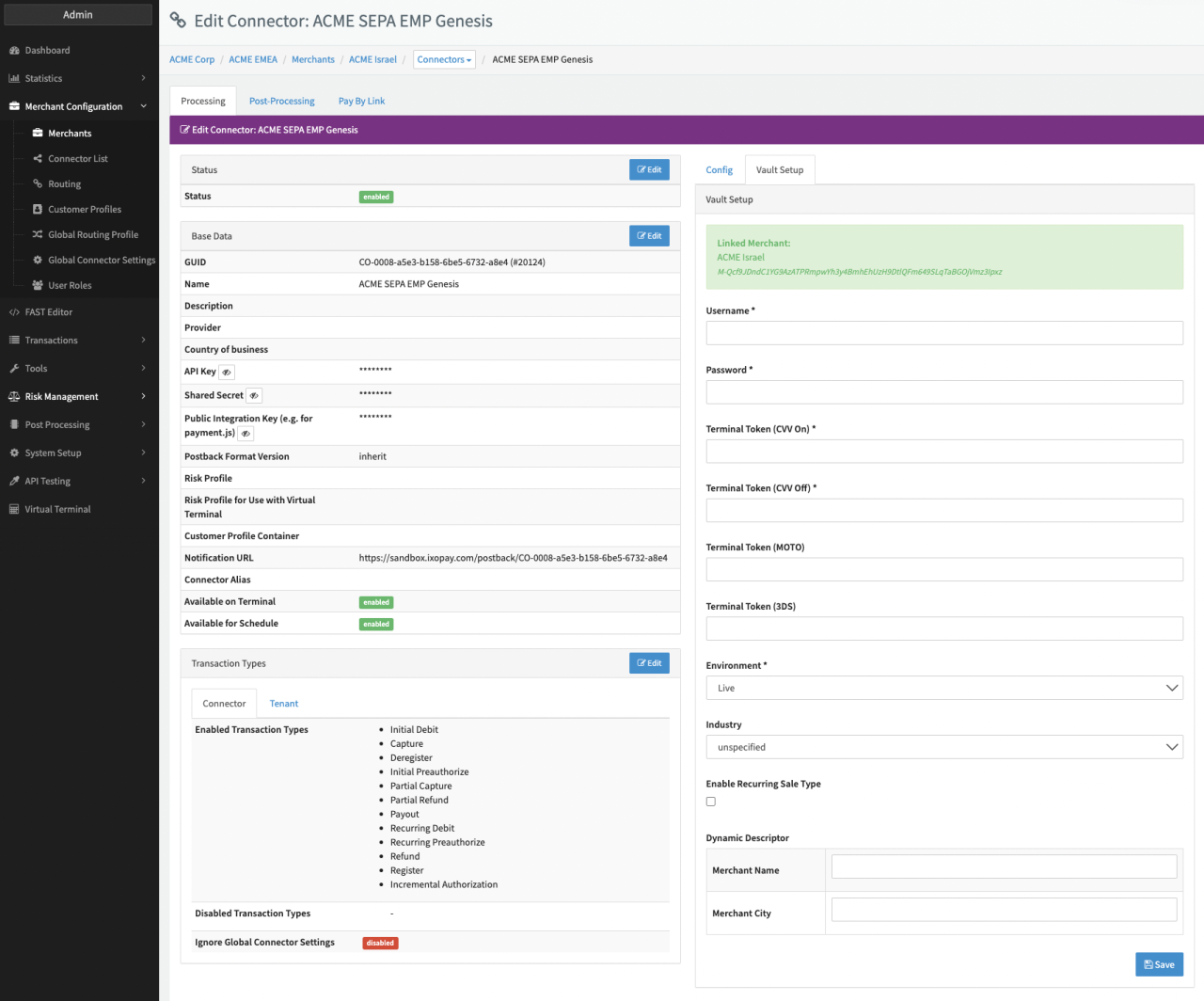
Creditcard
Configure the following parameters for the Connector (see Connector Detail Overview - EmerchantPay Creditcard - Vault Configuration):
- Fill in the mandatory Username
- Fill in the mandatory Password
- Fill in the mandatory Token Terminal (CVV on)
- Fill in the mandatory Token Terminal (CVV off)
- Fill in the optional Token Terminal (MOTO)
- Fill in the optional Token Terminal (3DS)
- Select the mandatory Environment - Live, Staging
- Check Enable Recurring Sale Type
- Fill in the Dynamic Descriptor Merchant Name
- Fill in the Dynamic Descriptor Merchant City