E-xact
E-xact Credentials
You find the required credentials for the Connector Setup in your E-xact Dashboard:
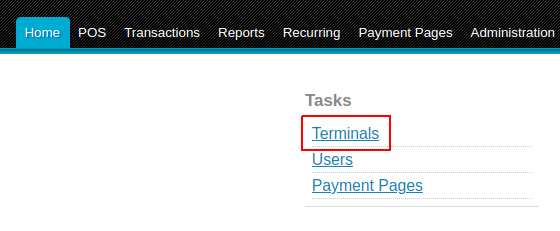
- Navigate to Home → Terminals (Image 1)
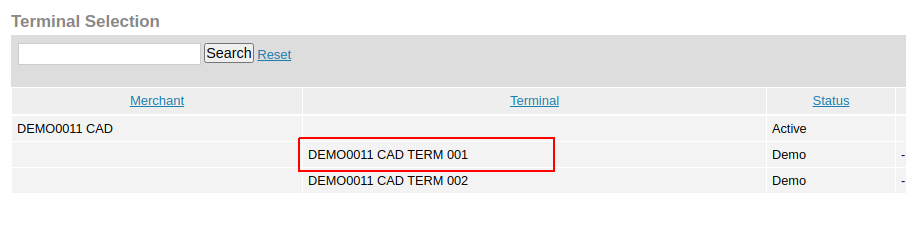
- Select the terminal you wish to use from the Terminal Selection (Image 2)
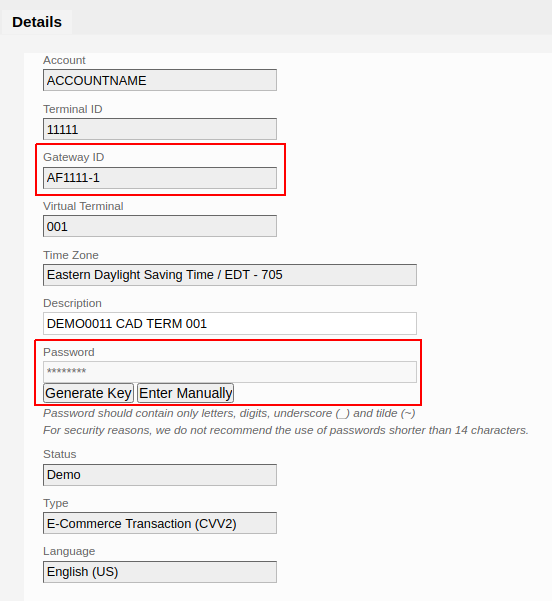
- Find the terminal details Gateway ID and the option to set the Password (Image 3)
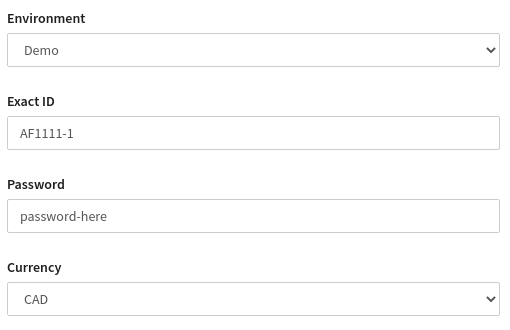
- Fill in the Gateway ID as Exact ID and the Password as Password in the Connector Vault Configuration (Image 4)
Connector setup
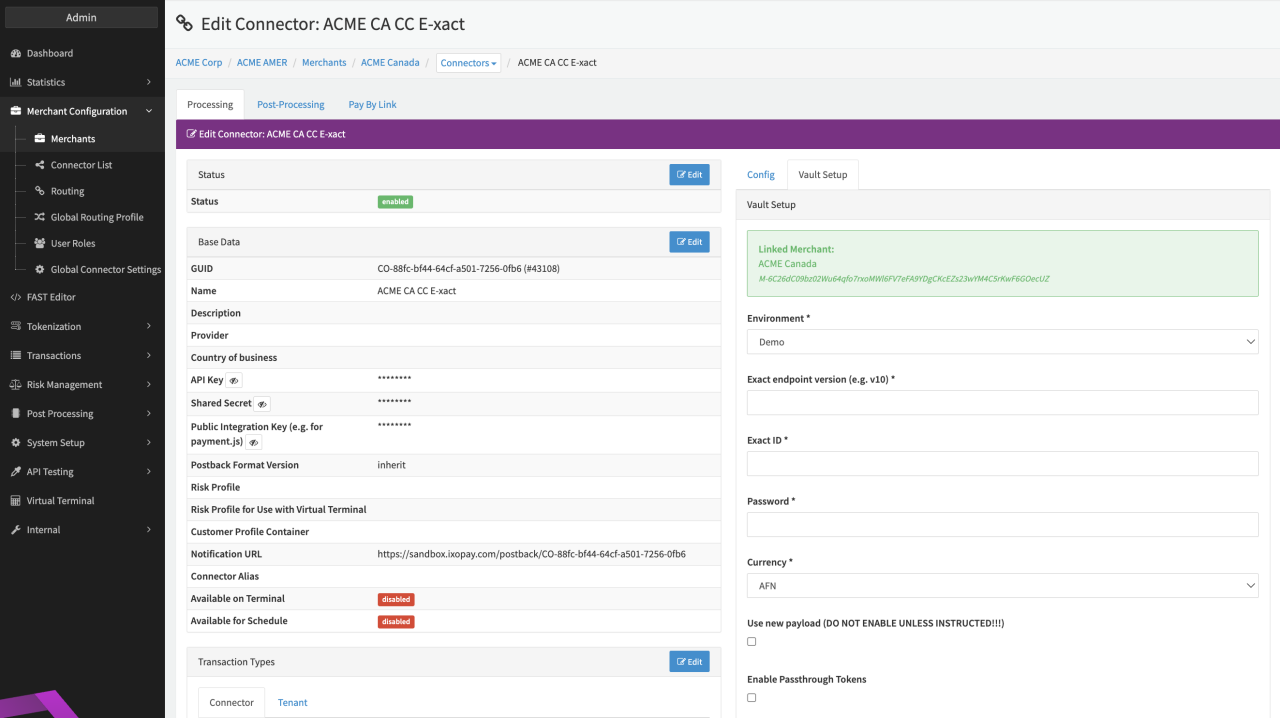
Configure the following parameters for the Connector (see PCI Vault Configuration - Creditcard Exact):
- Select the mandatory Environment - Demo, Production
- Set the Exact endpoint version (e.g. v10) to the api version that was instructed by E-xact. Please check with us if we support the payload of the version.
- Fill in the mandatory Exact ID - Gateway ID from the E-xact Dashbaord
- Fill in the mandatory Password - Password from the E-xact Dashbaord
- Select the Currency configured for the terminal by E-xact, this is required to ensure Transactions are sent in the correct currency
- Enable the option to Use new payload (DO NOT ENABLE UNLESS INSTRUCTED!)
E-xact Reconciliation
In order to be able to use Reconciliation with E-xact, a new user needs to be created in the E-xact Dashboard.
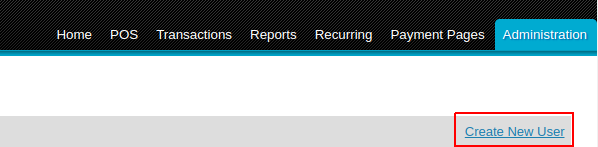
- Navigate to Administration → Create New User (Image 6)
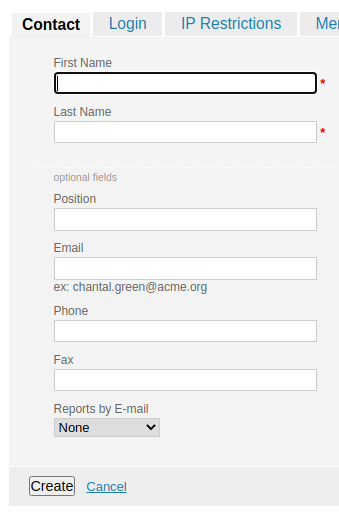
- Fill in the mandatory First Name and Last Name, the other fields as needed, in the Contact section, (Image 7)
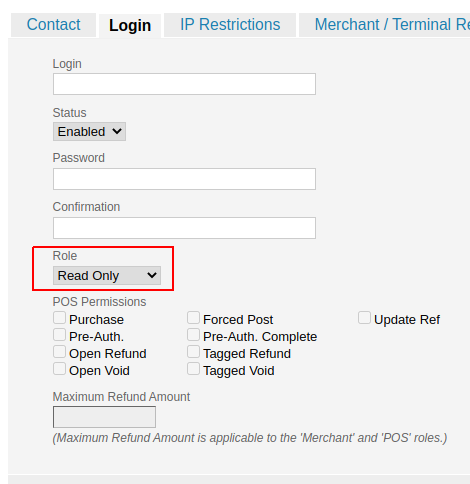
- Change the Role to "Read Only API" in the Login section (Image 8)
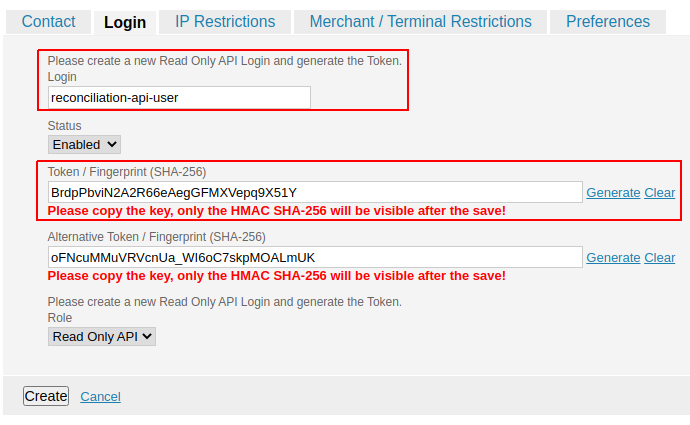
- The form will be updated and you can define the Login (username) and generate a Token (Token/Fingerprint (SHA-256)) (Image 9) - Make sure to copy the Login and Token to configure the Reconciliation Data Fetcher.
- Select Create
Data Fetcher Configuration
You have the option to configure Data Fetchers (see section Enable and Set Up Reconciliation on the Provider Level) either on Provider or on Connector Level, depending on which setup works better for your provider.
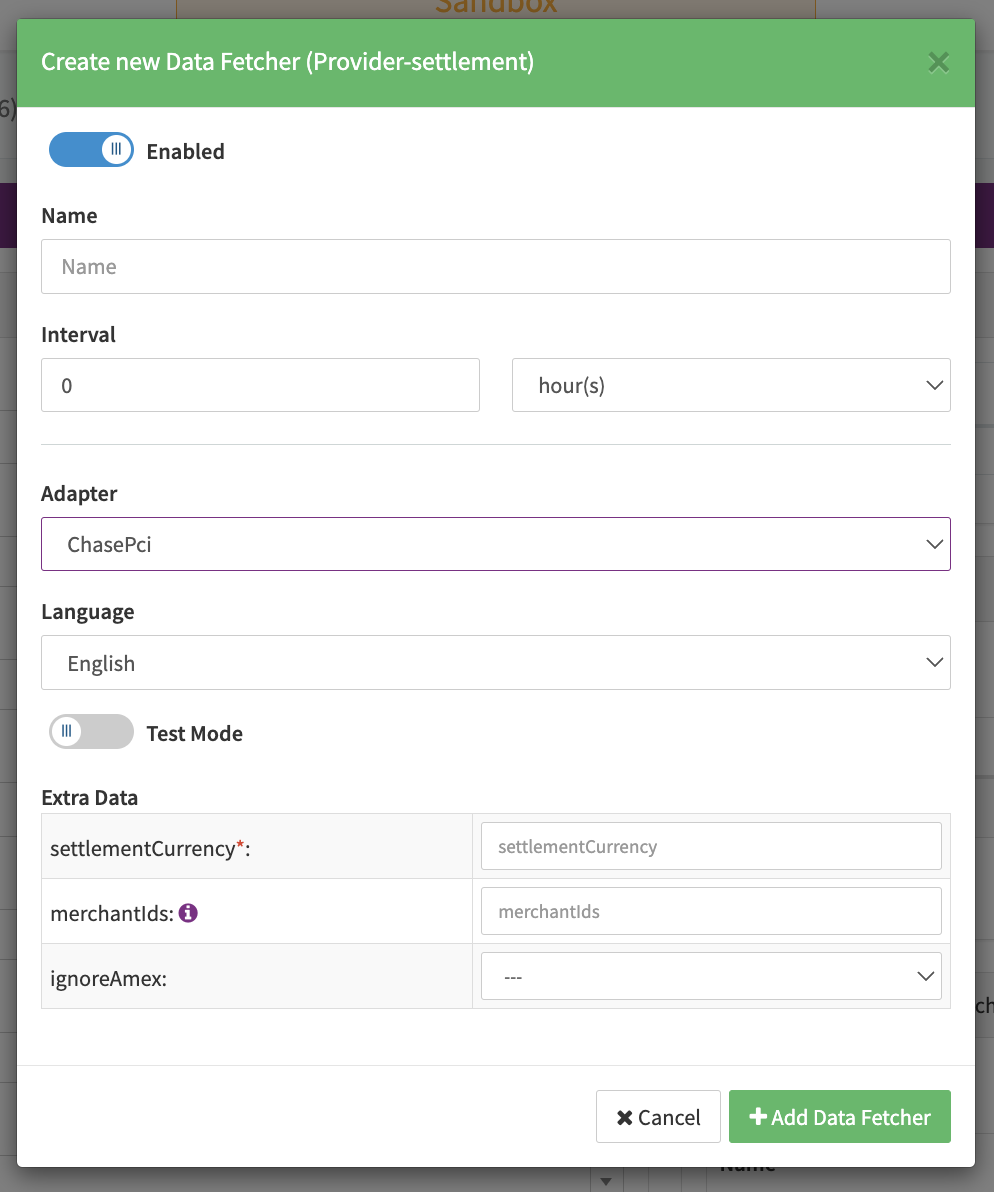
For the E-xact adapter a settlement handling is implemented using the ChasePci. Reconciliation is implemented for the E-xact adapter itself.
Provider Settlement
Configure the following Parameters for the Settlements Provider Data Fetcher to fetch Settlement (see Edit Provider Settlement Data Fetcher Provider Level):
- Fill in an option Name
- Fill in the expected Interval in which the Provider Settlement File should be fetched - days, hours
- Select the Adapter ChasePci
- Enable Testmode
- Fill in the mandatory Extra Data: settlementCurrency
- Fill in the Extra Data: merchantIds
- Select the option Extra Data: ignoreAmex - true, false
Reconciliation
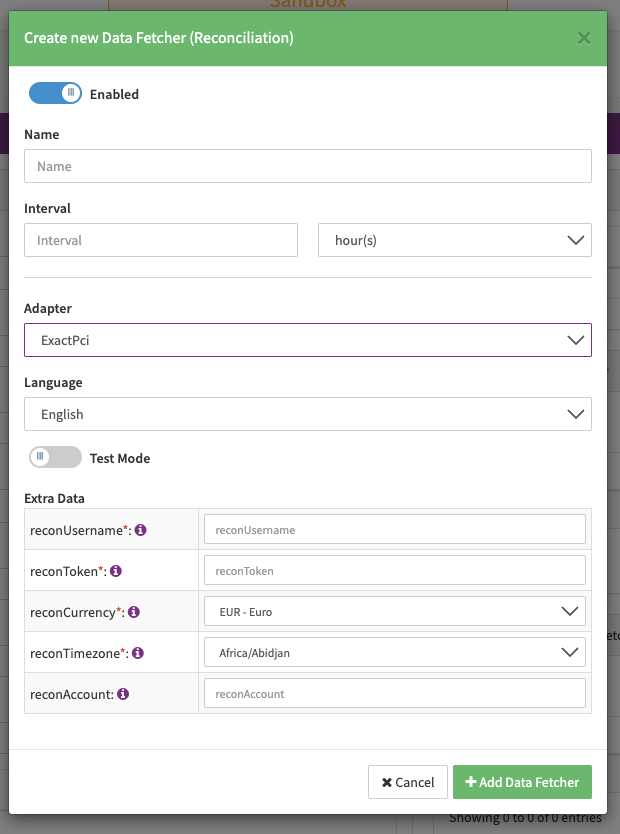
Configure the following Parameters for the Reconciliation Data Fetcher to fetch Reconciliation via an API (see Reconciliation Data Fetcher Provider Level):
- Fill in the optional Name for the data fetcher
- Fill in the expected Interval in which the Reconciliation File should be fetched - days, hours
- Select the Adapter ExactPci
- Enable Testmode
- Fill in the mandatory Extra Data: reconUsername used for authentication from the created Read Only API user
- Fill in the mandatory Extra Data: reconToken used for authentication from the created Read Only API user
- Select the mandatory Extra Data: reconCurrency - set as configured for the terminal by E-xact,
- Select the Extra Data: reconTimezone - set the matching timezone as configured for the terminal by E-xact,
- Fill in the optional Extra Data: reconAccount - can be used to limit the Reconciliation to a certain Merchant Account ID provided by E-xact