Checkout.com
CheckoutCom Creditcard
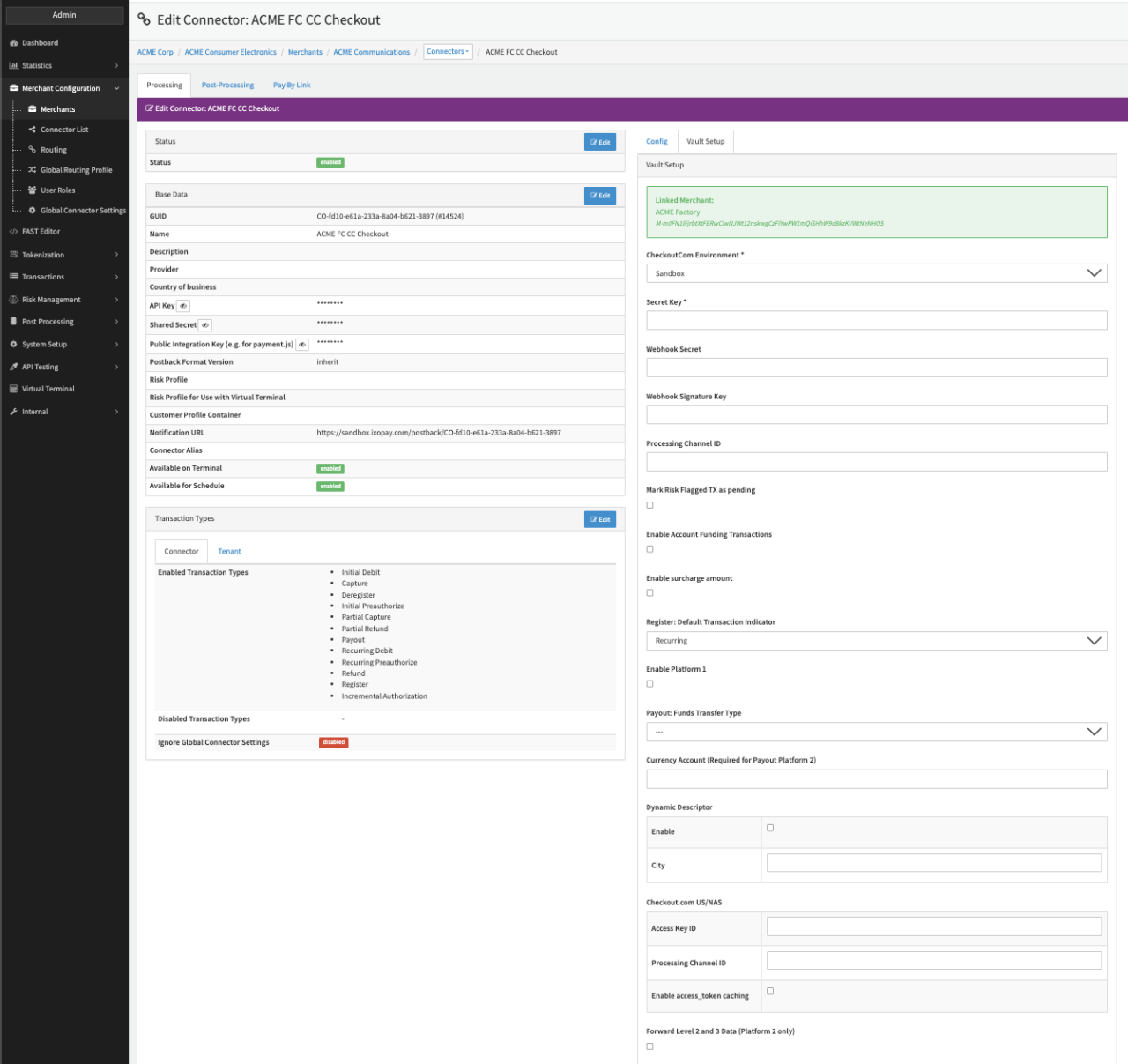
Configure the following parameters for the Connector (see Connector Detail Overview - CheckoutCom Creditcard - Vault Configuration):
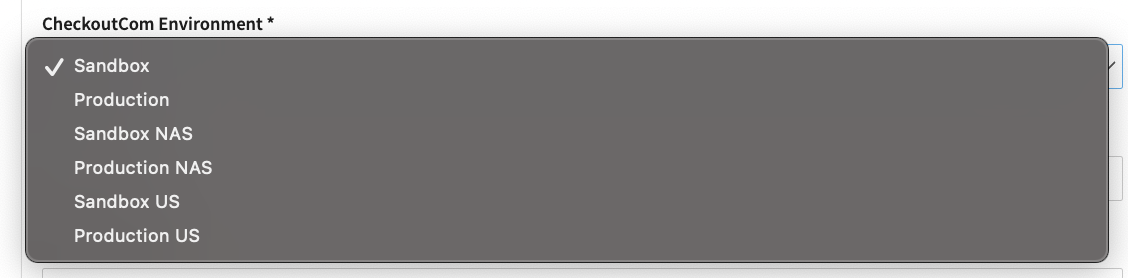
- Fill in the mandatory CheckoutCom Environment (see Available CheckoutCom Environments)
- Fill in the mandatory Secret Key (see section Secret Key)
- Fill in the mandatory Webhook Secret (see section Webhook)
- Fill in the mandatory Webhook Signature Key
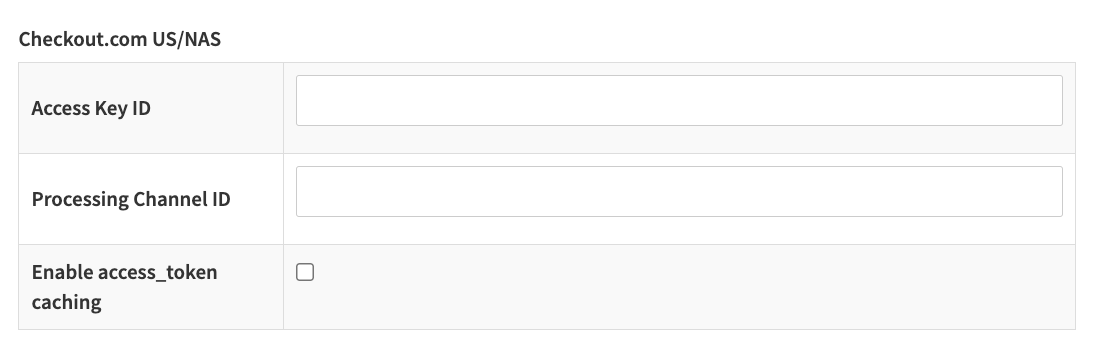
- Processing Channel ID (here you specify which channel to use - this is only necessary if you have created a CheckoutCom public key for "all channels", see also Checkout.com US/NAS)
- Enable/Disable checkbox Mark Risk Flagged TX as pending (see https://www.checkout.com/docs/payments/authenticate-payments/flagged-payments)
- Enable/Disable checkbox Enable Account Funding Transactions to send new fields for AFT (parameters can be found adapter-specific API Documentation)
- Enable/Disable checkbox Enable surcharge amount
- Enable/Disable checkbox Refund waits for webhook (recommended)
Checkout.com processes all refunds asynchronously: the API response only confirms that the refund was accepted,
not that it succeeded. The final result is sent by webhook.
- If enabled, refunds stay pending until the payment_refunded or payment_refund_declined webhook arrives, and are then set to success or error (see Webhooks).
- If disabled, refunds are set to success as soon as Checkout.com accepts them, even if Checkout.com declines them later.
- Select the option Register: Default Transaction Indicator - Recurring, Single
- Enable/Disable Platform 1
- Select the option Payout: Funds Transfer Type
- Account-to-Account (Platform 1/2)
- Person-to-Person (Platform 1/2)
- Funds Transfer (Platform 1/2)
- General Funds Disbursement (Platform 1/2)
- Online Gambling (Platform 1/2)
- Loyalty Payment (Platform 1/2)
- Payroll (Platform 1)
- CO4 (Platform 2)
- CO7 (Platform 2)
- C52 ((Platform 2)
- C55 (Platform 2)
- Fill in the Currency Account (Required for Payout Platform 2)
- Fill in the Dynamic Descriptor:
- Enable/Disable the checkbox Enable
- Fill in City
- Enable the option Forward Level 2 and 3 Data (Platform 2 only)
- Enable the option Send PAN-ONLY GooglePay tokens as GooglePay token to see it at Checkout's Side as GooglePay token
Per default GooglePay PAN_ONLY tokens are sent and identified as credit cards by CheckoutCom. By enabling this setting the GooglePay PAN_ONLY tokens will be sent as GooglePay token (without sending a cryptogram and ECI value).
When setting up your Connector some configurations need to be done via the Checkout.com Dashboard. From there, you will also need to retrieve the Secret Key and Webhook secret as described above.
If Dynamic Descriptor is enabled it will be sent as "billing_descriptor" see the Checkout.com documentation https://www.checkout.com/docs/payments/manage-payments/manage-billing-descriptors respective https://api-reference.checkout.com/tag/Payments#operation/requestAPaymentOrPayout for further information.
The submission of Level 2 and 3 Data is exclusively supported on Platform 2. Please note that enabling this setting for Platform 1 will result in all transactions being declined.
Secret Key
The Secret Key is necessary to authorize the requests sent to Checkout.com. To retrieve the Secret Key, log into the Checkout.com Dashboard → Settings → Channels (see Checkout.com Dashboard).
The Secret Key can be generated and copied from the "Secret Key" Field.
Please note that depending on the setup, you may need to prepend the secret key with "Bearer", e.g. "Bearer my-secret-key"
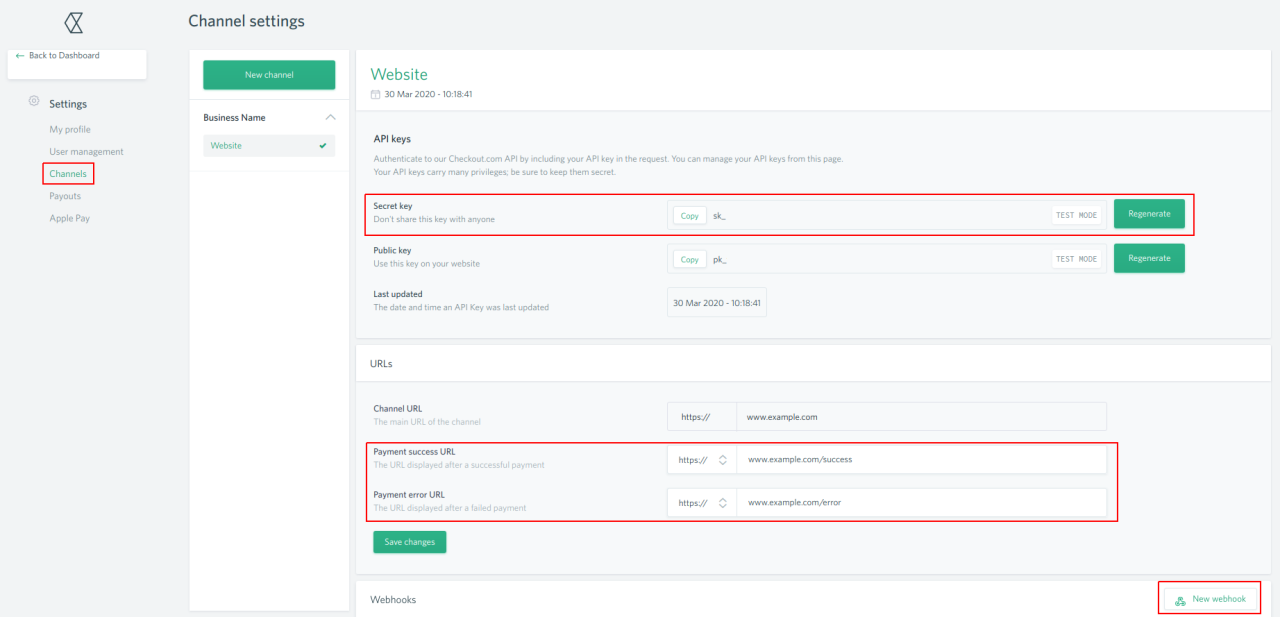
It is highly recommended to pass the success and error URL via the transaction request instead of configuring the URLs in the Checkout.com Dashboard (see Checkout.com Dashboard).
Environment
If the selected environment (see Available CheckoutCom Environments) is Production/Sandbox NAS/US enter the
Access Key ID (Hint: The Key should have the prefix _ack) and the
Processing Channel ID (Hint: The Channel should have the prefix pc_).
You may also Enable access_token caching for large processing volume to avoid running into checkout.com's rate limit.
Webhooks
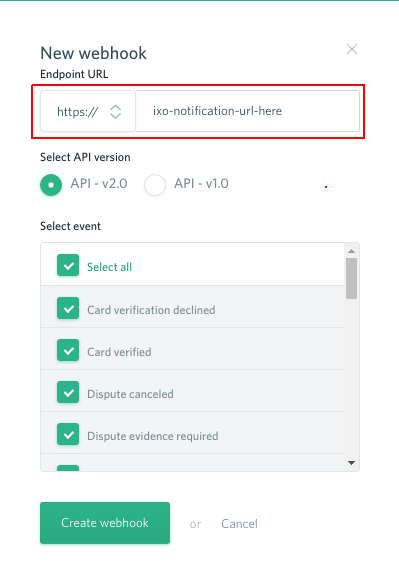
In order to receive status notifications about Transactions, you need to create webhooks:
- Click New Webhook (see Webhook Configuration Checkout.com Dashboard).
- As endpoint URL insert the Notification URL of the Connector (see Connector Detail Overview - CheckoutCom Creditcard - Vault Configuration)
- Select the Events you want to receive notifications about
- Click Create Webhook
Once created you find the webhook in the webhook list. In the details you are then able to copy the Webhook Secret (Private shared Key) (see Webhook Details).
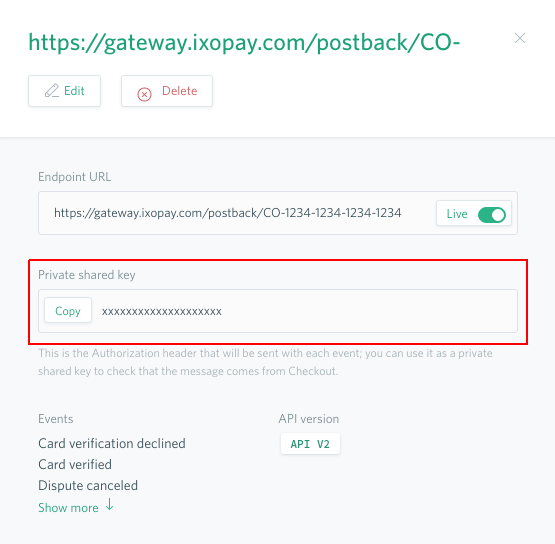
If Refund waits for webhook is enabled, the webhook must include the events payment_refunded and payment_refund_declined. Otherwise refunds remain pending.
Account Name Inquiry (ANI)
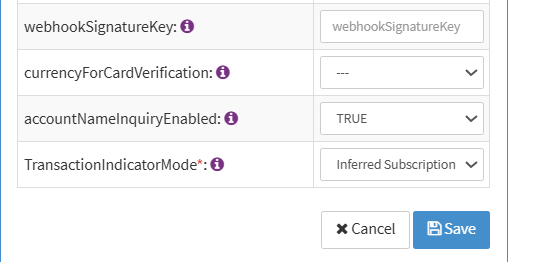
Account Name Inquiry verifies that the cardholder name entered matches the name on file with the issuing bank. Available for card verification (Register) transactions.
To enable it, turn on the connector setting Account Name Inquiry (ANI) in the connector configuration via the Config tab.
CheckoutCom iDeal
The payment method iDeal is integrated, but has not been actively used for an extended period, or its individual capabilities could not undergo thorough testing. Since using this payment method might require further development, we encourage you to reach out directly to your Customer Success Manager or contact your Support Team in theme IXOPAY Customer Experience Portal if you're interested in implementing this payment method.
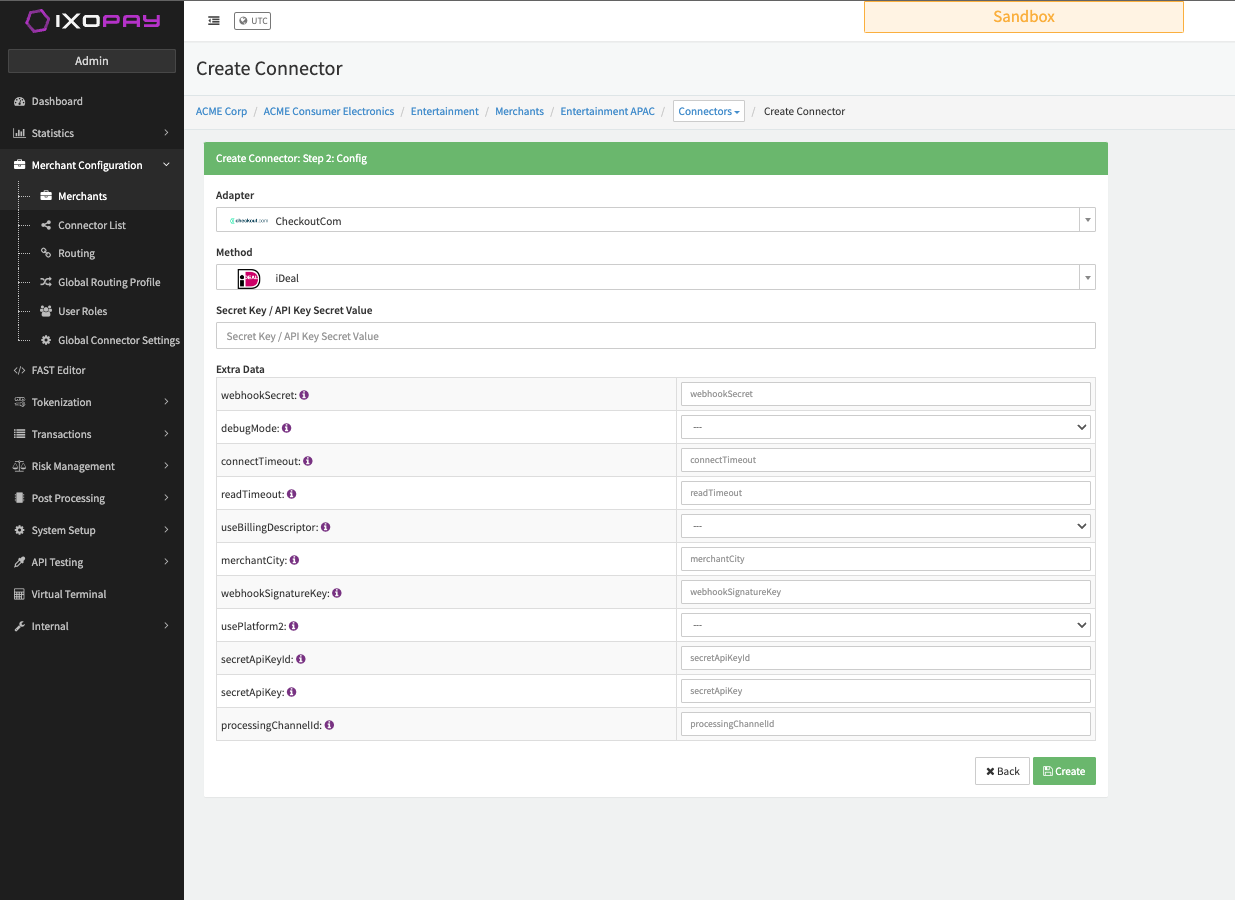
Configure the following parameters for the Connector (see Connector Config - CheckoutCom iDeal):
- Fill in the Secret Key/API Key Secret Value
- Fill in the Extra Data: webhookSecret
- Select the Extra Data: debugMode: true, false
- Fill in the Extra Data: connectTimeout (used for chargeback retrieval - if left empty the default value 60 will be used)
- Fill in the Extra Data: readTimeout (used for chargeback retrieval - if left empty the default value 60 will be used)
- Select the Extra Data: useBillingDescriptor: true, false
- Fill in the Extra Data: merchantCity
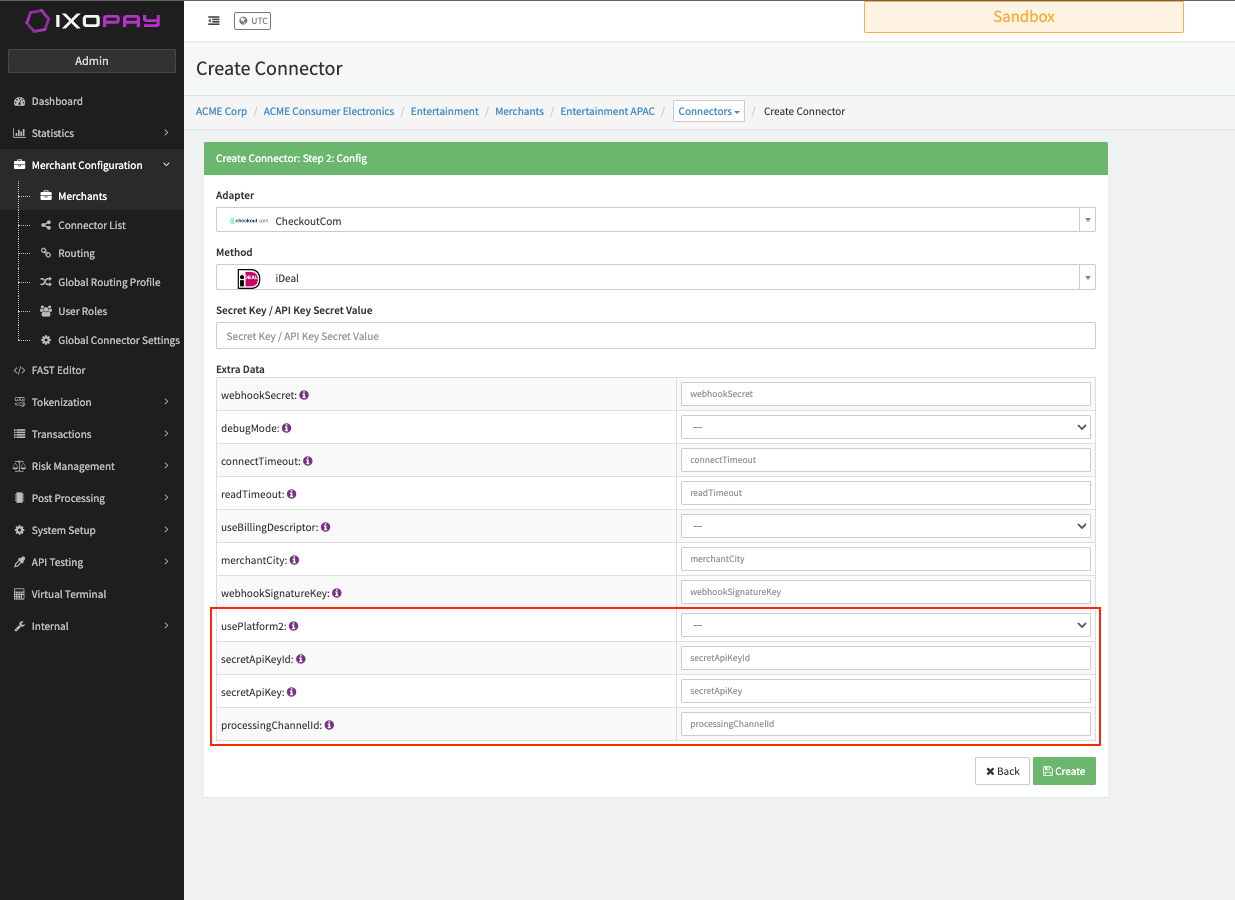
If you would like to use the new CheckoutCom Platform (platform 2 / NAS) you have to configure the rest parameters for the Connector (see Connector Config - CheckoutCom iDeal platform 2 / NAS):
- Select the Extra Data: usePlatform2 TRUE
- Fill in the Extra Data: secretApiKeyId provided by CheckoutCom (Oauth 2.0)
- Fill in the Extra Data: secretApiKey provided by CheckoutCom (Oauth 2.0)
- Fill in the Extra Data: processingChannelId The ID will be provided by CheckoutCom upon completion of your onboarding process on their side, though it is not mandatory in the Sandbox environment.
Data Fetcher Configuration
You have the option to configure Data Fetchers (see section Enable and Set Up Reconciliation on the Provider Level) either on Provider or on Connector Level, depending on which setup works better for your provider (see Edit Provider).
Provider Settlement
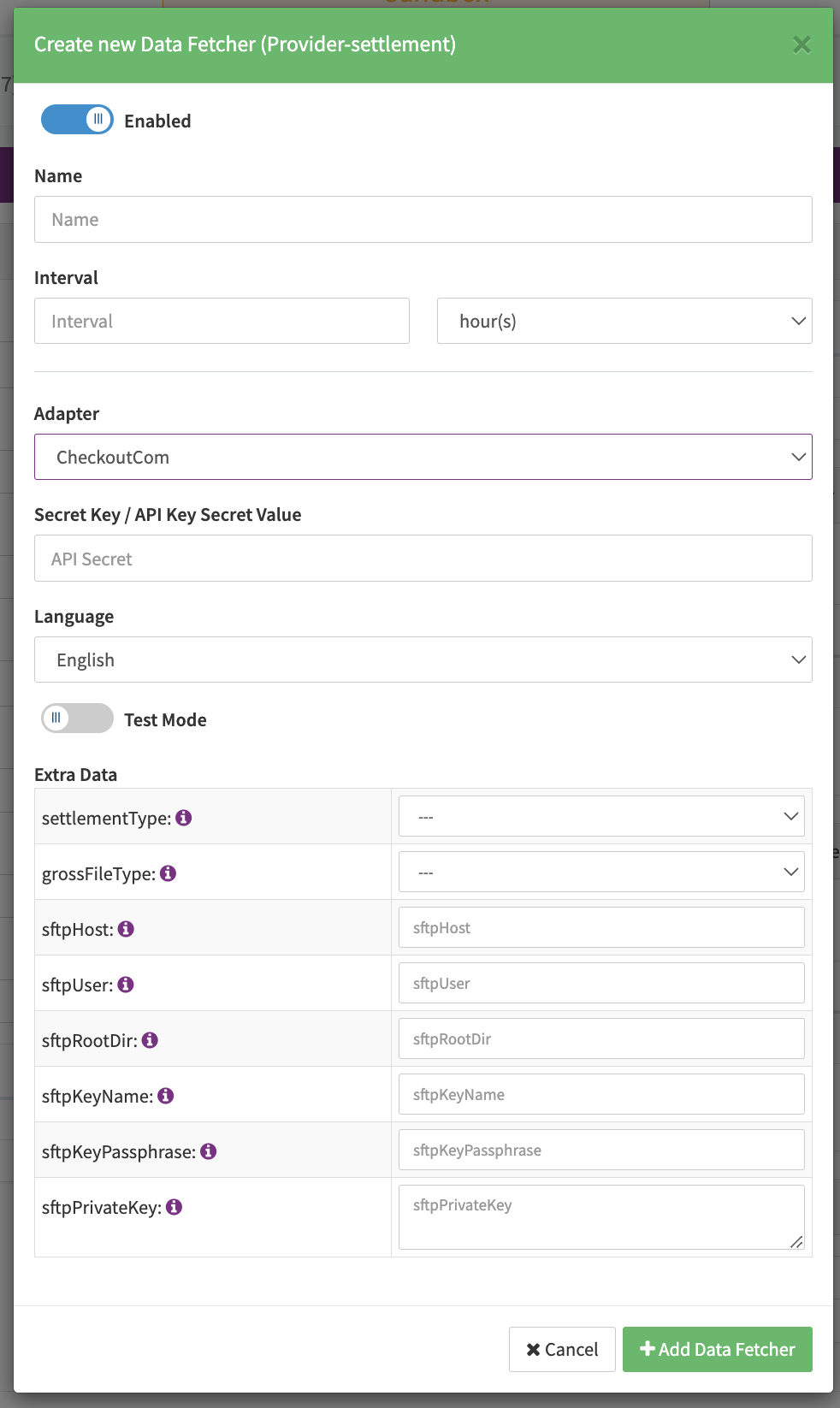
Configure the following Parameters for the Settlements Provider Data Fetcher to fetch Settlements (CSV format) either via API (https://api.checkout.com/reporting/statements for settlementType net) or SFTP (for settlementType gross or net via SFTP) (see Edit Provider Settlement Data Fetcher Provider Level):
- Fill in an optional Name for the data fetcher
- Fill in the expected Interval in which the Provider Settlement File should be fetched - days, hours
- Select the Adapter CheckoutCom
- Fill in the Secret Key / API Key Secret Value
- Enable Testmode — irrelevant for this adapter
- Select the Extra Data: settlementType
- net (Net via API) — retrieves net settlements via API; will be deducted from payout
- gross (Gross via SFTP) — retrieves gross settlements via SFTP file download
- net via SFTP (Net via SFTP) — retrieves net settlements via SFTP file download (no API retrieval)
- Select the optional Extra Data: grossFileType —
Payouts (default; searches for a file with regex:
/.\*financial-actions_ent\_.\*\\.csv$/), Fee report (includes parsing for fees; searches for a file with regex:/.\*(financial-actions\_ent.\*)\_(\\d{8})\_(\\d{8})\_.\*\\.csv$/) - Fill in the mandatory Extra Data: sftpHost
- Fill in the mandatory Extra Data: sftpUser
- Fill in the mandatory Extra Data: sftpRootDir
- Fill in the Extra Data: sftpKeyName
- Fill in the Extra Data: sftpKeyPassphrase
- Fill in the Extra Data: sftpPrivateKey
For settlement type "gross" a folder with name payouts is expected to be present in the SFTP server. Ensure SFTP credentials and paths are configured before using SFTP-based settlement types.
Settlement fields
Batch Number
The batch number is taken from the file name
Mapped Fields
We are mapping the following fields from the Provider settlement reports (Provider →IXOPAY platform):
| Provider | IXOPAY platform | default (if not set by Provider) |
|---|---|---|
| id | settlement reference id | none |
| from filename | settlement date | none |
| payout currency | settlement currency | none |
| payout currency amount | transaction fee | none |
| reference | settlement transaction id | none |
| action type | transaction type | none |
| breakdown type | transaction fee type | none |
| payout currency amount | settlement transaction fee amount | none |
| Fee Report (Fee data type mapping) | ||
| Scheme | Scheme | |
| SchemeIC | Interchange | |
| Blended | Normal | |
| Gateway Fee | Gateway | |
| Captured/Partial Capture | Markup | |
| Chargeback fee | Markup | |
| Chargeback | Markup | |
| Refund fee | Markup | |
| RR | Rolling reserve: deducted |
Reconciliation
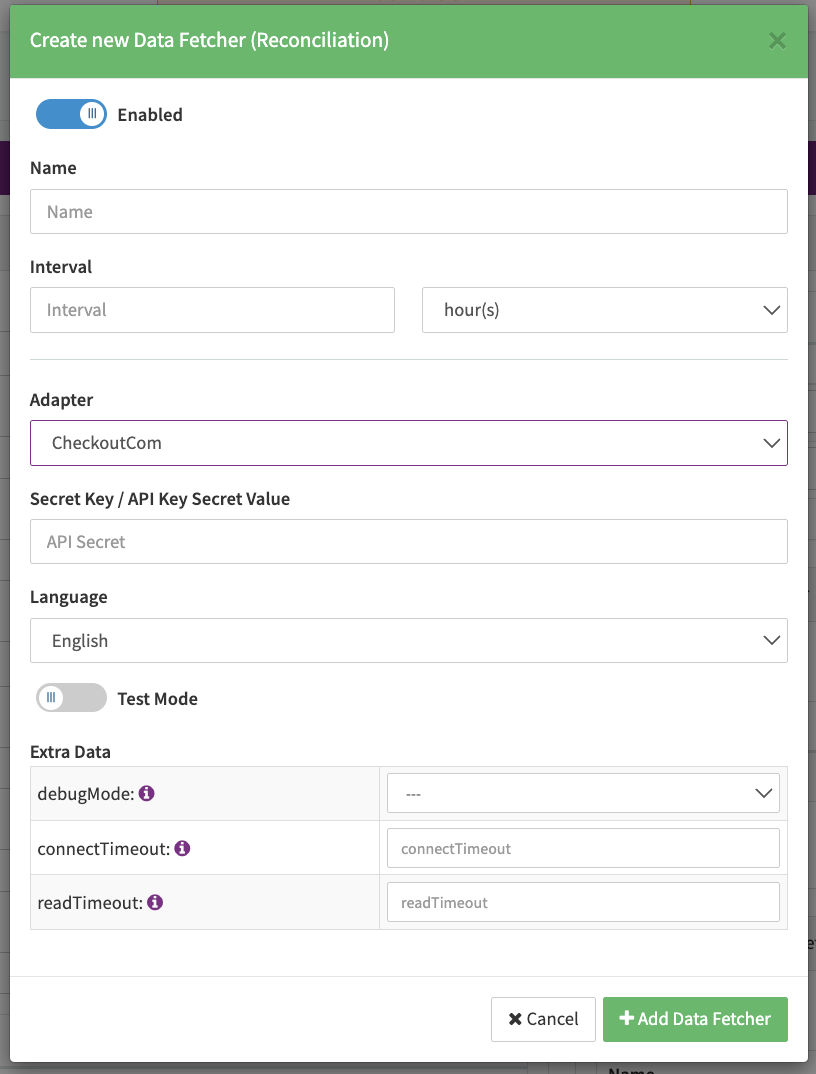
Configure the following Parameters for the Reconciliation Data Fetcher to fetch Reconciliation (see Reconciliation Data Fetcher Provider Level):
- Fill in an optional Name for the data fetcher
- Fill in the expected Interval in which the Reconciliation File should be fetched - days, hours
- Select the Adapter CheckoutCom
- Fill in the Secret Key / API Key Secret Value
- Enable Testmode
- Select the Extra Data: debugMode — true, false
- Fill in the Extra Data: connectTimeout
- Fill in the Extra Data: readTimeout: