Atom
Creditcard
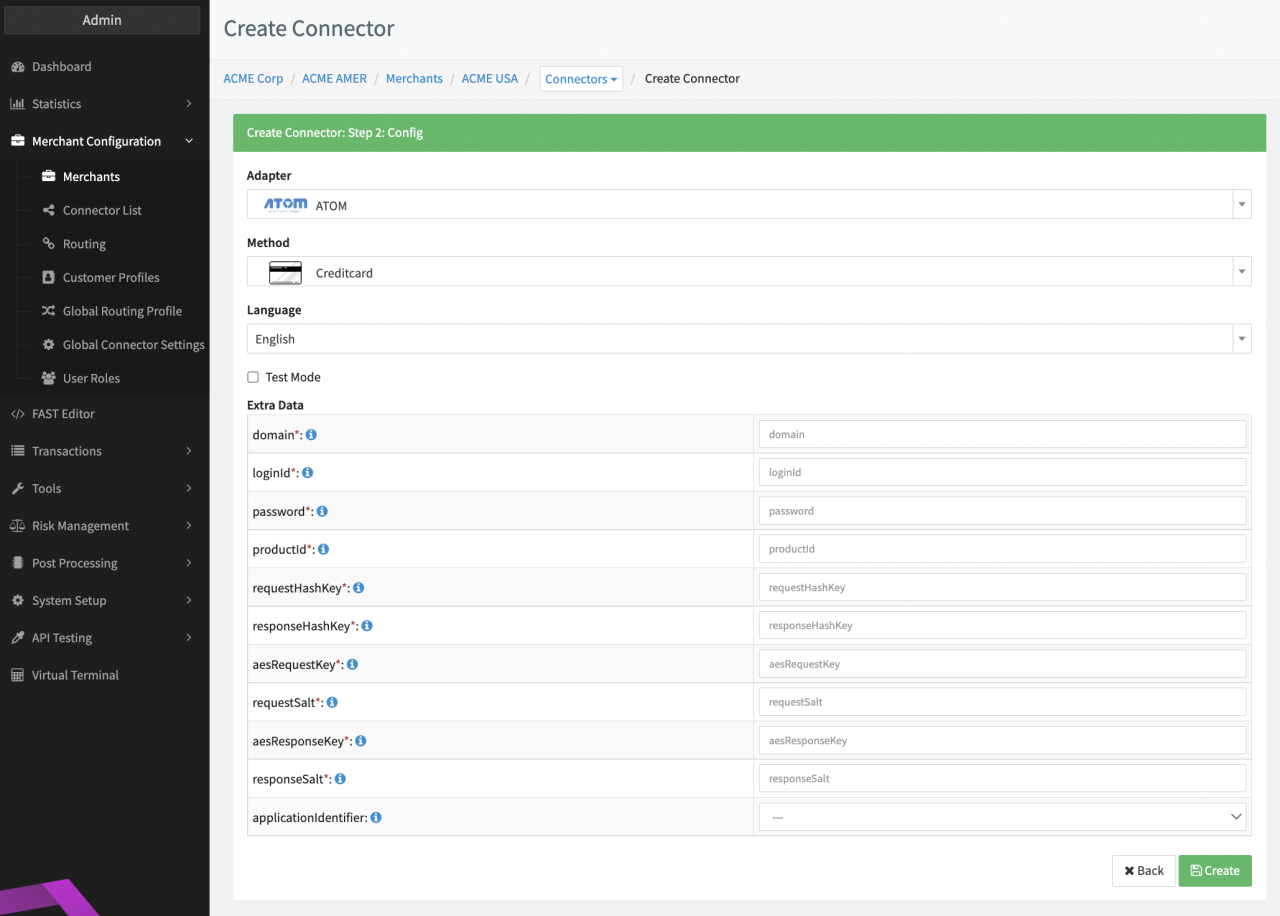
Configure the following parameters for the Connector (see Connector Configuration):
- Fill in the mandatory Extra Data: domain
- Fill in the mandatory Extra Data: loginId
- Fill in the mandatory Extra Data: password
- Fill in the mandatory Extra Data: productID
- Fill in the mandatory Extra Data: requestHashKey
- Fill in the mandatory Extra Data: responseHashKey
- Fill in the mandatory Extra Data: aesRequestKey
- Fill in the mandatory Extra Data: requestSalt
- Fill in the mandatory Extra Data: aesResponseKey
- Fill in the mandatory Extra Data: responseSalt
- Select the optional Extra Data: applicationIdentifier — CC (Creditcard), DC (Debitcard)
Additional information can be found in the Adapter-specific API Documentation
Data Fetcher Configuration
You have the option to configure Data Fetchers (see section Enable and Set Up Reconciliation on the Provider Level) either on Provider or on Connector Level, depending on which setup works better for your provider (see Edit Provider).
Provider Settlement
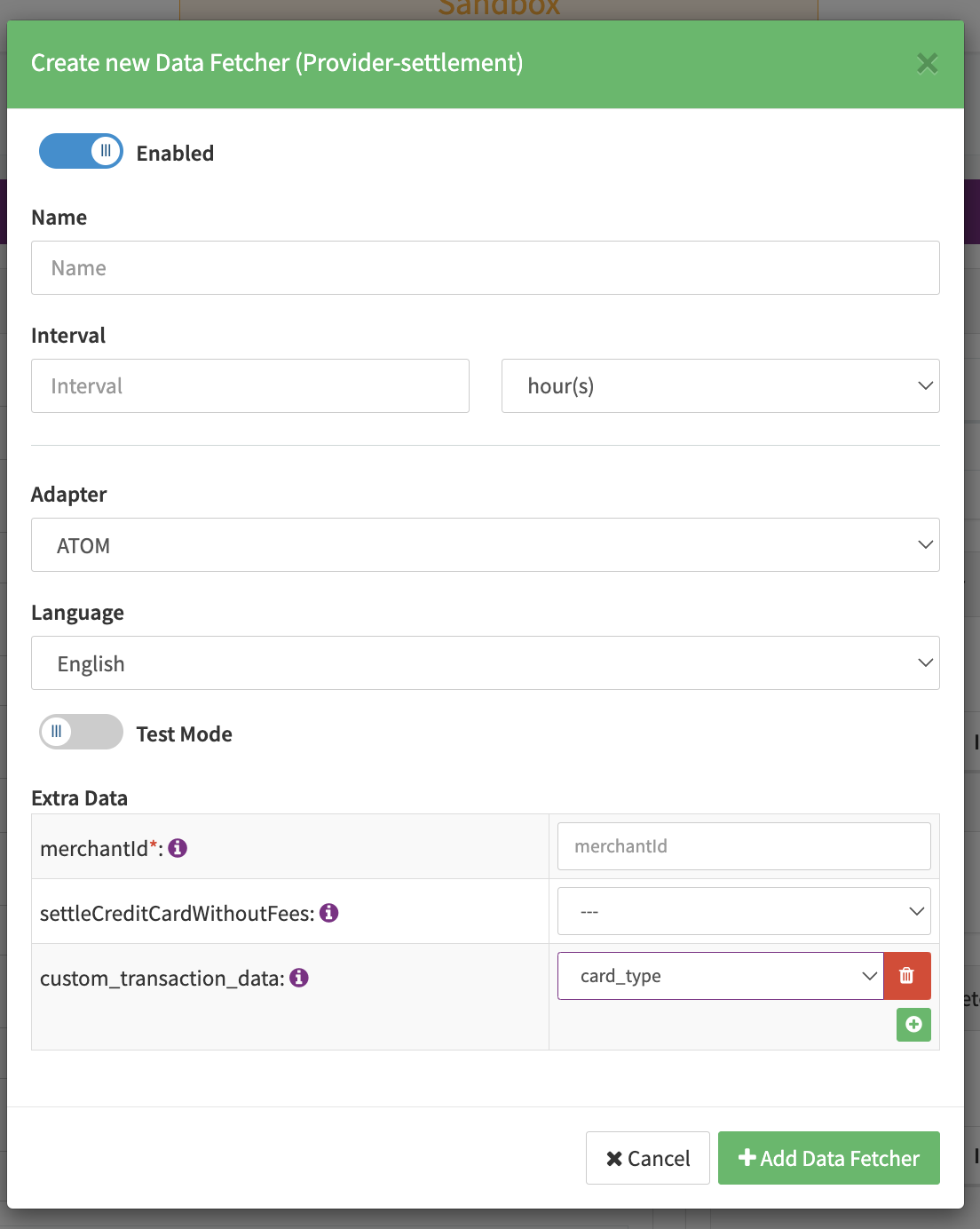
Configure the following Parameters for the Settlements Provider Data Fetcher to fetch Settlement (csv format) via an API (https://pgreports.atomtech.in/SettlementReport/generateReport) (see Edit Provider Settlement Data Fetcher Provider Level):
- Fill in the optional Name
- Fill in the expected Interval in which the Provider Settlement File should be fetched - days, hours
- Select the Adapter Atom
- Enable Testmode is irrelevant for this adapter
- Fill in the mandatory Extra Data: merchantId used for authentication
- Select the optional Extra Data: settleCreditCardWithoutFees: true, false; When set to true the settlement amount will be the "Net amount to be paid", when set to false (default) it will be the "Gross Txn Amount"
- Add in the optional Extra Data: custom_transaction_data: The only current option is to select the key called card_type. This will take the value from the discriminator column provided, and save it as extra transaction data to be able to export it later.
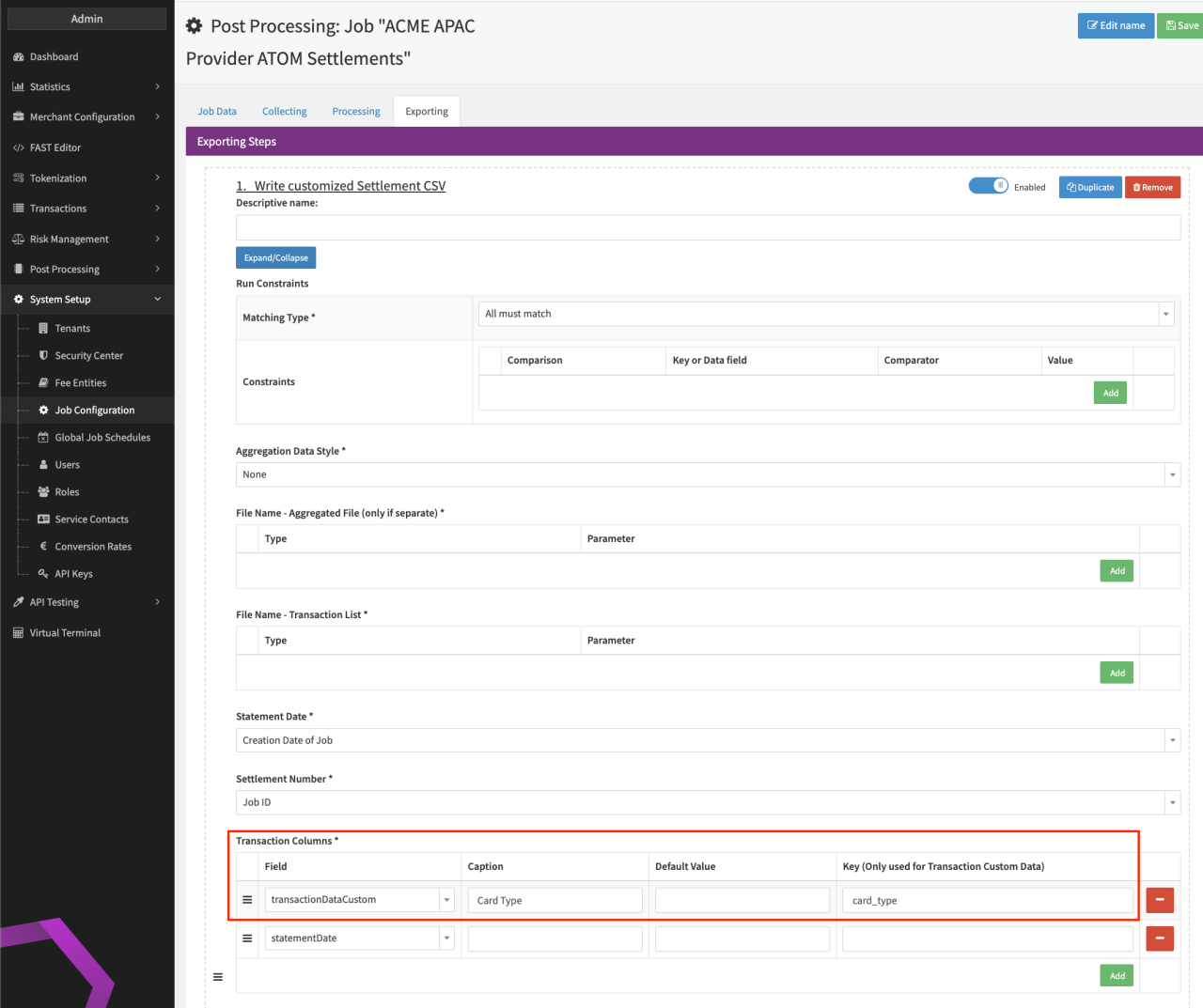
You can use the card_type key in the Post Processing Job Configuration Step Write customized Settlement CSV following these steps:
- Add the Extra Data: custom_transaction_data: card_type
- Navigate to the System Setup - Job Configuration section
- Add or select the Job Configuration you want to add the key card_type to (see Job Type Configuration)
- In the Exporting — Write customized Settlement CSV step, add an entry in the Transaction Columns with:
- Field: transactionDataCustom
- Caption: Title of the column shown in the customized Settlement CSV (e.g. "Card Type")
- Default: any default value to be shown in case key is empty
- Key: card_type
Settlement fields
Batch Number
The batch number is the settlement date.
Mapped Fields
We are mapping the following fields from the Provider settlement reports (Provider → IXOPAY platform):
| Provider | IXOPAY platform | default (if not set by Provider) |
|---|---|---|
| Settlement Date | transaction settlement date | none |
| Gross Txn Amount | transaction settlement amount | none |
| INR | transaction settlement currency | none |
| Atom Txn ID | reference Id | none |
| Merchant Txn ID | settlement transaction id | none |
| Net amount to be paid | net settlement amount | none |
| Txn Charges | transaction Markup fee amount | none |
| Service tax | transaction Scheme fee amount | none |
| Txn State | transaction type | none |
| Discriminator | transaction data | none |